


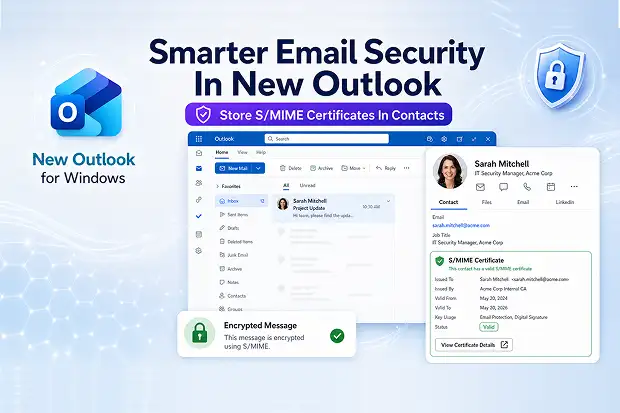
The new Outlook for Windows now lets you store S/MIME encryption certificates directly in your Contacts. This simple change makes encrypted email easier to use and helps you keep your secure communication consistent when you move from classic Outlook for Windows.
Outlook users and IT admins can benefit from stronger data protection without extra configuration steps. If your organization already relies on S/MIME, this feature helps you modernize the experience while preserving what already works well.
Glimpse on this New Outlook Update
With this update, the new Outlook for Windows supports saving recipients S/MIME public certificates as part of their contact information. Once a certificate is saved, you can use it to send encrypted messages to that person directly from new Outlook, without extra manual steps.
If you have been using classic Outlook for Windows, certificates that were stored in your Contacts there automatically become available in the new Outlook experience.
This continuity reduces friction during your transition and saves you from reconfiguring encryption settings.
To summarize:
- S/MIME public certificates are stored as part of your Outlook Contacts.
- Saved certificates are immediately usable for S/MIME encrypted email.
Existing certificates from classic Outlook carry over to new Outlook automatically.
Why This Matters For Secure Communication
S/MIME encryption helps you protect sensitive email content, which is crucial when you handle confidential or regulated information. By embedding certificate storage into Contacts, Outlook makes it much easier for you to use encryption in your everyday work, instead of treating it as a special or rare task.
If your organization already uses S/MIME, this update gives you a smoother, more intuitive experience in the new Outlook for Windows. Because no extra admin setup is required, your security teams can focus on guidance and policy while you focus on actually sending secure messages.
- Better usability for encrypted email in daily workflows.
- Lower chance of sending sensitive data without proper protection.
- A consistent S/MIME experience across classic and new Outlook.
Microsoft’s documentation reference for S/MIME setup in your tenant(if it does not previously exist):
End user instructions for Outlook once S/MIME is enabled: Set up Outlook to use S/MIME encryption.
Overview and concepts: S/MIME for message signing and encryption in Exchange Online
Step by step admin guide: Configure S/MIME in Exchange Online
Rollout Timeline And Availability
This feature is rolling out globally as part of the new Outlook for Windows. It is being delivered for both worldwide customers and GCC environments on slightly different schedules.
- General Availability worldwide starts in late May 2026 and is expected to complete in late May 2026.
- General Availability for GCC starts in early June 2026 and is expected to complete by late June 2026.
Because the capability is available by default, you will see it appear automatically as the rollout reaches your tenant. There are no extra licenses or explicit enablement steps mentioned for this change, so you can simply start using it when it shows up.
Follow this Microsoft RoadMap Link for current updates on this feature.
Who Should Pay Attention
This update is particularly important if you use the new Outlook for Windows and your organization relies on S/MIME encryption for sensitive communication. If you handle confidential customer data, financial details, health information or internal strategy, this feature can help you protect that content more reliably.
It also matters if you are planning or already going through a move from classic Outlook to the new Outlook. Because your existing certificates carry over, you can keep your secure conversations going without rebuilding your setup from scratch.
- People who regularly send sensitive or confidential emails.
- Users and admins involved in migrations from classic Outlook.
- Security conscious professionals who depend on S/MIME encryption.
How The Feature Works In Outlook
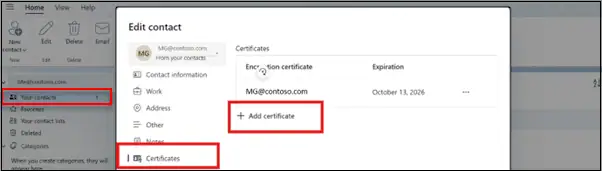
Here is a quick look at how users can add an S/MIME certificate to a contact in new Outlook.
- Open a contact in the new Outlook.
- Go to the Certificates area and select ‘Add certificate’.

- Save the S/MIME public certificate along with the contact details.
Note
If you previously saved S/MIME certificates in Contacts in classic Outlook, those certificates automatically appear in new Outlook. This means you can continue encrypted conversations without trying to remember or reimport each certificate.
Also, know how to Send S/MIME or Microsoft Purview encrypted emails in Outlook.
What Admins Need To Do
If you also have admin responsibilities, you do not need to make configuration changes to turn on this feature. Classic Outlook already allowed certificates in Contacts, and this update simply brings that familiar behavior into the new Outlook for Windows.
Your effort is better spent on communication, guidance and support instead of technical switches. When your users know what is changing and where to find the options, they can get value from the feature quickly and with fewer helpdesk calls.
- No admin toggle or policy change is required to enable it.
- The feature is available by default once it rolls out to your tenant.
- Users who stay on classic Outlook alone will not be affected.
Compliance And Data Handling Considerations
From a compliance and privacy perspective, this update does not introduce a new type of customer data. Classic Outlook already supported storing S/MIME public certificates in contacts, and the new Outlook is now aligning with that capability.
The main difference is how easily you can access and use existing certificate data across Outlook experiences. Certificates stored in classic Outlook Contacts are now accessible in new Outlook while continuing to live as part of your contact information.
- No new categories of personal data are created by this feature.
- S/MIME public certificates remain part of Outlook contact data.
- Data processing follows existing Outlook practices, now extended to the new client.
Add Secure Email To Your Compliance Training
When people see that S/MIME directly supports these real cases, they are more likely to use it consistently instead of treating it as optional.
If your organization runs regular security or compliance awareness programs, this is a great time to weave in secure email practices.
You can show how storing and using S/MIME certificates in Contacts supports your policies for protecting sensitive and regulated data.
Showcase Practical scenarios here, such as sending customer information, contract details or internal financial updates.
Key Takeaways For IT And Security Teams
The ability to store S/MIME certificates in Contacts in the new Outlook for Windows extends a familiar classic Outlook feature into the modern client you are adopting. It makes encrypted email simpler, supports smoother migrations and reduces admin overhead because the capability is enabled by default.
By pairing this feature with clear communication and light training, you can strengthen secure email practices without adding complexity. Security, compliance and productivity all benefit when encryption blends naturally into the way you already use email every day.

















 Migrate
 Manage
 Migrate Microsoft 365








