


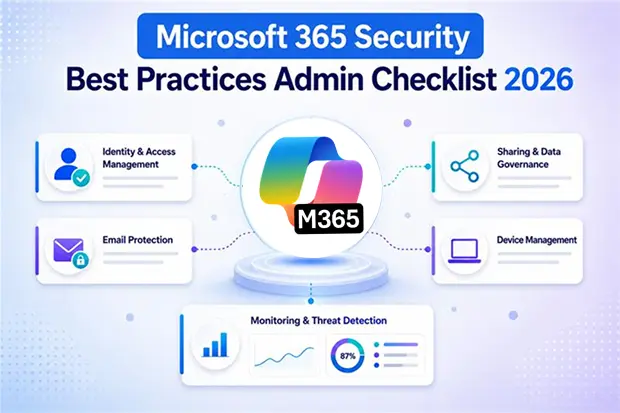
Microsoft 365 is now where you read email, store files, chat in Teams, and manage projects every day. That same convenience makes your tenant a prime target for phishing, account takeover, and silent data theft.
When attackers look at your environment, they are not thinking about firewalls first.
They are looking for weak identities, permissive sharing, and misconfigured Microsoft 365 security features they can quietly exploit.
A clear, repeatable admin checklist helps you move from “we turned on a few settings” to a consistent, auditable security posture across Microsoft 365 and Office 365.
Step 1: Secure Identities And Admin Access
In Microsoft 365, identity has effectively become your perimeter. If someone gains control of a single global admin account, they can work around many other protections you rely on.
Here is how you can secure identities and admin access:
- Turn on multi factor authentication for all users and treat it as mandatory for every admin account.
- Block legacy authentication protocols like POP, IMAP, and basic SMTP that do not support modern MFA.
- Use Conditional Access so sensitive apps only open from compliant devices, trusted locations, or low risk sign in sessions.
- Apply least privilege and use role-based access control instead of handing out global admin by default.
- Create dedicated admin accounts and avoid using them for daily email and Teams conversations.
- Keep at least two emergency break glass accounts with strong protection and store them securely.
Build these recurring checks into your Microsoft 365 admin routine:
- Review who has high privilege roles and remove global admin access that is no longer needed.
- Monitor risky sign ins, unfamiliar locations, and sign ins that occur from two far apart locations within a time window where real travel would not be possible, directly in Microsoft Entra ID sign in logs.
Step 2: Secure Email With Microsoft 365 Email Security Essentials
Microsoft 365 email essentials with security – is a combination of Microsoft 365 email security features such as Defender for Office 365, phishing protection, safe links, and encryption, designed to secure mailboxes end to end.
Every day a lot of risk enters your tenant through email alone. Even if you already use Microsoft 365 email essentials with security, you might still have gaps because of default or outdated policies.
You can focus your email checklist on these o365 security best practices:
- Enable Microsoft Defender for Office 365 to protect against phishing, business email compromise, and malware.
- Configure anti phishing, anti-spam, and anti-malware policies and revisit thresholds as your threat landscape changes.
- Turn on Safe Links and Safe Attachments so suspicious URLs and files are inspected before users open them.
- Set up SPF (Sender Policy Framework) so receiving servers can check that only your approved servers send email for your domain, reducing spoofed messages.
- Configure DKIM (DomainKeys Identified Mail) so your emails are digitally signed, letting recipients verify they really came from you and were not altered.
- Publish a DMARC (Domain based Message Authentication, Reporting and Conformance) policy so receivers know whether to allow, quarantine, or reject messages that fail SPF or DKIM checks and so you get spoofing reports.
- Enforce encryption for email that contains financial, HR, legal, or other sensitive content.
Inbox Pen Test Week
You can pick one week each quarter where you promote a simple rule to everyone.
Ask them to forward every suspicious message to a dedicated mailbox and then host a short live review session to show which messages were malicious, how Defender for Office 365 handled them, and what users should notice next time.
Learn more:
Step 3: Lock Down Sharing, Teams, SharePoint And OneDrive
Once you secure identities and email, sharing is the next big risk area. Without clear guardrails, external sharing in Teams, SharePoint, and OneDrive can easily turn into a data leak problem.
You can include these collaboration controls in your Microsoft 365 security features checklist:
- Configure tenant level sharing policies for SharePoint, OneDrive, and Microsoft Teams and start with the minimum external access you genuinely need.
- Disable anonymous sharing links by default and use organization-only or specific-people links instead.
- Review guest access in Teams regularly and remove guests who no longer work with your teams.
- Use sensitivity labels to classify and encrypt confidential documents with restrictions on viewing, printing, and forwarding.
- Turn on data loss prevention policies to detect and block sharing of financial data, personal information, and other regulated content.
How to secure Office 365 collaboration is not a one-time project you check off.
You need to align your sharing and governance model with compliance, data residency, and customer expectations and then revisit those decisions as your business changes.
Sharing Health Scorecard
You can prepare a simple monthly “sharing health” snapshot that you share with business owners.
Show the number of external users, volume of external sharing, and count of high-risk sharing events, and highlight one or two actions they can take that month to drive those risks down.
Learn more:
Step 4: Protect Devices And Data Everywhere
Every device that connects to your tenant is a potential entry point if it is not well managed. Strong o365 security best practices stretch beyond the cloud to the laptops, mobiles, and browsers you use every day.
You can build this device and data protection layer with a few concrete actions:
- Use Microsoft Intune or a similar MDM to enforce encryption, OS baselines, and screen lock policies on enrolled devices.
- Enforce compliant or Microsoft Entra joined devices before users can open sensitive apps, using Conditional Access.
- Integrate endpoint protection with Microsoft 365 Defender so alerts from identity, email, and endpoints are correlated.
- Extend your data loss prevention policies to Exchange, SharePoint, OneDrive, and Teams so risky data movement is flagged or blocked.
- Configure session timeouts and access restrictions for unmanaged devices, such as web only or limited view access.
By tightening these controls, you make life much harder for attackers who depend on weak or unmanaged devices to move laterally after an initial compromise.
Learn more:
Step 5: Monitor, Audit, And Use Secure Score
Even when you start from a solid configuration, things drift over time as you add users, apps, and projects. That is why Microsoft 365 security best practices always include continuous monitoring and governance, not just a one-time setup.
Here are practical checks you can schedule:
- Turn on the Unified Audit Log so you capture user and admin actions across Exchange, SharePoint, OneDrive, and identity.
- Review security alerts and push critical logs into a SIEM if you have one in place.
- Use Microsoft Secure Score and Identity Secure Score to track your posture, prioritize actions, and show progress to leadership.
- Maintain a documented incident response plan for account compromise, ransomware, and data loss and make sure key people know their role.
- Schedule quarterly reviews of your office 365 security best practice checklist to confirm it still matches how your business operates.
Final Thoughts
Microsoft 365 security is not about turning on a few settings and moving on. It is about building the right habits around identity, email, sharing, devices, and ongoing monitoring so your environment stays secure as your business evolves.
A simple admin checklist gives you a practical way to reduce risk, stay consistent, and make better use of the Microsoft 365 security features already available in your tenant.

















 Migrate
 Manage
 Migrate Microsoft 365








