


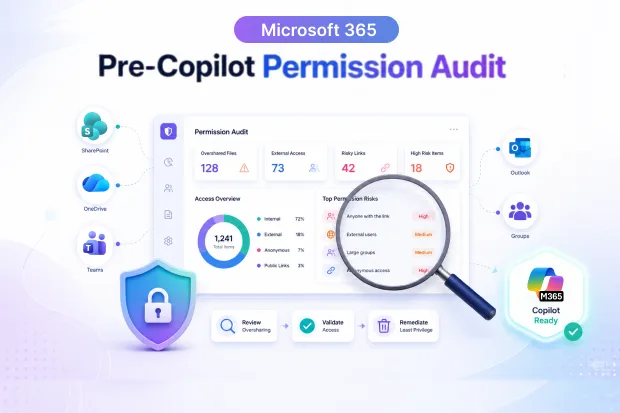
Microsoft 365 Copilot can help employees find answers faster, summarize documents, and work more productively across SharePoint, OneDrive, Teams, Outlook, and other Microsoft 365 apps. But before turning it on, every M365 admin, SharePoint admin, and security lead should ask one important question: Do the right people have access to the right content — and nothing more?
Copilot does not create new permissions or break into private files. It only uses the access that already exists in your Microsoft 365 tenant. That sounds safe, but in many organizations, existing permissions are already messy. According to the draft, EPC Group’s enterprise tenant assessments and Microsoft’s Copilot deployment guidance indicate that 70–90% of enterprise Microsoft 365 environments have significant oversharing that should be cleaned up before Copilot licenses are assigned.
That is why pre-Copilot permission remediation has become one of the biggest Microsoft 365 governance workstreams of 2025–2026. Copilot is not the problem. Oversharing is the problem. Copilot simply makes it easier to see.
- Copilot Is Like the Most Curious Employee in Your Company
- The Real Problem: Years of Casual Sharing
- The 4-Step Pre-Copilot Permission Remediation Plan
- Microsoft Tools Help Find the Problem
- The Native Tool Gap: Finding Is Easier Than Fixing
- Where an Apps4.Pro Expert Conversation Can Help
- Your 90-Day Copilot Readiness Checklist
- Final Thought: Clean House Before You Invite Copilot In
Copilot Is Like the Most Curious Employee in Your Company
Think of SharePoint as a large office building. Over the years, employees, contractors, teams, and departments have all received access to different rooms. Some access was intentional. Some was temporary. Some was shared too broadly and never reviewed again.
For years, this may not have caused visible problems because most people never tried to open every door. Then Copilot arrives. When a user asks a question, Copilot searches across the content that user is allowed to access. If that person has accidental access to an HR folder, finance spreadsheet, legal document, board file, or acquisition plan, Copilot may surface that information in a simple answer.
That is why permission cleanup is not just a technical task. It is a Copilot readiness requirement.
The Real Problem: Years of Casual Sharing
Most Microsoft 365 tenants do not become risky overnight. The problem usually builds slowly. A team shares a file quickly, a project site is opened to more users, a contractor is added and never removed, a sharing link is created and never expired, or a site owner grants direct access instead of using a group.
After three or more years of Microsoft 365 usage, these small decisions create permission sprawl. This often includes broken inheritance, individual-user permissions, organization-wide sharing links, “Everyone” or “Everyone except external users” permissions, stale guest access, and sensitive content stored in broadly accessible sites.
Before Copilot, these issues were often invisible. After Copilot, they can become visible very quickly. A user may not know where a sensitive file is stored, but they can ask Copilot a natural-language question and receive an answer based on content they already have access to.
The Permission That Sounds Safe but Often Isn’t
One of the most misunderstood permission groups in Microsoft 365 is “Everyone except external users.” At first, it sounds safe because people outside the organization cannot access the content. But it also means every licensed internal user in the tenant may be able to access that content.
Sometimes, this is correct. An employee handbook, holiday calendar, company policy page, or cafeteria menu may be intended for everyone. But many times, this permission is added accidentally or left in place because nobody reviewed it.
That can create serious exposure. A site using “Everyone except external users” may contain HR salary spreadsheets, employee performance documents, M&A planning files, board meeting materials, customer contracts, legal documents, internal strategy decks, or finance reports. With Copilot, users do not need to browse SharePoint to find these files. If they already have access, Copilot may include that information in the response.
Copilot Does Not Leak Data — It Reveals Existing Oversharing
This is the most important point: Copilot does not create a new security hole. It respects Microsoft 365 permissions. But if those permissions are too broad, outdated, or poorly managed, Copilot can expose the problem faster than before.
That is why organizations should not treat Copilot rollout as only a licensing project. It is also a permission governance project. Before assigning Copilot licenses, organizations should audit SharePoint sites, OneDrive sharing, Teams channels, Microsoft 365 Groups, external guest access, organization-wide links, and sensitive libraries.
If this step is skipped, the Copilot pilot can quickly become a trust issue. Users may start seeing information they should not see, security teams may lose confidence, and business leaders may pause the rollout. The means that EPC Group’s field data shows that without proper remediation, 40–60% of Copilot pilots may be abandoned within 90 days.
That failure is usually not because Copilot does not work. It is because the tenant was not ready.
Why This Cleanup Is Bigger Than Most Teams Expect
Many organizations underestimate the size of the work. Permission cleanup is not just about finding one risky site and fixing it. Large enterprises may have hundreds or thousands of SharePoint sites, Teams, OneDrive locations, and document libraries. Each one may have unique permissions, sharing links, guest users, and business owners.
That is why pre-Copilot permission remediation can become a major workstream. For a typical 1,000-user Copilot deployment, it estimates that governance preparation can require a budget of $250K–$400K, depending on tenant complexity, number of sites, and remediation scope.
The challenge is not just identifying oversharing. The harder part is deciding what to do with it. Some broad access is legitimate, some is accidental, some needs immediate remediation, and some needs business owner approval. That means cleanup must be structured.
The 4-Step Pre-Copilot Permission Remediation Plan
A safe Copilot rollout needs a clear process. Here is a simple four-step framework aligned with EPC Group’s remediation approach.
Step 1: Audit — Find Where the Risk Is
Start by scanning your Microsoft 365 environment. Use SharePoint Advanced Management, Permission State Reports, Data Access Governance insights, and related tools to identify high-risk areas.
Look for sites with broad permissions, “Everyone” or “Everyone except external users” access, broken inheritance, anonymous or organization-wide sharing links, stale guest users, risky OneDrive sharing, and Teams with poorly managed channel access.
The goal is not to clean everything at once. The goal is to identify the highest-risk sites first, especially the most active sites, sensitive departments, and business-critical content.
Step 2: Classify — Decide What Should Stay Open and What Should Not
Not every broadly shared site is a problem. Some content is meant to be available to the entire organization. The problem is when sensitive content is shared broadly without a real business reason.
Each site should be reviewed and classified based on sensitivity and purpose. For example, some sites may contain public internal content, while others may be department-level, confidential, highly sensitive, external collaboration, or executive-only content.
Site owners should be involved in this process because IT can identify risky permissions, but site owners usually understand the business context. This helps avoid locking down useful company-wide content unnecessarily or leaving sensitive content exposed because nobody reviewed it.
Step 3: Remove Broad Sharing — Clean Up the Access That Should Not Exist
Once risky sites are identified and classified, remediation can begin. This may include removing “Everyone” or “Everyone except external users” permissions where they are not needed, expiring old sharing links, removing stale guests, revoking unnecessary individual-user permissions, and replacing direct access with group-based access.
This step should not be handled as a blind bulk delete. Some broad sharing is valid, and some is not. The right approach is site-by-site decision-making supported by proper planning, clear ownership, and careful change control.
Step 4: Enforce Least Privilege — Build a Safer Permission Model
Cleanup is only the beginning. The long-term goal is to prevent the same problem from returning by moving toward least-privilege access. In simple terms, users should only have the access they need to do their jobs.
A stronger model uses Microsoft 365 Groups or security groups instead of individual permissions, clear site ownership, regular access reviews, sensitivity labels, restricted content discovery for sensitive sites, expiry policies for sharing links, and governance rules for new Teams and SharePoint sites.
This gives Copilot a safer foundation and makes Microsoft 365 easier to manage overall.
Microsoft Tools Help Find the Problem
Microsoft provides useful tools for Copilot readiness. SharePoint Advanced Management can help identify permission risks through capabilities such as Permission State Reports, Data Access Governance insights, Site Access Reviews, and “Everyone except external users” insights.
These tools help admins understand which sites are overshared, which sites have broad permissions, which sites have risky sharing links, which site owners need to review access, and which content may need restricted discovery.
This is a major step forward, but there is still a gap. Microsoft tools can help identify oversharing, but they do not always make large-scale remediation simple.
The Native Tool Gap: Finding Is Easier Than Fixing
For many organizations, the hard part begins after the report is generated. If a report shows hundreds or thousands of risky sites, someone still has to decide what should happen next.
That may involve reviewing each site, contacting site owners, confirming whether broad access is legitimate, changing permissions carefully, cleaning old links, removing guests, applying restricted discovery where needed, documenting decisions, and validating that the site is safer for Copilot.
This is why remediation can become expensive and time-consuming. Manual cleanup across a large tenant can take months. PowerShell can help, but custom scripts often require careful testing, governance approval, and ongoing maintenance. Organizations need more than reports. They need a practical remediation plan.
Where an Apps4.Pro Expert Conversation Can Help
SharePoint Advanced Management can help identify where oversharing exists. But after the reports are generated, many organizations face a bigger question: What should we fix first, and how should we approach the cleanup without disrupting business users?
If hundreds or thousands of SharePoint sites show broad permissions, stale guest access, or risky sharing links, remediation can quickly become complex. This is where a discussion with an Apps4.Pro expert can help.
Apps4.Pro experts can help your team understand the audit findings, review the level of risk, and plan a practical Copilot readiness approach based on your Microsoft 365 environment. The conversation can help you prioritize high-risk sites, decide which broad sharing should be reviewed, involve site owners, plan least-privilege access, estimate remediation effort, and avoid turning Copilot readiness into an unplanned emergency project.
The goal is not just to find oversharing. The goal is to understand the safest and most practical way to address it before Copilot is widely used.
Your 90-Day Copilot Readiness Checklist
If your organization plans to roll out Copilot in the next 90 days, start with your most active and sensitive areas. Run permission reports on your top SharePoint sites, identify “Everyone” and “Everyone except external users” access, review guest users, check OneDrive sharing defaults, and validate Teams and channel access.
Next, classify sites by sensitivity and ask site owners to confirm whether broad access is legitimate or accidental. Review risky permissions carefully, especially stale links, unnecessary direct permissions, and organization-wide access. Where possible, replace direct permissions with Microsoft 365 Groups or security groups so access becomes easier to manage over time.
If your site count is high and remediation planning feels too large, consider discussing your Copilot readiness findings with Apps4.Pro experts. They can help you review the risk, prioritize cleanup, and plan a practical remediation approach before large-scale permission changes begin.
Final Thought: Clean House Before You Invite Copilot In
The organizations that succeed with Copilot are not just the ones that deploy fastest. They are the ones that prepare properly.
Copilot can transform productivity, but it can also reveal years of hidden permission problems. If your Microsoft 365 tenant has oversharing, Copilot will not hide it. It may surface it.
That is why the smartest Copilot strategy starts before the first license is assigned. Audit your permissions, classify your sites, review broad sharing, involve site owners, move toward least privilege, and get expert guidance where the cleanup is too large or complex to manage casually.
Because Copilot readiness is not only about enabling AI. It is about making sure the right people can access the right information before Copilot helps them find it.

















 Migrate
 Manage
 Migrate Microsoft 365








