


Introduction:
A Microsoft 365 breach often begins with an account that holds more access than is necessary, rather than with a highly sophisticated attack.
This is why least privilege access is a central concept in modern security. When every user, admin, and application has only the permissions required for their role, it becomes significantly harder for a single compromised sign-in to result in a major security incident.
The least privilege access model is straightforward in principle but has strong impact in practice. It helps protect identities, reduce unnecessary permissions, and establish a more robust foundation for Microsoft 365 security and governance.
What Is Least Privilege Access?
Least privilege is the practice of giving users and groups only the minimum level of access required to do their work. It avoids extra permissions that are not tied to a real task or business need.
In Microsoft 365, that means access should be intentional, limited, and reviewed regularly. Instead of assigning broad permissions by default, access should match the exact responsibility of the person, admin, or application involved.
Least privilege is also one of the key principles in Microsoft’s Zero Trust security model. In that model, access is granted carefully, verified continuously, and kept as narrow as possible.
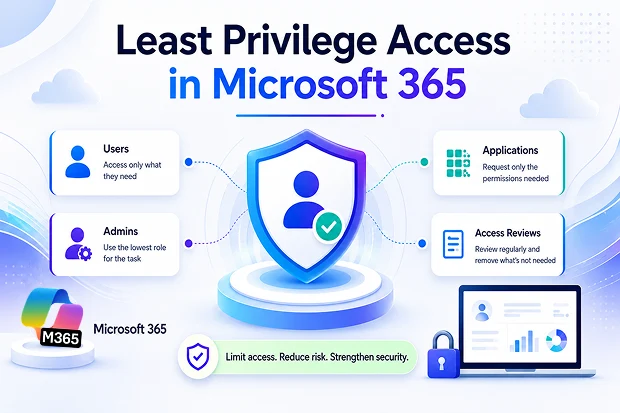
- Users should get access only to the apps, files, and resources needed for their role.
- Admins should use the lowest role that can complete a task.
- Apps should request only the permissions they genuinely require.
- Access should be reviewed and removed when it is no longer needed.
Permission Check:
If a normal user account or admin account was compromised today, how much of your Microsoft 365 environment could it reach? That question alone can reveal hidden permission risks inside many organizations.
Why Least Privilege Access Matters in Microsoft 365
Microsoft 365 connects identities, collaboration tools, files, mailboxes, administration, and business data across the organization. Because everything is interconnected, excessive permissions can create serious security exposure.
The least privilege access model helps reduce that risk. It limits how far an attacker can move, improves control over administrative access, and supports cleaner governance across the tenant. It also makes day-to-day operations more manageable.
- It reduces the blast radius of compromised accounts.
- It supports better governance by aligning access with real job responsibilities.
- It lowers the number of standing privileged accounts by using temporary elevation when needed.
- It creates a cleaner foundation for audits, reviews, and compliance discussions.
Quick Reality Check:
Take a look at your current admin accounts. If several people still use broad roles for routine work, there is a strong chance your environment has more privilege than it actually needs.
How to Implement Least Privilege Access in Microsoft 365
Least privilege access is not something that gets fixed in one day. Applying least privileges across Microsoft 365 is less about flipping a single setting and more about a consistent habit that is built step by step across identities, roles, apps, and governance processes. Done well, enforcing least privileges becomes a default way of working across the tenant rather than a one-time project.
1. Use the Least Privileged Role for Each Task
Microsoft provides guidance on the least privileged roles for different tasks in Microsoft Entra ID. That means teams do not need to rely on Global Administrator for every administrative activity.
Choosing the right role for the right task is one of the fastest ways to reduce unnecessary privilege. It also makes role assignments easier to justify during reviews and audits.
For example, an admin who only resets passwords may need Password Administrator, not Global Administrator. A team managing mailboxes may need Exchange Administrator. A user managing SharePoint settings may need SharePoint Administrator. Someone who only needs to view reports or security information may need Reports Reader or Security Reader instead of a broader admin role.
2. Reduce Standing Admin Access
Permanent elevated access creates avoidable risk. Microsoft recommends using Privileged Identity Management (PIM) so privileged roles can be activated only when needed and for a limited time, with that access removed automatically when the window expires.
This just-in-time model gives admins the access they need for a task without leaving powerful permissions active all day. It is a practical way to strengthen both security and governance.
Licensing note:
Privileged Identity Management and access reviews are not available in every Microsoft 365 plan. PIM generally requires Microsoft Entra ID P2 or Microsoft Entra ID Governance. Access review capabilities depend on Microsoft Entra ID Governance, Microsoft Entra Suite, or supported Entra ID P2 scenarios. Before planning rollout, confirm the licenses available in your tenant.
3. Separate Admin Accounts and Layer Your Controls
Least privilege is strongest when administrative work is isolated from everyday work. Microsoft recommends using separate, dedicated accounts for administrative tasks rather than granting admin rights to the account someone uses for email and browsing and keeping a small number of carefully protected break-glass (emergency access) accounts for the rare cases where normal access fails.
No single feature covers every scenario, so the most resilient environments layer their controls. Custom roles let you grant narrowly scoped permissions, administrative units limit a role to a specific set of users or objects, and Conditional Access can require multifactor authentication or a compliant device before sensitive actions run. It is also best to avoid using on-premises synced accounts for Entra role assignments, since a compromise on-premises could then reach the cloud.
4. Keep App Permissions Narrow
Applications can also become over-permissioned if consent is granted too broadly. Microsoft’s Zero Trust identity guidance recommends requesting only the minimum permissions required by the app or workload.
This matters because app permissions often operate quietly in the background. If they are broader than necessary, they can create risk that is easy to miss until something goes wrong. To keep app access in check, route new requests through the admin consent workflow instead of letting users grant consent on their own, use app consent policies to restrict which permissions users are allowed to approve, and pay particular attention to high-privilege Microsoft Graph scopes such as broad directory or full mailbox access.
5. Review Access Regularly
Access that was valid six months ago may no longer be appropriate today. Teams change roles, projects end, and responsibilities shift over time.
Regular access reviews help remove stale permissions and keep the environment aligned with actual business needs. Least privilege works best when it is maintained continuously, not treated as a one-time clean-up exercise.
It also helps to grant access in a controlled way from the start, so there is less to clean up later. Entitlement management in Microsoft Entra ID Governance lets you bundle the roles, groups, and applications a person needs into access packages that users request through a defined approval process and that can expire automatically. This keeps access time-bound and tied to a clear business justification, so least privilege is built into how access is granted rather than something you have to claw back after the fact.
Small Step, Big Win:
A useful place to begin is with just one high-impact account, one admin role, or one application permission set. A small improvement in the right place can significantly lower risk and build momentum for broader cleanup.
Common Mistakes to Avoid
Least privilege often sounds straightforward, but it can break down quickly when convenience takes over. A few common habits tend to create long-term permission sprawl.
- Using Global Administrator as the default role instead of a tightly controlled exception.
- Using the same account for both administrative tasks and everyday work.
- Keeping elevated access active long after a task or project is complete.
- Approving broad application consent without checking whether lower scopes are possible.
- Assigning Entra roles to on-premises synced accounts, which extends on-premises risk into the cloud.
- Failing to review access when employees move into new roles or leave old responsibilities behind.
These issues are common because permissions tend to accumulate quietly. Over time, that creates complexity, weakens governance, and increases risk across Microsoft 365.
Practical Least Privilege Checklist for Microsoft 365 Admins
This checklist gives clear steps to start applying the least privilege access model in Microsoft 365 and Microsoft Entra ID.
- Review existing admin roles
- Configure just-in-time access with PIM
- Set up recurring access reviews
- Use Entra ID access reviews to periodically review group memberships and app assignments for internal users and guests.
- Configure automatic application of review results so denied or inactive users lose access without requiring manual clean-up every time.
- Tighten application and API permissions
- Check existing app registrations and enterprise applications for over-broad permission grants, especially high-privilege Graph and directory scopes.
- Where possible, reduce permissions to the narrowest scope that still supports the required functionality and remove unused consents.
- Document and monitor changes
- Record role changes, PIM configuration, and access review schedules as part of your governance documentation.
- Use audit logs and review exports from access reviews and PIM to demonstrate ongoing least privilege enforcement to auditors and stakeholders.
Final Thoughts
Least privilege access is not about slowing people down. It is about keeping access aligned with real need, so one compromised account cannot cause widespread damage across your Microsoft 365 environment.
When permissions are scoped carefully, elevated only when necessary, and reviewed regularly, security becomes more resilient and governance becomes far easier to manage and prove.

















 Migrate
 Manage
 Migrate Microsoft 365








