


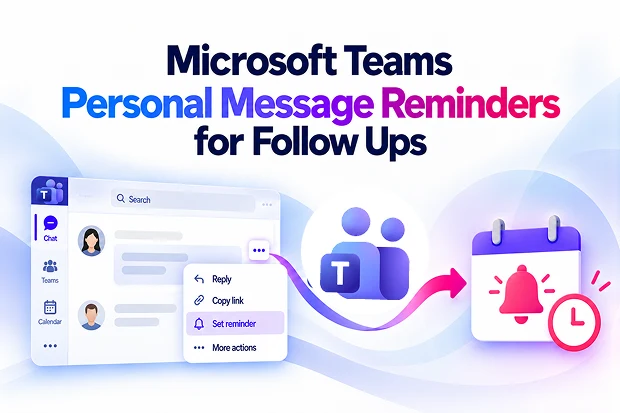
Important messages can quickly disappear in a busy Microsoft Teams workspace. A customer request, a project update, an approval, or a question that needs attention later can easily get buried beneath new chats and channel activity.
Microsoft Teams personal message reminders make it easier to stay on top of those follow-ups. You can turn a chat or channel message into a private reminder, receive an alert at the right time, and return to the original message with its full context still available.
Turn Teams Messages Into Personal Follow-Ups
Not every message needs an immediate response. Sometimes you need more information, input from a colleague, or time to complete the required work.
Instead of relying on memory or copying details into another app, you can create a reminder directly from the Teams message. This helps you keep important actions visible without disrupting the conversation for others.
With personal message reminders, you can:
- Set reminders from chat messages
- Set reminders from channel messages
- Update an existing reminder
- Mark a reminder as complete
- Delete reminders you no longer need
- Return to the original message when it is time to follow up
This gives you a simple way to capture an important action before it gets lost in an active Teams conversation.
🧠 Turn “I’ll Check Later” Into Action
A message reminder is especially useful when you know something needs attention but cannot act on it immediately.
Use reminders for messages that require:
- A response after research or review
- Input from another colleague
- A decision at a later time
- Follow-up after a customer meeting
- Action after completing another task
- A quick reminder to revisit an important update
This approach helps you move from “I need to remember that” to a clear and manageable next step.
How Microsoft Teams Message Reminders Work
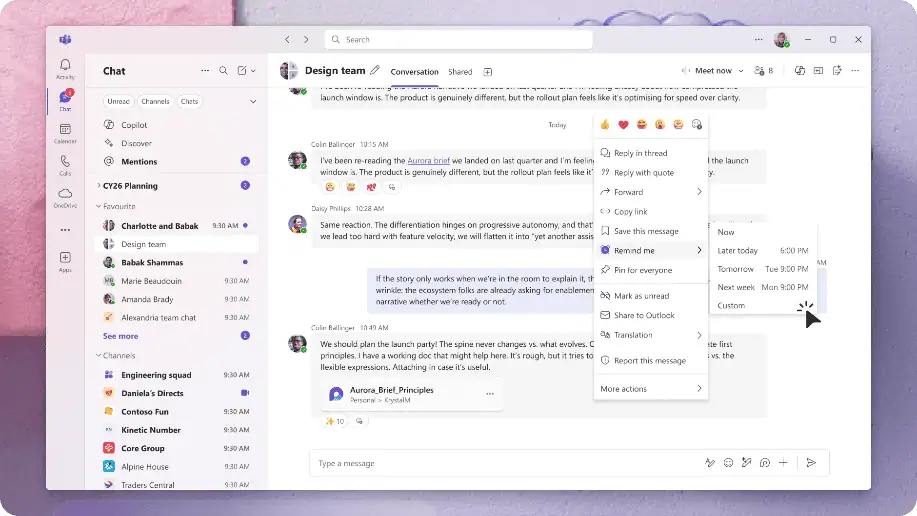
When you create a personal reminder from a Teams message, the reminder stays connected to the original chat or channel context. When the reminder appears, you can quickly understand what the message was about and continue the conversation without searching through older activity.
Message Reminder Menu item
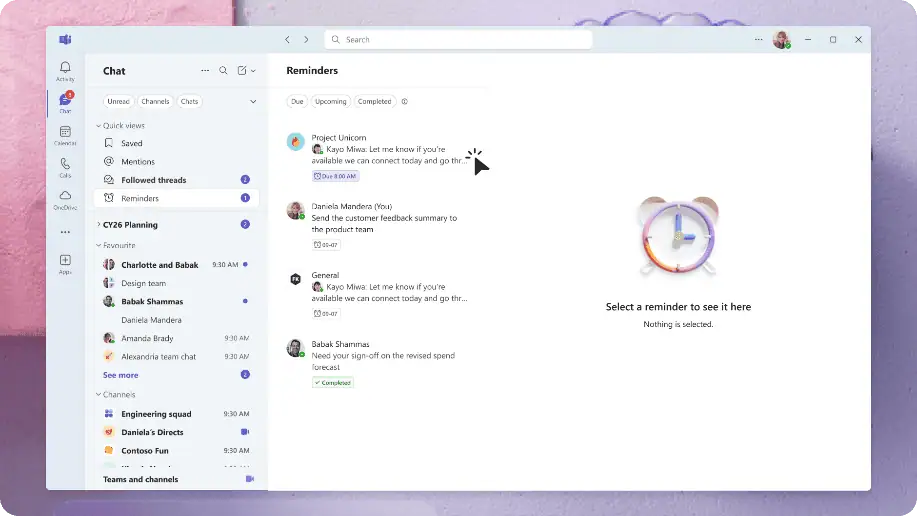
Microsoft Teams also provides a dedicated Reminders view. This gives you one place to review the follow-ups you have created across chats and channels.
The Reminders view can help you keep track of:
- Upcoming reminders
- Active reminders
- Completed reminders
- The original message connected to each reminder
This can be helpful when you are managing several projects, customers, internal requests, or cross-functional conversations at the same time.
Message Reminders view
Private Reminders, Timely Notifications
Personal message reminders are designed to help you manage your own work. The reminder you create is private and is not visible to other people in the chat or channel.
This means you can set a reminder for a message in a group chat, customer conversation, or shared channel without notifying others or adding another message to the discussion.
When a reminder becomes due, Microsoft Teams can alert you through a toast notification. You may also see a badge count on the Teams chat icon, helping you notice pending follow-up items.
Your existing Teams notification settings continue to influence how you receive these alerts. Reviewing your notification preferences can help you make sure reminders are visible on the devices and in the locations where you work most often.
⏰ Create a Daily Follow-Up Checkpoint
A reminder is most useful when you build a small routine around it.
Take a few minutes at the beginning or end of your workday to review open reminders. A simple daily follow-up routine can include:
- Opening the Reminders view before starting your day
- Reviewing messages that need a response or decision
- Completing reminders after the action is finished
- Rescheduling reminders that need more time
- Returning to the original Teams message to reply or continue the conversation
This small habit can help you prevent important actions from slipping through the cracks, especially when your day includes frequent meetings, active chats, and multiple work priorities.
Why This Teams Update Matters
Microsoft Teams is where many important work conversations happen. It is also where messages can quickly become difficult to track when you are part of several chats, channels, meetings, and projects.
Personal message reminders provide a lightweight way to keep control of individual follow-ups. You do not need to interrupt a conversation, create a separate chat message, or immediately move every small action into another task-management tool.
This feature can be useful if you work with:
- Customer questions that need a later response
- Project updates that require a decision
- Approval requests that need review
- Feedback messages that need a thoughtful reply
- Team discussions that include action items
- Messages received while you are in meetings or focused on urgent work
By keeping the reminder linked to the original message, you can return to the conversation with the details you need already in place.
What IT Admins Should Know
Microsoft Teams personal message reminders are enabled by default and do not require separate administrative configuration.
The feature is designed to support users across Microsoft Teams on desktop and mobile devices, making it easier to manage follow-ups whether you are working from your computer or checking Teams on the go.
While no technical action is required, it can still be helpful to prepare employees for the new capability.
Consider sharing a short internal update that explains:
- How to create a reminder from a Teams message
- Where to find and manage reminders
- That reminders are private to the user who creates them
- How reminders can support personal follow-up management
- When to use a personal reminder instead of a shared task
Personal reminders work well for your own follow-ups. For tasks that need ownership, visibility, deadlines, or collaboration across a team, Microsoft Planner or another shared task-management process may still be the better option.
💬 Ask the Team: Which Messages Do You Forget?
You can use personal message reminders to stay ahead of common follow-up challenges such as:
- Responding to a message after gathering information
- Checking back on a customer or stakeholder request
- Reviewing a file or draft shared in a chat
- Following up on a decision mentioned in a channel
- Respond to a conversation after completing a high-priority task
Identifying these moments can help you use reminders more intentionally and make Teams conversations easier to manage.
Make Follow-Ups Easier in Microsoft Teams
Microsoft Teams personal message reminders give you a practical way to turn messages into actionable follow-ups. You can save an important chat or channel message as a private reminder, receive a notification when it is due, and return to the original discussion when you are ready to act.
For busy Teams users, this can mean fewer forgotten tasks, less searching through old conversations, and more confidence that important messages will receive the attention they need.

















 Migrate
 Manage
 Migrate Microsoft 365








