


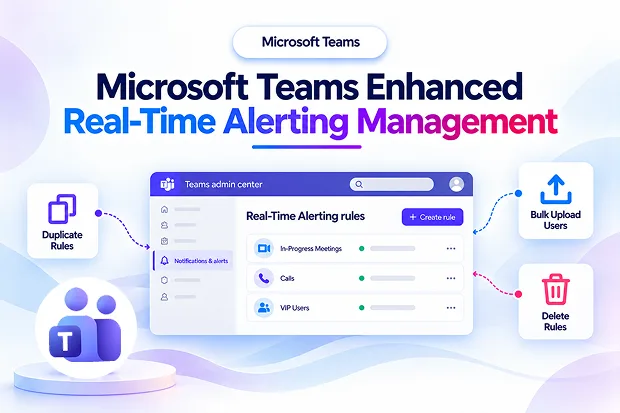
Managing Microsoft Teams meeting and call quality becomes much easier when alert rules are simple to build, update, and maintain. Microsoft is enhancing Real-Time Alerting rule management in the Teams admin center to help you reduce repetitive administrative work and maintain better visibility into important Teams experiences.
With these improvements, you can duplicate existing rules, upload monitored users in bulk, delete rules directly, and monitor up to 500 users across supported Real-Time Alerting rules. This gives you a more practical way to support high-priority users and respond to meeting or call issues with greater confidence.
What’s New in Teams Real-Time Alerting Rules?
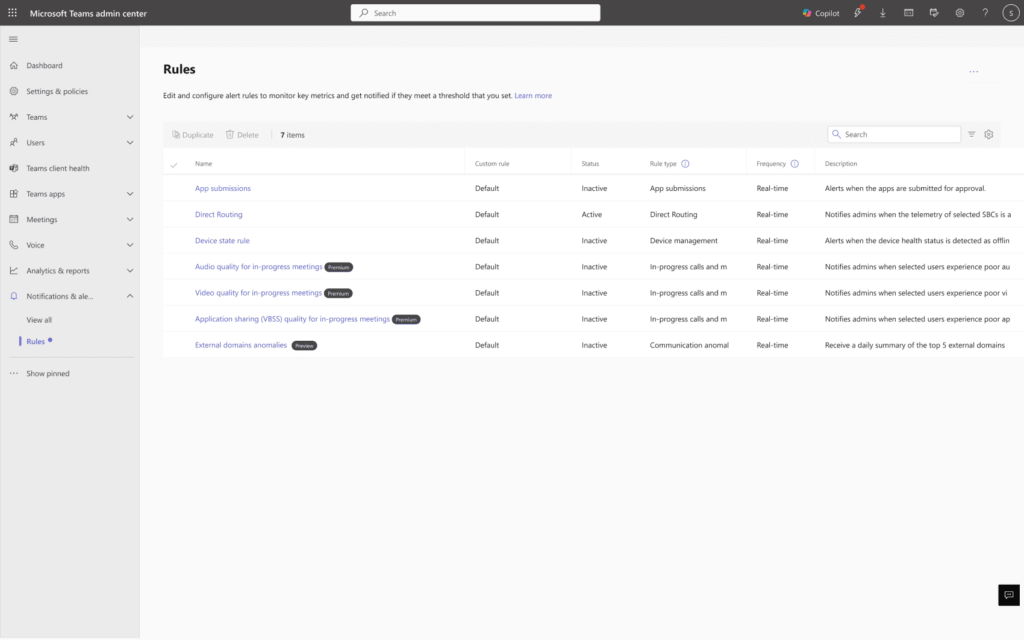
The Teams admin center is introducing enhanced management options for Real-Time Alerting rules under Notifications & alerts > Rules.
These updates are focused on helping you manage alert configurations more efficiently, especially when your organization has multiple user groups, ongoing Teams projects, or business-critical communication needs.
You can now use the following capabilities:
- Duplicate an existing Real-Time Alerting rule
- Bulk upload users when creating or editing supported rules
- Delete rules directly from the rule management experience
- Monitor up to 500 users across your Real-Time Alerting rules
- These capabilities apply to In-Progress Meetings and Calls rule types
These capabilities can help you maintain more consistent Microsoft Teams monitoring without spending unnecessary time rebuilding configurations or manually adding large numbers of users.
Glimpse of Real-time alerting rules in Microsoft Teams admin center
Duplicate Teams Alert Rules Without Rebuilding Them
When you need similar alerting settings for several teams or user groups, rebuilding each rule from the beginning can create extra work. The new rule duplication option helps you reuse an existing configuration and make only the changes you need.
You can copy a proven Real-Time Alerting rule, update the monitored user list, adjust alert recipients if required, and save the new version. This creates a faster and more consistent process for setting up Teams monitoring across the organization.
Rule duplication can be particularly useful when you need separate alert rules for:
- Leadership and executive users
- Customer-facing sales teams
- Support and service desk employees
- Employees working from remote or branch locations
- Project teams handling important internal or external meetings
Reusing a well-configured rule also helps you maintain standard alerting practices across different user groups.
⚡ Quick Win: Create a VIP Meeting Watchlist
Business-critical meetings often involve users who need faster support when a call or meeting quality issue occurs. You can create a dedicated monitoring rule for these users by duplicating an existing Real-Time Alerting rule.
Use the copied rule as a foundation, then update it for the specific group that requires closer monitoring.
- Add executives, senior leaders, sales representatives, or service managers
- Include users who regularly host customer meetings
- Set the appropriate IT or support contacts to receive alerts
- Review the rule periodically as business priorities and responsibilities change
This approach helps you focus Teams monitoring on meetings where a poor experience could have a greater operational or customer impact.
Bulk Upload Users for Faster Teams Monitoring
Adding users individually can become time-consuming when you need to monitor a department, migration group, or large pilot program. The bulk user upload capability helps you add users more efficiently while creating or updating supported Real-Time Alerting rules.
This is especially useful when you are preparing Teams monitoring for a planned change or when a larger user group requires additional support.
Bulk upload can help you monitor users involved in:
- Microsoft Teams Phone adoption
- A Microsoft 365 tenant migration
- A network upgrade or office relocation
- A hybrid work or remote work initiative
- A Teams policy, device, or feature pilot
- A large onboarding program
With support for monitoring up to 500 users across Real-Time Alerting rules, you can create broader monitoring coverage while keeping the process manageable.
📥 Smart Setup: Prepare User Lists Before a Major Change
A major Teams-related change can affect call quality, meeting reliability, and user confidence. Preparing a monitored-user list before the change begins gives you a more organized way to identify and address potential issues.
Before a migration, Teams Phone rollout, network update, or office move, identify the people who are most likely to need closer monitoring. Keep the list current and ready for bulk upload into the appropriate alert rule.
Consider including:
- Frequent meeting organizers
- High-volume Teams callers
- Customer-facing employees
- Pilot users testing new settings or devices
- Employees in locations with known network concerns
- Users who support essential business operations
This preparation can help you move from waiting for support tickets to identifying potential meeting and calling concerns earlier.
Clean Up Outdated Alert Rules Directly
Over time, alert rules can build up as teams complete projects, finish pilot programs, or change their monitoring requirements. Direct rule deletion makes it easier to remove configurations that are no longer needed.
Keeping only relevant alert rules in the Teams admin center helps you avoid confusion and makes it easier to understand which monitoring policies are active.
You may want to review and remove rules connected to:
- Completed Teams migrations
- Closed pilot programs
- Temporary incident monitoring
- Former departments or project teams
- Duplicate alert configurations
- Users who no longer require additional monitoring
Regular cleanup helps keep your Teams alerting strategy organized, relevant, and easier to manage.
🧹 Admin Cleanup Challenge: Review Every Rule Quarterly
A regular review of Real-Time Alerting rules can prevent outdated configurations from remaining active longer than necessary. A quarterly review gives you an opportunity to confirm that every rule still supports a clear business or operational purpose.
Use this review to check whether the monitored users, rule owners, and alert recipients are still appropriate.
- Remove rules created for completed projects or temporary events
- Update monitored user lists after team or role changes
- Confirm that alert recipients are still responsible for investigating issues
- Consolidate duplicate or overlapping rules
- Review whether each active rule has a clear purpose
This simple governance practice can help reduce unnecessary alerts and keep your Teams monitoring environment easier to maintain.
Focus on In-Progress Meetings and Calls
The enhanced management options apply to supported In-Progress Meetings and Calls Real-Time Alerting rules. These rules help you monitor selected users and receive alerts related to meeting and calling experiences while they are still taking place.
This can give you an opportunity to investigate potential quality issues sooner, rather than discovering them only after a meeting has ended or after users raise a support request.
Real-Time Alerting can be especially valuable when Teams supports important activities such as:
- Customer and client meetings
- Sales conversations and product demonstrations
- Executive communications
- Remote employee collaboration
- Training sessions and webinars
- Service desk and support operations
When your monitoring rules are focused on the right users and supported by a clear response process, your team can provide more timely assistance during important Teams interactions.
How Teams Admins Can Prepare
You do not need to make major changes to begin benefiting from these Real-Time Alerting management improvements. However, this is a useful time to review your current Teams monitoring practices and identify where the new options can reduce administrative effort.
Start by reviewing existing rules and determining which ones are still useful, which can be duplicated, and which should be removed.
Recommended actions include:
- Review your existing Real-Time Alerting rules in the Teams admin center
- Identify configurations that can be reused through rule duplication
- Prepare validated user lists for bulk uploads
- Remove alert rules that no longer support an active requirement
- Confirm that alert recipients know how to investigate and respond
- Prioritize users involved in business-critical Teams meetings and calls
- Document the purpose and ownership of each active alert rule
A clear structure helps you get more value from Teams monitoring while making alert rule management easier for everyone involved.
Final Thoughts
The enhanced Real-Time Alerting rule management experience in the Teams admin center gives you more flexibility to monitor meetings and calls at scale. Rule duplication, bulk user uploads, direct rule deletion, and expanded user monitoring can reduce repetitive work and improve the consistency of your Microsoft Teams alerting strategy.
By reviewing your existing rules, preparing user lists in advance, and regularly removing configurations that are no longer useful, you can create a cleaner and more effective monitoring process. This can help your organization stay better prepared to support important Teams meetings and calls when they matter most.
Explore Related Microsoft Resources
Explore Microsoft’s official resources to learn more about Teams alerting ands troubleshooting.
















