Your collaboration tools should make work easier, not add more steps to your day. Yet finding relevant channels, capturing meeting decisions and coordinating event presenters can still take more effort than necessary.
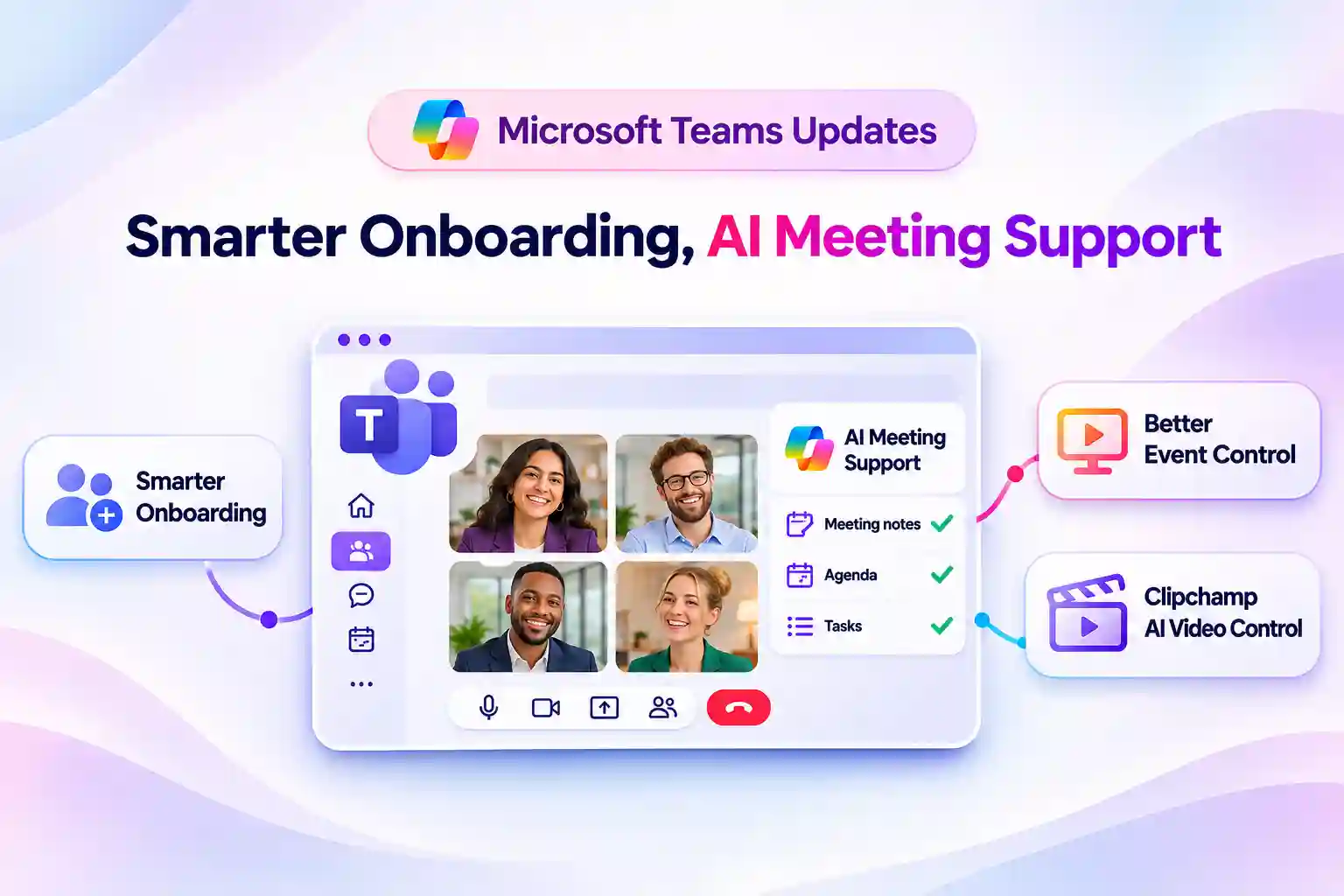
Microsoft’s announced Teams updates address these everyday challenges with more guided onboarding, expanded AI meeting support and improved event production controls.
A related Clipchamp update also gives you greater control over access to AI video creation in Microsoft 365. Together, these updates help you manage collaboration more effectively, from welcoming new members to supporting meetings and content creation.
- Microsoft Teams Onboarding: Connect New Members to the Right Channels
- Facilitator in Teams Channel Meetings: Less Note-Taking, More Participation
- Teams Event Production: See More Presenters Without Constant Switching
- Clipchamp AI Video Creation: More Control for Microsoft 365 Admins
- Turn Microsoft Teams Feature Updates Into Everyday Improvements
Microsoft Teams Onboarding: Connect New Members to the Right Channels
Joining a team does not always mean knowing where to start. Important conversations can be easy to miss when relevant channels are unfamiliar or difficult to discover.
Microsoft Teams is introducing an onboarding workflow that lets team owners automatically connect new members to relevant channels when they join a team.
If you manage a team, this gives you a more consistent way to guide newcomers toward the discussions and information that matter to their work.
The workflow is designed to help you:
- Reduce manual channel discovery for new members.
- Make relevant team conversations easier to find.
- Support earlier participation in ongoing work.
No admin action is required to prepare for this update. Reviewing which channels are most useful to new members can help you make the onboarding experience more purposeful.
💬 What Would Make Your First Day Easier?
A short onboarding poll can reveal which channel would give a new member the most useful starting point.
- A welcome and introductions channel.
- A project updates channel.
- A help and resources channel.
Use the responses to identify the channels worth prioritizing in your onboarding experience.
Facilitator in Teams Channel Meetings: Less Note-Taking, More Participation
Taking notes while following a discussion can leave you switching between listening and documenting. Important decisions deserve attention, but so does the conversation that leads to them.
Microsoft is expanding Facilitator support to Teams channel meetings, bringing AI-powered assistance into discussions connected to your team’s shared work.
The announced enhancement will let you add Facilitator to channel meetings to:
- Take meeting notes.
- Manage the agenda.
- Answer questions.
- Manage tasks.
This can help you stay involved in the discussion while Facilitator supports meeting organization and follow-up.
For recurring project meetings, the benefit is a more connected experience: the conversation remains in its team context, with assistance available to help capture what needs attention.
The update applies to organizations with Facilitator enabled and users with the required licensing. No preparation action is required for the announced change but check availability in your environment before making it part of your meeting process.
🤖 Give Your Meeting Assistant One Job
Start by identifying the meeting responsibility that most often divides your attention.
- Capturing notes.
- Keeping the agenda on track.
- Tracking follow-up tasks.
Use that priority to evaluate where AI meeting assistance could make the most meaningful difference to your work.
Teams Event Production: See More Presenters Without Constant Switching
During a live event, a speaker transition should not become a search for the right person. A clearer view of available presenters helps you stay focused on the production.
Microsoft is enhancing the presenter panel in “Manage what attendees see.” Event organizers and producers can drag and resize the panel to view more presenters simultaneously.
The expanded panel helps you:
- Monitor more available presenters at once.
- Reduce page switching during larger events.
- Coordinate speaker transitions more efficiently.
This improvement changes your production view, not the audience’s view. Seeing more presenters in the panel does not automatically place them on the attendee-facing screen.
You continue to use “Manage what attendees see” to control which presenters and shared content appear to your audience.
The enhancement is enabled automatically and does not require configuration. If you maintain an event production checklist, include the revised panel layout in your rehearsal guidance.
🎤 What Is Your Biggest Live Event Challenge?
Use your next event rehearsal to focus on the production task that needs the most attention.
- Finding the next presenter.
- Coordinating speaker handoffs.
- Controlling what attendees see.
Test that workflow before the live session so you can identify any adjustments without the pressure of an audience.
Clipchamp AI Video Creation: More Control for Microsoft 365 Admins
AI video creation can support workplace content production, but access needs to align with your organization’s policies.
Microsoft is adding an admin policy control for Clipchamp’s AI-powered “Create a video” experience, also known as “Generate a video” or “Create a video” in Copilot Create.
This is not a new generative AI feature. The update adds administrative control over access to an existing AI video creation capability.
The announced policy lets you:
- Manage access to Clipchamp AI video project creation.
- Leave access unchanged without taking action.
- Restrict access using the “Turn off Clipchamp AI video project” policy.
To restrict access when the policy is available, follow this path:
Microsoft 365 admin center > Admin centers > All admin centers > Microsoft 365 apps > Customization > Policy Management.
Create or edit a policy, enable “Turn off Clipchamp AI video project,” and save your changes.
The distinction is important: this policy controls AI video project creation. It does not disable Clipchamp as a whole.
Turn Microsoft Teams Feature Updates Into Everyday Improvements
The most useful starting point is the task you want to improve. That might be helping a new member find relevant conversations, reducing divided attention in meetings or making presenter handoffs easier to manage.
Keep your preparation focused on the responsibilities you manage:
- Team onboarding: identify the channels that give new members a useful starting point.
- Meeting coordination: review Facilitator prerequisites and check channel-meeting availability.
- Event production: incorporate the resizable presenter panel into your rehearsal process.
- Microsoft 365 administration: assess whether Clipchamp AI video creation access matches organizational policy.
A focused approach helps you introduce each change with a clear purpose, rather than treating every announcement as another feature to explain.
Explore the Details: Official Microsoft Resources
Explore these official Microsoft resources for setup guidance, feature details and rollout information.