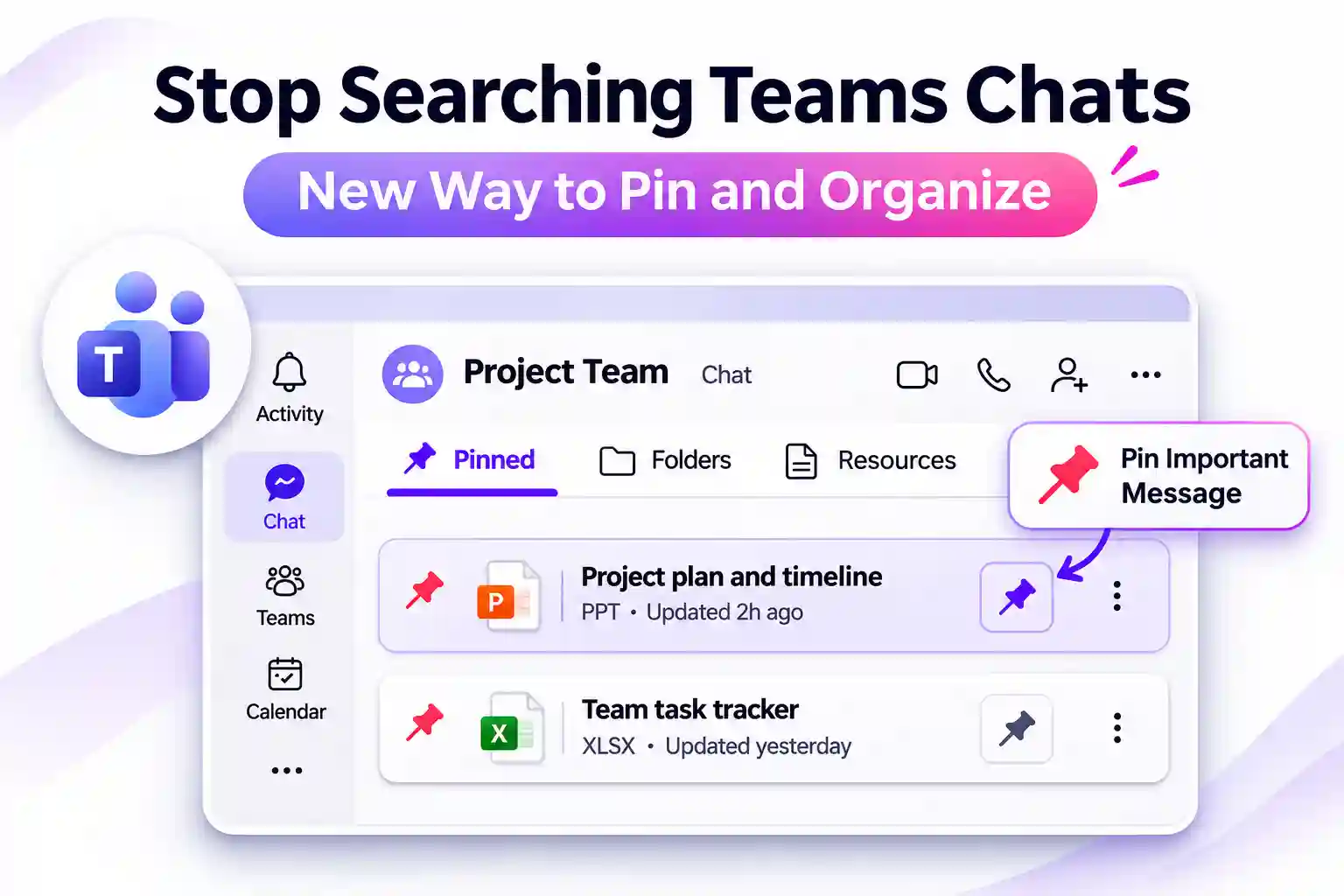
An important message should not become difficult to find just because the conversation has moved on. When project updates and everyday discussions fill your Microsoft Teams chats, finding a resource again can interrupt your work.
Microsoft’s new centralized resource management experience gives you a more organized way to keep important content within reach. You can pin frequently used resources, keep multiple important messages together, and organize resources into folders within your chats and channels.
- Microsoft Teams Resource Management Gets a Simpler Home
- Pin Important Teams Messages Without Losing the Context
- Organize Teams Resources with Folders, Not Guesswork
- Access Shared Teams Resources from Your Mobile
- What Happens to “In This Chat” and “In This Channel”?
- Get Your Organization Ready Without Extra Admin Setup
Microsoft Teams Resource Management Gets a Simpler Home
The updated experience brings your important chat and channel resources into a central location, making them easier to find, access, and manage.
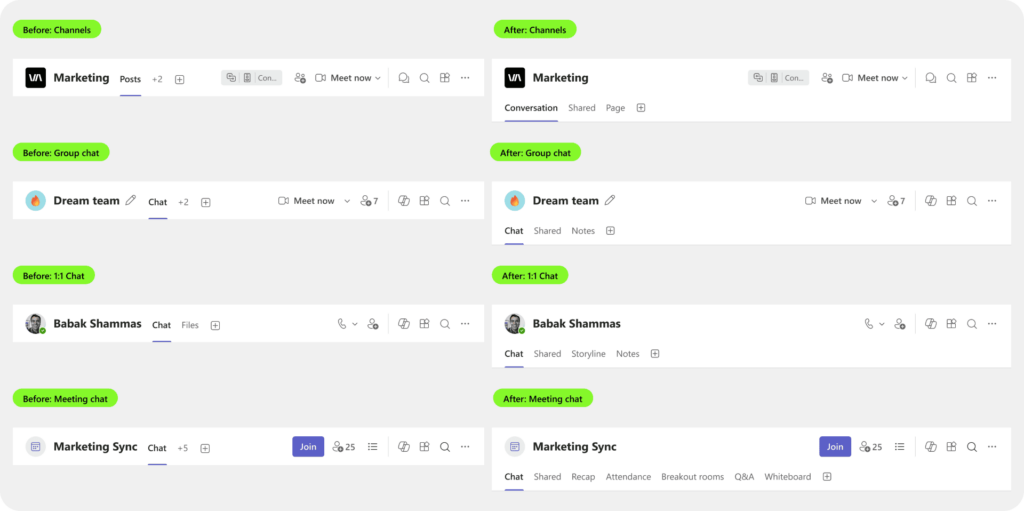
You can pin frequently used resources directly below the chat or channel header, keeping useful content close to the conversation where you need it.
With the new Microsoft Teams resource management experience, you can:
- Pin frequently used resources below the chat or channel header.
- Keep multiple pinned messages alongside other resources.
- Organize resources into folders.
- Access shared resources and folders on Teams mobile.
Before-and-after comparison of the Microsoft Teams resource management experience
📌 What Would Your Team Pin First?
Start with the information you regularly need to find or resend. A few carefully selected resources can make your shared space more useful.
- Pin a message that explains an important project decision.
- Highlight a resource you refer to throughout the week.
- Ask a colleague to suggest an essential item worth keeping visible.
Pin Important Teams Messages Without Losing the Context
A useful instruction or project decision can easily get buried beneath newer messages. Keeping it accessible saves you from searching through the same conversation again.
With this update, you can pin multiple messages alongside other resources, bringing important conversation content into the same resource management experience.
Consider prioritizing:
- Messages that record agreed decisions.
- Instructions you need to revisit.
- Reference information that supports ongoing work.
Choose messages that remain useful beyond the moment they were sent. This helps keep your pinned content focused and relevant.
Organize Teams Resources with Folders, Not Guesswork
Pinning makes important content easier to reach. Folders help you give related resources a clearer structure.
You can organize resources into folders within the updated experience, making it easier to navigate content as your shared collection grows.
Build your structure around the work you do. For example:
- Onboarding resources for getting started.
- Project resources for ongoing work.
- Reference materials for recurring tasks.
Use short, familiar folder names so you can recognize the right location without opening several folders first.
📂 Build Your Team’s “Start Here” Collection
Make essential information easier to discover by creating a small, clearly organized starting point.
- Select the resources a new colleague would need first.
- Group related items in a clearly named folder.
- Ask a teammate to check whether the collection is easy to navigate.
Keep the collection focused on essentials rather than filling it with every available resource.
Access Shared Teams Resources from Your Mobile
Your important resources should remain accessible when you move away from your desk.
On Microsoft Teams mobile, you can access shared resources and folders by tapping the chat or channel header.
To reach them:
- Open the relevant chat or channel.
- Tap the chat or channel header.
- Access the shared resources and folders.
This gives you a clear starting point when you need to check shared information from your phone.
What Happens to “In This Chat” and “In This Channel”?
The “In this chat” and “In this channel” panes will be removed as part of this update.
Your existing resources from those panes will remain accessible through the new resource management experience. You will use the updated location to find and manage them.
If you rely on saved instructions or internal guides, check whether they still point to the older panes. Updating those references can help you avoid confusion when navigating the new experience.
💬 Try the “Find It Without Asking” Challenge
A useful resource collection should help you find information without requesting another copy.
- Choose one frequently used resource.
- Ask a colleague to locate it through the updated experience.
- Use their feedback to improve its placement or folder organization.
A quick check can reveal whether your shared resources are as easy to find as you intended.
Get Your Organization Ready Without Extra Admin Setup
No administrative action is required for this update. Preparation centers on understanding the new experience and keeping internal guidance accurate.
To make the transition easier:
- Familiarize yourself with the updated resource pinning and management experience.
- Update any training or support materials you maintain that reference the older panes.
- Make sure colleagues know where existing resources can be found.
A small amount of preparation can help you spend less time looking for information and more time using it.
Explore More Ways to Keep Microsoft Teams Organized
Build on the updated resource experience with practical guidance for navigating Teams chats, channels, and feature changes.
- What’s new in Microsoft Teams – Explore the latest Teams feature updates.
- The new Microsoft Teams chat and channels experience – Find guidance and learning resources for organizing your Teams conversations.