


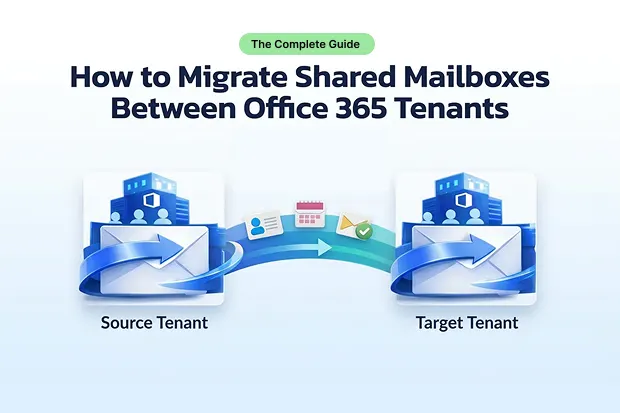
A shared mailbox in Microsoft 365 lets multiple users access, send, and manage emails from a common address like support@company.com or sales@company.com. Unlike user mailboxes, shared mailboxes don’t require a dedicated license as long as storage stays under 50 GB. When organizations go through mergers, acquisitions, divestitures, or rebranding, migrating these shared mailboxes between tenants becomes essential.
This guide walks you through the full shared mailbox migration process including permissions, licensing rules, conversion workflows, and a post-migration validation checklist.
Why Migrate Shared Mailboxes Between Tenants?
Organizations commonly need to migrate shared mailboxes between Microsoft 365 tenants for:
- Mergers & Acquisitions - Consolidating two organizations into one tenant.
- Divestitures & Splits - Separating business units into independent tenants.
- Rebranding & Restructuring - Moving to a new domain or organizational structure.
- Compliance & Data Residency - Meeting regulatory requirements for data location.
Shared mailboxes carry critical business data such as emails, calendars, contacts, and rules, plus permission assignments that determine who can do what. A successful migration preserves all of this without disrupting daily operations.
Understanding the 3 Shared Mailbox Permission Types
Shared mailbox permissions migration is one of the trickiest parts of a cross-tenant move. Before migrating, you need to understand the three permission types assigned to shared mailboxes in Exchange Online such as Full Access, Send As, and Send on Behalf. These permissions do not automatically transfer during cross-tenant migration and must be manually reassigned or handled by your Mailbox migration tool.
Full Access
Full Access allows a user to open the shared mailbox and read, delete, or manage all its contents. The mailbox typically auto-maps in Outlook for users with this permission. Full Access does not allow the user to send email from the mailbox – it only grants read/write access to mailbox items.
Assign via PowerShell:
Add-MailboxPermission -Identity "SharedMailbox" -User "user@domain.com" -AccessRights FullAccess -InheritanceType All Send As
Send As permission lets a user send email that appears to come directly from the shared mailbox address. Recipients see the shared mailbox as the sender with no indication that another user sent it. This is ideal for support desks or generic team addresses where individual identity doesn’t matter.
Assign via PowerShell:
Add-RecipientPermission -Identity "SharedMailbox" -Trustee "user@domain.com" -AccessRights SendAs Send on Behalf
Send on Behalf allows a user to send email from the shared mailbox, but the message header shows “User on behalf of SharedMailbox.” This provides transparency about who actually composed the message while still using the shared address. It’s commonly used for executive assistants or delegated team leads.
Assign via PowerShell:
Set-Mailbox "SharedMailbox" -GrantSendOnBehalfTo @{add="user@domain.com"} | Permission | Sender Appears As | Use Case |
|---|---|---|
| Full Access | N/A (read/manage only) | Browsing and managing mailbox content |
| Send As | SharedMailbox@domain.com | Support desks, generic team addresses |
| Send on Behalf | User on behalf of SharedMailbox | Executive assistants, delegated roles |
Licensing Rules: When You Do (and Don’t) Need a License
Shared mailboxes in Microsoft 365 follow straightforward licensing rules:
- No license required if the shared mailbox is under 50 GB. This includes access by unlimited licensed users, Send As and Send on Behalf permissions, and access via Outlook desktop, web, and mobile.
- License required if the mailbox exceeds 50 GB, needs In-Place Archive, or requires Litigation Hold. Assigning an Exchange Online Plan 1 or Plan 2 license increases the quota to 100 GB (or 100 GB + unlimited archive with Plan 2).
- Every user who accesses the shared mailbox must hold their own valid Microsoft 365 license.
If you strip a license from a shared mailbox that exceeds 50 GB, the mailbox will hit quota limits and stop sending or receiving mail until you reduce its size or reapply a license.
Migration note:
For cross-tenant migration using the manual PST method, you may need to temporarily assign a license to export data. Remove it after migration if the mailbox is under 50 GB.
Shared-to-User Mailbox Conversion Workflow
Many migration methods including Microsoft’s native Cross-Tenant Mailbox Migration and the manual PST approach require temporarily converting the shared mailbox to a user mailbox. Here’s the step-by-step workflow:
On the Source Tenant
Step 1: Document existing permissions. Export Full Access, Send As, and Send on Behalf assignments using PowerShell:
Get-MailboxPermission -Identity "SharedMailbox" | Where-Object {$_.User -ne "NT AUTHORITY\SELF"}

Get-RecipientPermission -Identity "SharedMailbox" | Where-Object {$_.Trustee -ne "NT AUTHORITY\SELF"}

Get-Mailbox "SharedMailbox" | Select GrantSendOnBehalfTo
Step 2: Convert to user mailbox:
Set-Mailbox "SharedMailbox" -Type Regular Step 3: Assign a license to the converted mailbox for export/migration access.
Step 4: Perform the migration using your chosen method (CTMM, PST export, or third-party tool).
On the Target Tenant
Step 5: Create or verify the mailbox exists in the target tenant after migration.
Step 6: Convert back to shared mailbox:
Set-Mailbox "MigratedMailbox" -Type Shared Step 7: Remove the license if the mailbox is under 50 GB.
Step 8: Reassign all permissions such as Full Access, Send As, and Send on Behalf to the appropriate users in the target tenant.
Simplify Migration with Apps4.Pro
Apps4.Pro simplifies shared mailbox migration by handling data transfer, permission mapping, and incremental sync in one tool, no manual conversion required.
- Download and install the Apps4.Pro Mailbox Migration tool.
- Configure source and target tenant connections using admin credentials.
- Map shared mailboxes between source and target using email addresses. For bulk migrations, upload a CSV file with source-destination mailbox pairs.
- Click Migrate The tool transfers emails, calendar events, contacts, permissions, and rules automatically.
- Run incremental migration for ongoing sync – the tool skips previously migrated items and transfers only new data, minimizing downtime during cutover.
- Review the post-migration report with mail count, event count, contact count, errors, and warnings to confirm completeness.
Post-Migration Validation Checklist
After migration, run through this checklist to confirm everything transferred correctly:
- Mail count matches - Compare item counts between source and target mailboxes.
- Folder structure intact - Verify all folders and subfolders exist in the target.
- Calendar events present - Check recurring meetings and shared calendar items.
- Contacts migrated - Confirm contact lists are complete.
- Full Access permissions - Run Get-MailboxPermission on the target and verify all users.
- Send As permissions - Run Get-RecipientPermission on the target and verify trustees.
- Send on Behalf permissions - Run Get-Mailbox | Select GrantSendOnBehalfTo and verify.
- Mailbox type is Shared - Confirm with Get-Mailbox | Select RecipientTypeDetails.
- License removed (if under 50 GB) – Verify no unnecessary licenses are assigned.
- Users can open mailbox - Have at least one user confirm Outlook access and send a test email.
- Auto-mapping works - Verify the mailbox appears automatically in Outlook for Full Access users.
- Inbox rules migrated - Check rules are active and functioning.
Frequently Asked Questions
Yes. Apps4.Pro supports bulk migration by uploading a CSV file with source and destination mailbox mappings, and tracks progress in real time.
Start your shared mailbox migration today – Try Apps4.Pro free for 15 days.

















 Migrate
 Manage
 Migrate Microsoft 365








