


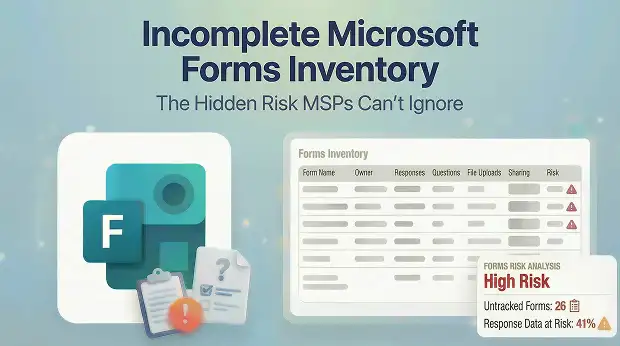
You might think moving Forms is simple -but most tenants are hiding surprises. Old forms, attachments, and responses often sit unnoticed, waiting to cause problems in mid-migration.
Licenses checked, users counted, everything “ready”? That doesn’t mean you know what’s actually inside every Form. One missing attachment or overlooked setting can turn a smooth migration into a headache for users and for you.
These aren’t migration failures; they’re inventory failures. Almost every single-issue stem from the same root cause: no complete pre-migration Forms inventory exists.
If you haven’t mapped what’s inside your Forms, the risks are already stacked against you. Skipping a proper inventory isn’t an option anymore.
What Lives in Your Tenant Might Surprise You
That gap starts with a simple question you may not be able to answer right now: do you actually know how many Microsoft Forms exist across your client’s tenant?
You probably don’t. And not because you haven’t tried. It’s because Forms data doesn’t show up in the places you’d normally look during pre-migration planning. There’s no centralized admin report. No inventory dashboard. No single view that tells you what exists, who owns it, and what is attached to it.
Here’s what’s quietly sitting in the tenant that your standard scoping process won’t surface:
- User-owned forms spread across individual accounts, with no admin-facing list to reveal them all, which means your migration scope is incomplete before you even begin.
- Group forms inside Microsoft 365 Groups, tied to group ownership rather than individuals, so they won’t appear when you audit user accounts, and you’ll miss them entirely.
- Orphaned forms belonging to departed users, silently approaching the 30-day permanent deletion window. Miss these during planning, and they’re gone before migration day arrives.
- Response data running into thousands of submissions per form, each carrying timestamps and metadata that inflate your data volume well beyond initial estimates.
- Total question counts per form, including branching logic and hidden sections, which means your time estimates for each form are likely off before migration even starts.
- Embedded media and uploaded files inside questions, all quietly creating storage dependencies in OneDrive or SharePoint that you won’t discover until file links break in the target tenant.
- Forms pinned as tabs in Teams channels, which means even a successful form of migration can look broken to users if the Teams reference isn’t reconnected.
- Collaboration and sharing settings that define who can edit, view, or share each form. Miss these during migration, and your client team loses access to forms they use daily with no warning.
If your pre-migration inventory doesn’t account for all of these, you’re building your migration plan on incomplete data. And every gap in that inventory becomes a problem you’ll have to solve under pressure once the migration is already underway.
The real question isn’t whether your client uses Forms. It’s how deeply. And once you see where Forms sit inside daily operations, the risk of skipping inventory becomes impossible to ignore.
Why This Matters More Than You Think
In most tenants, Forms aren’t sitting idle. They’ve become the front door to workflows people depend on every single day.
- Healthcare teams use them for patient intake and compliance tracking.
- Education institutions run quizzes, assessments, and enrollment workflows through them.
- IT teams manage access requests and incident reports.
- Finance and HR collect declarations, acknowledgments, and onboarding data.
By the time migration begins, many of these forms are no longer lightweight questionnaires. They function as live business records embedded into daily operations.
A single form can hold years of submissions, uploaded documents, timestamps, metadata, and workflow history that team reference regularly. Some forms contain thousands of responses that accumulate over time.
When that historical data disappears during a form migration between tenants, it doesn’t go unnoticed.
Users open the form expecting to see past submissions and instead find an empty response list. That’s when the questions begin:
- “Where are the previous responses?”
- “Were attachments migrated?”
- “Was this form included in scope?”
- “Can we recover the missing data?”
At that moment, the issue stopped being technical. It becomes a credibility concern.
Losing responses isn’t just an inconvenience. It signals potential gaps in planning and execution. And once doubt enters the conversation, confidence in the overall migration effort starts to weaken.
Under that pressure, the most common suggestion surfaces quickly: “Let’s just recreate the form in the new tenant and move on.”
The Trap of “We’ll Just Recreate It”
Recreating a form structure feels straightforward. The questions come across. The design looks identical. On the surface, it seems like the job is done.
But what about:
- Historical responses
- Uploaded files
- Sharing links
- Editor permissions
- Ownership alignment
- Response count baselines
Those don’t move automatically. They stay behind in the source tenant.
When users open a recreated form and realize their previous submissions are gone, your team gets pulled into recovery work that was never scoped. You’re now spending unbillable hours trying to export response data from a source tenant that may already be on a decommission timeline. That’s not a migration task. That’s a project setback you could have prevented.
What a Pre-Migration Forms Inventory Should Cover
Once the source tenant is decommissioned, whatever wasn’t captured is gone for good. So how do you make sure that never happens?
Not by migrating faster. Not by throwing more resources at it mid project. Control comes from visibility before migration begins.
This is the checklist your team should be able to confirm before presenting a migration plan to any client. Before starting any Microsoft 365 Forms tenant to tenant migration, confirm:
- Tenant wide form discovery is complete, covering every user owned, group owned, and orphaned form with no manual one by one review.
- Owner validation is done for every form, confirming whether the owner is active, disabled, or departed.
- Response count baselines are recorded per form, so you have exact numbers to verify after migration.
- Upload type questions are identified and their associated file locations documented.
- OneDrive and SharePoint storage dependencies are mapped to specific forms, so file links don’t break when data moves to the target tenant.
- Teams’ tab integrations and channel references are logged, so forms don’t appear broken to users after migration.
- Orphaned forms are flagged with a recovery or archival plan in place before the deletion window closes.
- A post migration validation process is defined to compare source and target, item by item.
If even one of these is missing, the risk of your Microsoft Forms migration from one tenant to another increases significantly.
To avoid this situation, a solution that provides complete visibility is essential.
How Apps4.Pro Makes This Possible
Building a complete Forms inventory by hand means opening every form individually, checking every owner, counting every response, and tracking every file dependency across OneDrive and SharePoint. For a tenant with hundreds of forms, that’s days of work before migration even begins.
Apps4.Pro Microsoft Forms Migration eliminates that entirely. It connects to your client’s tenant and scans every form in a single pass. Here’s what it delivers:
- Automatic discovery of every form across the tenant, including user owned, group owned, and orphaned forms that no admin report surfaces.
- Owner status mapping so you know immediately which forms belong to active users, which belong to disabled accounts, and which are approaching the deletion window.
- Response count baselines per form, giving you exact numbers to scope accurately and verify against after migration.
- Upload type of question detection that flags every form collecting file attachments, so you can map storage dependencies before anything moves.
- OneDrive and SharePoint dependency tracking that connects each form to its actual file storage location, preventing broken links in the target tenant.
Instead of spending days assembling an inventory manually and still missing things, you get a complete, structured report that feeds directly into your migration plan. Scoping becomes accurate. Timelines have become realistic. And your client sees a level of preparation that sets you apart from every other MSP quoting the same project.
Start With Visibility, Not Assumptions
Microsoft Forms inventory isn’t optional. It directly impacts:
- Data completeness
- Project predictability
- Client confidence
- Your long-term relationship
When you treat Forms as structured business data instead of lightweight surveys, outcomes improve dramatically.
The difference isn’t the migration step. It’s the discovery step.
Before your next project begins, ask yourself one simple question: Do you truly know how many Forms exist in the tenant, and what’s attached to them?
If the answer is uncertain, that’s exactly where your work starts.
Ready to see what’s hiding in your client’s tenant? Try Apps4.Pro Microsoft Forms Migration and build your complete pre-migration inventory before your next project kicks off.

















 Migrate
 Manage
 Migrate Microsoft 365








