
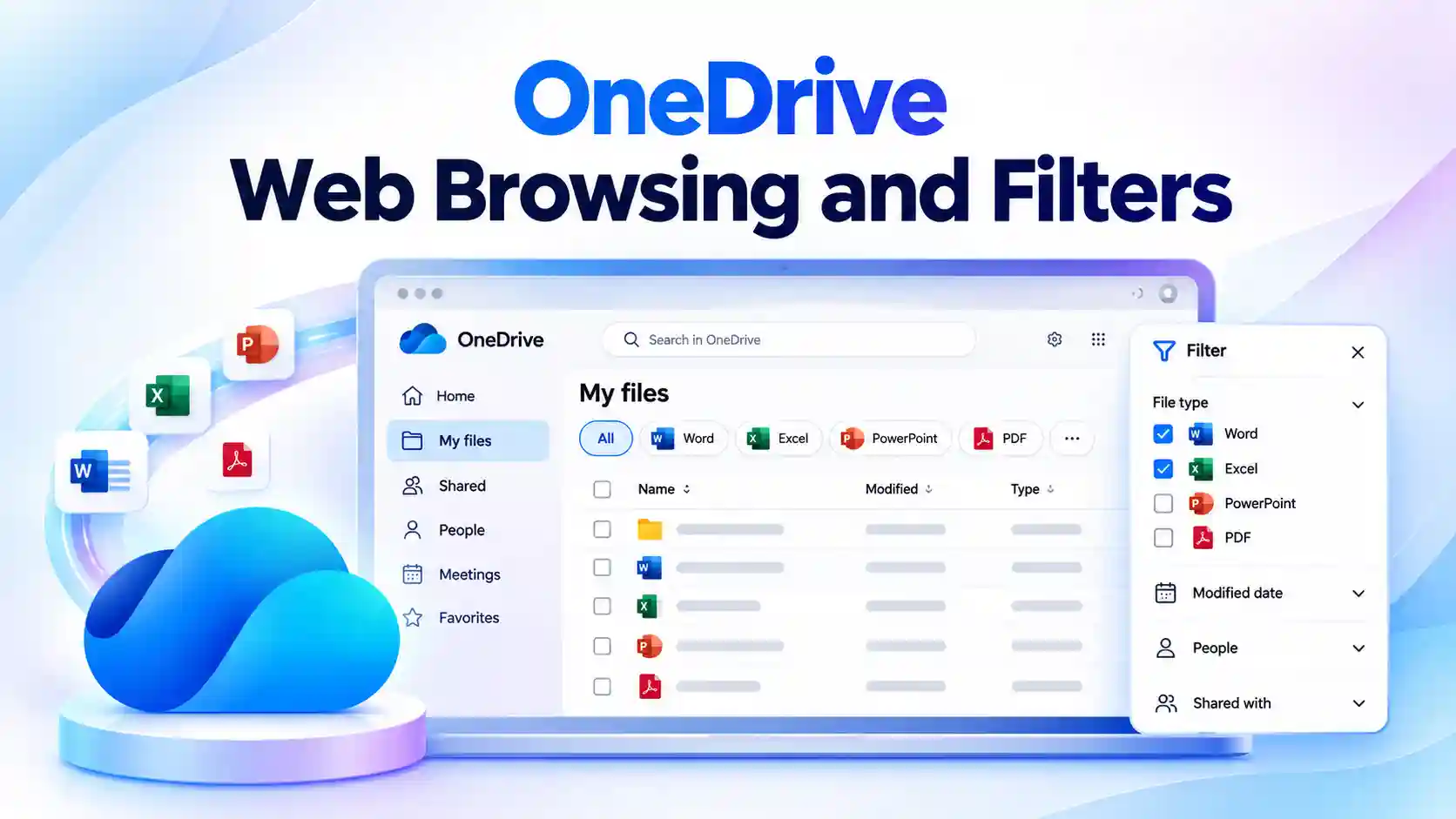
Finding a document should not take longer than working on it. When files are spread across folders, shared content, and different views, even a routine search can interrupt your workflow.
Microsoft’s refreshed OneDrive Web experience brings updated navigation and more flexible filtering to everyday file browsing. The changes help you narrow file lists and move through your content with less unnecessary scrolling.
By aligning OneDrive for the web with the modern SharePoint document library experience, Microsoft is also creating a more consistent way to browse, organize, and manage files across Microsoft 365.
- A Familiar SharePoint Experience, Now in OneDrive Web
- Find the Right File Type Without the Extra Scrolling
- Filter Pills and a Filter Pane Put More Control in Reach
- More Flexible Filtering Across Your OneDrive Views
- What Changes for Users, and What Stays the Same?
- Help Your Team Navigate the New OneDrive Experience
A Familiar SharePoint Experience, Now in OneDrive Web
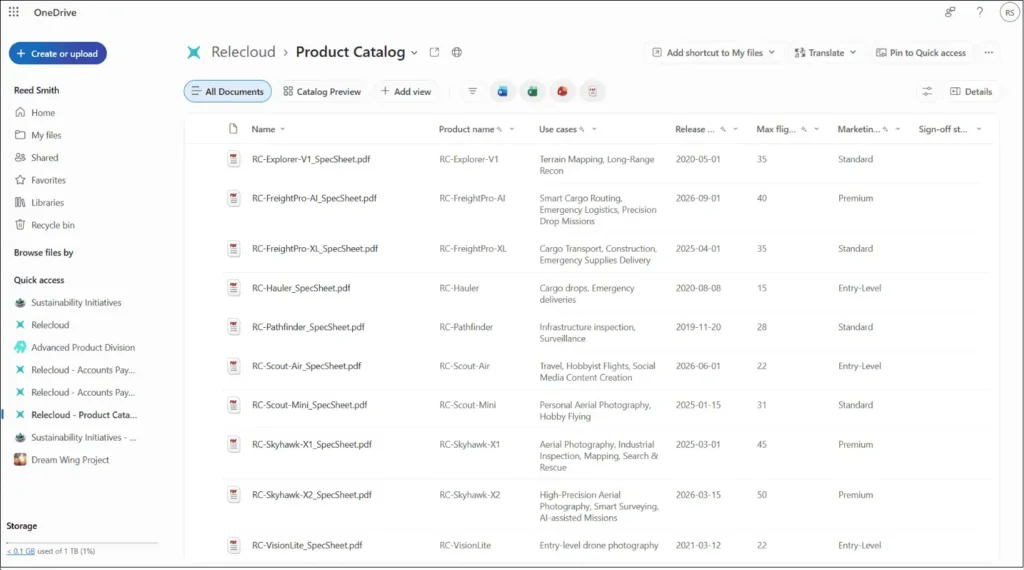
The refreshed OneDrive interface brings file browsing closer to the modern SharePoint document library experience. Updated navigation and layout create a more familiar working environment when you move between the two services.
For everyday tasks, this means greater consistency in how you navigate folders, browse content, and manage files.
The update includes:
- Updated navigation for browsing files and folders.
- A refreshed layout aligned with SharePoint document libraries.
- More consistent file management behavior between OneDrive and SharePoint.
Refreshed OneDrive Web layout and navigation
🔎 Take the One-File Challenge
Choose a document you access regularly and locate it through the refreshed browsing experience. This simple exercise can help you become familiar with the updated layout during your usual work.
- Notice which navigation options help you reach the file.
- Identify one change that makes browsing easier.
Find the Right File Type Without the Extra Scrolling
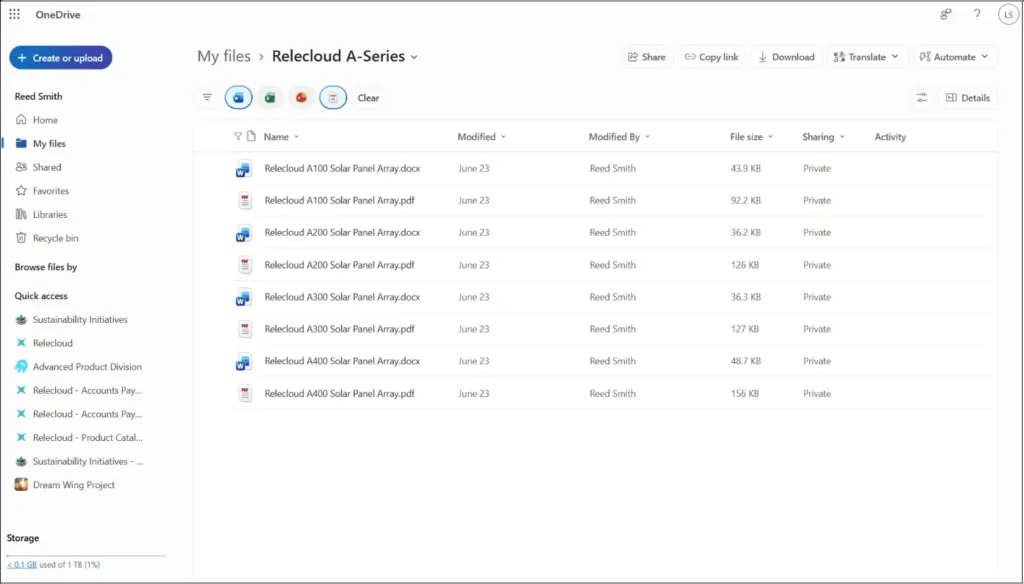
A folder containing documents, spreadsheets, presentations, and other formats can make a specific file harder to spot. Enhanced OneDrive file filtering helps narrow that list by file type.
These filtering capabilities extend to folder-based experiences, including My files and Shared, giving you more control over the content displayed while browsing.
For example, when you need a presentation from a folder containing several document formats, selecting the relevant file type lets you focus on matching files rather than reviewing every item.
File-type filtering in OneDrive Web
Filter Pills and a Filter Pane Put More Control in Reach
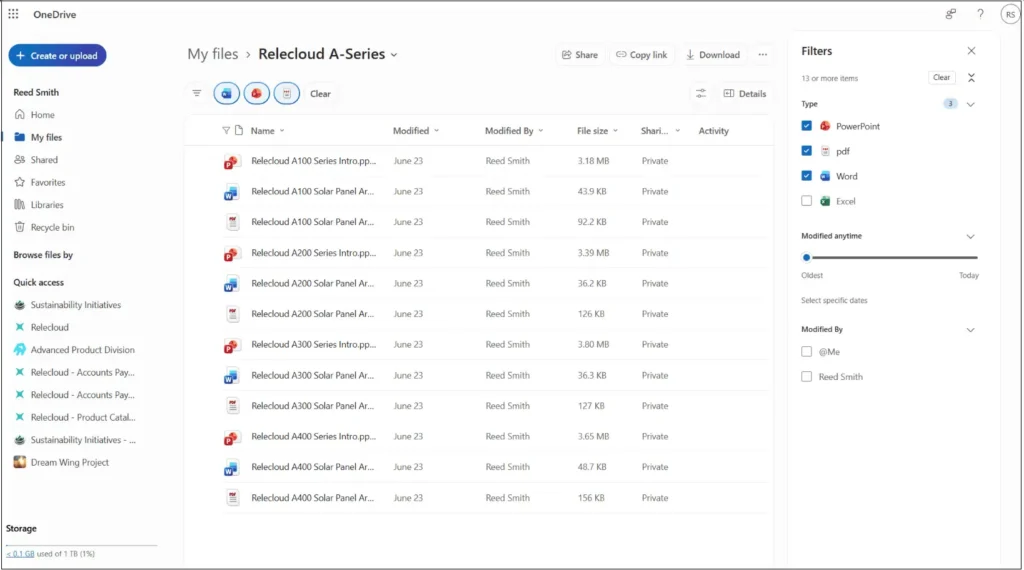
The refreshed experience supports both filter pills and the filter pane. These controls provide different ways to narrow the files displayed without relying only on scrolling through a full list.
You can also apply multiple filters simultaneously, refining the results further when a single filter still leaves too much content to review.
Available filtering options let you:
- Use filter pills to apply filters within a view.
- Open the filter pane to work with available filtering options.
- Combine multiple filters to create a more focused file list.
Filter pills and the filter pane in OneDrive Web
🎯 Try a More Focused File Hunt
Choose a busy folder and narrow its contents using the available filters. A task you already need to complete provides a practical way to explore the updated controls.
- Start with the file type relevant to your task.
- Combine available filters and compare the results with the original list.
More Flexible Filtering Across Your OneDrive Views
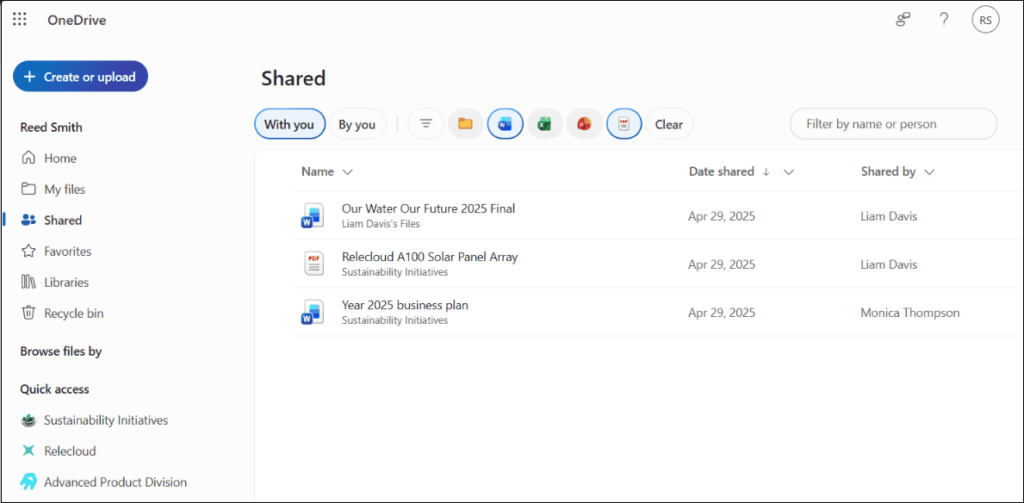
The filtering improvements go beyond individual folders. Microsoft is also updating existing filters across key OneDrive views to support multiple filters at once.
Enhanced filtering is available across:
- Home
- Shared
- People
- Meetings
- Favorites
This gives you more flexibility in the views you already use. Whether you browse for a file associated with a colleague, a meeting, or your favorites, you can refine the displayed content using available filters.
Enhanced filtering across OneDrive views
What Changes for Users, and What Stays the Same?
The refreshed OneDrive web experience is enabled by default, with no user action required. The changes focus on how you browse, navigate, and filter content.
Your existing access arrangements remain unchanged:
- File and folder permissions stay the same.
- Existing sharing settings remain in place.
- Current policies continue to apply.
The updated interface does not change who can access your files or how those files have been shared.
💬 Share Your Team’s Best File-Finding Tip
A short exchange of practical tips can help colleagues become comfortable with the refreshed experience. Focus on small improvements that fit naturally into everyday file management.
- Share the OneDrive view you use most often.
- Contribute one useful filtering tip to your team’s internal guidance.
Help Your Team Navigate the New OneDrive Experience
No configuration work is required, but clear internal guidance can help your team recognize the refreshed interface and understand the filtering options.
A few focused updates can support that transition:
- Refresh training materials that show the previous OneDrive interface.
- Brief help desk and support teams on navigation and filtering changes.
- Notify colleagues who regularly use OneDrive for the web.
Keep guidance centered on familiar tasks, such as finding a presentation, browsing shared folders, or narrowing a long file list. Practical examples make the interface changes easier to understand and apply.
With a SharePoint-aligned layout and expanded filtering, the OneDrive Web update creates a more consistent file management experience while preserving your existing permissions, sharing settings, and policies.
Explore the Update with Microsoft’s Official Resources
Use these official Microsoft resources to track the rollout and learn how to get the most from the refreshed OneDrive web experience.