


If you’ve opened Microsoft Plann recently and noticed a “Premium” label sitting next to features you don’t recognize – Gantt charts, sprints, something called “Goals” – you’re not alone. Microsoft has quietly merged three separate tools (Planner, Project for the Web, and To Do) into one product, and that merger is exactly why “Planner” and “Planner Premium” now feel like two different apps wearing the same name.
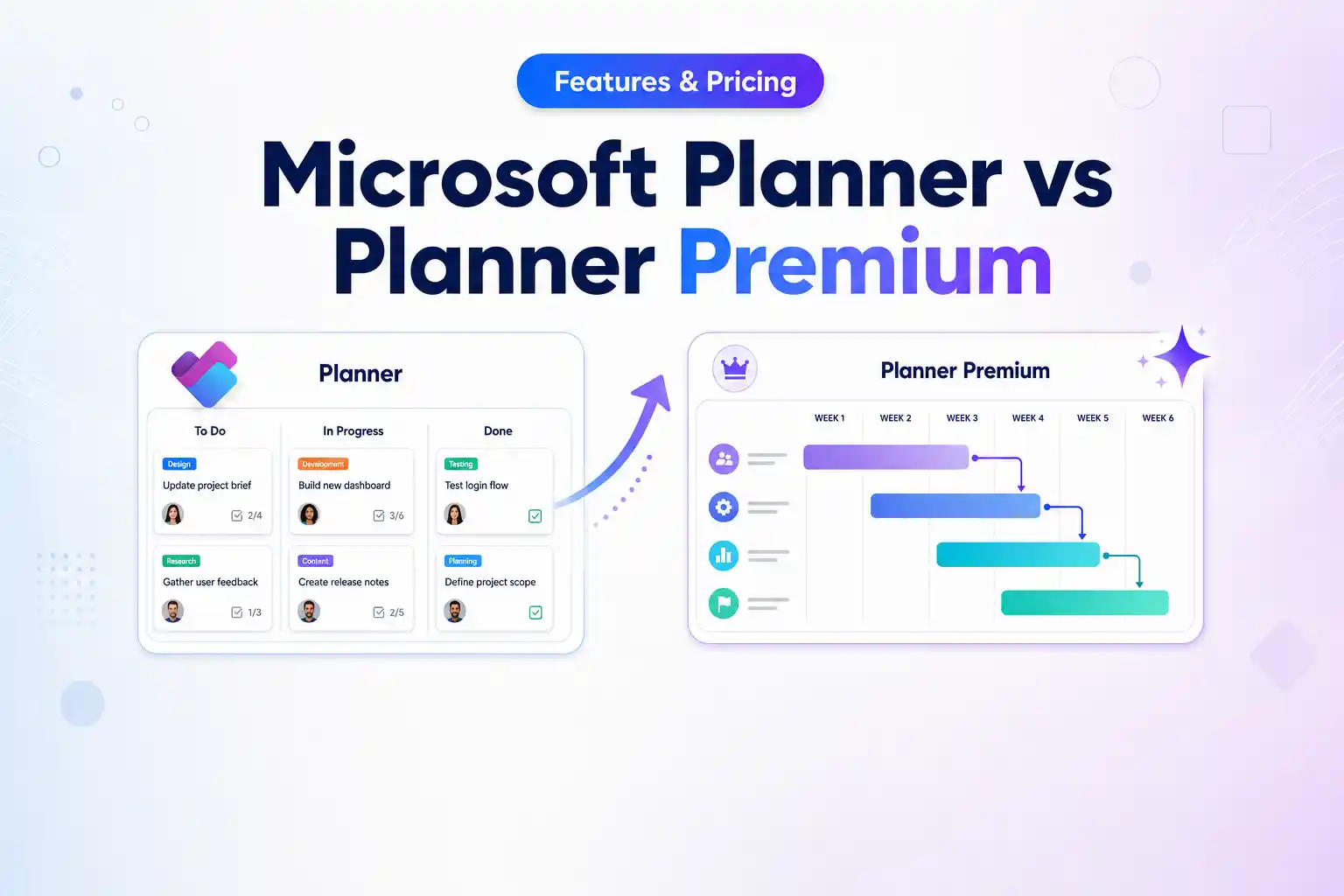
Microsoft Planner is designed for straightforward team task management. Planner Premium adds structured project-management capabilities such as Gantt-style timelines, dependencies, sprints, workload visibility, goals, and more advanced scheduling.
Here’s how they compare and how to decide which option actually fits your team.
What Is Microsoft Planner Basic?
Basic Planner is included with eligible Microsoft 365 subscriptions and works well for teams that need a clear way to organize and track everyday work.
Think of a five-person marketing team planning a campaign, an HR department managing a hiring checklist, or an IT team tracking routine internal tasks. In those situations, you usually need to know what needs to be done, who owns it, and when it is due – not build a complex project schedule.
Basic Planner includes capabilities such as:
- Grid, Board, Schedule, and Charts views
- Buckets, labels, checklists, and attachments
- Task assignments and due dates
- Filtering and grouping
- Microsoft Teams and Microsoft 365 integration
- Up to 9,000 tasks in a plan
If your project management mainly comes down to who is doing what by when, Basic Planner may be all you need.
What Is Microsoft Planner Premium?
Planner Premium is designed for teams whose work has moved beyond a simple task board.
Imagine a product launch with several teams, dependent activities, milestones, fixed deadlines, and people working across different phases. A board of individual tasks can show what is happening, but it becomes much harder to understand how one delay affects the rest of the project.
That is where Premium becomes useful.
Depending on the Planner license, Premium capabilities include:
- Timeline (Gantt) view – See tasks across a project schedule and understand how work fits together.
- Task dependencies – Connect related tasks so teams can see which work needs to happen first.
- Critical path – Identify the tasks that directly affect the project’s finish date.
- Backlogs and sprints – Organize work into iterations for Agile-style project management.
- People view – See workload distribution across team members.
- Goals – Connect project tasks to broader project objectives.
- Milestones and custom fields – Add more structure to project tracking.
- Baselines and advanced dependencies – Available with higher-tier Planner licensing.
- Microsoft 365 Copilot capabilities – Add AI-assisted plan creation, task generation, execution, and status reporting when the appropriate Copilot license is available.
Premium plans are built for structured projects rather than very large running task lists. Microsoft currently documents a limit of 3,000 tasks per Premium plan, compared with 9,000 tasks in a Basic plan.
(Note: the AI features need a separate Microsoft 365 Copilot license – Plan 1 or Plan 3 then unlocks additional AI capabilities on top)
Microsoft Planner vs Planner Premium: Feature Comparison
Compare Microsoft Planner Basic and Planner Premium side by side to see how their features, limits, and capabilities differ.
Feature | Basic Planner | Planner Premium |
|---|---|---|
Cost | Included with eligible Microsoft 365 plans | Additional license required |
Grid and Board views | Yes | Yes |
Charts | Yes | Yes |
Timeline (Gantt) view | No | Yes |
Create task dependencies | No | Yes |
Backlogs and sprints | No | Yes |
Goals | No | Yes |
People view | No | Yes |
Milestones | No | Yes |
Custom fields | No | Yes |
Critical path | No | Planner and Project Plan 3 |
Baselines | No | Planner and Project Plan 3 |
Advanced dependencies with lead and lag | No | Planner and Project Plan 3 |
Portfolio capabilities | No | Planner and Project Plan 3 |
Copilot capabilities in Planner | Limited / license dependent | Available with appropriate Microsoft 365 Copilot licensing |
Task limit per plan | 9,000 | 3,000 |
Best suited for | Everyday team task tracking | Structured and multi-phase projects |
The important distinction is not simply free versus paid. It is whether your team needs a task-management tool or a structured project-management system.
Microsoft continues to develop Planner, so individual capabilities and licensing boundaries can change over time.
Microsoft Planner Premium Licensing and Pricing
Planner Premium isn’t one upgrade – it’s three tiers, each aimed at a different scale of work:
Plan | Approx. price (per user/month, annual billing) | Built for |
|---|---|---|
Plan 1 | ~$10 | A single team needing dependencies, Timeline view, and Agile boards – no reporting overhead |
Plan 3 | ~$30 (Copilot needs a separate M365 Copilot license) | Project managers running multi-phase work who need baselines, critical path, and named resource assignments |
Plan 5 | ~$55 — End of Sale for new purchases from May 1, 2026 | PMOs overseeing 10+ concurrent projects who need portfolio roll-up, demand management, and budget tracking |
These map directly to what used to be sold as “Project Plan 1/3/5”. Note that Plan 5 reached End of Sale on May 1, 2026: existing Plan 5 subscriptions continue, but new customers can no longer buy it directly and typically pair Plan 3 with Power Platform add-ons for portfolio-scale needs. Actual pricing varies by region and licensing agreement, so confirm current rates with Microsoft or your CSP before budgeting.
One deadline makes this more than a feature comparison: Project Online retires on September 30, 2026, and Microsoft has positioned Planner Premium as its recommended successor – though it stops short of calling it a feature-for-feature replacement. If your organization still runs Project Online, this isn’t an optional upgrade decision – it’s a migration deadline.
Microsoft Planner Basic vs Premium: Which Plan Is Right for You?
Match the tier to the complexity of the work, not the size of the budget:
- A support team logging tickets and follow-ups → Basic Planner.
- A 15-person team launching a product with two or three dependent phases → Plan 1.
- A project manager tracking baselines, critical path, and resource load across one active project → Plan 3.
- A PMO overseeing a portfolio of projects that need budget and demand visibility across departments → Plan 5. (For new customers after May 1, 2026, Plan 5 is no longer sold — pair Plan 3 with Power Platform add-ons instead.)
Choosing too few features becomes a problem quickly. Within a few months, teams may need advanced features like Gantt charts or task dependencies. Choosing too many features is also a waste. For example, a five-person team may never use portfolio management, but they would still be paying for it.
Start with the lowest plan that meets your current needs, and upgrade only when your actual work requires more features.
Moving Microsoft Planner Plans Between Tenants
Choosing between Basic Planner and Planner Premium is only part of the planning process. If your organization is moving to a new Microsoft 365 tenant, you also need to make sure your existing Planner data moves with the users who depend on it.
Apps4.Pro helps migrate Microsoft Planner plans between Microsoft 365 tenants, preserving important plan data such as tasks, buckets, assignments, dates, labels, checklists, and other supported metadata. It supports migration scenarios involving Planner Basic and Planner Premium plans, helping teams avoid rebuilding their project plans manually after a tenant migration.
If your requirement is a Microsoft 365 tenant-to-tenant Planner basic and Planner Premium migration, explore our Microsoft Planner Migration solution to understand the supported scope and migration options.

















 Migrate
 Manage
 Migrate Microsoft 365








