


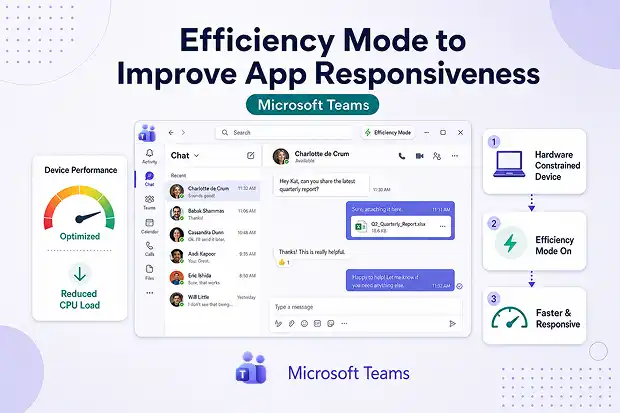
If Microsoft Teams sometimes feels slow, heavy or frustrating on an older laptop, there is some welcome news. Microsoft is introducing Efficiency Mode to help Teams feel faster and more responsive on devices with limited CPU and memory.
The idea is simple. Instead of forcing your device to do more than it comfortably can, Teams now adapts its behavior to reduce strain and improve the overall experience during daily work and meetings.
What Is Microsoft Teams Efficiency Mode?
Efficiency Mode is a performance-optimized experience built into Microsoft Teams for devices that do not have a lot of hardware power to spare.
It is designed to reduce resource usage in the background, so the app stays usable, responsive and smoother during chats, calls and meetings.
Key things to know:
- It applies to Teams for Windows desktop and Mac desktop.
- It is designed for hardware-constrained devices with limited CPU or memory.
- It aims to improve Teams responsiveness and meeting performance without adding extra work for the user.
How Efficiency Mode Improves Performance
This update focuses on making Teams feel lighter on devices that usually struggle with busy workdays, long meetings or too many apps open at once.
Instead of trying to deliver the highest possible visual performance at all times, Teams shifts toward a more balanced experience that helps the app stay stable and responsive.
Key optimizations include:
- Dynamic video resolution
- Teams can dynamically adjust the video resolution sent from the camera during meetings.
- This helps reduce lag, stuttering and pressure on the device when resources are limited.
- Optimized app startup
- Teams can open without a pre-selected chat and show a static image in the message pane.
- This reduces the processing load when the app launches, which can make startup feel faster.
- Smarter resource usage
- Lower hardware demand can help the device manage multitasking more smoothly across the workday.
- That means fewer slowdowns and a more comfortable Teams experience on lower-spec systems.
Try a Quick Performance Check
For a simple way to connect this update to everyday work, encourage people to notice how Teams feels before and after Efficiency Mode appears.
This can turn a technical update into a practical conversation people actually relate to.
- Ask users to check how quickly Teams opens.
- Ask whether meetings feel smoother on older devices.
- Invite short feedback through Teams chat, a poll or an internal post.
What End Users Will See
For most people, Efficiency Mode works quietly in the background. It is meant to help without adding complexity or changing the way Teams is normally used.
Efficiency Mode is enabled by default in Microsoft Teams on eligible devices(hardware constrained, typically with limited CPU and/or memory).
Users can configure themselves via Settings → General → Efficiency mode.
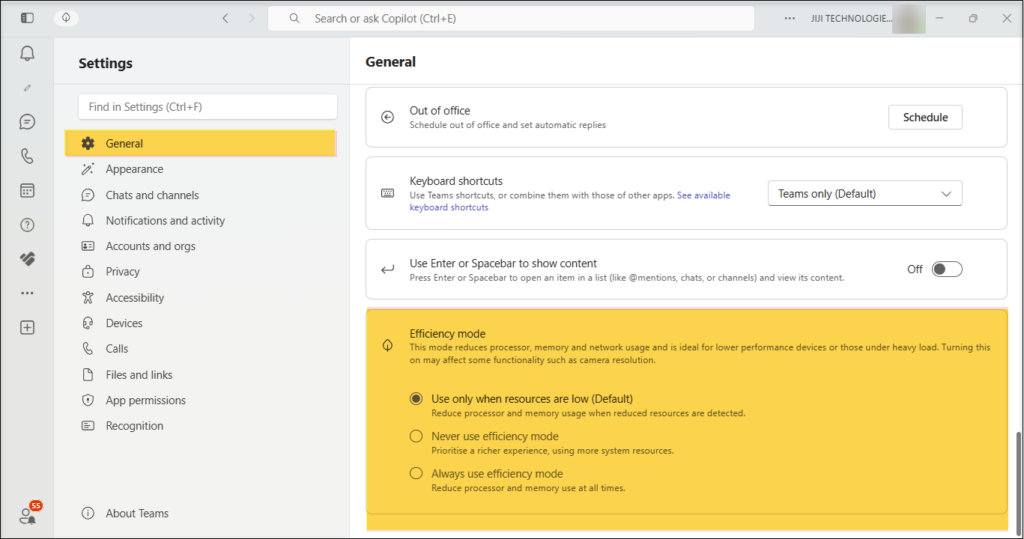
Users may notice:
- An Efficiency Mode indicator in the Teams app title bar.

- Slight changes in outgoing video quality during meetings when the device is under pressure.
- A lighter startup experience that helps the app load with less strain.
- For VDI users, Microsoft is also replacing the earlier Optimized pill with a new icon, so the title bar experience stays more consistent.



Who Benefits Most From Efficiency Mode?
This feature will matter most to people using devices that regularly struggle with memory or processor limitations.
It can be especially useful in workplaces where not every laptop or desktop has the same performance level.
Efficiency Mode is especially helpful for:
- People using older or lower-spec laptops and desktops.
- Remote and frontline workers who rely on stable meetings across different environments.
- Organizations supporting BYOD setups where device capability can vary widely.
For these users, a smoother Teams experience can make everyday collaboration feel less frustrating and more dependable.
Admin and IT teams: what to know
From an admin perspective, this is a relatively simple update to understand and support. It does not require complicated setup, and it does not introduce new compliance concerns in the source material reviewed.
The most practical step is simply making sure support teams and internal documentation are aware of the new experience and the opt-out setting.
Note
Admins must be aware that there is no published global setting yet in the Teams admin center to centrally disable it, so behavior is mainly “on by default for hardware‑constrained devices, with user opt‑out.”
Helpful actions include:
- Brief helpdesk teams on what Efficiency Mode is and why users may see a new indicator.
- Update internal support articles with the opt-out path in Teams settings.
- Include the feature in onboarding or device guidance for users on lower-spec hardware.
Run a Short Ask IT Session
A short internal Q and A can make this update easier to trust and easier to adopt.
People are more likely to accept small performance-related changes when they understand what is happening and why it helps.
- Show where the indicator appears in Teams.
- Explain why video quality may adjust slightly on lower-powered devices.
- Answer common questions about settings, performance and user control.
Compliance And Governance Notes
Based on the available Microsoft information, this update does not introduce additional compliance issues beyond normal Teams usage.
The feature is user-controlled, lightweight in scope and focused on client-side performance behavior.
Key points:
- Users can enable or disable the feature through Teams settings.
- No other compliance considerations were identified in the source material.
- Existing Microsoft 365 security and governance controls continue to apply.
Keep up with the update
For rollout updates, refer this Microsoft 365 Roadmap Feature Link.

















 Migrate
 Manage
 Migrate Microsoft 365








