


A Smarter Button For Modern SharePoint
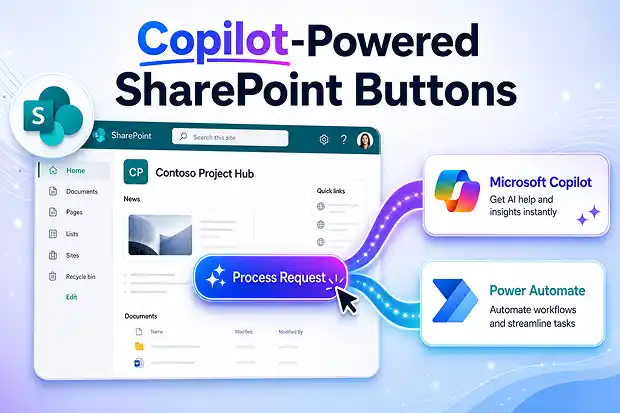
Microsoft has turned a familiar SharePoint feature into a powerful gateway to AI and automation. The SharePoint Button web part can now trigger Copilot in SharePoint prompts or start Power Automate flows directly from your page.
Instead of sending people away on static links, these enhanced buttons keep users on the page while connecting them to guided AI experiences and workflow automation grounded in your Microsoft 365 content and permissions.
- What’s New in the SharePoint Button Web Part
- How Copilot Buttons Work on SharePoint Pages
- How Power Automate Flow Buttons Work on SharePoint Pages
- Who Should Pay Attention To This Update
- What Happens to Existing Buttons
- Governance, Licensing, And Compliance Considerations
- Practical Use Cases for Copilot and Flow Buttons
What’s New in the SharePoint Button Web Part
The Button web part is no longer just a styled link. Page authors can now configure three distinct behaviors based on what the page should help users achieve.
This gives you flexibility to design more purposeful, action-oriented experiences on your SharePoint sites.
- Keep the button as a traditional link to a page, document, or external site
- Turn it into a Copilot in SharePoint prompt launcher for Copilot licensed users
- Configure it to start a Power Automate flow using a specific flow identifier
With these options, SharePoint pages become interactive hubs where people can request AI support, initiate approvals, or run repeatable processes without leaving the content they are reading.
🎯 Tap To Ask Copilot
You can place a prominent button titled “Ask Copilot About This Page” near key content sections.
- Preconfigure the prompt so Copilot explains the page in simple language
- Add guidance text such as “Click to summarize or clarify this information”
- Use page analytics to see which sections generate the most Copilot engagement
This turns an information heavy page into a self-service help experience that reduces basic support questions and makes complex topics easier to understand.
How Copilot Buttons Work on SharePoint Pages
When a button is configured for Copilot in SharePoint, selecting it launches a predefined prompt in Copilot that is grounded in the page and site content, and respects existing permissions.
This gives users a structured, repeatable way to use generative AI that is tailored to the context of the page instead of starting from a blank prompt every time.
- Page authors design prompts that match specific tasks or common questions
- Only users with a valid Microsoft 365 Copilot license can use Copilot buttons successfully
- Copilot experiences remain within your organizational context, using the same security and compliance controls that already govern SharePoint
For example, a button on a project site can instruct Copilot to summarize recent updates, surface risks from project documents, or propose next steps based on the content available in that site.
📋Click For Instant Page Summary
On important communication pages, a Copilot button labeled “Summarize This Page” at the top can serve busy readers.
- Use a predefined prompt such as “Summarize this page in three bullet points for stakeholders”
- Encourage leadership teams to use this when quickly scanning updates
- Add short helper text stating that it is helpful when catching up between meetings
This provides time-saving AI powered digests while keeping people connected to the full underlying content.
How Power Automate Flow Buttons Work on SharePoint Pages
The same Button web part can also be configured to start a Power Automate flow directly from a page using a specific Flow ID.
This connects information and action so that users can move immediately from reading to doing , without navigating to separate apps or manual menus.
- Use buttons to launch approvals related to the content on the page
- Trigger notifications when certain documentation is updated or a status changes
- Start intake workflows for requests, incidents, or ideas directly from relevant pages
Unlike Copilot buttons, Power Automate buttons do not need a Copilot License and can be used by any authorized flow user.
⚙️ Start Workflow From Pages
On your governance or standards content, a flow button titled “Submit A Change Request” can encourage structured updates.
- Connect it to a Power Automate flow that logs requests, routes them to approvers, and notifies submitters
- Add concise instructions that this is the preferred way to propose edits or new content
- Use flow analytics to understand where and how change processes are initiated
This shifts governance pages from static documentation to active front doors for change and continuous improvement.
Who Should Pay Attention To This Update
Several groups will benefit from the enhanced SharePoint button capabilities, and they will each experience the update in different ways.
Recognizing these roles helps you plan communication, training, and adoption activities more effectively.
- SharePoint page owners and site editors
- Design button behavior and choose between link, Copilot prompt, or flow
- Align button usage with information architecture, governance, and site purpose
- Microsoft 365 Copilot licensed users
- Gain guided entry points into Copilot in SharePoint directly from pages
- Use prompts that match scenarios such as summarizing pages or extracting insights
- Power Automate flow owners and participants
- Surface flows on the pages where users naturally consume related content
- Reduce friction in starting automations and improve process consistency
These capabilities span across SharePoint Online, Microsoft 365 Copilot, and Power Automate, giving your organization a connected way to blend content, AI, and automation.
📣 One Click Helpdesk On Your Intranet
On IT or HR intranet pages, a button titled “Ask Copilot Before You Raise A Ticket” can encourage self-service.
- Configure the prompt to scan local documentation and try to answer questions first
- Ask employees to use this option when they are unsure where to start
- Position it as a faster alternative to emailing the helpdesk for common queries
This can reduce repeated questions, free support teams for more complex issues, and improve employee experience within your digital workplace.
What Happens to Existing Buttons
If your sites already use Button web parts, this update does not change their current behavior or configuration.
You can continue using them as usual and upgrade only selected buttons to Copilot or flow launchers when it makes sense for the page.
- Existing link-based buttons keep working exactly as before
- No migration effort is required for earlier Button web part configurations
- You can edit a button and change its action at your own pace and per site needs
This makes it easier to test changes on pilot pages or key sites before rolling them out more broadly.
Governance, Licensing, And Compliance Considerations
There is no new dedicated admin control introduced specifically for this button enhancement, but usage is governed by existing Microsoft 365 Copilot licensing, permissions, and Power Automate access controls.
In practice, this means your current security, compliance, and identity strategies continue to apply to Copilot and flow interactions started from buttons.
Key points to keep in view:
- Copilot buttons work only for users who have appropriate Microsoft 365 Copilot licenses and permitted access to Copilot in SharePoint.
- Flow buttons follow existing Power Automate sharing and permission rules, so only authorized users can run those flows.
- Page authors can decide whether to enable Copilot or automation on specific pages, providing local control that complements global governance.
From a compliance perspective, these buttons provide guided entry points into AI scenarios that interact with organizational content while staying within existing access and permission models.
Practical Use Cases for Copilot and Flow Buttons
When you think in terms of “one click AI” and “one click automation” on SharePoint pages, many practical scenarios emerge across departments and teams.
Here are some suggestions to consider as you modernize your sites.
- Employee onboarding pages
- Copilot button: “Explain this onboarding checklist in simple terms”
- Flow button: “Confirm onboarding completion and notify HR”
- Policy and procedure sites
- Copilot button: “Summarize key changes in this policy”
- Flow button: “Acknowledge that you have read this policy”
- Project or portfolio dashboards
- Copilot button: “Highlight important risks based on this site’s content”
- Flow button: “Escalate a risk to the steering committee”
Each button can be tailored to the content and audience of the page, so SharePoint evolves from a static knowledge repository into a dynamic tool that supports action and insight.
📈 Measure AI And Automation Adoption
Measure the impact of Copilot and flow buttons by defining a simple tracking plan during implementation.
- Track page views and button clicks using SharePoint analytics and flow run history
- Compare usage with improvements in response times, task completion, or ticket volumes
- Share insights with stakeholders to refine prompts and workflows over time
Measurement turns your AI and automation features into evidence backed improvements rather than isolated experiments.
How To Learn More And Get Started
If you are new to the SharePoint Button web part or Copilot in SharePoint, Microsoft provides official documentation and learning resources that guide you through setup, configuration, and best practices.
You can use these references as trusted starting points.
- Use the Button web part – Microsoft Support
Explains how to add and configure the Button web part on SharePoint pages, including labels, links, and alignment options. - Copilot in SharePoint – Help and learning
Describes how Copilot in SharePoint helps streamline content creation, collaboration, and page experiences, with prompts and guidance for everyday scenarios. - Copilot in SharePoint – Adoption guidance
Covers how SharePoint powers collaboration, communication, automation, and AI across Microsoft 365, along with tips for change management and stakeholder engagement.

















 Migrate
 Manage
 Migrate Microsoft 365








