


Introduction
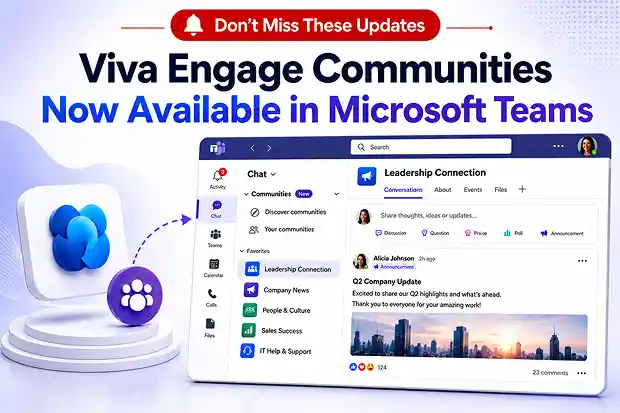
Viva Engage(Yammer) communities are becoming available inside Microsoft Teams as a native experience, so your communities, conversations, and leadership posts sit right next to your chats and channels. Instead of switching between separate apps, people will be able to discover and participate in company-wide discussions from the same place where they already collaborate on projects and attend meetings.
This tighter integration makes it easier for you to share updates, run leadership communications, and grow communities of practice, because everything shows up in the familiar Teams interface with consistent notifications and navigation.
This article walks through the new Viva Engage communities experience in Microsoft Teams, unified versus split views, key new capabilities, and practical guidance for tenant to tenant Viva Engage migrations with Apps4.Pro.
What is changing with Viva Engage in Teams
Microsoft is bringing Viva Engage communities directly into M365 Teams so you can reach people where they already spend their day, without asking them to open another app. Communities now appear in the Teams navigation and community notifications show up in the Teams activity stream, which helps your messages feel like part of daily work instead of “another tool to check”.
You will see two layout options in the new experience:
- Unified view puts Communities as a new section in the Chat separate view, so chats, group chats, and communities appear in a single, familiar list.
- Split view puts Communities as a new section in the Chats and Channels combined view, so your team channels and communities are side by side but clearly separated.
In both layouts, current Viva Engage memberships sync automatically, favourites carry through, and notifications bring people straight back into the right community in Teams.
Core Capabilities of Viva Engage Communities in Teams
The Yammer Communities experience in Teams is not just a new entry point; it brings some useful capabilities that can lift engagement if you lean into them. These features are designed to help people connect, share, and catch up quickly without leaving Teams.
Few of the new capabilities include:
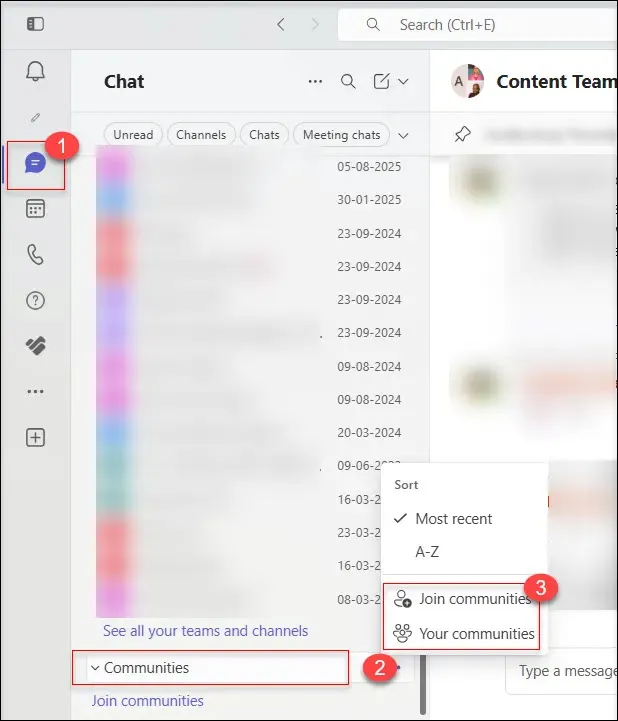
- Find your communities
See your top communities and open Your communities in Teams to browse everything you belong to from Chat -> Communities -> Join communities / Your communities.
- Organize your communities
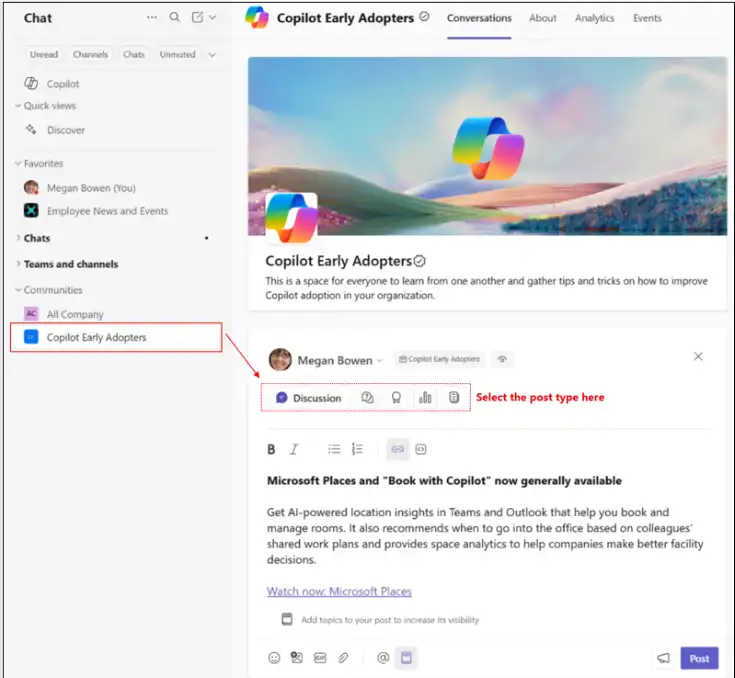
Favourite key communities and leave ones you no longer need so your list stays focused. - Create a new post
Start discussions, questions, praise, polls, or announcements directly inside each community.
- Post or comment as a delegate
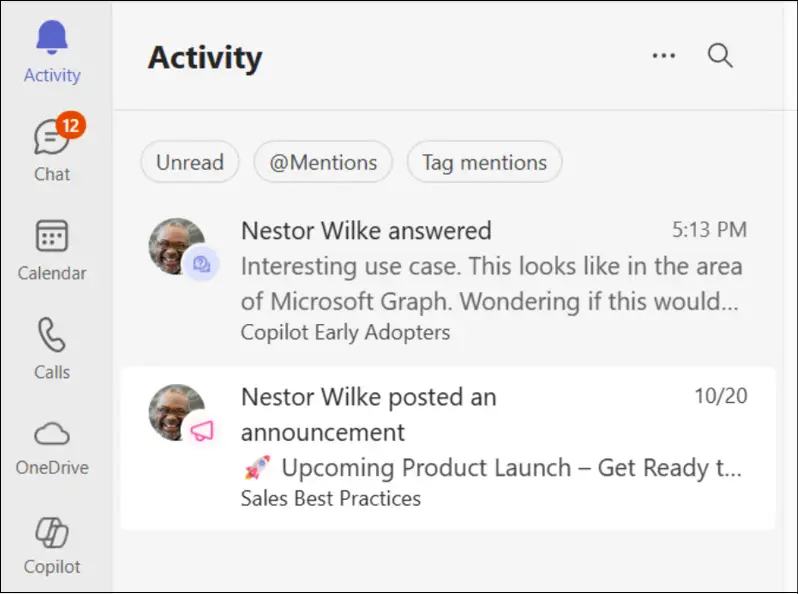
Post and reply on behalf of leaders or teams when you are assigned delegate permissions. - Manage activities and notifications
Get Viva Engage updates in the Teams Activity feed and fine tune notification settings to match your preferences.
- Search for and search in communities
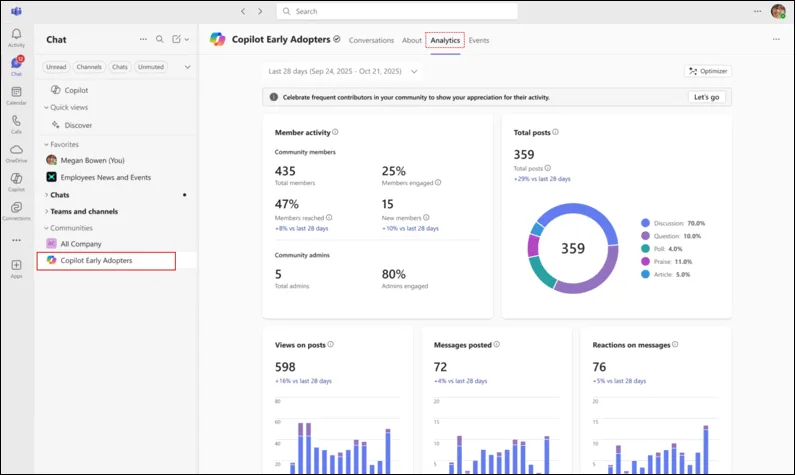
Use Teams search to find communities, and search within a community to locate specific posts and replies. - Community analytics for admins and communicators
Track active members, engagement, and trends with built in community analytics dashboards.
- Events in communities
View upcoming, live, and past events from the Events tab and join sessions or watch recordings from the community.
Together, these capabilities make Viva Engage Communities in Teams a place where people can connect, learn, and keep up without fighting the signal to noise ratio.
References
- Getting started with Viva Engage Communities in Microsoft Teams
- Manage Viva Engage experiences in Microsoft Teams
Admins: Switches, requirements, and control
If you manage Teams or Microsoft 365, this change lands directly in your world. The good news is that the prerequisites and controls are straightforward, and you stay in charge of when and how people see Viva Engage inside Teams.
Your key steps are to:
- Make sure Viva Engage is not blocked at the network level and that users are allowed to sign in to Viva Engage in Microsoft Entra ID.
- Confirm that the right users have the required Microsoft 365 and Teams licenses as well as access to Viva Engage; no extra Teams license is needed.
- Use the Microsoft Teams admin center messaging settings to switch Viva Engage experiences in Teams on or off and to decide whether to run a pilot first or go broad.
It also helps to decide whether you want to steer people toward unified view, where communities sit right under Chat, or split view, where communities have a clearer separation from channels.
IT Office Hours in Communities
This rollout is a chance for IT to show up as a partner, not just the team that flips switches. A simple office hours format inside Viva Engage can build trust while you introduce the new experience.
You might:
- Create or refresh a “Digital Workplace Help” or “Ask IT” community and make sure it appears visibly in the Teams Communities section.
- Block a weekly window where IT responds to questions posted in that community and marks the most helpful replies.
- Turn common questions into short, visual posts or mini guides that you pin for future readers.
Bringing Viva Engage directly into Teams channels
You are not limited to the Communities entry point in the left rail. When you add Viva Engage as a tab in a Teams channel, you bring a wider community or topic right into the context of a specific team’s work.
Here is what you can do:
- Open the Teams channel where it makes sense, select the plus sign in the tab bar, and search for Viva Engage or Communities.
- Decide whether you want to pin a specific community or a topic, then search and select what fits that team best.
- Let the channel know why you added the tab and how it should be used, so people do not see it as clutter.
This works especially well when HR teams pin a People and Culture community, sales teams pin a Customer Wins community, or engineering groups pin a Dev Practices topic tab.
Quick rollout checklist
To keep your rollout on track and aligned with what people search for, you can rely on a short checklist. This list also contains terms that work well in internal help pages, FAQs, and external blogs.
Essential steps:
- Confirm prerequisites for Viva Engage experiences in Teams and double check licensing for the audiences you plan to onboard first.
- Decide whether to recommend unified view or split view and explain that choice in language your users understand.
- Run a pilot of Viva Engage in Teams with a small group and collect feedback on navigation, notifications, and community usefulness.
- Define your core communities, such as company news, leadership communication, HR help, communities of practice, social groups, DEI spaces, and regional hubs.
- Publish simple guidance for community owners that covers topics, events, moderation, and what good engagement looks like.
- Audit your Viva Engage ( Yammer) networks and tenants and decide where tenant to tenant migration or network consolidation is necessary.
Use a dedicated Viva Engage (Yammer) migration tool like Apps4.Pro to move communities, conversations, and files, rather than relying on partial exports.
Why Apps4.Pro should be part of your Viva Engage plan
Microsoft gives you the integrated experience but expects you to manage the journey of your own data and communities. Apps4.Pro Migration Manager exists to make that journey realistic for you, without custom scripting or risky manual exports.
With Apps4.Pro, you are able to:
- Run tenant to tenant migrations, data center moves, and network consolidations for Viva Engage (Yammer) in a controlled and traceable way.
- Move communities, members, conversations, likes, best answers, mentions and tags so threads stay readable and trustworthy.
- Bring connected files from SharePoint and legacy Yammer storage over with the conversations they belong to.
- Break migrations into waves, monitor them live, and validate results before you point users to the new Viva Engage in Teams experience.
Make Communities Ready for Viva Engage in Teams
Consolidate networks and facilitate tenant to tenant migrations smoothly with Apps4.Pro.

















 Migrate
 Manage
 Migrate Microsoft 365








