


If you work with README files, notes, documentation, or AI generated content, there is a good chance Markdown is already part of your day.
Until recently, opening a Markdown file in Microsoft 365 could feel like a break in your flow. You might have needed to download it, open another tool, or deal with plain text that was harder to review than it should be.
That experience is getting much better. OneDrive and SharePoint now let you open, read, and edit Markdown files directly in the browser, which makes the whole process feel simpler, faster, and more natural.
What’s new for Markdown in OneDrive and SharePoint
The biggest change is that Markdown files no longer feel like an awkward anonymous file type inside Microsoft 365. You can open them right away from the browser and work with them in a way that feels much closer to the rest of your everyday files.
Instead of switching between tools, you can stay where your content already lives. That makes quick edits, reviews, and cleanups much easier to handle.
- Markdown .md files open directly in the browser.
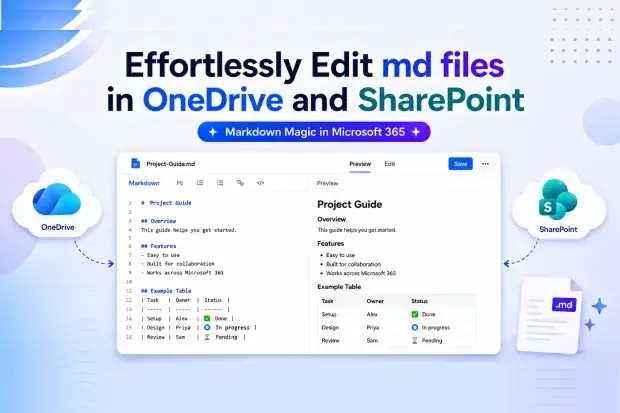
- A side-by-side experience shows the raw Markdown and the rendered preview together.
- Tables, links, images, and code blocks are rendered in a cleaner and more readable way.
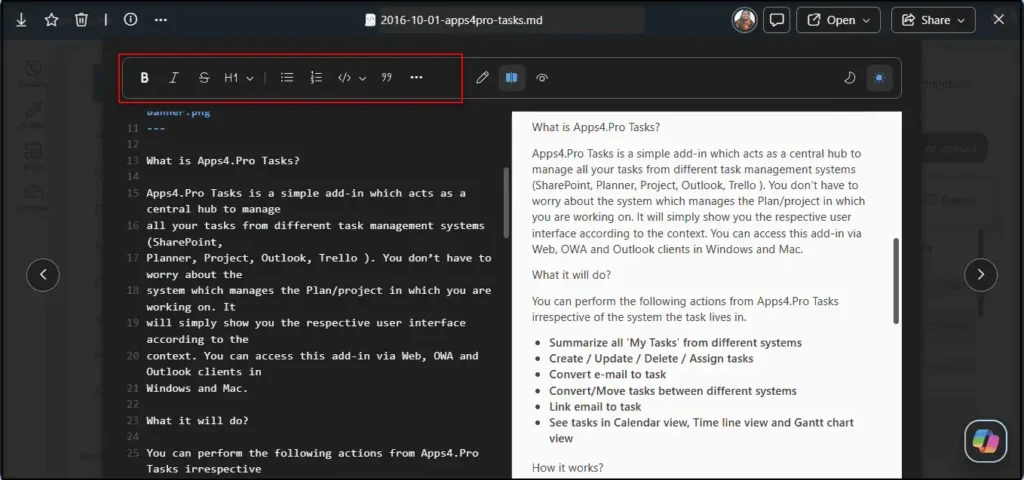
- A built-in formatting toolbar makes editing easier, even if you do not write Markdown every day.
Give your old files a quick refresh
Pick older README, guide, or note that still matters to your work. Open them in OneDrive or SharePoint, clean up a few headings or links, and watch how much easier it becomes to read when the preview updates beside your edits.
Who benefits from this change
If you ever open, review, or update Markdown files, this change matters to you. It is especially helpful if you work with documentation, design webpages(in md file format), project notes, technical content, or files created by AI tools that save output in Markdown format.
It also helps when you want to read the content clearly without getting lost in syntax. The browser preview makes the file feel more approachable right away.
- You may use it for README files and internal documentation.
- You may run into it when reviewing notes, guides, or shared knowledge content in SharePoint or OneDrive.
- You may find it useful when checking AI generated Markdown before sharing it with others.
- You may save time if you only need quick edits and do not want to jump into another editor.
What actually changes in the browser experience
The most noticeable improvement is how natural the file feels when it opens. Instead of dealing only with raw syntax, you get a clearer view of the content and an easier way to edit it at the same time.
This makes small updates feel much less frustrating. It is easier to check formatting, confirm links, and make sure the structure looks right before you save anything.
- You can view and edit the file directly in the browser.
- The split experience shows the editor on one side and the rendered preview on the other.
- Changes appear in real time as you update the content.
- The toolbar helps with headings, lists, links, and other common formatting needs.
Admin impact and governance
From an admin perspective, this is a light touch update. Microsoft states that no admin action is required, and the feature respects the existing access controls already applied to OneDrive and SharePoint content.
That means the Markdown file stays inside the same managed environment as your other files. Permissions, governance, and support processes stay aligned with the way Microsoft 365 already works.
- No separate deployment is required.
- Existing permissions still control who can view or edit Markdown files.
- Markdown files can stay in the same document libraries as your other Microsoft 365 content.
- Internal help content may need a small update, so support teams understand the new browser experience.
Practical use cases for Markdown in Microsoft 365
Native Markdown support becomes more useful when you connect it to everyday work. It can help you manage documentation, project handoffs, technical notes, runbooks, and AI generated content without leaving Microsoft 365.
Because the files stay in OneDrive and SharePoint, they are easier to store, review, and update right where the rest of your content already lives. That cuts down on friction and helps keep useful information easier to find.
- README files for projects and shared documentation.
- Process notes, support steps, and handoff content.
- Knowledge content that benefits from lightweight formatting and easy browser access.
- AI generated Markdown that needs a human review before it is reused or published.
- Web pages designed as Markdown files are easier to edit, review, and maintain in the browser.
How to prepare your organization
Even though you do not need to configure anything, a little preparation can still help. Start by identifying where Markdown already shows up in your day-to-day work and which files would benefit most from easier browser editing.
That small step can make adoption smoother. It also helps you decide what guidance, cleanup, or internal communication might actually be useful.
- Look for Markdown files already stored in OneDrive or SharePoint.
- Review older files that are harder to read or update today.
- Update quick guidance for users or support teams if needed.
- Encourage trying the browser experience before defaulting to downloads.
Learn more from Microsoft
If you want to explore the feature in more detail, refer the relevant Microsoft’s Tech Community Blog “Introducing Markdown support in SharePoint and OneDrive”.

















 Migrate
 Manage
 Migrate Microsoft 365








