


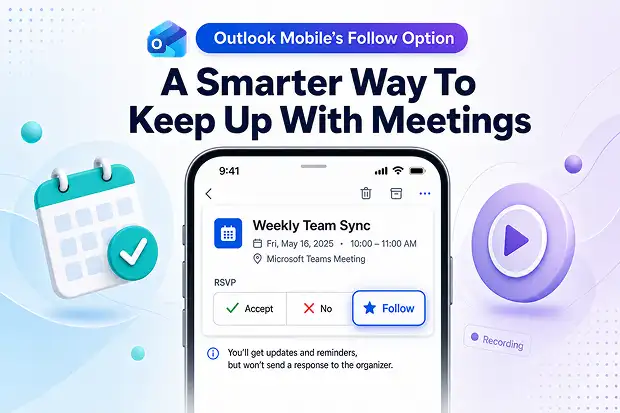
Packed calendars can make it hard to focus on meaningful work. Missing a meeting can also create anxiety because important updates, decisions, or action items may be shared there.
The Follow option in Outlook Mobile creates a better balance. It helps users stay connected to a meeting’s key outcomes, while freeing up time for deep work, customer calls, or other priorities.
This update is especially useful for people who want more control over their workday without losing visibility into what matters. It supports a more flexible and practical way to collaborate in Microsoft 365.
What is the “Follow” option in Outlook?
The Follow option is a meeting RSVP choice in Outlook that lets someone say they will not attend live but still want to stay informed.
In Outlook Mobile, this option appears in the RSVP menu for eligible meetings. It is designed to help people keep up with recordings, meeting chat, transcripts, and follow up content when those resources are available.
Here is what makes this feature useful:
- The meeting can remain on the calendar without blocking time as busy, which helps keep schedules more realistic.
- Important meeting content can still stay within reach, including recordings, recaps, and any updates that were created and shared for that meeting.
- Organizers may be prompted to record the meeting or share follow-up items when attendees choose Follow.
This small RSVP update can make a big difference for anyone trying to reduce unnecessary meeting time without losing context.
Relevant Microsoft reference links
When users see the Follow option
The Follow option is not shown for every meeting. Microsoft limits it to situations where the response makes practical sense.
Users typically see Follow option when:
- The meeting has two or more participants.
- The organizer has requested responses.
- The user is on a supported version of Outlook Mobile after rollout reaches the tenant.
If those conditions are not met, the standard RSVP options continue to appear as usual.
How the Follow option appears in Outlook Mobile
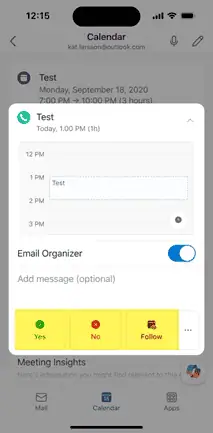
The new Follow response is being added directly into the Outlook Mobile RSVP experience. This keeps the action easy to find and simple to use.
Microsoft’s update highlights these visible changes in the mobile interface:
- Follow appears as the third option in the RSVP menu for supported meetings.
- Maybe moves into the overflow menu, which is accessed through the three dots.
- No shifts into the second position in the RSVP list.
- The feature is enabled by default for all tenants.
What happens when someone chooses Follow
Choosing Follow changes how the meeting is treated for both the person following and the organizer, without cutting off visibility into what happens in the meeting.
From the participant side:
- The meeting stays on the calendar, but the time is marked as free, so it does not block other work or meetings.
- The participant can still access meeting content such as chat, recordings, transcripts, and recaps when those are created.
- They receive notifications when recaps, recordings, or transcripts become available, so it is easier to catch up later.
From the organizer side:
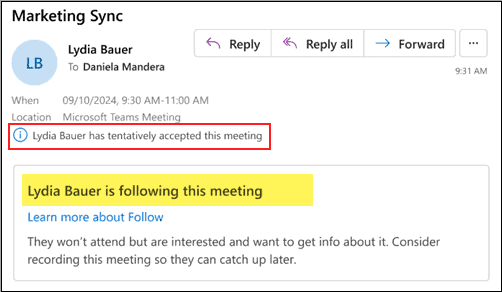
- The organizer sees a Follow response, which clearly signals that the attendee cannot join live but wants to stay informed.
- Outlook and Teams can prompt the organizer at meeting start to record the meeting and take collaborative notes, so followers get useful content afterward.
- The organizer can still view who is following the meeting, and in some classic Outlook clients those responses appear as Tentative with a note that the attendee is following.

This can be especially helpful for update calls, optional meetings, recurring team syncs, and other sessions where staying informed matters more than joining live.
Create a quick team poll
A short poll can help turn this feature into a conversation starter. It also gives teams a low effort way to reflect on how they manage meetings today.
Good poll questions include:
- Would Follow help reduce the number of meetings attended only for awareness?
- Which meeting types are best suited for Follow instead of Accept?
- Would recordings and recaps make it easier to skip some live meetings?
This kind of engagement keeps the topic practical, relatable, and easy to apply in daily work.
Why the Follow option matters for organizations
This feature supports a healthier meeting culture. It makes it easier to avoid unnecessary attendance while still keeping people informed.
For organizations, that can create several benefits:
- Fewer people may join meetings only to avoid missing information.
- Calendar availability can become more accurate because time is not blocked when someone is only following the meeting.
- Teams can get more value from recordings, recaps, and follow up notes already available in Microsoft 365.
- People can protect focus time more effectively while still staying in the loop.
This is one of those small product changes that can improve daily work in a very noticeable way.
Run a “Follow, then catch up” challenge
A simple adoption idea is to encourage teams to try the Follow option for one week after rollout. This can turn a product update into a practical workplace habit.
Here are a few ways to make that idea engaging:
- Ask team members to use Follow for meetings where they do not need to participate live.
- Encourage them to catch up later through the recording, recap, or shared notes.
- Invite them to share whether the feature helped them reclaim focus time without losing important updates.
This kind of challenge can spark useful conversations about meeting quality and smarter collaboration habits.
What IT admins and change owners can do next
No technical setup is required for this rollout, but a little communication can make the change much easier for end users.
A practical preparation checklist can include:
- Inform helpdesk teams about the new mobile RSVP experience and expected user questions.
- Update internal user guides that explain Outlook meeting responses on mobile devices.
- Add a short note about when to use Follow in meeting etiquette or adoption materials.
- Watch the Microsoft 365 Message Center(Message ID: MC1248393) for any timeline or rollout updates.
These steps are small, but they can reduce confusion and help people use the feature with confidence from day one.
Learn more about Outlook meetings and Follow
Readers who want official product guidance and understanding on how meeting responses work in Outlook and how the Follow experience fits into modern meeting habits can explore these Microsoft resources:
















