


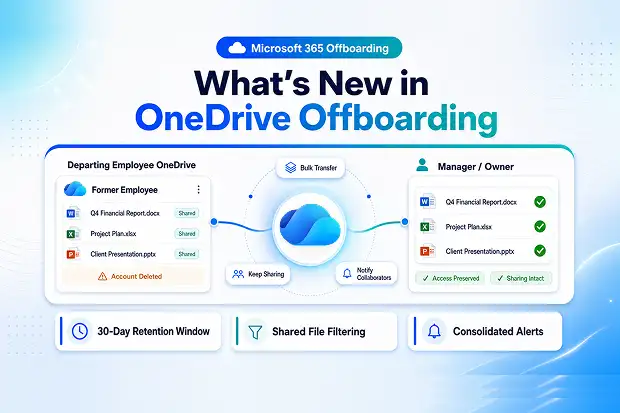
When someone leaves the organization, their OneDrive often still holds important project files, shared documents, and business information that others depend on every day. If those files are not reviewed and transferred in time, teams can lose access, collaboration can slow down, and critical content can be much harder to recover later.
Microsoft is improving this experience with a simplified file transfer process in OneDrive for departing employees. The update helps managers and secondary owners find important content faster, transfer files in bulk, and keep existing sharing in place so work continues with less disruption.
What’s new in OneDrive offboarding
The updated experience is designed to make file handover easier and more practical during employee offboarding. It gives better visibility into the departing employee’s OneDrive and reduces the manual effort involved in moving content.
Key improvements include:
- Redesigned notifications:More visible account cleanup emails so access notifications are easier to notice.
- Improved filtering options, including a Shared view, to quickly identify content other people still use.
- Bulk file transfer with preserved sharing, which helps preserve access for collaborators.
- Consolidated alerts: Streamlined collaborator notifications when multiple files are moved.
These updates support smoother employee offboarding in Microsoft 365 and help reduce the chances of losing access to important OneDrive files.
How file access works when a user leaves
When a Microsoft 365 user account is deleted, OneDrive follows a defined retention and delegation process. This makes the departed user’s files available for review before permanent deletion takes place.
- The deleted user’s OneDrive enters a retention period, which is 30 days by default and can be configured up to 3650 days.
- If a manager is assigned in Microsoft Entra ID, that manager is automatically granted access to the OneDrive. A secondary owner can also be configured.
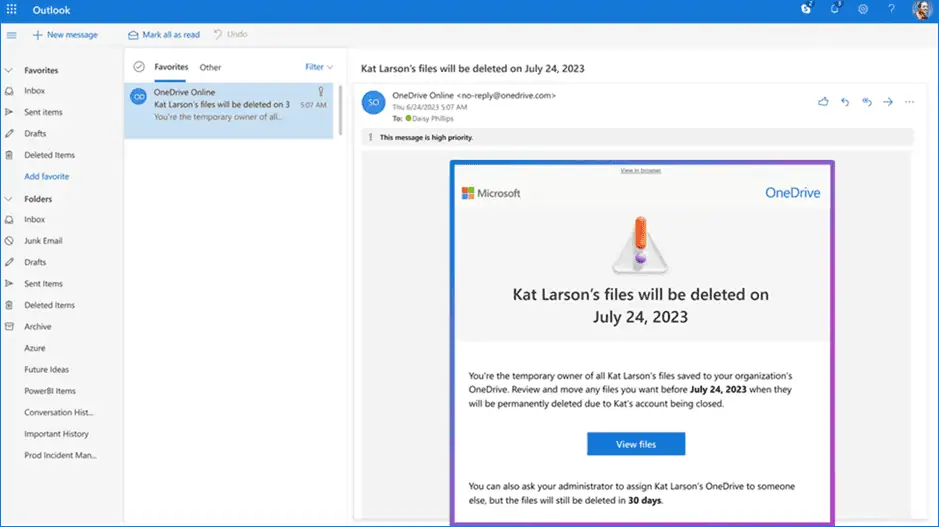
- The person receiving access gets an email explaining that access is available and how long the files will remain before deletion.
- Seven days before the retention period ends, a reminder email is sent to warn that the OneDrive will soon be permanently deleted.
- After the retention window closes, the site moves to the site collection recycle bin for an additional 93 days before final deletion.
Step-by-step: transferring of OneDrive files
The new process is built to be simple enough for managers and file owners to act on quickly. The handover begins directly from the notification email sent after the user account is deleted.
1. Open the departing user’s OneDrive
From the email notification, click View files to open the departing user’s OneDrive. This takes you directly into the file transfer experience so the review can begin right away.
2. Filter for key content
Use the Shared filter to focus on files that others are still using or choose All to view everything in the OneDrive. Starting with shared content makes it easier to protect collaboration and avoid broken access later.
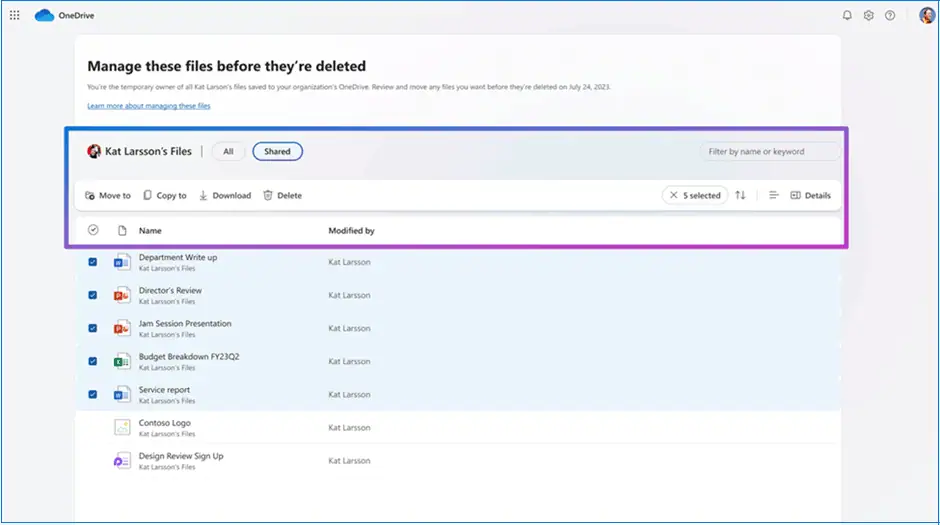
3. Select files for transfer
Select the files or folders that need to be preserved by using the checkboxes in the file list. This makes bulk transfer much faster, especially when the OneDrive contains a large number of items.
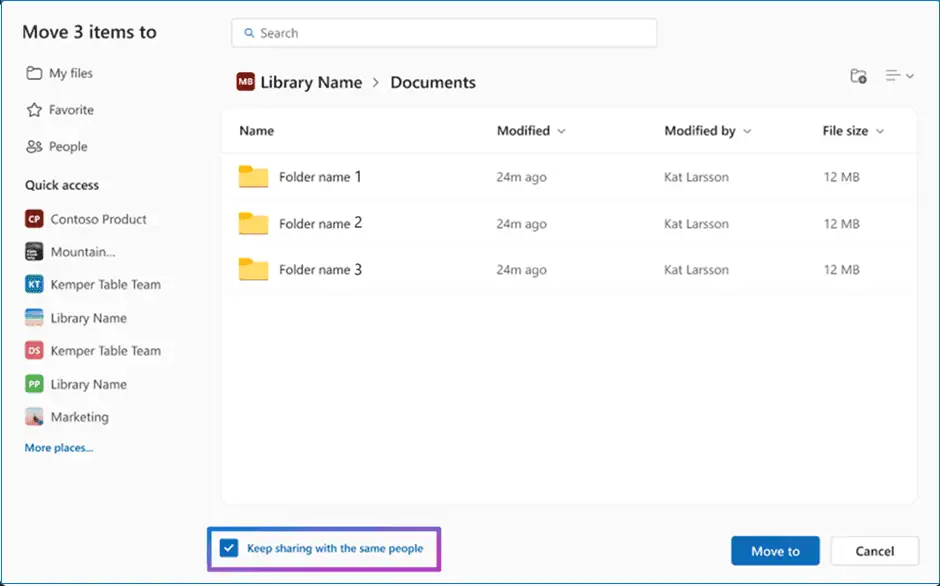
4. Move and keep sharing
Click Move to, choose the destination, and then select Keep sharing with the same people. This helps transfer the files while preserving access for the people who already collaborate on them.
Click Move to again to complete the transfer. Once moved, the files can continue to support ongoing work with less interruption for the team.
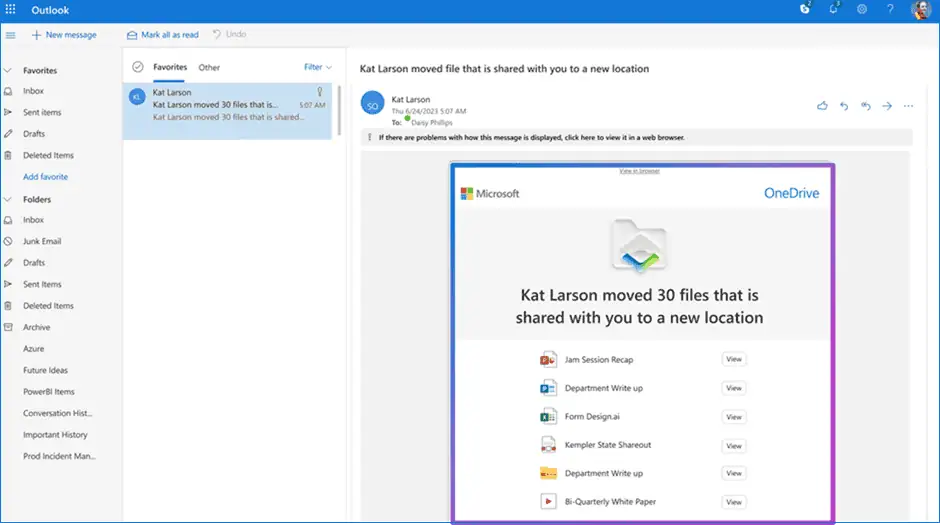
5. Notify collaborators automatically
When multiple files are moved, OneDrive sends collaborators a single consolidated notification instead of many individual alerts. This keeps communication clear without overwhelming Inboxes.
Governance best practices for OneDrive offboarding
Using the new interface is helpful, but a reliable offboarding process also depends on good governance. Clear ownership, retention settings, and user records all play an important role.
Recommended actions:
- Confirm that manager details and secondary owners are correctly set in Microsoft Entra ID.
- Review the OneDrive retention setting in the SharePoint admin center and decide how long deleted users’ files should be kept.
- Define who must review a departing employee’s files and how quickly that review should happen.
- Align the process with security, compliance, and data retention requirements.
A strong Governance Model makes OneDrive offboarding more predictable and reduces the risk of missing important business files.
Empower managers with quick-start guidance
Managers often need simple instructions, not a long technical guide. A short enablement resource can make the new file transfer experience much easier to use consistently across the organization.
Consider creating:
- A one-page quick guide with screenshots from your own Microsoft 365 environment.
- A short video that shows how to open the departed employee’s OneDrive, filter shared files, and complete the transfer.
- A standard Teams or email message that can be shared whenever managers need to handle an employee offboarding case.
This kind of practical support can improve adoption and reduce delays during file handover.
Essential Admin actions to smoothen the rollout
Although this feature does not require technical setup before rollout, preparation still matters. A little planning can make the experience much smoother when the first real offboarding request appears.
Admins should:
- Inform managers and secondary owners about the new OneDrive transfer experience.
- Update internal documentation and offboarding runbooks to reflect the new steps.
- Make file review and transfer part of the broader HR and IT offboarding workflow.
- Share the official Microsoft support article as a trusted reference for managers and support teams.
These small preparations can help avoid rushed decisions and missing files during employee departures.
Learn more from Microsoft
For more information, these Microsoft resources are the best place to go:
















