


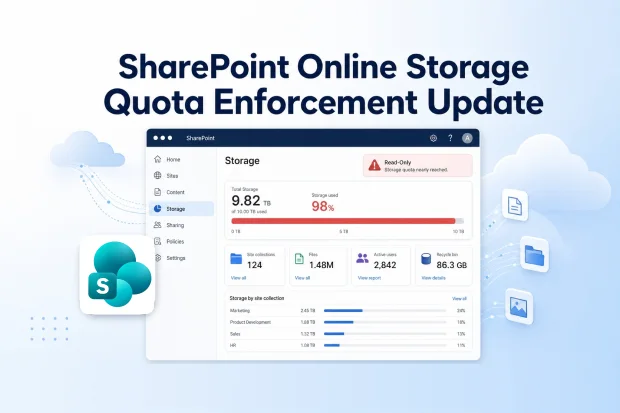
Running out of cloud storage is frustrating enough. Finding out that Microsoft is now enforcing storage limits more strictly can turn that frustration into a real business disruption. Microsoft is updating SharePoint Online and OneDrive for Business storage quota enforcement, so it lines up more closely with the storage allowed by each assigned license.
If storage use goes beyond the licensed limit, the affected OneDrive can move into a read-only state. That means files may still be visible, but uploading, editing, and syncing can be restricted until the issue is resolved.
What Exactly Is Changing?
Microsoft is updating quota refresh so storage limits match actual license entitlements instead of leaving older custom quota settings out of sync.
This update fixes cases where user storage limits were applied incorrectly during quota refresh. As a result, storage behavior should be more consistent and easier for admins to manage across SharePoint Online and OneDrive.
This change can arrive quickly, so reviewing current storage use before enforcement fully lands is a smart move.
Who Will Be Affected?
This update mainly matters in situations where storage usage is already close to or above licensed limits. If storage is well within allowed quotas, there will be no impact.
- Microsoft 365 tenants using SharePoint Online.
- Users whose OneDrive for Business storage is already above the quota allowed by their assigned license.
- Admin-managed environments where user-specific quotas were previously set above licensed entitlements.
- Education users whose storage use exceeds what their license permits.
What Will Actually Happen?
When quota refresh runs, Microsoft will compare actual storage usage against the storage allowed by the assigned license. If usage is too high, the affected account can be placed into a read-only state.
- User quotas will be re-evaluated against license limits.
- Users over their allowed storage may lose write access until the overage is fixed.
- Users who remain within their licensed quota will not see a change.
In practical terms, this can interrupt day-to-day work if storage cleanup or license adjustments are delayed. That is why early review matters.
Health Check Challenge
A quick storage check can make this update feel manageable instead of overwhelming. Turning it into a short internal challenge can also help bring attention to a problem that is easy to ignore.
- Compare each user’s current storage use with the limit tied to their license.
- Share the findings with the IT or Microsoft 365 admin team.
- Review storage usage for a small group of high-usage users.
How To Prepare Your Organization
1. Identify Over-Quota Users
The first step is simple: find out who is already over the limit. Microsoft specifically recommends reviewing OneDrive usage and identifying users whose storage exceeds their license-based quota.
- Use the official PnP samples to identify OneDrive users over license-based storage quota.
- Review Microsoft 365 usage reporting to spot patterns and large storage consumers.
- Prioritize users or teams with unusually large file volumes, old archives, or duplicate content.
Helpful Microsoft and community resources:
2. Take Corrective Action For Affected Users
Once the affected users are identified, the next step is deciding how to bring storage back within the allowed limit. In most cases, the solution will be either increasing the available storage through licensing or reducing what is currently stored.
- Upgrade the user’s license if more storage is genuinely needed for business use.
- Remove outdated, duplicate, or unnecessary files to bring storage back under quota.
- Review older custom quota settings and make sure they are aligned with the user’s actual license entitlement.
3. Inform Your Helpdesk And Admin Teams
Support teams should be aware of this change before users start reporting upload failures or editing issues. A small amount of internal communication now can prevent confusion later.
- Brief helpdesk teams on what read-only behavior may look like.
- Prepare a simple internal response guide for common storage-related tickets.
- Make sure SharePoint and Microsoft 365 admins know how to review and remediate affected accounts.
How This Fits Into Your Governance And Cost Strategy
This update is not just about storage limits. It also highlights the importance of keeping governance, licensing, and user behavior aligned. Microsoft’s broader SharePoint guidance continues to tie storage management closely to service limits and administrative controls.
- It helps reduce the gap between assigned licensing and actual storage consumption.
- It can support better forecasting for storage-related licensing decisions.
- It encourages cleaner content practices and less dependence on oversized personal storage areas.
Microsoft has not identified any new compliance considerations tied directly to this update. Still, storage cleanup should be handled carefully. Before deleting or archiving content, it is important to check internal retention, records management, legal hold, and regulatory requirements relevant to the organization.
Policy And Storage Alignment Sprint
This is a good opportunity to connect IT operations with governance planning. A short review sprint can help uncover content that should be archived, retained, or removed based on policy.
- Align storage cleanup efforts with governance and compliance teams where needed.
- Review high-usage locations alongside retention requirements.
- Flag content that may need archiving instead of deletion.
Official Microsoft Resources for Further Reading
These Microsoft references are useful for deeper reading around this update.
















