


Some meetings need a written record, but recording the full session is not always an option. In many organizations, privacy rules, compliance requirements, or internal policies make recording sensitive conversations difficult.
That is why this latest Microsoft Teams update stands out. Teams now let’s meeting organizers automatically start transcription without recording the meeting, giving more flexibility while still supporting accessibility, follow-up, and AI-powered meeting insights.
What This Update Brings To Teams
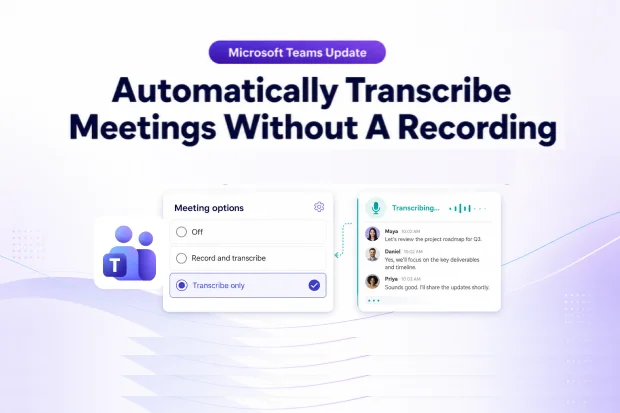
Microsoft Teams now includes a new automatic meeting option called Transcribe only. This allows a meeting to start transcription as soon as it begins, without creating a recording file.
Until now, automatic recording and transcription were tied together. With this update, organizers get more control and can choose the option that best fits the meeting type.
This change is especially useful when a transcript is needed for notes, accessibility, or recap, but storing a video or audio recording is not appropriate.
Why This Matters For Compliance And Privacy
Not every meeting should be recorded. Some conversations involve legal, HR, financial, or internal business topics where a transcript is helpful, but a stored recording may create unnecessary risk.
This new option gives a more balanced approach. It helps keep a searchable written record without producing a recording artifact that needs to be stored, governed, and reviewed later.
It also supports accessibility by making spoken content easier to follow and reference after the meeting. Microsoft notes that transcription helps create a real-time written record and makes post-meeting review easier for participants.
How The New Meeting Options Work
Microsoft is replacing the old automatic recording setting with a clearer set of choices in meeting options.
Organizers will now see these options:
- Off: No recording or transcription starts automatically.
- Record and transcribe: Both recording and transcription begin automatically, similar to the earlier behavior.
- Transcribe only: Transcription starts automatically, but no recording is created.
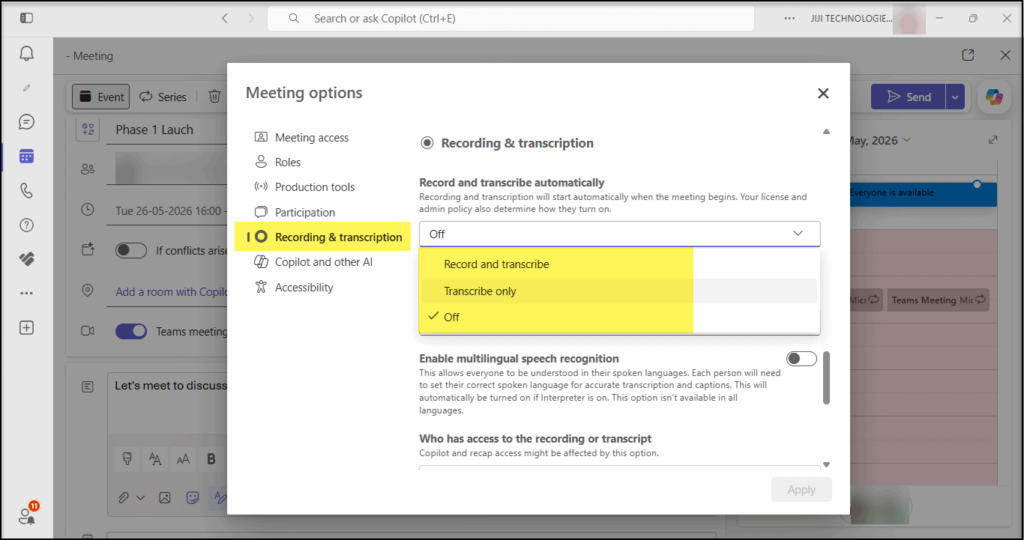
This small interface change makes a big difference. It gives meeting organizers the ability to decide exactly how much content should be captured before the meeting even begins.
Who Can Access This New Teams Option
This update will matter most to meeting organizers and Teams administrators.
Meeting organizers will see the new option when scheduling meetings, provided transcription is enabled for them through policy. Teams admins will need to understand how existing meeting and transcription settings affect availability.
In other words, end users gain more choice, while admins keep control over how and where the feature can be used.
Policy And Licensing Requirements
- Meeting Policy “AllowTranscription” must be enabled in the organizer’s meeting policy for ‘Transcribe only’ option to appear.
- Meeting Option “Who can record and transcribe” must not be set to ‘No one’, for Transcription options including ‘Transcribe only’ to appear.
- No additional licenses needed: Works with the standard Teams transcription included in eligible Microsoft 365 plans.
Scenarios Where A Transcript Is Enough
This feature fits well in situations where the spoken discussion matters, but recording the full meeting may feel excessive.
Useful examples include:
- HR discussions that require accurate written notes but should avoid stored recordings.
- Compliance or governance reviews where transcripts are useful for follow-up.
- Internal project meetings where teams want Copilot and recap support without creating video files.
- Leadership or client-sensitive meetings where privacy is a bigger concern than playback.
It is also valuable for organizations trying to reduce recording sprawl in OneDrive and SharePoint while still preserving key meeting outcomes. Microsoft notes that recordings are stored in Microsoft 365 storage, which makes governance and access an ongoing consideration.
Getting Your Organization Ready
Microsoft says no administrative action is required before rollout, but a little preparation can make adoption smoother. Reviewing policies, internal training content, and meeting documentation can help users understand the new option right away.
A few practical steps can help:
- Review Teams meeting policies and confirm transcription is enabled where needed.
- Update help docs, training notes, and meeting guidance for organizers.
- Inform business users that they can now get transcripts without creating recordings.
- Align the feature with compliance and data governance expectations.
Even a short announcement can go a long way in helping users see the value of the change.
Key Benefits At A Glance
This update gives organizations a more flexible way to capture meeting content. It supports productivity without forcing the same approach for every meeting.
Here are the main benefits:
- Automatic transcription without recording.
- Better support for privacy and compliance-driven meeting scenarios.
- Improved flexibility for organizers.
- Continued support for accessibility and post-meeting review.
- No additional licensing requirement for the standard transcription experience.
Official Microsoft Resources
For deeper guidance on setup, policies, and meeting governance, these official Microsoft resources are the best place to start:
















