


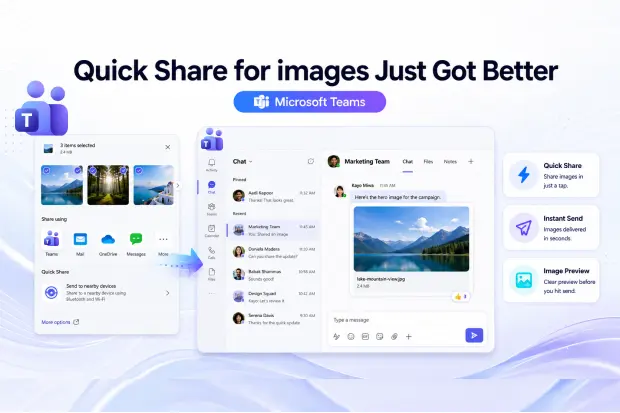
Sharing images in Microsoft Teams is about to feel much smoother. Microsoft is introducing a new Quick Share option for images, making it easier to share visuals or copy image links right from chats, channels, and tabs.
For anyone who regularly sends screenshots, design previews, product visuals, or troubleshooting images, this update can make everyday collaboration faster and more natural. It keeps the experience simple while still following the same Microsoft 365 and Teams permissions already in place.
The feature appears within familiar Teams surfaces, which means there is no new learning curve for most users. It is designed to speed up common image sharing tasks without changing how files are stored, accessed, or governed.
Where Will Users See Quick Share?
Users will be able to find the Quick Share option in several places where they already interact with images in Teams.
That includes:
- Hover actions
- Right click context menus
- Overflow menus
- Shared tabs
Because the feature is built into existing image interactions, it should feel like a natural extension of the current Teams experience rather than a major workflow change.
Visual Walkthrough Of The New Experience
Visual Walkthrough Of The New Experience
Quick Share appears directly on images in Teams chats and channels, so sharing feels faster and more natural.
Below is a quick walkthrough of the new Quick Share experience.
Step 1: Open A Chat Or Channel With An Image
Open any Teams chat or channel that already includes an image, such as a screenshot, photo, or mock-up.
Step 2: Hover Or Right Click The Image
Move over the image or right click it to access image actions in familiar places like hover actions, context menus, or overflow menus.
Step 3: Select Quick Share
Choose Quick Share to act on the image itself.
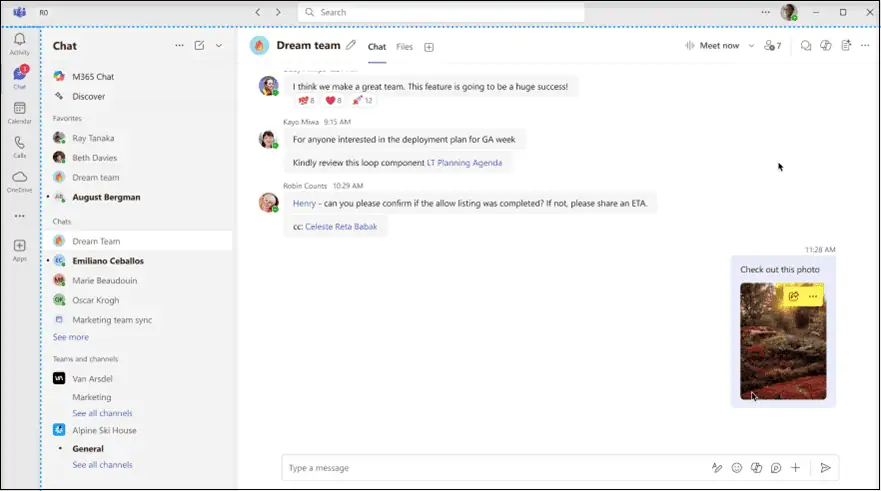
Step 4: Share Or Copy The Link
You can either share the image directly or copy its link for use in another chat, channel, email, or document.
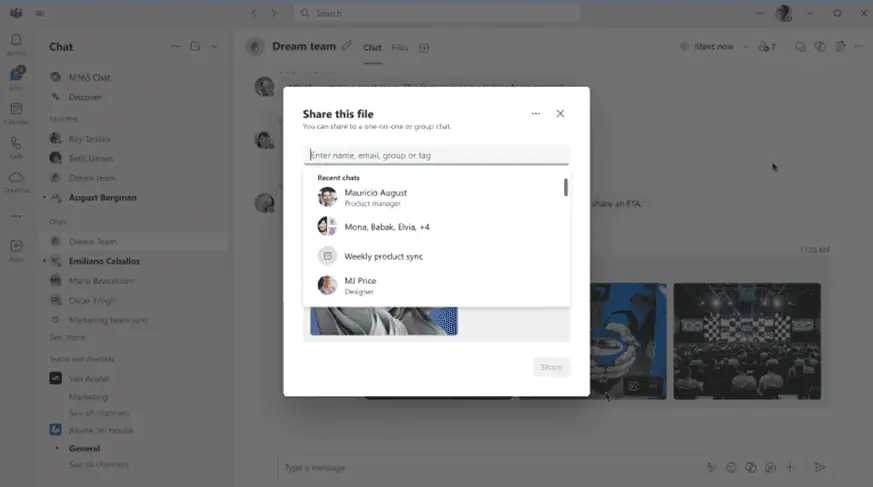
Step 5: Keep Existing Permissions In Place All existing Microsoft Teams and Microsoft 365 permissions and access controls still apply, so the experience becomes faster without changing governance or security.
Quick Share Q And A
A short Q and A session can help teams feel comfortable with the change.
This could be a simple internal post or a short live walkthrough where users learn where Quick Share appears, how it works, and why existing permissions still matter when sharing images.
What Exactly Can Users Do With Quick Share?
The update is focused on two simple but useful actions that many Teams users perform every day.
With Quick Share, users can:
- Share images more quickly
- Copy image links directly from the image
That means less time opening extra menus and more time keeping conversations moving, especially in busy chats and collaboration channels.
What You Need To Do To Prepare
There is no preparation needed on your side for this update, as Microsoft is enabling Quick Share for images by default for all applicable tenants.
Your existing Microsoft Teams and Microsoft 365 permissions, access controls, and policies remain unchanged, so you do not need to configure or adjust anything in advance.
Compliance And Governance Considerations
From a security and compliance standpoint, Microsoft indicates that the update does not change storage locations, permissions, or access controls for images.
The update adds a faster way to share existing image content inside Teams, but it does not introduce a separate admin toggle or a new policy model.
For many IT teams, that means the conversation is less about risk and more about user awareness and support readiness.
Key Use Cases To Highlight In Adoption Campaigns
If this update is being shared with customers or internal stakeholders, practical examples will make the message stronger.
Useful use cases to highlight include:
- Faster support escalations with screenshots
- Easier design feedback in chats and channels
- Quicker content review for marketing and campaign teams
- Smoother internal collaboration around visual project updates
Helpful Microsoft References
To be more updated about this topic:
- Know More: Send a file, picture, or link in Microsoft Teams
- Track Rollout Updates in Microsoft 365 Roadmap
To track overall Microsoft Teams Features:
















