


Have you ever asked Copilot a simple question and quietly wondered, “Wait, can I actually trust this answer?” You are not alone, and Microsoft just shipped something that finally puts that doubt to rest.
There is a new SharePoint capability rolling out that lets you tell Copilot exactly where the truth lives inside your organization. No more guessing. No more fact-checking every response before you forward it to your team.
It is called Authoritative Sites, and if you run Microsoft 365 Copilot, this is the kind of update that quietly changes how your people work every single day.
- What Are SharePoint Authoritative Sites in Microsoft Copilot?
- How This Update Strengthens Your AI Governance
- Who Is Affected by This Change?
- How Authoritative Sites Work in Copilot
- How to Configure SharePoint Authoritative Sites with PowerShell
- Get Your Tenant Ready: The Smart Admin’s Checklist
- Compliance Considerations You Should Know
- Final Thoughts: A Smarter, More Trusted Copilot Experience
What Are SharePoint Authoritative Sites in Microsoft Copilot?
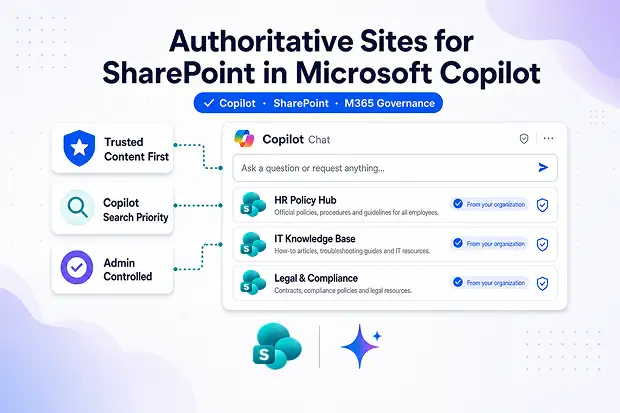
In plain language, Authoritative Sites lets you point at a SharePoint site and say, “This one. Trust this one first.”
Once you flag a site as authoritative, its content gets prioritized across:
- Microsoft 365 Copilot Chat responses
- Copilot Search results
- Microsoft Search experiences across your tenant
Think of it as handing Copilot your shortlist of approved knowledge before it goes hunting anywhere else.
Learn more: Microsoft Learn: SharePoint Authoritative Sites in Copilot Search
How This Update Strengthens Your AI Governance
Here is the honest truth about Copilot in most tenants today: it surfaces whatever it finds, not necessarily what is right.
You have probably seen it yourself. Outdated policies, half-finished drafts, and abandoned project sites all sneak into responses. Authoritative Sites changes that by giving you a real lever to control which content Copilot leans on.
Here is what you get out of it:
- Higher response accuracy grounded in content you actually trust
- Stronger SharePoint governance with admin-controlled trust hierarchies
- Fewer Copilot hallucinations in everyday chats
- Faster knowledge discovery for the people who need answers
- A cleaner compliance posture across your tenant
The Source of Truth Audit
Try this out. Run a 30-minute internal poll asking your employees, “When Copilot gives you an answer, do you verify it elsewhere?” You will probably be surprised by the results, and you will walk away with an instant business case for rolling this feature out.
Who Is Affected by This Change?
If you are wearing any of these hats, this update is going to land on your desk:
- SharePoint Online administrators
- Microsoft 365 administrators managing Copilot and Search
- End users who lean on Copilot Chat and Copilot Search every day
- Knowledge managers, compliance officers, and intranet owners
Note:
One thing to keep in mind: you will need a Microsoft 365 Copilot (Premium) license to use this feature.
How Authoritative Sites Work in Copilot
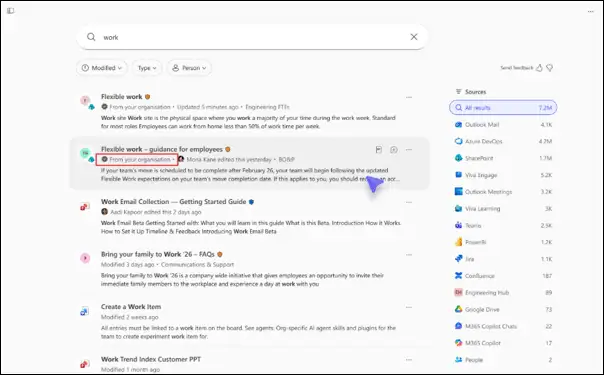
Once you flip the switch, your people will start seeing a clear visual cue inside Copilot and Microsoft Search.
Results from authoritative sites get tagged with a checkmark and the label “From your organization.” It is a small detail, but it builds confidence fast.
A few other things worth knowing before you dive in:
- The feature is off by default until you configure it
- Nothing changes about existing SharePoint permissions or content access
- Authoritative signals influence ranking, not who can see what
- Copilot grounding becomes noticeably stronger and more reliable
How to Configure SharePoint Authoritative Sites with PowerShell
For now, this lives entirely in SharePoint Online PowerShell. Microsoft has hinted that a SharePoint admin center UI will follow, but the feature is fully usable today.
Before you run anything, make sure you have the latest SharePoint Online Management Shell installed.
Then run this:
Set-SPOSite -Identity “https://<tenant>.sharepoint.com/sites/<siteName>” -IsAuthoritative $true
You can dig deeper into the cmdlet here: Set-SPOSite documentation on Microsoft Learn.
Quick heads-up:
Give Microsoft 365 Search a few hours to register the change before you start testing Copilot responses.
Get Your Tenant Ready: The Smart Admin’s Checklist
Before you roll this out broadly, walk through this list. It will save you a lot of cleanups later:
- Identify your high-trust SharePoint sites such as HR, Legal, IT, Finance, and Communications
- Audit content currency and clear out anything outdated from candidate sites
- Confirm your Microsoft 365 Copilot (Premium) licensing is in place
- Install or update the latest SharePoint Online Management Shell
- Pilot the feature with a small group of users first
- Test responses in Copilot Chat and Copilot Search before scaling
- Refresh your internal knowledge base and helpdesk documentation
- Give your end users a quick heads-up about the new “From your organization” indicator
Name Your Top 5 Trusted Sites
Run a quick LinkedIn poll or internal Teams survey asking your stakeholders to vote on the top five SharePoint sites that should be marked authoritative. It is a low-effort way to drive participation, and you will surface governance gaps you did not even know you had.
Compliance Considerations You Should Know
Microsoft has been refreshingly upfront about how this feature interacts with your data and AI:
- It changes how existing SharePoint content gets ranked and surfaced by Copilot and Search
- It influences AI/ML grounding by elevating trusted organizational signals
- It introduces a new interaction pattern for your users when they engage with generative AI
- You stay in control through PowerShell-based configuration
Nothing gets moved, copied, or re-permissioned. The feature only changes how content gets prioritized.
Final Thoughts: A Smarter, More Trusted Copilot Experience
If you have been waiting for a Copilot governance update that actually moves the needle, this is it. SharePoint Authoritative Sites tackles content trust, AI grounding, and search relevance, which are honestly the three biggest blockers in most Copilot rollouts.
If your organization is serious about Microsoft 365 Copilot, get this on your near-term roadmap.
The payoff is real: less noise, more signal, and a Copilot that finally sounds like it works for your business.
Reference Links to Learn More
Use these official resources to explore setup steps, PowerShell commands, and Microsoft guidance for SharePoint authoritative sites in Copilot.

















 Migrate
 Manage
 Migrate Microsoft 365








