


What if your Power BI reports could finally answer the questions your leadership actually asks, instead of the generic ones Viva Insights gives you by default?
Microsoft just rolled out a quiet but powerful update that lets you turn Viva Insights into a reporting engine that speaks your organization’s language. You can now enable additional reserved and custom attributes as filters inside your Power BI reports, and the difference is genuinely night and day.
If you have ever wished your dashboards reflected your real business structure, your departments, your regions, your functions, your cost centers, this is the update you have been waiting for.
- What This New Viva Insights Update Actually Does
- Why This Matters for Smarter Workplace Analytics
- Who This Update Is For
- How the New Attribute Filter Settings Work
- What Users Will See in Power BI After You Enable Filters
- How to Prepare Yourself Up for a Smooth Configuration
- Compliance Considerations You Should Know
- Final Thoughts: A Smarter Viva Insights and Power BI Experience
What This New Viva Insights Update Actually Does
In plain language, Microsoft is opening up the filter options inside your Viva Insights Power BI reports.
Until now, you were stuck with a handful of default attributes. Going forward, you will be able to enable:
- Reserved attributes provided by Microsoft
- Organization-specific custom attributes you have already configured in Viva Insights
- A richer mix of filters that reflect how your business actually operates
Once you flip them on as an admin, these filters show up directly inside Power BI reports for your users.
Why This Matters for Smarter Workplace Analytics
Here is the honest truth about most Viva Insights dashboards today: they are useful, but they rarely match the way your leaders actually slice the business.
You probably already have rich attribute data sitting in Viva Insights. The frustrating part has been that you could not surface it in Power BI in a way that made the reports feel custom-fit to your world. That changes now.
Here is what you get out of it:
- Reports that finally align with your business structure
- Deeper, more granular workplace insights you can actually act on
- Better decision-making for your HR, People Analytics, and leadership teams
- A more personalized Power BI experience for every report viewer
- Stronger ROI on your existing Viva Insights and Microsoft 365 Copilot investment
Who This Update Is For
If you’re in any of these roles, this is the kind of update you’ll want to know about:
- Viva Insights Global Administrators
- Viva Insights Administrators
- People Analytics and HR Operations leaders
- Power BI report owners and consumers across your business
Note:
Remember, you will need a Microsoft 365 Copilot (Premium) license to use this feature.
How the New Attribute Filter Settings Work
The configuration experience lives inside the Viva Insights web app, and it is available to you as an admin by default.
From there, you can pick exactly which reserved or custom attributes should become filters in your Power BI reports. It is a clean, opt-in model, so nothing changes for your users until you decide it should.
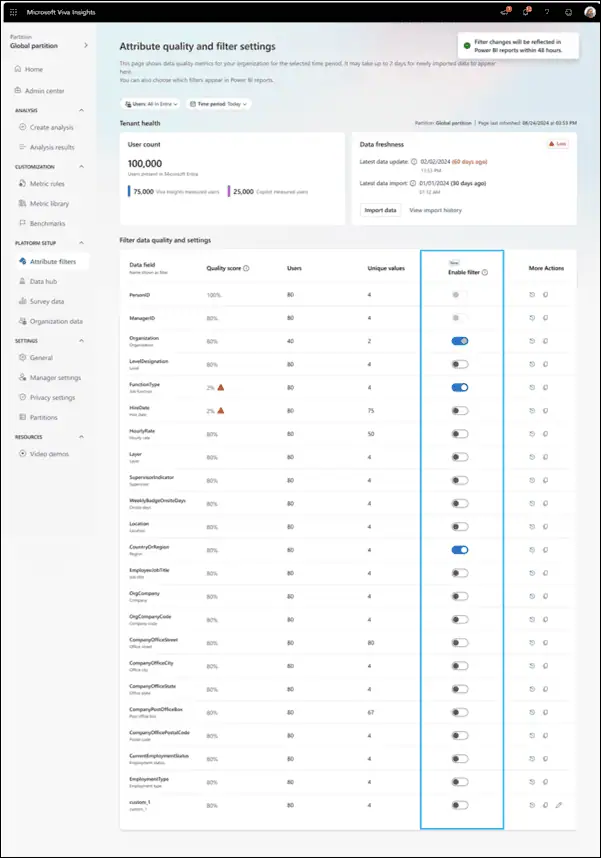
A few things worth knowing before you start configuring:
- Reserved attributes come pre-defined by Microsoft
- Custom attributes are pulled from your own Viva Insights configuration
- You control exactly which filters become visible to report viewers
- Your users do not see new filters until you enable them
Pick Your Power Five
Here is a fun way to kick this off. Ask your analytics champions to nominate the five attributes that would unlock the most insight if added as Power BI filters. You will turn a configuration task into a collaborative win, and you will get instant buy-in from the people who use the reports most.
What Users Will See in Power BI After You Enable Filters
Once you enable the attributes, your report viewers get a noticeably richer experience inside Power BI.
They can slice Viva Insights data by the business dimensions that actually matter, whether that is function, region, business unit, or any custom attribute you have configured.
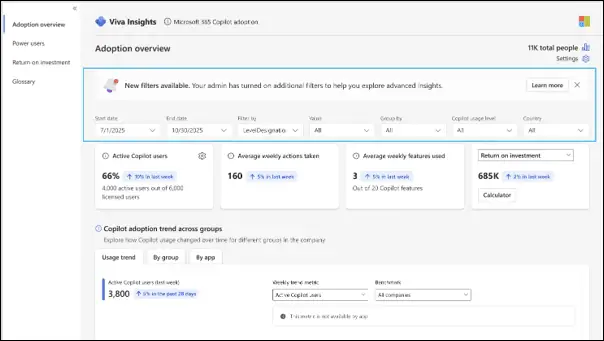
The result is reports that feel personal, relevant, and ready for the kind of executive conversations you want to be having.
How to Prepare Yourself Up for a Smooth Configuration
You do not need to rush, but a little prep work now will pay off big when you start configuring. Walk through this checklist:
- Review your current Viva Insights attribute configuration
- Identify which custom or reserved attributes would add the most value as filters
- Map filter ideas to the questions your leadership keeps asking
- Plan internal governance for who can enable, modify, or retire filters
- Communicate the new capability to your Power BI report users once enabled
- Update your internal documentation and reporting guidance
Microsoft has also confirmed that updated official documentation will be published closer to availability, so keep an eye on the Relevant Microsoft 365 Roadmap Entry.
Compliance Considerations You Should Know
Microsoft has been clear about how this feature interacts with reporting and admin control:
- It adds new filtering capabilities in your Power BI reports, enabling more granular reporting and analysis
- It strengthens your ability to monitor, report on, and demonstrate compliance activities
- It requires explicit admin action, which means you stay in full control of what gets exposed
- You stay in charge of every filter that gets enabled
Nothing changes about who can access your Viva Insights data. The update only changes how flexibly that data can be filtered and viewed.
Final Thoughts: A Smarter Viva Insights and Power BI Experience
This is one of those updates that looks small on paper but quietly transforms how your business consumes workplace analytics.
If you have already invested in Viva Insights and Microsoft 365 Copilot, enabling these new attribute filters is one of the highest-impact, lowest-effort moves you can make this quarter. Better filters mean better questions, and better questions mean better decisions.
Get ready, line up your priority attributes, and turn Viva Insights into the reporting layer your business has been asking for.
Reference Links to Learn More
Use these official resources to explore the feature in more detail and plan your next steps.
















