


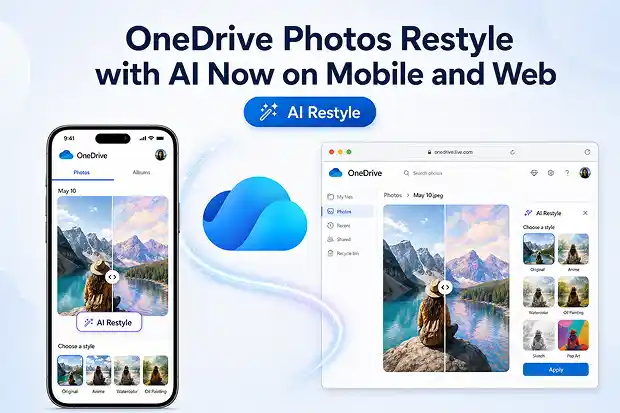
Some photos are too good to leave buried in a camera roll. Microsoft is bringing a fresh reason to revisit those saved memories with AI Restyle in OneDrive Photos, a new feature that can turn everyday pictures into artistic, polished, social-ready visuals in just a few taps.
Instead of moving images across multiple editing apps, this experience works right inside OneDrive on mobile and web. That makes it easier to take a regular photo and give it a cinematic, sketch-like, painted, or creatively styled look while keeping the heart of the original image intact.
What Is OneDrive AI Restyle
AI Restyle is Microsoft’s AI powered image editing feature in OneDrive that lets a photo take on a new visual style using preset looks or your own text prompt.
It is designed for creative experimentation, casual storytelling, and personal photo enhancement rather than precision retouching or heavy professional manipulation.
Here is what makes the feature stand out:
- It can transform a photo using predefined artistic styles or natural language prompts.
- It aims to preserve the main subject and core elements of the original image while changing the look and mood.
- It works within OneDrive for iOS, Android, and the web for Microsoft 365 Premium subscribers.
- It supports quick sharing after editing, which makes it useful for social posts, creative updates, and personal storytelling.
How AI Restyle Works Inside OneDrive
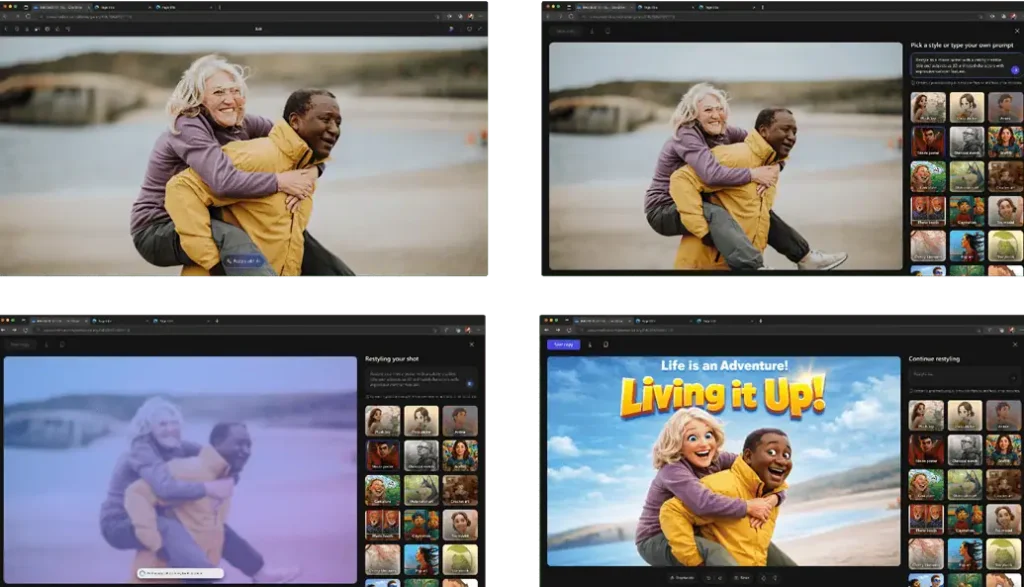
The experience is built directly into OneDrive Photos/Media, so editing starts where your images already live. After opening a photo, the AI Restyle option lets you choose a suggested visual style or guide the result with your own written prompt.
The feature works best on clear, well-lit photos with recognizable subjects. If a result does not feel right, you can refine the prompt, try a different style, or generate another version while the original image stays unchanged.
A quick way to explain the flow in the blog:
- Open OneDrive.
- Open the Photos / Media Tab.
- Select an image you want to transform.
- Choose AI Restyle and pick a style or enter a prompt.
- Review the result and try another version if needed.
- Save or share the image once it matches the look you want.
Privacy, Control And Authentic Memories
One of the most reassuring parts of AI Restyle is that the original image remains unchanged, so there is always a clear path back to the real photo.
Microsoft also says the feature is intended for creative enhancement and experimentation, not for identity alteration, sensitive attribute inference, or misleading image creation. Safety filters may block or modify certain requests, and the company advises reviewing outputs carefully before sharing or publishing.
Important points to note:
- The original photo stays untouched.
- Results can vary depending on lighting, image quality, subject complexity, and prompt clarity.
- Some prompts may be limited by built-in safety protections.
- Users should avoid sensitive, confidential, or regulated content when using the feature.
Practical Use Cases For Creators And Everyday Users
AI Restyle fits naturally into daily photo habits because it works on images people already store in OneDrive. A travel photo can become a poster style visual, a family picture can take on a painted look, and a casual snapshot can feel more polished for sharing online.
It can also help people create more eye-catching visuals without needing advanced editing skills. That makes it useful for personal albums, social media updates, invitations, mood boards, and lightweight content creation.
Useful examples to include in the blog:
- Giving vacation photos a cinematic or artistic finish.
- Turning everyday portraits into more expressive social media content.
- Creating stylized visuals for digital greetings, collages, or memory posts.
- Experimenting with different moods before sharing a photo publicly.
Getting Ready To Use OneDrive AI Restyle
Restyle with AI is available for Microsoft 365 Premium subscribers using OneDrive for iOS, OneDrive for Android, or the OneDrive web.
To start using it, make sure photos are available in OneDrive, open the Photos/Media view, select an image, and look for the AI Restyle option. Clear prompts and strong source images usually lead to better results, especially when the subject is well lit and easy to recognize.
A simple setup checklist:
- Confirm the account has Microsoft 365 Premium.
- Update or install the OneDrive app or open OneDrive on the web.
- Upload or back up photos to OneDrive.
- Open an image and explore the AI Restyle option.
- Try different prompts and styles before saving the final result.
Official Microsoft Links To Learn More
Explore Microsoft’s official announcement, support guidance, and responsible AI resources for feature details, availability, and safe usage.

















 Migrate
 Manage
 Migrate Microsoft 365








