


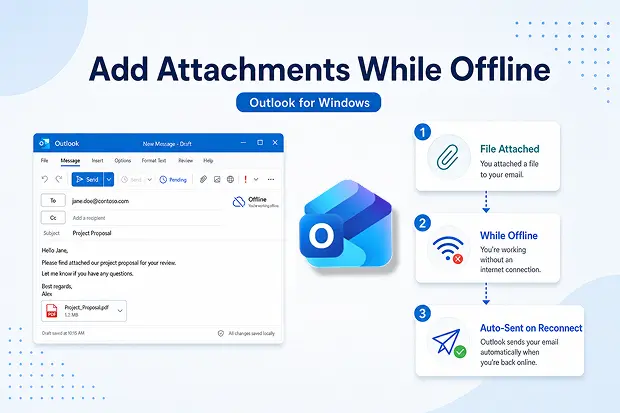
If a weak Wi-Fi signal has ever interrupted an important email, this Outlook for Windows update will feel instantly useful. Microsoft now allows users to attach files while offline in the new Outlook for Windows, helping work continue smoothly even when internet access does not.
This update makes everyday email work feel more reliable, especially for people who travel often, work remotely, or deal with unstable connections during the day. Instead of waiting to reconnect before finishing a message, users can prepare the email completely and let Outlook send it automatically later.
What’s New in Outlook Offline Attachments
The new Outlook for Windows now supports adding file attachments to draft emails while offline. Once the device reconnects to the internet, those emails and attachments are sent automatically.
This means an email can still be completed even when connectivity drops at the worst moment. It removes an everyday point of friction and gives users a more dependable Microsoft Outlook experience.
- Attach files to draft emails even without internet access.
- Continue working in the new Outlook for Windows without stopping mid-task.
- Let Outlook handle delivery automatically after reconnection.
Why This Matters for Users and IT
Email is still one of the most important tools for daily business communication, so interruptions can quickly become frustrating and expensive in terms of lost time. With offline attachments, users can keep moving instead of pausing work because a network signal disappears.
For IT teams, the feature is useful because it improves productivity without changing how existing mailbox policies work. The experience feels simpler for users, while admins still keep control over offline access settings.
- Better support for travel, field work, and hybrid work.
- Less disruption during unstable or low-bandwidth connections.
- Stronger balance between user productivity and admin control.
The “Work From Anywhere” Tip Campaign
Turn this update into a short content series with practical examples such as sending proposals during travel, preparing reports from remote sites, or finishing executive emails between meetings. A scenario-led format makes the feature feel relatable and easier to remember.
Enabling Offline Attachments: User Steps
To use offline email attachments, offline mode must be enabled in the new Outlook for Windows. After that, emails can be drafted, files can be attached, and everything stays ready to send when the internet connection returns.
The setup is straightforward inside Outlook settings, which makes the feature approachable even for users who have never worked in offline mode before. It is designed to fit naturally into existing email habits rather than requiring a new workflow.
- Open the new Outlook for Windows app.
- Select the Settings icon.
- Navigate to General > Offline.
- Turn on offline email, calendar, and people.
- Enable the setting to include file attachments.
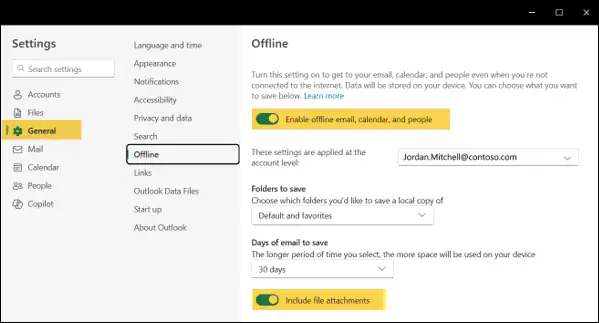
Once enabled, users can draft emails, add files, and move on with their day knowing Outlook will send everything when connectivity returns.
Policy Controls for Offline Email and Attachments
This update does not remove admin control or change the existing policy. Access to offline functionality in the new Outlook for Windows is still governed by the OWAMailboxPolicy-OfflineEnabledWin mailbox policy setting.
That is important for organizations that want flexibility for users without giving up security or governance standards. Existing configurations remain in place, so the feature aligns with the current policy setup already used in the environment.
- The feature follows the current OWAMailboxPolicy-OfflineEnabledWin configuration.
- OfflineEnabledWin $true → users can enable offline mode and store items locally.
- OfflineEnabledWin $false → offline mode is disabled for users, and locally saved items are removed.
- Microsoft does not automatically modify existing settings with this update.
- Admins can manage policy behavior through Set-OwaMailboxPolicy.
The “Admin Quick Note” Series
Share a short internal update for IT admins that explains what the feature does, where policy control lives, and which user groups may benefit most. This keeps the conversation practical and helps IT teams make faster rollout decisions without extra meetings.
Security and Governance Considerations
Offline productivity is valuable, but it should still be matched with sensible device and data protection practices. Because offline access stores data locally on the device, organizations should review how it fits with encryption, endpoint security, and policy controls already in place.
This does not mean the feature should be avoided. It simply means the best experience comes from pairing convenience with the same governance standards already expected across Microsoft 365 environments.
- Review which user groups should have offline access enabled.
- Confirm endpoint protection and device encryption practices are in place.
- Align offline settings with broader compliance and access policies.
Use Cases Where Offline Attachments Apply
Some updates sound small on paper but solve very real everyday problems. Offline attachments in Outlook for Windows are especially useful for people who need to stay productive while moving between locations or working in unreliable network conditions.
This includes teams that travel, visit customer sites, work from remote areas, or simply lose connection at inconvenient times. In those moments, being able to finish an email with the right attachment can make the difference between delay and momentum.
- Sales teams preparing proposals while travelling.
- Field teams attaching reports, files, or updates from low-connectivity locations.
- Executives and hybrid workers finishing email tasks between meetings or while in transit.
Learn More from Microsoft
Use the links below for product details and offline Outlook documentation.
















