


Private channels in Microsoft Teams have always been useful when a conversation needs to stay focused, sensitive, and limited to the right people. What is changing now is not just a feature update. It is a deeper shift that makes private channels more scalable, easier to manage, and far more aligned with how modern compliance works in Microsoft 365 and Microsoft Purview.
For anyone responsible for collaboration, security, or governance, this matters because private channels are becoming easier to use at scale without creating the same level of administrative friction as before.
- Big Picture: What’s Changing In Private Channels
- Key Enhancement 1: Massive Scale For Private Channels
- Key Enhancement 2: Meetings Inside Private Channels
- Key Enhancement 3: Shift To Group Mailbox Compliance
- Action required by compliance managers and admins
- Admin Action: Updated PowerShell for Monitoring
- Practical Checklist For IT And Compliance Teams
Big Picture: What’s Changing In Private Channels
Microsoft is updating private channels, so they work in a more modern and consistent way across Teams and Microsoft 365. This change brings higher limits, new meeting support, and a major compliance shift from user mailbox-based handling to Microsoft 365 group-based handling.
Here is what that means in practical terms:
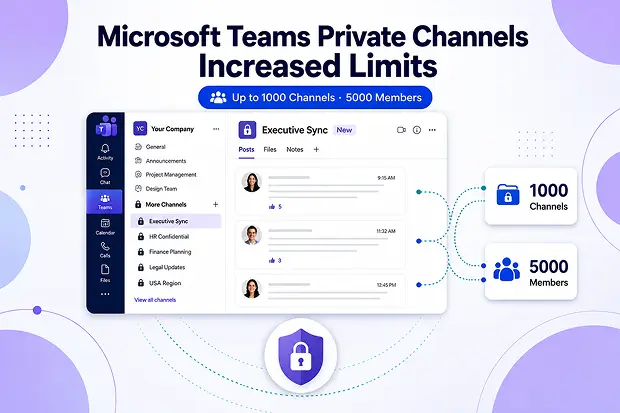
- Teams can now support up to 1000 total private channels per team (longer capped at 30 per team)
- Each private channel can now have up to 5000 members instead of 250
- Meetings can now be scheduled directly in private channels
- Compliance policies now align with the team’s Microsoft 365 group instead of relying only on individual user mailboxes
This makes private channels far more useful for real business scenarios where scale, control, and compliance all matter at the same time.
Key Enhancement 1: Massive Scale For Private Channels
One of the biggest improvements is scale. Private channels can now support much larger collaboration structures without forcing teams to split work across too many separate Teams or workarounds.
That opens the door to smoother collaboration for:
- Large enterprise programs
- Regional or global operating teams
- Sensitive customer or partner workstreams
- HR, legal, finance, and executive collaboration spaces
- Complex transformation projects with many subgroups
This change can remove a lot of the clutter that builds up when teams hit older private channel limitations and start creating too many parallel spaces just to keep moving.
Key Enhancement 2: Meetings Inside Private Channels
Private channels now support scheduled meetings, closing one of the biggest gaps in the earlier experience. Discussions, files, and meetings can remain together in the same restricted collaboration space. Instead of shifting people to a separate space for meetings, everything can stay within the same private channel. This creates a cleaner experience and makes follow-up easier for everyone involved.
Private Channel Playbooks
This is a good moment to create a simple internal guide that helps employees choose the right collaboration space.
A short playbook can explain when to use a standard channel, when to use a private channel, and when a private channel meeting makes the most sense.
That kind of guidance makes adoption smoother because people understand not just what changed, but how to use it well in day-to-day work.
Key Enhancement 3: Shift To Group Mailbox Compliance
This is the most important change behind the scenes. Private channel compliance data is moving away from the old user mailbox-based model and into the team’s Microsoft 365 group mailbox model.
Earlier, private channel compliance could feel complicated because message copies were tied to individual user mailboxes. That made policy management, discovery, and investigations harder to manage consistently.
Now, the updated model helps bring more consistency by allowing compliance controls to align around the team’s group level configuration. That includes retention, data loss prevention, legal hold, and eDiscovery workflows in Microsoft Purview.
Why this matters:
- Compliance policies become easier to manage at scale
- Governance becomes more consistent across channel types
- Investigations can follow a cleaner structure
- Teams data management becomes easier to explain to business stakeholders
Action required by compliance managers and admins
Use this as a quick admin checklist for eDiscovery, legal hold, DLP, and retention after the private channels update.
- Purview eDiscovery And Legal Hold
- Confirm Teams with private channels have their Microsoft 365 group mailbox in scope for legal holds.
- For cases that span before and after the change, consider both user mailboxes and the group mailbox.
- Update eDiscovery runbooks and templates to always consider both locations when private channels are in scope.
- Purview Data Loss Prevention (DLP)
- Review “Teams chat and channel messages” DLP policies and add the relevant Microsoft 365 groups.
- Test DLP alerts for private channels in high sensitivity teams (finance, HR, legal, exec).
- Document that private channels now follow the same group based DLP pattern as standard and shared channels.
- Purview Retention Policy
- Check that “Teams channel messages” retention policies applied to the team’s Microsoft 365 group are intended to cover private channels as well.
- Compare any legacy private channel specific retention policies with group policies and remove duplicates or conflicts.
- Confirm with legal and records teams that the new group-based model still meets regulatory and business retention requirements.
- Microsoft policies for Optical Character Recognition
Optical Character Recognition in Microsoft Purview helps detect sensitive data in images and PDFs across Teams, SharePoint, and OneDrive. To ensure private channel content benefits from this, OCR must be enabled and correctly scoped at tenant level.
To check or enable OCR for scenarios that include Teams private channels:
- Open the Microsoft Purview compliance portal and sign in with a role that can manage DLP and compliance settings.
- Go to Data loss prevention → Overview → Data loss prevention settings.
- Under Optical Character Recognition (OCR), turn on OCR scanning and link the required Azure subscription or AI resource if prompted.
- Verify that OCR is enabled for locations used by Teams, such as Teams chat and channel messages, SharePoint Online, and OneDrive for Business.
- Ensure DLP policies scoped to the team’s Microsoft 365 group (which now governs private channel data) make use of OCR when scanning messages and files.
Admin Action: Updated PowerShell for Monitoring
During rollout, migration may begin and finish at different times for each tenant and can take several weeks. A new PowerShell command(Get-TenantPrivateChannelMigrationStatus) lets admins check whether migration has started or completed.
This command can help surface:
- Total channels
- Migrated channels
- Failed channels
- Ownerless channels
- Remaining channels requiring attention
Sample Response
TenantId : <tenantId>
MigrationStatus : RequiresAdminAttention
MigrationStartTimeStamp : 2/10/2026 6:48:20 AM
MigrationCompletionTimeStamp :
Details : (see parsed JSON below)
Parsed Details JSON
{
“totalChannels”: 10,
“migratedChannels”: 6,
“failedChannels”: 1,
“ownerlessChannels”: 2,
“remainingChannels”: 1,
“ownerlessChannelsDetails”:
{
“channelThreadId”: “<channelId>@thread.tacv2”,
“teamId”: “<teamId>”
},
}
Note: The formatted version above is shown for readability, but ideally the Details field is returned as a single JSON string.
For admin teams, this kind of visibility is useful because it turns a broad platform change into something measurable and trackable.
Practical Checklist For IT And Compliance Teams
This update is easier to manage when technical and compliance teams move together. A simple checklist can help keep the response practical and focused.
- Review which teams rely heavily on private channels
- Check whether Microsoft 365 group-based policies are aligned for those teams
- Validate eDiscovery and legal hold workflows
- Review DLP and OCR coverage
- Identify ownership gaps in private channels
- Monitor status using Microsoft’s PowerShell tools
- Refresh internal guidance for business users and admins
Learn More: Official Microsoft Resources
For deeper technical guidance and official Microsoft context, these are the most relevant sources:
















