


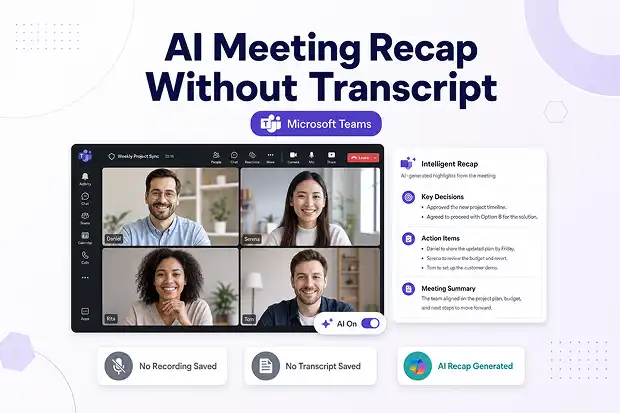
Picture this. You just wrapped a sensitive Microsoft Teams meeting. You want a clean AI summary in your inbox. But your compliance policy will not let you record or save a transcript. So, you walk away with nothing.
That awkward trade-off has quietly cost you hours of follow-up work, missed action items, and more “wait, what did we decide?” pings than you would like to admit.
Microsoft is fixing this with a new Teams capability called Recap without saving transcript. You get an AI-generated Intelligent Recap powered by live meeting context, and yet nothing is recorded and no transcript is stored.
- What Is “Recap Without Saving Transcript” in Microsoft Teams?
- Who Gets Access to This Feature
- Why This Update Matters for Compliance-First Organizations
- How Recap Without Saving Transcript Actually Works
- What IT Admins and M365 Governance Leads Should Do Now
- Compliance Considerations You Should Not Ignore
- Final Take: AI Productivity Without the Compliance Tax
- Quick FAQ for Microsoft 365 Admins
What Is “Recap Without Saving Transcript” in Microsoft Teams?
In plain English, you get an AI meeting summary in Teams without saving a transcript or a recording. That is the whole pitch, and it is a big deal.
It is built for you if you operate in a tightly governed Microsoft 365 environment and still want Copilot to do the heavy lifting after a meeting.
Here is what you need to know at a glance:
- You get an Intelligent Recap even when recording and transcription are turned off.
- Nothing is saved as a transcript or a recording.
- You need a Microsoft 365 Copilot (Premium) license to use it.
- It works on your Teams desktop on Windows and Mac, the web app, and mobile.
- Your admin team controls it through the tenant-level AI toggle in the Teams admin center.
If you want to confirm the updates straight from Microsoft, check the Microsoft 365 Roadmap Link.
Who Gets Access to This Feature
You should set expectations early, because this is not a free-for-all rollout. Access depends on your license and your role.
- You qualify as a meeting organizer only if you hold a Microsoft 365 Copilot (Premium) license.
- You also qualify as a Microsoft 365 administrator managing Copilot and AI controls at the tenant level.
If your organization has not licensed Copilot Premium yet, this feature simply will not appear in your tenant.
Why This Update Matters for Compliance-First Organizations
Think about how your current process actually works. Most of your regulated meetings already ban recordings and transcripts. Which means, until now, Copilot recap was basically off the table for you.
This update flips that script.
- If you work in legal, healthcare, financial services, or government services, you can finally use AI summaries without breaking data retention rules.
- If you run HR conversations, M&A reviews, or board prep, you can get a recap without leaving a discoverable transcript behind.
- If you handle sensitive customer calls, you can still get AI notes without inflating your eDiscovery exposure.
The short version: you no longer have to choose between AI productivity and a clean compliance posture.
“Ask the Compliance Officer” Mini Series
Launch a short LinkedIn or blog series titled “Ask the Compliance Officer: Is AI Without a Transcript Really Safer?” Bring in a guest CISO, DPO, or compliance lead for each episode. Tackle one regulated industry per post (legal, healthcare, finance, public sector) and unpack how this Teams update lands in their world.
How Recap Without Saving Transcript Actually Works
Let us walk through the flow the way you would actually experience it, with the exact details on how to land on.
1. Tenant admin sets the foundation in the Teams admin center
There are actually two complementary places your admin can manage Copilot for Teams meetings at the tenant level.
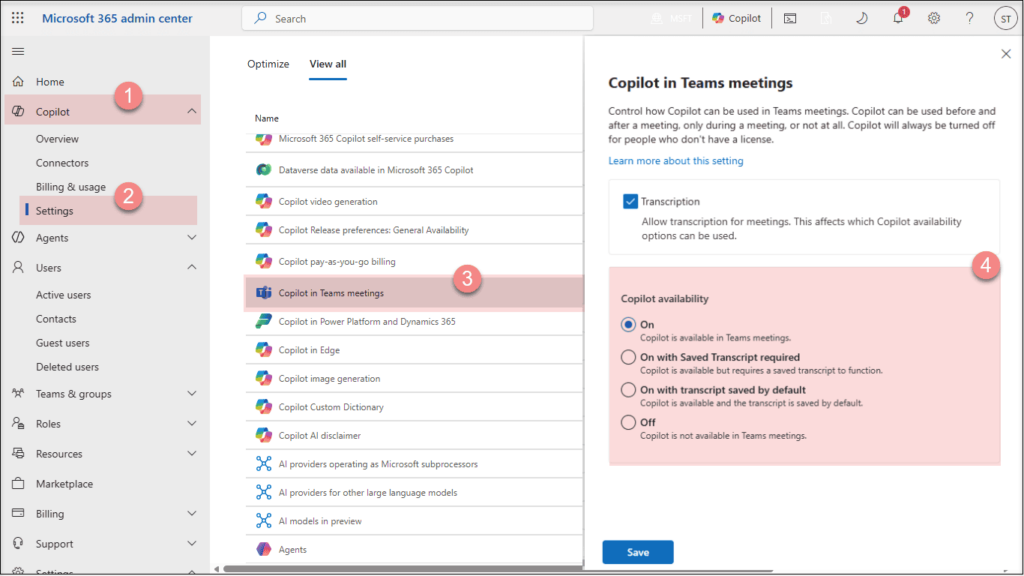
Place 1: Microsoft 365 admin center (tenant-wide Copilot setting)
Use this when you want a single tenant-wide switch for Copilot in Teams meetings.
- Sign in to the Microsoft 365 admin center at admin.microsoft.com.
- Go to Copilot > Settings.
- Open the Copilot in Teams meetings setting.
- Enable (or disable) it for your tenant.
Place 2: Teams admin center (per-policy Copilot control)
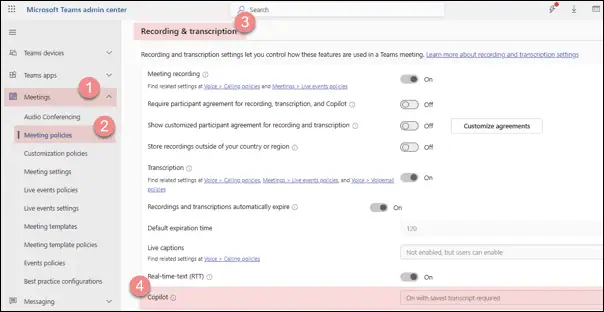
Use this when you want granular control by user group, or when you need to set the default behavior (transcript required, transcript on by default, etc.) for organizers.
- Sign in to the Microsoft Teams admin center at admin.teams.microsoft.com.
- In the left navigation, expand Meetings and select Meeting policies.
- Open the relevant policy (start with Global (Org-wide default) or a custom policy assigned to your Copilot users).
- Scroll to the Recording & transcription section and find the Copilot setting.
- Choose one of: On, On with saved transcript required, On with transcript saved by default, or Off.
- Click Save.

Good news: The feature is on by default for tenants where Copilot and AI experiences are already enabled.
2. Organizer decides before the meeting starts (organizer settings)
If you are organizing the meeting and you hold a Copilot license, you control the setting from the meeting invite itself.
Here is exactly where to click:
- Open Outlook or Teams Calendar and create or edit your meeting.
- Click Options (or Meeting options in Teams).
- In the left panel, select Copilot and other AI.
- Look for the Recap without saving transcript setting and turn it on or off.
- Save the meeting options.

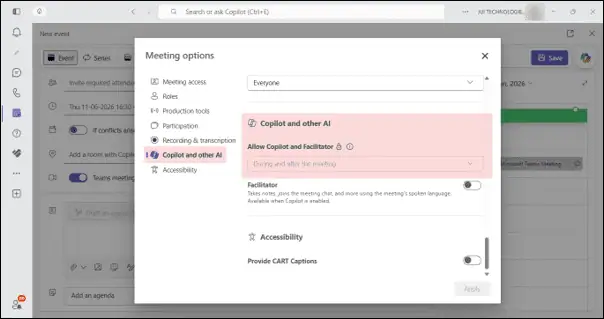
That is the only place you configure it before the call.
3. Organizers can still toggle it in real time during the meeting
Already in the meeting? You can still change your mind.
- Look at the top-left of your meeting window for the AI toggle.
- Click the toggle button to enable or disable ‘Recap without saving transcript’ anytime during the meeting.
- Attendees only can see whether AI is on or off, but they cannot change it.
4. AI summary lands after the meeting
- When the toggle is on, Intelligent Recap still generates an AI summary, even though you never recorded or transcribed anything.
- Attendees with a Copilot license can read the recap once the meeting ends, from the Recap tab inside the meeting chat or calendar event.
- And again, no transcript and no recording is saved.
5. Storage and retention
- The recap document is stored in your OneDrive as the organizer, with a default retention of 120 days.
- Your admins can stretch or shorten that window for you.
- You can delete the content right from the Recap page, which clears the OneDrive document too, and the same works the other way around.
For deeper admin context, explore Microsoft’s official guide: Intelligent recap for Teams calls, meetings, and events.
What IT Admins and M365 Governance Leads Should Do Now
If you own Microsoft 365 governance or you are leading the Copilot rollout in your org, here is the short checklist you can act upon.
- Revisit your AI and Copilot governance policies and check whether transcript-free recaps line up with your compliance posture.
- If you would rather opt out entirely, disable the Copilot toggle at the tenant level so this feature never gets used.
- Refresh your internal documentation and helpdesk runbooks so your support team is not blindsided when users ask why a recap exists without a recording.
- Loop in meeting organizers in regulated business units like legal, finance, HR, and clinical teams so they know what is now available to them.
- Pick a sensible OneDrive retention window for recap docs (the default is 120 days, but you decide what fits your risk appetite).
“Governance Gut-Check” Checklist Download
Turn the checklist above into a clean one-page PDF titled “Copilot Recap Without Transcripts: Your 5-Minute Governance Gut-Check”. Offer it as a free download in a LinkedIn post, or gate it behind a quick email signup. It is a sharp lead magnet for M365 admins and IT leaders who actually buy your product.
Compliance Considerations You Should Not Ignore
Here is the part you should not skim. Yes, your transcripts and recordings are not stored. But AI is still processing live meeting context in real time. Under stricter frameworks, that distinction matters.
Microsoft frames the compliance picture like this:
- AI/ML interaction with customer data: Copilot still generates the recap from live meeting context even when recording and transcription are off, and nothing is saved as a transcript or a recording.
- A new way to interact with generative AI: You get Intelligent Recap without ever having to start or save a recording or transcript.
- Admin controls: The whole capability is governed by your existing tenant-level Copilot toggle.
- User control: As the organizer, you can switch it on or off before the meeting, and again during the meeting.
The honest read for you: this is a strong fit for a lot of compliance regimes, but you should still loop in your legal and risk teams to validate it against the specific obligations your business carries.
If you want to brush up on the broader Copilot data handling story, this Microsoft resource is worth bookmarking: Recap in Microsoft Teams.
Final Take: AI Productivity Without the Compliance Tax
If you are a Microsoft 365 admin, an IT leader, or someone owning governance for your org, this is a quiet but meaningful win for you.
You no longer have to pick between AI meeting recaps in Microsoft Teams and a clean compliance posture. Configure it carefully, communicate it clearly to your users, and you genuinely get the best of both worlds.
If you manage Copilot, Intelligent Recap, retention policies, or Microsoft 365 governance, this is your moment to revisit your AI strategy in Teams.
Learn More from Microsoft

















 Migrate
 Manage
 Migrate Microsoft 365








