


Be honest. When was the last time you opened OneDrive and actually felt good about how it looked?
If your root folder is a chaotic mix of personal files, project folders, and a dozen shortcuts to SharePoint sites you barely remember pinning, you are going to love what Microsoft just announced.
A brand-new Shortcuts folder is coming to OneDrive on the web, and it is about to change the way you organize the files you touch every single day.
This is one of those small updates that quietly makes your workday smoother, especially if you live inside OneDrive, SharePoint, and Microsoft Teams.
What Is the New OneDrive Shortcuts Folder?
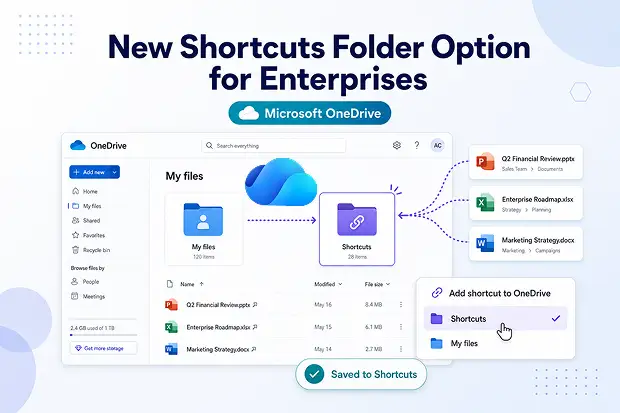
Microsoft is giving you a dedicated Shortcuts folder inside OneDrive web, a proper home for every new shortcut you add.
Instead of every shortcut landing in your OneDrive root and crowding out My files, you finally get to choose where it goes.
The result is a tidier OneDrive, faster navigation, and a much calmer file management experience across Microsoft 365.
Key highlights at a glance
- A new Shortcuts folder is auto-created the first time you use it
- You can choose between Shortcuts or My files when adding a shortcut
- The folder is visually distinct with a unique colour and building icon
- Your existing shortcuts stay exactly where they are, nothing gets moved
- The feature is on by default and completely optional for you
- No new admin controls, no policies to configure, no migration headaches
Why This OneDrive Update Actually Matters
Shortcuts are honestly one of the most underrated productivity features in Microsoft 365.
They let you pin SharePoint libraries, Teams folders, and shared OneDrive locations right inside your personal OneDrive, so you reach them in one click.
But there has always been one annoying problem. Every shortcut landed in your OneDrive root, mixed in with your personal files, slowing you down every time you opened OneDrive.
With this update, Microsoft is finally separating “stuff you own” from “stuff you link to,” and that small distinction is going to feel like a big upgrade.
Show Us Your OneDrive Glow-Up
Here is a fun way to bring your network into the conversation. Share a quick before-and-after screenshot of your own OneDrive once you start using the new Shortcuts folder.
Then ask your readers a couple of simple questions:
- How many shortcuts are currently sitting in your OneDrive root?
- What is the one folder you wish you had pinned years ago?
Add a branded hashtag and watch the comments roll in from fellow M365 admins and power users who feel seen.
How the New Shortcuts Folder Works in OneDrive
Here is exactly what you will see the moment this lands in your tenant.
When you click Add shortcut to OneDrive from SharePoint or any shared location:
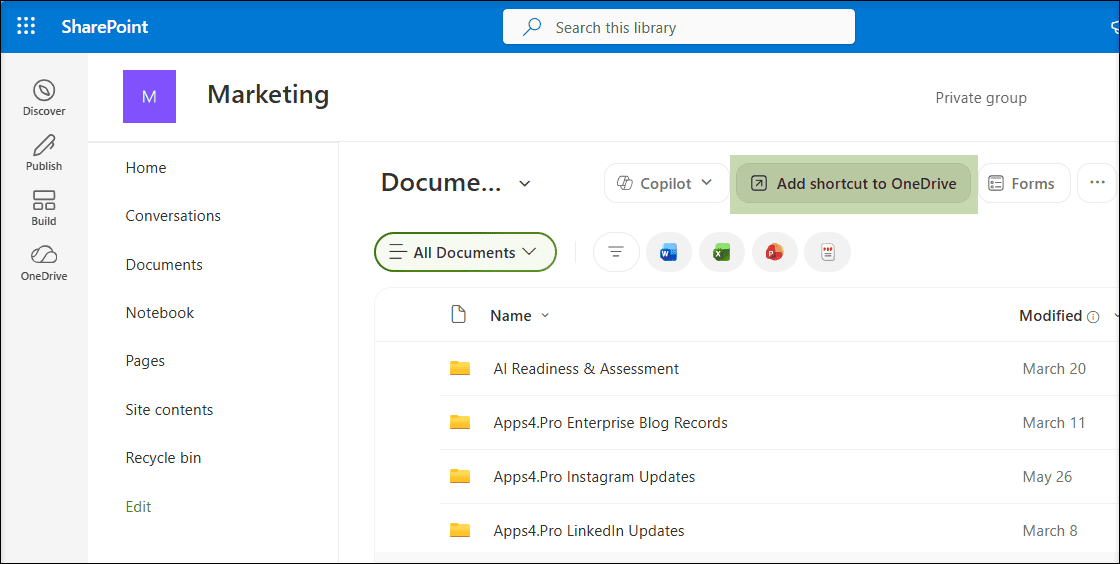
A new dropdown appears with two clear choices.
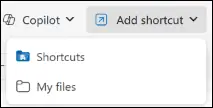
You simply pick Shortcuts or My files, and OneDrive handles the rest.
What happens behind the scenes
- For file shortcuts only, you also get an Other locations option for more advanced placement
- A confirmation message tells you exactly where your shortcut was saved
- If you already have a folder named Shortcuts, OneDrive reuses it instead of creating a duplicate
- The Shortcuts folder behaves like any other folder, so you can move, rename, share, or delete it any time
Note
The unique colour and building icon make the Shortcuts folder easy to spot, so you never lose track of your pinned content again.
Who Benefits Most From This OneDrive Change?
This is a small update with surprisingly wide impact across the Microsoft 365 ecosystem.
Ideal for you if you are
- A knowledge worker juggling multiple SharePoint sites and Teams channels
- A project manager who pins client folders, vendor libraries, and shared resources
- Part of an IT or helpdesk team supporting users with OneDrive cleanup requests
- A Microsoft 365 admin managing tenant-wide governance and end-user adoption
- A power user who treats OneDrive as your command center for cloud files
If your work runs on OneDrive, SharePoint, and Teams, you are about to get a noticeably cleaner workspace.
The 60-Second OneDrive Audit
Try this with your team. Ask them to open OneDrive right now and count the shortcuts sitting in their root folder.
Then nudge them with two quick questions:
- Could you find a specific file in under 10 seconds?
- Which 5 shortcuts would you move into the new Shortcuts folder first?
This works beautifully as a LinkedIn carousel or a quick poll. It also opens the door for you to position migration, governance, or M365 productivity solutions in the comments.
What Microsoft 365 Admins Need to Know
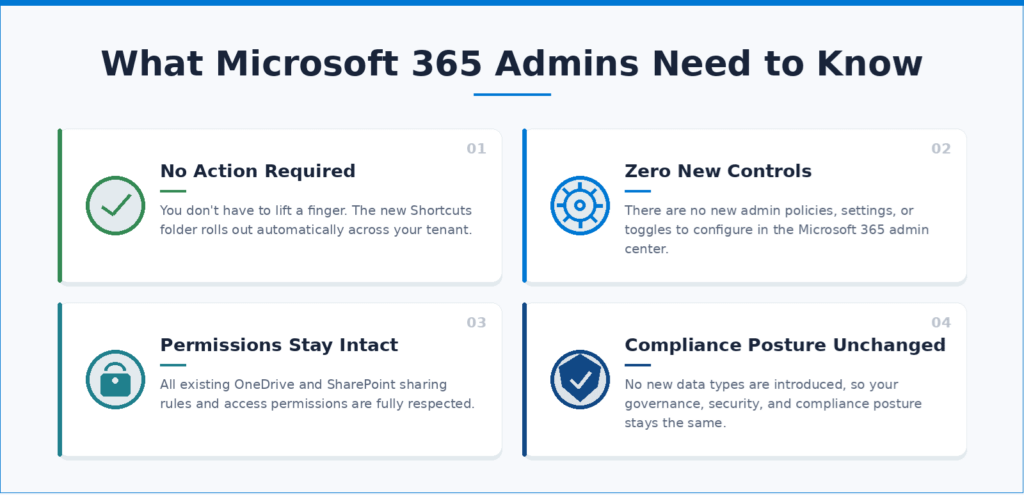
The best part of this rollout is how painless it is on your admin side.
- No action is required from you as a Microsoft 365 administrator
- There are no new admin controls or policies to configure
- Existing OneDrive permissions and sharing rules are fully respected
- No new data types are introduced, so your compliance posture stays the same
That said, this is a great moment to refresh your internal documentation and end-user training.
Quick admin checklist
- Update your internal OneDrive and SharePoint help guides
- Brief your helpdesk on the new Add shortcut to OneDrive experience
- Send a short user awareness note so adoption happens faster
- Add a slide to your next Microsoft 365 governance review
Ask the M365 Admin
Use this one to position yourself as the trusted Microsoft 365 voice in your space. Run a short Q&A series on LinkedIn or your company blog where readers drop their OneDrive and SharePoint governance questions.
A few prompts you can borrow:
- How do you currently audit OneDrive shortcuts across your tenant?
- What is your number one OneDrive housekeeping rule for end users?
- Should organizations standardize a “Shortcuts” naming convention before this lands?
The replies you get will give you weeks of follow-up content and warm conversations.
Final Thoughts: A Small Update With Big Productivity Wins
The new OneDrive Shortcuts folder is a perfect example of Microsoft quietly listening to the everyday frustrations of M365 users like you.
It is simple, optional, and zero-friction on the admin side, yet it solves a problem that has been annoying power users for years.
If you manage a Microsoft 365 environment, now is your moment to start preparing your users, refreshing your documentation, and turning this small change into a visible productivity win.
A cleaner OneDrive is a faster OneDrive, and a faster OneDrive means a happier you.
Learn More: Official Microsoft References
Explore these official Microsoft resources to verify the rollout details, learn how OneDrive shortcuts work, and support enterprise adoption planning.
















