


Microsoft has introduced a unified way to manage app and agent availability across Microsoft Teams, Outlook, and the Microsoft 365 app, giving you a single, consistent control plane instead of juggling multiple portals.
If you are still hopping between the Microsoft 365 admin center and the Teams admin center to manage the same apps, this update is built to simplify your day. Unified agent and app management lets you control availability and installation once, then rely on those changes to flow consistently across Teams, Outlook, and the Microsoft 365 app including Copilot.
By moving to this model, you cut configuration drift, reduce governance complexity, and gain a clear view of how apps and AI agents are deployed across your tenant.
- What Is Unified Agent and App Management?
- Why Microsoft Is Doing This
- The Four Phases of Unification
- Phase 1: Default Tenants Move First
- Phase 2: Tenants with Modified Settings
- Phase 3: Automatic Unification for Remaining Tenants
- Phase 4: Unified App and Agent Installation Management
- How to Prepare Your Tenant
- Real World Scenarios Where Unified Management Helps
What Is Unified Agent and App Management?
Unified agent and app management brings together the previously fragmented experience of managing apps and agents in the Microsoft 365 admin center and the Teams admin center.
When your tenant is unified, org wide defaults, app status, and availability settings sync across both admin centers, so one aligned policy set governs access in Teams, Outlook, and the Microsoft 365 Copilot app.
Key benefits for you:
- Consistent app availability policies across Microsoft Teams, Outlook, and Microsoft 365.
- Synchronized changes between the Teams admin center(TAC) and Microsoft 365 admin center(MAC).
- Less time chasing mismatches and more time focusing on governance and user experience.
📌 Learn more: Unified agent and app management | Microsoft Learn
Why Microsoft Is Doing This
In the past, availability and deployment settings for the same app could differ depending on whether changes were made in the integrated apps and agent pages in the Microsoft 365 admin center or on the Manage apps page in the Teams admin center.
You might have seen situations where an app was allowed in one portal but blocked or unavailable in another, creating confusion for both admins and users.
With unified app management:
- App and agent behavior becomes predictable across hosts.
- Governance and compliance rules are easier to apply from a central place.
- Admin teams can streamline processes around Microsoft Teams apps, Outlook add ins, and Copilot enabled agents.
The Four Phases of Unification
Microsoft is implementing unified app and agent management in four phases so different tenant types can transition smoothly without losing control.
Each phase builds on the previous one, moving organizations from separate configuration models to a fully unified installation and availability experience.
Phase 1: Default Tenants Move First
Phase 1 focuses on tenants that never changed organization wide defaults, app availability, or block and unblock settings in either MAC or TAC.
For these tenants, Microsoft automatically unifies agent and app management across the Microsoft 365 admin center and Teams admin center, so future changes follow one consistent set of policies.
What this means for you:
- There are no complex merge rules for existing settings.
- Future configuration changes in either portal apply consistently across supported hosts.
- You get a low friction path into unified app centric management.
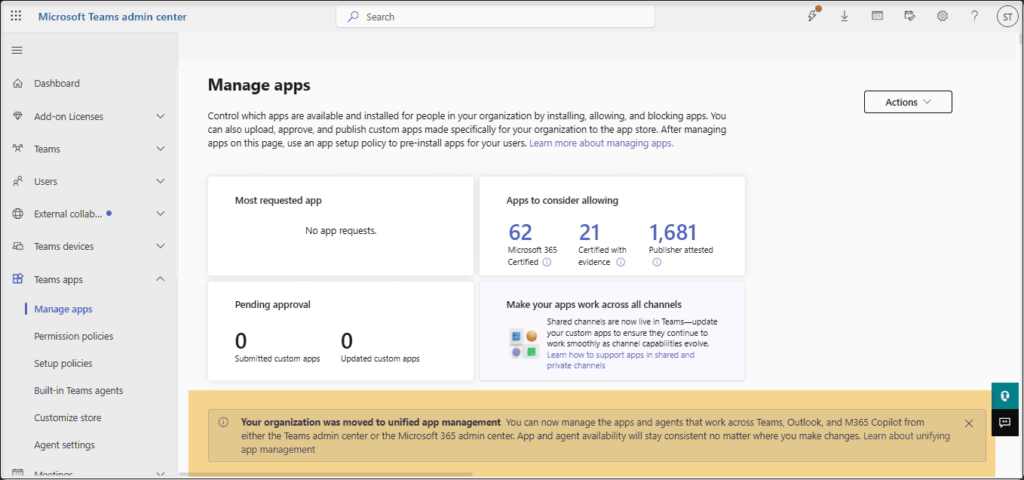
Teams admin center showing the unified app management information message
Phase 2: Tenants with Modified Settings
Phase 2 is designed for tenants that previously customized organization wide defaults, app availability, or block and unblock settings in one or both admin centers.
Here, Microsoft gives you guided tools to bring those custom environments into a unified state while retaining control over important policies.
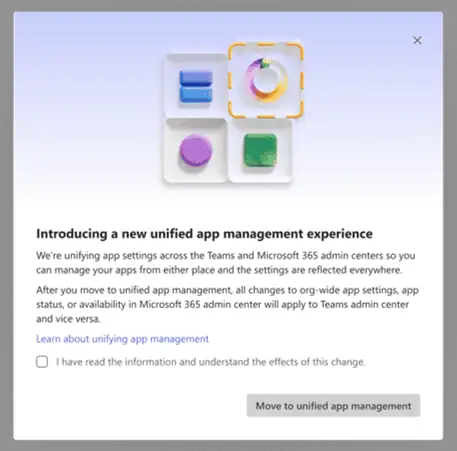
Two main scenarios matter:
- Tenants with custom app changes but no availability differences across admin centers receive guidance to keep policies unified going forward.
- Tenants with availability differences between MAC and TAC are guided through a wizard in the Teams admin center to highlight discrepancies and decide how to align them.
Key elements in Phase 2:
- A wizard in TAC that identifies agents and apps with mismatched policies and walks you through resolving them.
- Support for managing Microsoft 365 certified SaaS apps via org wide settings for third party apps.
- No automatic changes to organization wide or app level settings without your explicit action.
- Only a Global admin can give consent and apply the final changes.
📌 Overview of agent and app management and governance in Teams admin center | Microsoft Learn
💡 Policy Alignment Sprint
You can use this phase to run a short Policy Alignment Sprint that cleans up app governance across your tenant.
Sprint activities you can plan:
- Invite stakeholders from security, compliance, and collaboration teams to review current app and agent policies.
- Use the Teams admin center wizard to identify mismatched policies and capture decisions in a shared runbook.
- Create a golden configuration checklist that every new app or agent must meet before it is deployed.
This sprint can be documented as an internal playbook and reused whenever you need a governance refresh.
Phase 3: Automatic Unification for Remaining Tenants
Phase 3 covers tenants that did not transition in Phase 1 or Phase 2.
In this phase, Microsoft automatically moves those environments to unified app and agent management so every tenant benefits from the new model.
For you, this means:
- Your organization eventually lands on the same unified governance model as other tenants.
- Future app and agent changes follow a consistent pattern regardless of previous configuration history.
- Tools in TAC and MAC expect and support the unified experience by default.
📌 Further reading: Unified agent and app management | Microsoft Learn
Phase 4: Unified App and Agent Installation Management
Phase 4 extends unification from availability to installation so you can manage where apps and agents are installed from either admin center.
Once this phase is active, supported app and agent installations can be controlled from TAC or MAC, with changes kept in sync across both portals.
Important changes for your day-to-day work:
- App installation is no longer controlled through Teams app setup policies.
- Existing app installations that relied on older app setup policies are not automatically unified and may need review.
- If your tenant is already unified from earlier phases, installation assignments remain synchronized across admin centers.
📌For more details on app centric management, refer “Use app centric management to manage access to apps”.
📌 Track the rollout of these updates from Microsoft RoadMap
How to Prepare Your Tenant
To get the best results from this update, it helps to review your current app and agent configurations across both admin centers before and during unification.
This preparation makes the transition smoother and reduces surprises when policies start syncing automatically.
Preparation steps for you:
- Review tenant level settings for app allow and block and user availability in both TAC and MAC.
- Identify which teams currently own app governance and bring them together for a joint review.
- Update internal documentation so it reflects unified app management and any new approval workflows.
Operational checklist:
- Map existing app setup policies in Teams and list apps that are installed by those policies.
- Build a catalog of business-critical apps and agents that includes owners, usage, and risk ratings.
- Define a simple change process for updating app availability in TAC and MAC to avoid untracked ad hoc changes.
📣 Unified Apps Roadshow
Once your tenant is unified, you can run a Unified Apps Roadshow to keep users informed and engaged.
Ways to bring people along:
- Publish a short article on your intranet explaining that app access is now more consistent across Teams, Outlook, and Microsoft 365.
- Host a live session in Teams where you walk through how apps are managed across workloads and answer common questions.
- Record a brief video or create an FAQ in your Microsoft 365 learning hub that links directly to Microsoft documentation.
This helps users understand the changes and trust the new governance model.
Real World Scenarios Where Unified Management Helps
Unified agent and app management is especially useful in environments where governance is complex or multiple admin teams share responsibility.
If you are working in any of the scenarios below, this update can remove friction from your daily work.
Examples you might recognize:
- Security sensitive organizations benefit from consistent blocking or allowing of third-party SaaS apps across Teams and Outlook, which supports stronger policies and clearer audit trails.
- Large enterprises can coordinate multiple admin teams around one unified policy set instead of reconciling separate lists and configurations.
- Tenants using Copilot heavily can use agent registry and unified agent management to monitor AI agents and their footprint across workloads more effectively.
Useful Microsoft references for further reading
Use these references to validate your app governance approach, understand agent management options, and plan a consistent rollout across Microsoft 365 workloads.

















 Migrate
 Manage
 Migrate Microsoft 365








