


A Big Shift In How You Share Files Externally
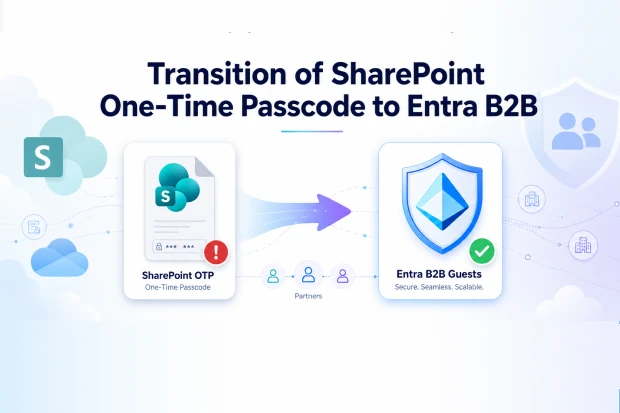
Microsoft is retiring SharePoint One Time Passcode authentication for external sharing in OneDrive and SharePoint and standardizing access on Microsoft Entra B2B guest accounts and policies.
This is a significant identity and security change that affects how shared links work, how external users sign in, and how organizations manage collaboration across Microsoft 365.
If your work depends on sharing files with partners, vendors, customers, or contractors, this update directly influences how those collaborators access content and how reliable older sharing links remain.
What Exactly Is Changing In SharePoint And OneDrive
External access for SharePoint and OneDrive is moving from the legacy SharePoint OTP engine to the Microsoft Entra B2B collaboration model.
Instead of validating external users with a SharePoint generated email code, external access now relies on Entra B2B guest identities governed by Microsoft Entra policies.
Key outcomes of this change:
- External file, folder, and site sharing relies on Entra B2B guest accounts instead of SPO OTP.
- The old SharePoint setting that previously controlled B2B integration no longer dictates external sharing behavior.
- The ability to turn off Entra B2B integration for SharePoint and OneDrive is being removed, making Entra B2B the default standard for external collaboration.
📌 Microsoft references for deeper learning:
Why Microsoft Is Moving To Entra B2B
The goal of this change is to unify identity, security, and governance for external users across Microsoft 365.
By using Entra B2B as the single collaboration model, Microsoft can apply Conditional Access, Identity Protection, auditing, and guest lifecycle management in a consistent way.
Key benefits you gain:
- A consistent sign-in experience for external users across Microsoft 365 apps instead of a separate SharePoint only OTP flow.
- Centralized enforcement of Conditional Access and MFA policies through Microsoft Entra for all guests.
- Stronger governance for guest account creation, access control, and audit visibility in one place.
📌 For more detailed guidance, see Microsoft’s “Overview of B2B collaboration with external guests.”
What This Means For Your External Users
External users who already have a Microsoft Entra B2B guest account in your directory will generally do not face any consequences. Instead the bigger impact is on users who previously accessed files only through SharePoint OTP based links and do not yet have a guest account.
You will see two main scenarios:
- External users who already have a guest account
- They continue signing in with their existing account and remain governed by your Entra guest access policies.
- External users who do not yet have a guest account
- For newer specific people links, Entra B2B Invitation Manager can automatically create a guest account and use Entra sign in methods, including email one time passcode where applicable.
- For older links that depended on SharePoint OTP, those users may see Access denied until a matching Entra B2B guest account exists for that email address.
📌 For more details, refer to Microsoft’s “Email one time passcode authentication for B2B guest users.”
🔍 Guest Experience Checkup
You can reduce surprises for external collaborators by running a simple guest experience checkup:
- Ask project and account owners to list critical external collaborators and domains they share with often.
- Check whether these external users already exist as Entra B2B guests in your directory.
- Identify any teams that rely heavily on older links so you can help them plan reshares or guest onboarding.
This helps you protect active projects from sudden access issues and reduces the volume of support tickets.
Restoring Access When External Users See Access Denied
As the legacy SharePoint OTP model is retiring, some external users may start seeing an Access denied message on older specific people links beginning October 2026.
In most cases this happens because there is no corresponding Entra B2B guest account for the email address that received the original link.
You can restore access in two main ways:
- Admin driven remediation
- An administrator manually creates an Entra B2B guest account for the affected external user using the same email address as the original sharing link.
- Once the guest exists and permissions are in place, the external user can open shared content again.
- End user driven remediation
- The internal file owner or site owner re-shares at least one file, folder, or site with that external email address using the normal Share dialog.
- This triggers Entra B2B Invitation Manager to create the guest account automatically and restores access to previously shared content associated with that identity.
📌 Refer Official Microsoft ‘s resource on “Quickstart: Add a guest user and send an invitation” for further information.
Impact On IT Admins And Governance
From an administration perspective, external access to SharePoint and OneDrive is now fully tied to Entra B2B settings and policies.
This changes where you configure external collaboration, how you troubleshoot access problems, and where you find audit data.
Key changes to be aware of:
- External sharing configuration
- Guest invitation and collaboration settings are controlled through Microsoft Entra External ID rather than SharePoint OTP behavior.
- Roles such as Guest Inviter are important because they determine who can bring guests into the directory.
- Conditional Access and security
- All guest sign-ins now pass through Entra and are subject to your Conditional Access policies for external users, including MFA and other checks.
- Auditing and compliance
- Authentication and guest lifecycle events are logged through Entra, which centralizes monitoring and compliance reporting for both internal and external accounts.
📌 Refer to the resources below for official Microsoft guidance:
- Configure external collaboration settings for B2B in Microsoft Entra External ID
- Add and manage B2B collaboration users in the Microsoft Entra admin center
💡 External Collaboration Readiness Survey
A short survey can help you understand how much your organization depends on external sharing and where to focus readiness efforts:
- Ask whether people regularly share documents with clients, suppliers, or partners.
- Ask if they have noticed any recent sign in changes or external complaints about access.
- Ask which external organizations or projects are most critical to day-to-day work.
Based on these insights, you can prioritize communications, training, and proactive guest account creation for the most affected teams.
Practical Next Steps For Your Team
You can align people, processes, and technology around Entra B2B to ensure this change strengthens external collaboration rather than disrupting it. Thinking in terms of roles helps you plan what different groups should focus on.
Use this as a practical action list:
- IT and security teams
- Confirm external collaboration settings in Entra and ensure they match your risk appetite and regulatory requirements.
- Review Conditional Access policies that apply to guests to balance strong security with a manageable user experience.
- Collaboration and business owners
- Identify business critical projects and customers that rely heavily on external file sharing.
- Validate that key external users can still access what they need and proactively resend invitations where necessary.
- Documentation and communication
- Update internal help pages, FAQs, and training materials to reference Entra B2B and guest accounts instead of SharePoint OTP.
- Embed relevant Microsoft Learn links in your internal documentation so users and admins can explore official guidance in more depth.
📌 Recommended Microsoft references to include:
1. SharePoint and OneDrive integration with Microsoft Entra B2B
2. Improvements to external sharing in OneDrive and SharePoint
3. Email one time passcode authentication for B2B guest users
4. Configure external collaboration settings
5. Add and manage B2B collaboration users

















 Migrate
 Manage
 Migrate Microsoft 365








