


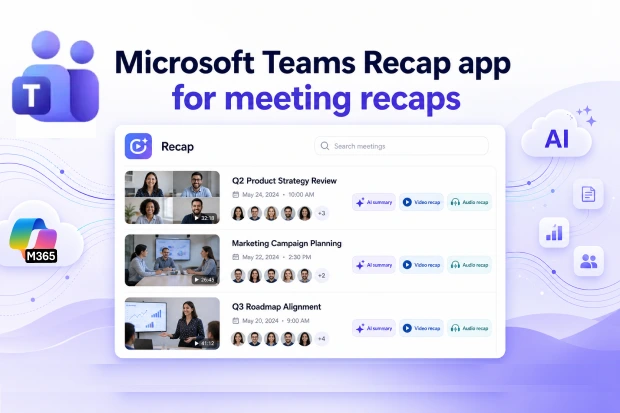
Meet The New Recap App In Microsoft Teams
If your days are filled with meetings and follow ups, it can be hard to remember what happened and where the recording or notes went.
The Microsoft Teams Recap app gives you one place to see the story of your recent meetings so you can catch up calmly and clearly, without jumping between chats, calendars, and email threads.
What The Recap App Helps You Do
The Recap app brings together Recordings, transcripts, and AI powered summaries so you can focus on what was decided and what needs to happen next.
Its design focuses on helping you quickly find the meetings that matter and revisit them in the way that suits you best.
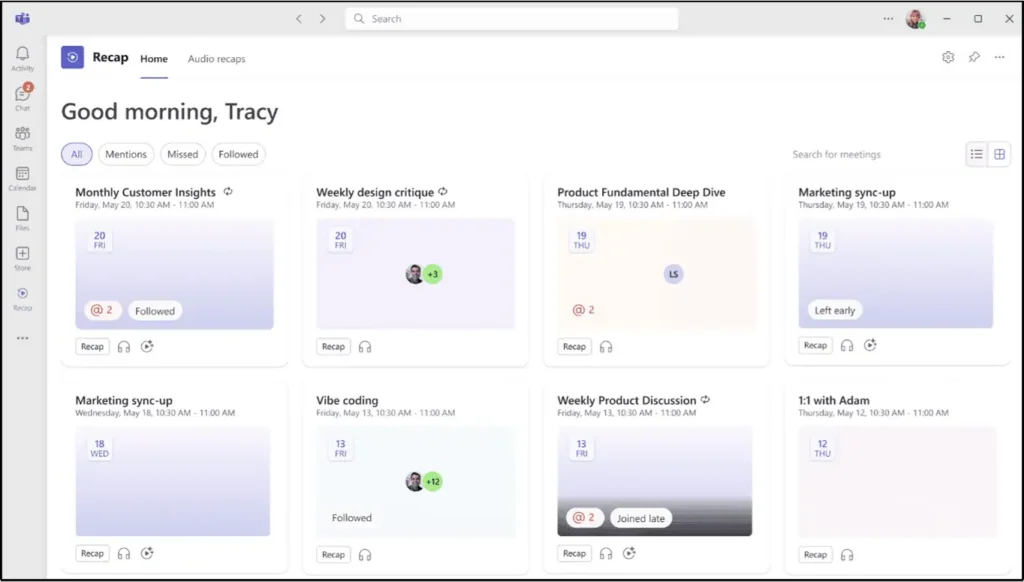
With Recap you can
- View meeting recaps from the past 30 days in a single, simple list
- Filter meetings by date, participants, or keywords from the transcript to surface the right conversation faster
- Open recaps for meetings that include recordings or transcripts, so you get richer context, not just titles
- Watch video recaps when you prefer to see screens and presenters again
- Listen to audio recaps in a podcast style format, ideal for catching up during commute or in between tasks
- Generate a combined audio recap across multiple meetings so you can review several discussions in one listening session

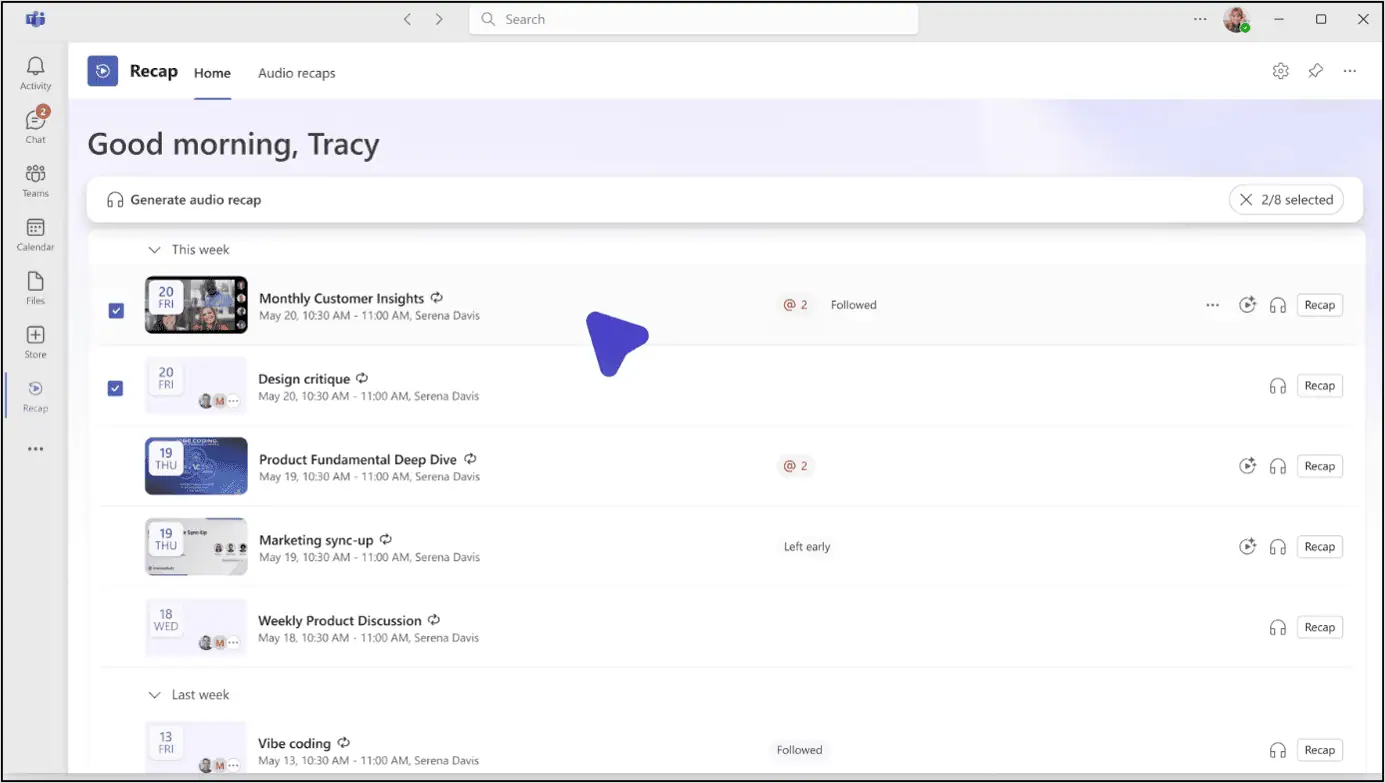
How You Can Access And Use The Recap App
You do not need to install anything extra to start using Recap because it is part of the Microsoft Teams core experience.
It is pre-installed for users, and you can open it directly from within Teams when you need to revisit past meetings.
To open the Recap app in Teams
- Select Apps in the left rail of Microsoft Teams
- Search for Recap and select the app from the store listing
- Browse your recent meetings and open recaps you want to view or listen to
Inside Recap you can
- Scroll through recaps from the last 30 days, focusing on projects or stakeholders that matter at the moment
- Use filters to narrow down meetings by participants, dates, or keywords so you find what you need in a few clicks
- Move between video and audio recap options when available, based on whether you want to watch or simply listen
Copilot Licensing And AI Features That Shape Your Experience
The Recap app works for everyone who has access to the relevant meeting recordings and transcripts, but some of the most advanced features depend on Microsoft 365 Copilot licensing.
Understanding this helps you know what to expect from your recaps today and what you gain if your organization adopts Copilot.
Important points to keep in mind
- Audio recap, enhanced video recap, and intelligent AI summaries are available only for users who have a Microsoft 365 Copilot license
- Users without Copilot can still see recordings and transcripts, according to their meeting permissions
- The Recap app itself is enabled by default as a core Teams app, which makes it easy for IT to allow usage across the organization
Platforms That Support Recap App
The Recap app is available across the main Microsoft Teams experiences so you can access meeting recaps whether you prefer desktop or web clients.
Mobile access is also planned, supporting a more flexible recap workflow for people who are often on the move.
Platforms that support the Recap app
- Microsoft Teams for Windows
- Microsoft Teams for Mac
- Microsoft Teams for web
- Mobile support planned for a future stage
How This Update Can Change Your Workday
If your work involves many meetings across teams and projects, the Recap app can become a quiet but powerful aid in your routine. It turns scattered meeting artifacts into a structured view so you can think more clearly and act more confidently.
You may notice changes like
- A better sense of continuity between meetings because you can revisit decisions and discussions in one place
- Less pressure to attend every call live only to avoid missing information
- Fewer long recap emails when colleagues know that recordings, transcripts, and AI summaries are accessible in Teams
If you shape digital workplace practices or adoption, it can also be useful to
- Refresh training materials to show people how to open and use the Recap app in their daily work
- Clarify Copilot licensing requirements for teams that expect intelligent summaries and audio recaps
- Use Teams admin center app setup policies to pin Recap in the left rail so more colleagues discover it quickly
🧩 Copilot Ready Meetings Checklist
To unlock the full power of intelligent recap and audio recaps, your meetings themselves need to be ready for AI. A small checklist can help you move in that direction without changing the way you work overnight.
You can focus this checklist on
- Turning on transcription for key meetings so AI has rich content to work with
- Confirming that decision makers and project owners have Microsoft 365 Copilot licenses if they expect AI summaries
- Using clear agendas and structured discussions so intelligent recap can identify topics, outcomes, and follow ups more effectively
This approach supports better meeting productivity and ensures that the Recap app surfaces meaningful, actionable insights instead of raw recordings alone.
Building A Monthly Recap Review Rhythm
The Recap app encourages you to think of your last month of meetings as a story that can be reviewed and improved. Creating a gentle ritual around this can give you more control over how meetings shape your work.
A monthly review could include
- Looking through recaps from the last 30 days to spot repeating themes, unresolved decisions, or emerging risks
- Using audio recap to listen to highlights from multiple meetings in a single focused session, such as during a commute
- Capturing insights into a team knowledge base or project tracker so information does not stay locked in recordings
Over time, this habit can reduce meeting fatigue because more value is extracted from each discussion and fewer details slip through the cracks.
















