


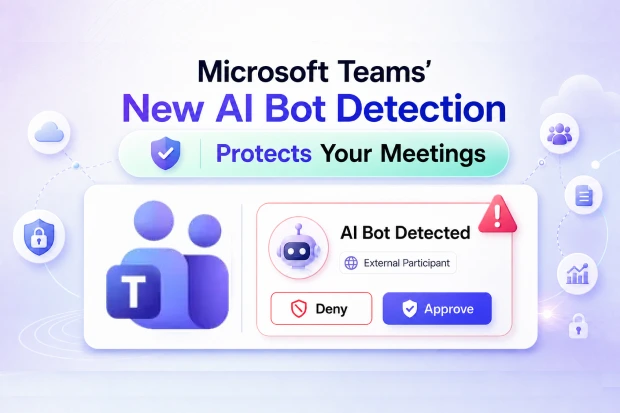
AI meeting assistants are becoming common in Microsoft Teams, helping people capture notes, transcripts, and summaries without multitasking. But when external bots join quietly, sensitive conversations can move into third-party systems outside your organization’s security, compliance, and data protection controls.
To help you stay in control, Microsoft is introducing a new external bot detection and control experience in Microsoft Teams that makes automated participants clearly visible and requires your approval before they join.
This update strengthens your meeting security, improves your compliance posture and gives you practical tools to govern how AI bots participate in your day-to-day collaboration.
Why AI Meeting Bots Need Guardrails
AI assistants offer real value by recording, transcribing or summarizing your meetings in Microsoft Teams. However, many third-party bots can appear as regular participants, which makes it hard for you and your admins to see when automated tools are actually inside your meetings.
Some of the key risks you need to watch for include:
- Hidden recording or transcription of confidential conversations by external services that you do not fully control
- Sensitive data leaving your tenant or region without clear awareness or approvals from your security and compliance teams
- Compliance gaps when automated participants are not properly identified, logged or governed in your audit and governance processes
With this new bot detection capability, Microsoft Teams makes automated participants more visible and more controllable so you can apply security, governance and privacy best practices to AI usage in your meetings.
How Microsoft Teams Now Keeps AI Bots In Check
The external bot detection feature introduces a set of capabilities that you and your admins can use to manage AI participation in meetings more safely.
Whenever an external AI bot attempts to join your Teams meeting, the platform evaluates that join attempt and highlights it for your attention.
Here is what happens when a potential bot joins your meeting:
- Teams can detect likely bots by using join metadata and behavioural signals available at the time of connection.
- Detected bots are clearly labeled in the meeting lobby so you can quickly differentiate them from human attendees
- Bots stay in the lobby, even when your meeting settings allow participants to bypass lobby and join directly
- You must explicitly approve or deny each bot before it can enter the meeting, which helps you avoid accidental admission
- If needed, you can remove bots during the meeting when you decide their access is no longer appropriate for the discussion
This experience makes bot participation a deliberate choice you make at join time instead of being an unintended side effect of a more permissive lobby configuration.
🔍 Bot Spotting Live Poll
You can help your colleagues become more aware of AI bot usage by running a simple activity in your next town hall or team call.
- Ask participants how many have seen an AI bot quietly join a meeting in the last few months
- Run a quick live poll using Microsoft Forms or Teams Polls and show the results live on screen
- Use the poll outcome to start a short discussion about AI governance, security and data privacy in online meetings
Admin Toolkit for Managing Bots in Microsoft Teams
If you manage Teams as an admin, you can control how external bots are detected and handled through a new dedicated meeting policy.
In the Microsoft Teams admin center, you will find a setting under Meeting policies → Meeting join and lobby named Manage external bots and their access to meetings.
This setting maps to the ExternalBotAccessMode attribute in PowerShell and provides different options so you can balance security and flexibility based on your organizational needs. These options allow you to tailor bot behavior for your entire tenant or for selected users.
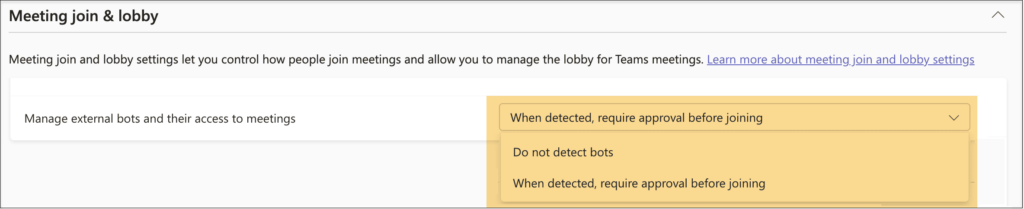
You can choose from configurations such as:
- Do not detect bots
- PowerShell value: AllowBots
- Behavior: Bots are not detected or specially marked and appear like any other external participant
- When detected, require approval before joining
- PowerShell value: RequireApprovalWhenDetected
- Behavior: Bots are detected, labeled in the lobby and require explicit approval from the organizer before they enter the meeting
You can apply these controls:
- At the organization level through the global meeting policy
- For specific user groups or strategic departments through targeted policies
📌If you want detailed configuration guidance, you can review the official documentation: Manage external bots and their access to meetings in Microsoft Teams
🛠 Secure Meeting Policy Workshop
You can drive adoption of secure meeting practices by hosting a short internal session focused on these new controls.
Consider a simple Secure Meetings workshop where you:
- Walk through your existing Teams meeting policies with your admin or security team
- Demonstrate the external bot detection controls and show how bots appear in the lobby
- Co create a basic decision tree that clarifies when to allow bots, when to require approvals and when to block them entirely
You can also prepare a short checklist or one-page guide summarizing your agreed settings and share it with helpdesk teams, champions and department leads so everyone understands the organization’s stance on AI bot usage.
What Meeting Organizers See with the New Bot Controls
If you regularly schedule or host Teams meetings, this feature changes how you see and manage AI bots in the meeting lobby. The goal is to give you clarity and confidence whenever an automated participant requests access.
When bots are detected, you will notice that:
- Bots appear with a clear visual indicator in the lobby participant list so they are easy to spot and cannot be mistaken for regular attendees

- Even when you admit other participants in bulk, detected bots remain subject to separate approval steps to reduce the risk of accidental admission
- Teams provides prompts or warnings reminding you that admitting a bot may enable recording, transcription or export of meeting content to external systems

- You retain the ability to remove bots during the meeting if your discussion shifts into more sensitive territory

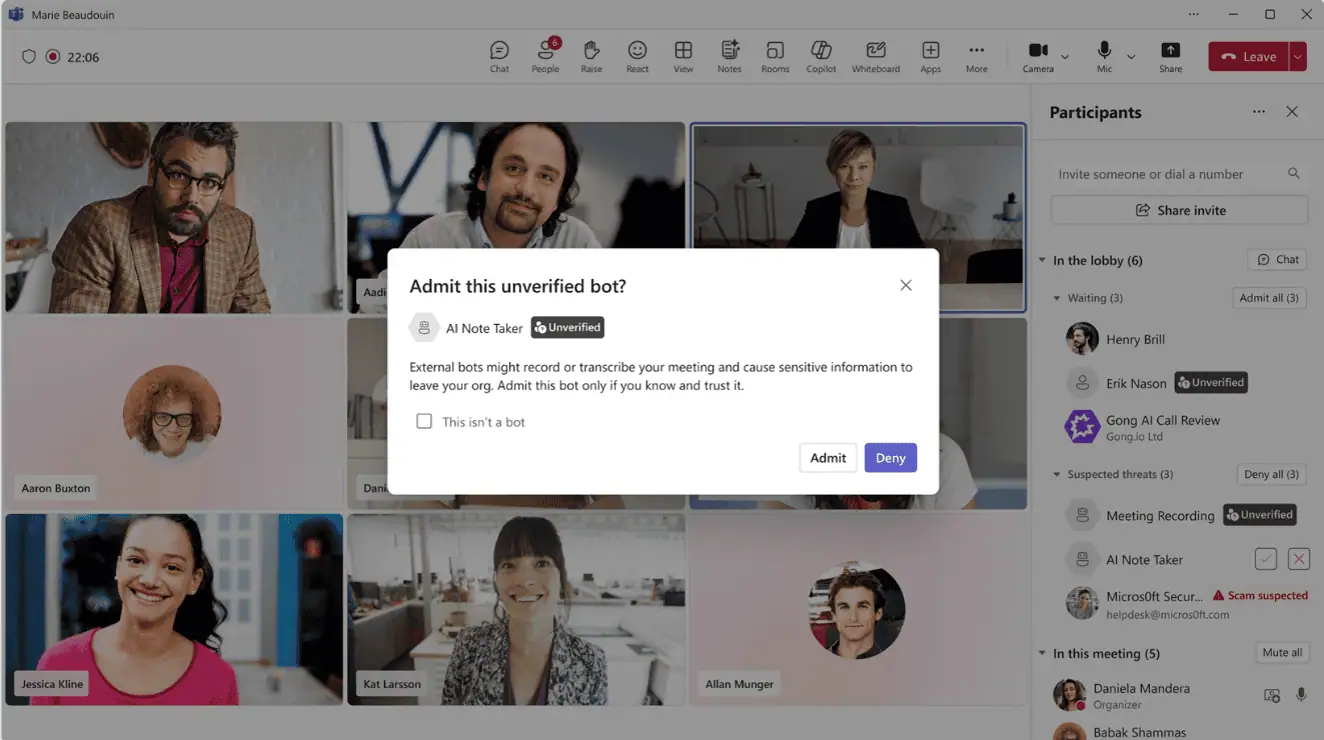
This experience helps you ensure that only the right people and the right tools are present in your virtual room, particularly when you handle confidential or regulated information.
📌 For deeper context and best practices, you can explore the Teams Bot Identification Program.
Your Next Steps For Safer AI Assisted Teams Meetings
To take advantage of this update in your organization, you can coordinate actions between admins and meeting organizers. A few planned steps now will help you avoid surprises later when bots start appearing in your lobbies more frequently.
If you are a Microsoft 365 or Teams admin, you can:
- Review your existing meeting policies and align them with your AI and data protection strategy
- Set external bot access to “When detected, require approval before joining” as a secure default for most users
- Introduce stricter policies for highly sensitive teams or departments where bots should rarely or never be allowed
- Update your internal documentation and helpdesk runbooks to explain new lobby behavior, bot indicators and approval prompts
- Coordinate with security, legal and compliance stakeholders to ensure usage of AI assistants remains aligned with regulatory and contractual obligations
If you are a meeting organizer or regular Teams user, you can:
- Familiarize yourself with the new bot labels in the lobby and understand what they imply about recording and data usage
- Discuss with your team which recurring meetings can safely use AI assistants, and which conversations should remain human only
- Raise any suspicious or unexpected bots with your admin or security team and report them from the app to help refine detection rules
Compliance And Data Protection For Meeting AI Bots
This feature relies on detection logic that analyzes meeting join metadata and behavioral patterns, so Microsoft has documented the relevant compliance aspects for administrators and security teams. You can use this information to evaluate how the feature fits your current governance framework.
Based on Microsoft’s documentation:
- The detection capability uses infrastructural and behavioral signals collected at join time to identify potential bots
- The feature does not introduce a new communication channel, it enhances visibility of automated participants in existing meetings
- A dedicated Teams meeting policy controls detected bots through standard Teams meeting policies, not through Entra ID group-based settings
- Some bots may still evade detection, so user education and incident reporting remain essential components of your overall AI governance approach
If you operate in a regulated industry, work with your compliance, data protection and legal teams to align these controls with your sector specific requirements.
📌 Official Microsoft Resources To Deep Dive
Whenever you want to dive deeper or validate your configuration decisions, you can rely on Microsoft’s official documentation and announcements.
Some key references include:
















