


Managing routine work in Microsoft Teams often means juggling multiple small tasks. A request comes in, information needs to be collected, the right people need to be notified, and records may need to be updated in another system.
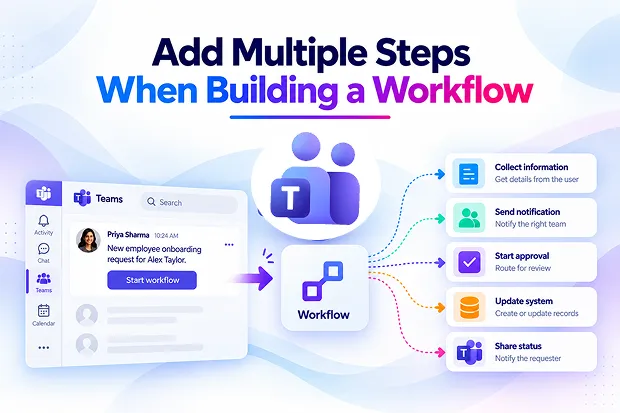
Microsoft Teams Workflows now makes it easier to connect these actions in one process. Instead of building several separate workflows for each step, you can create a single workflow that carries out multiple actions after one trigger.
This enhancement helps you reduce repetitive work, keep requests moving, and create more consistent processes across your organization.
Turn One Trigger Into a Complete Teams Process
A simple event can often begin a much larger process. It could be a new request submitted through Teams, a message that needs follow-up, an approval request, or an update shared in a channel.
With multi-step workflows, you can design what happens next in a clear sequence. One trigger can start several connected actions, helping your process move from request to completion with fewer manual handoffs.
For example, a single workflow can:
- Collect information from a user
- Send a confirmation message in Microsoft Teams
- Notify the right person or department
- Update a connected system or tracker
- Route the request for review or approval
- Share a final status update with the requester
This approach can help you turn scattered tasks into a more organized Microsoft Teams automation process.
🔄 Turn Repetitive Requests Into One-Click Flows
Consider the repetitive work that appears across your organization:
- Employee requests that need approval and follow-up
- IT support requests that need to reach the right team
- New employee onboarding activities involving HR, IT, and managers
- Project updates that need to be recorded and shared
- Team notifications that must be sent after a status change
Automating even a few of these routine processes can improve response times and reduce the chance of missed follow-ups.
A Simpler Way to Build Microsoft Teams Automation
Building automation does not always need to involve complex development work. The step-based workflow-building experience helps you map each action in the order it needs to happen.
You can start with a trigger and then add actions that support the next stage of the process. This gives you a clearer view of how information, notifications, approvals, and updates work together.
For many business users, this makes workflow automation easier to understand and maintain. Instead of managing separate flows for related tasks, you can create one connected process that reflects how work happens in real life.
Key benefits of multi-step workflows
- Reduce manual and repetitive tasks
- Bring related workflow actions into one process
- Create more consistent business operations
- Improve communication with automated notifications
- Reduce the number of separate workflows to manage
- Support more complete business scenarios in Microsoft Teams
- Help teams respond to requests faster and more reliably
📌 Share a “Before vs After” Workflow Challenge
A process that currently depends on several people completing several manual steps can create delays, inconsistent communication, and unnecessary effort.
A multi-step workflow gives you a way to simplify that journey.
Before a multi-step workflow:
A request is submitted in Teams. Someone checks the details, sends a message to the next person, updates a spreadsheet or business system, waits for an approval, and sends a final update manually.
After a multi-step workflow:
A request starts one workflow. The workflow collects the required details, sends notifications, updates the relevant system, routes the request for approval, and informs the requester when the process is complete.
This type of workflow can make a visible difference in how quickly your team handles common tasks.
Practical Scenarios for Multi-Action Workflows
Multi-step workflows can support many everyday Microsoft 365 and business process automation scenarios. The best workflow is often the one that removes the most repeated manual work from a familiar process.
Employee onboarding
A new employee request can trigger a workflow that gathers essential information, notifies HR and IT, creates follow-up tasks, and sends a welcome message to the relevant Teams channel.
This creates a clearer onboarding process and helps ensure important setup steps are not missed.
Approval and request routing
A workflow can collect request details, send the request to the appropriate approver, notify the requester of the decision, and update a tracking location once the request is complete.
This helps reduce the need for manual status checks and reminder messages.
Project and operational updates
A project update can trigger a workflow that posts a Teams notification, updates a connected tracker, alerts the next person responsible, and keeps stakeholders informed.
This is useful when teams need to coordinate work across multiple roles and avoid missed updates.
Service desk and IT requests
An IT request can begin with a form or Teams message. The workflow can capture the issue, route it to the correct support team, notify the requester, and record the request for tracking.
This can improve service visibility while reducing administrative work for the support team.
⚡ Ask: “What Would You Automate First?”
Consider which process would create the biggest productivity gain if it could run through one Microsoft Teams workflow.
Common starting points include:
- Approval reminders
- New employee onboarding
- Meeting follow-ups
- IT support requests
- Project status updates
- Employee service requests
- Internal notifications
- Task assignment and tracking
Starting with one high-volume process can help you demonstrate the value of Microsoft Teams automation before expanding workflows across other areas of the organization.
What This Means for Organizations
Multi-step workflows can help you move beyond isolated automation tasks. Rather than using a workflow for only one notification or one approval, you can create connected processes that guide work through several stages.
This can be especially helpful when work moves between employees, teams, systems, or departments. A structured workflow can ensure the right information reaches the right people at the right time.
The update can support key business goals, including:
- Improving Microsoft 365 productivity
- Reducing manual data entry and follow-up
- Streamlining approval and request processes
- Improving internal communication
- Increasing visibility into work status
- Creating more consistent employee experiences
- Supporting operational efficiency across teams
It is also a good opportunity to review existing workflows. You may find that several separate workflows can be simplified into one more complete process.
Final Thoughts
Microsoft Teams Workflows is becoming a more practical tool for handling everyday business processes. By allowing multiple actions within one workflow, it gives you a simpler way to reduce repetitive work and bring related tasks together.
Whether you are managing approvals, employee onboarding, service requests, project updates, or team notifications, multi-step workflows can help you create a process that is easier to follow and easier to manage.
A single trigger can now support a more complete workflow journey, helping your team save time, improve consistency, and keep important work moving forward.
Learn More from Microsoft
Explore Microsoft’s official resources to build smarter Teams workflows and accelerate automation across your organization.

















 Migrate
 Manage
 Migrate Microsoft 365








