


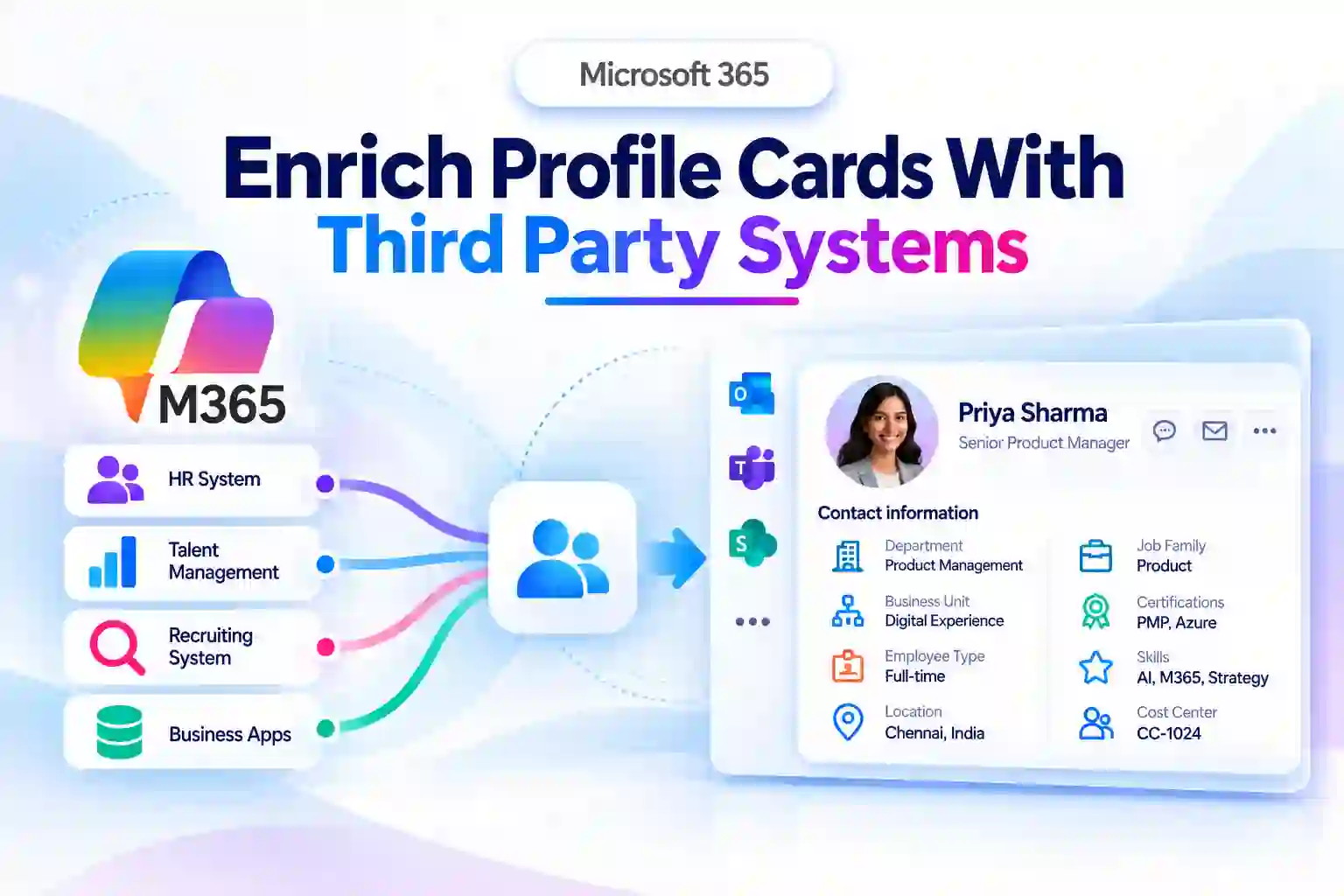
Finding the right colleague should not require opening several tools, checking outdated directories, or sending messages just to confirm someone’s role, skills, or department. Microsoft 365 profile cards are becoming more useful by helping organizations bring important people information closer to where work happens.
With Microsoft Graph People connector, your organization can enrich profile cards with custom details from trusted third-party systems. This can help you quickly understand who you are working with and make everyday collaboration more informed.
Turn Employee Profiles Into Actionable Business Context
A name, job title, and email address provide only a basic introduction. When you need to locate the right expert, understand a colleague’s responsibilities, or identify the appropriate business contact, richer profile information can save valuable time.
Custom profile properties can bring relevant organizational details into the Microsoft 365 experience. Instead of switching between HR platforms, talent systems, and internal directories, you can view useful context directly from a colleague’s profile card.
Your organization may choose to display information such as:
- Business unit or department
- Employee type
- Job family or internal role
- Professional certifications
- Skills and areas of expertise
- Project-related information
- Cost center details
- Recruiting or HR information
- Internal employee identifiers
- Location-based organizational details
What Is New for Microsoft 365 Profile Cards?
Microsoft 365 now enables organizations to add up to 10 custom properties to profile cards using Microsoft Graph People connectors. These properties can be sourced from third-party people systems, including HR, recruiting, talent, and other internal business platforms.
This helps create a more complete employee profile experience without requiring all business data to be stored in a single system. Your organization can continue using its existing source systems while making selected information easier to discover in Microsoft 365.
Admins can configure the profile properties that appear for users, including the display name, visibility, and icon where applicable.
Once configured, properties appear in the Contact Information section of profile cards in Outlook Web:

Key capabilities at a glance
- Add up to 10 custom people-data properties to profile cards.
- Bring selected data from external HR, talent, recruiting, and business systems.
- Use Microsoft Graph People connectors to ingest external people information.
- Control which properties are visible to employees.
- Configure clear display names for custom business fields.
- Improve employee discoverability and organizational context.
- Keep third-party systems as the source of truth for connected data.
How Microsoft 365 Admins Can Configure It
This capability is turned off by default, giving your organization control over whether and how external people data appears on profile cards.
Before enabling custom properties, it is important to identify information that will genuinely help employees collaborate. The most effective profile-card data is easy to understand, relevant to daily work, and maintained accurately in the source system.
Admins can manage profile card settings in the Microsoft 365 admin center through:
Settings > Org settings > People settings > Profile card > Contact info
Configure profile card information in Microsoft Admin Center

A thoughtful setup process can help ensure that the information employees see is accurate, useful, and appropriate.
- Identify high-value people information stored in HR, talent, recruiting, or internal business systems.
- Determine which system is responsible for maintaining each property.
- Use a Microsoft Graph People connector to ingest the selected information.
- Configure the custom properties in the Microsoft 365 admin center.
- Set clear display names, visibility options, and icons where needed.
- Validate the experience with a pilot group before enabling it more broadly.
- Update internal documentation so employees know what information is available and where it comes from.
💡 “Find the Right Expert” Challenge
Profile cards can help employees discover expertise that may otherwise stay hidden across the organization. A short internal challenge can encourage people to explore the richer profile experience.
Ask employees to find a colleague with a specific skill, certification, project background, or organizational role using profile cards.
You can support the activity with:
- A weekly “Who is the expert?” prompt in Teams.
- A simple scenario, such as finding a certified specialist for a customer project.
- A reminder to check profile cards before posting broad requests for help.
- Recognition for teams that use employee expertise more effectively.
This type of campaign shows how better people information can make collaboration faster and more targeted.
Why Third-Party People Data Matters
Many organizations already maintain valuable employee information outside Microsoft 365. HR systems often contain employment details, talent platforms can track skills and certifications, and internal databases may hold role-specific information that supports daily operations.
Bringing selected data into Microsoft 365 profile cards helps reduce unnecessary context switching. It gives you a clearer understanding of colleagues when you are preparing for a meeting, starting a project, looking for support, or building a cross-functional team.
Richer profile cards can support common workplace scenarios, including:
- Finding a subject-matter expert for a project.
- Identifying a colleague’s business unit or internal role.
- Locating employees with specific certifications or skills.
- Understanding organizational relationships and responsibilities.
- Connecting with the appropriate HR, recruiting, operations, or technical contact.
- Helping new employees become familiar with colleagues and teams.
- Supporting stronger collaboration across departments and regions.
Use Clear Labels for Custom Properties
Custom data is only useful when it is immediately understandable. Employees should not need to interpret technical field names, abbreviations, or internal database labels to understand what a profile property means.
For example, a label such as “Req ID” may be familiar to a recruiting team but unclear to most employees. A label such as “Open requisition ID” gives people more context.
Where possible, use standard profile properties that employees already recognize. When custom properties are needed, use clear business language that reflects the value of the information.
Good custom-property practices
- Use clear, employee-friendly labels.
- Avoid system field names and internal database terminology.
- Prefer standard profile fields when they meet the requirement.
- Keep values short, relevant, and easy to scan.
- Avoid abbreviations that only one department understands.
- Use consistent naming across Microsoft 365 and business systems.
- Review profile data regularly for accuracy.
- Do not surface sensitive information that is not needed for collaboration.
For example, use Professional certifications instead of cert_data, or Primary business unit instead of org_lvl_2.
Profile Cards Support Stronger Collaboration
Enriched Microsoft 365 profile cards can help transform employee information into practical collaboration context. When you can quickly understand a colleague’s expertise, business area, role, or organizational connection, it becomes easier to reach the right person and move work forward.
For organizations, this capability creates a more structured way to surface trusted people data from third-party systems within the Microsoft 365 environment. For employees, it can reduce time spent searching for information and make cross-team collaboration more efficient.
The best approach is to begin with a small number of high-value profile properties. Test them with a representative group of employees, collect feedback, and expand only when the data provides clear value.
🎯 “Suggest a Profile Field” Poll
Employees can provide valuable input on what information would help them collaborate better. A quick poll can help your organization prioritize the most useful profile-card properties.
Use a Teams or Viva Engage poll with the question:
“What information would help you collaborate faster when viewing a colleague’s profile?”
Suggested options include:
- Skills and professional certifications
- Business unit or department
- Current project or area of expertise
- Languages spoken
- Office location or work region
- Internal role or job family
- Other employee information
This creates a simple feedback loop and helps ensure that future profile-card improvements are based on genuine employee needs.
Learn More from Microsoft
Explore these official Microsoft resources to configure richer profile cards and make trusted people data more useful across your organization.
















