
A well-planned Teams webinar can still feel difficult to manage when presenting and production responsibilities overlap. While your speaker delivers the session, someone needs to manage what the audience sees and keep the backstage experience organized.
Two Microsoft Teams updates give you greater control over those responsibilities. You can assign dedicated production permissions for meetings and webinars, then extend that access to trusted external presenters when you need additional support.
Microsoft Teams Production Controls: What’s Changing?
The new Who has control of production tools setting lets you choose who manages production in your Teams meetings and webinars. You can assign these responsibilities separately from presenting, giving your speakers more room to focus on their sessions.
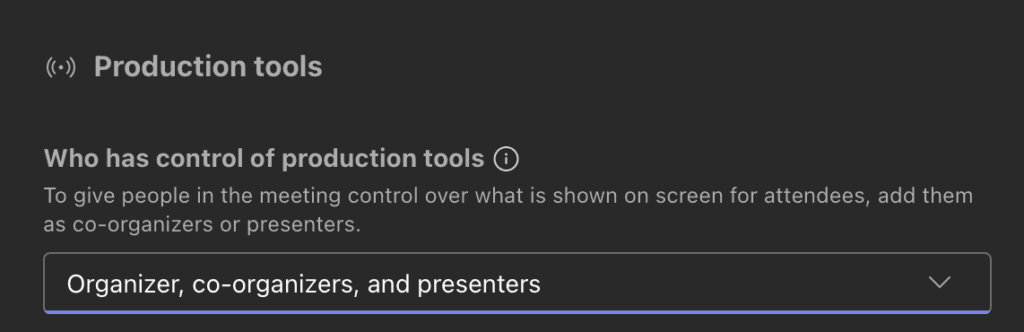
Use this setting to:
- Assign production responsibilities to designated people.
- Give authorized users access to Manage what attendees see and Green Room controls.
- Extend production access to trusted external presenters when needed.
This brings production permissions into one setting, helping you define who handles the event experience before the session begins.
1. Choose Who Controls Production Tools in Teams Meetings and Webinars
The new Who has control of production tools meeting option lets you designate people to manage production in eligible presenter-led meetings and webinars.
Instead of combining speaking and production duties, you can assign each responsibility to the right person. Your presenter can concentrate on the session while your production lead manages the audience’s viewing experience.
Designated production staff can access:
- Manage what attendees see: Control the viewing experience during your event.
- Green Room controls: Manage the backstage experience.
This gives you a practical way to organize event responsibilities before the session begins, rather than deciding who handles production during the live event.
The meeting option is available by default for eligible meetings and webinars, with no admin action required to make the capability available. You should still review the production permissions when preparing your event.
🎯 Who’s Running Your Next Webinar?
A clear assignment before the event helps everyone focus on their role.
- Speaker: Delivers the presentation.
- Production lead: Manages the attendee viewing experience.
- You, as the organizer: Review production access before the session.
2. Let Trusted External Presenters Manage Teams Event Production
Your event production support does not always come from inside your organization. You may work with an agency, an external event producer, or a trusted partner who already understands your event requirements.
This recent Microsoft update lets you grant production permissions to trusted external presenters, including federated (B2B) users and guest users.
You can assign this access through the same Who has control of production tools setting. Once authorized, your external presenter can manage production controls and what attendees see.
This gives you more flexibility to:
- Bring in a trusted production partner for a customer webinar.
- Assign attendee-view management to an authorized external presenter.
- Reduce the need for your internal team to operate production controls on a partner’s behalf.
External production access is not automatic. You must explicitly assign the permissions, and your existing events and configurations are not automatically changed.
🤝 Build a Better Partner-Led Event
For a joint customer session, agree on production ownership before the rehearsal.
- Identify the trusted partner who will manage production.
- Assign the required access explicitly.
- Rehearse presenter handoffs and attendee-view changes together.
One Teams Setting, More Flexible Event Management
The two updates support the same goal: giving you more flexibility over who manages your Teams event.
The first lets you separate production duties from presenting. The second lets you assign those production duties to a trusted external presenter when your event requires outside support.
For your customer demos, training sessions, and partner webinars, this creates a clearer working arrangement. Your speaker can focus on the message while your designated production lead manages the viewing experience.
✅ Run a Five-Minute Production Check
A short review before the event helps you confirm that production responsibilities are covered.
- Check who needs access to production controls.
- Review internal and external production assignments.
- Test the attendee experience before the audience joins.
Prepare Your Teams Webinar Workflow for Better Control
No admin action is required to make these capabilities available. Focus your preparation on assigning production permissions to the right people and making their responsibilities clear before the event.
Update your event checklist to include production access, review your organization’s guidance for external participants, and document who will manage the attendee experience.
Include these checks in your rehearsal so your presenters and production team understand their roles. With clear ownership and carefully assigned permissions, you can bring internal expertise and trusted external support together for a more coordinated Teams meeting or webinar.
Explore Microsoft’s Official Production Control Resources
Use these official Microsoft resources to configure production controls and track rollout updates for your Teams events.