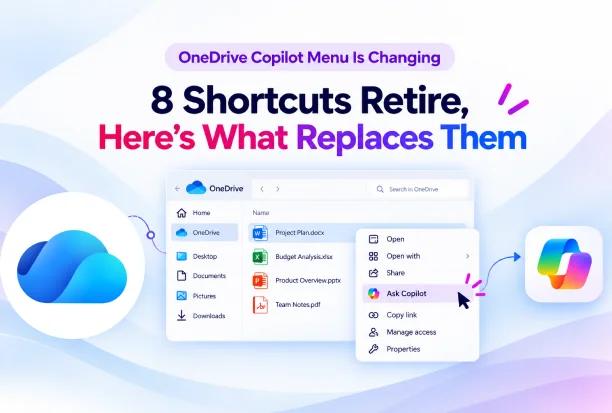
Your OneDrive right-click menu is changing, but your access to Copilot is staying. Microsoft is retiring eight dedicated Copilot actions from the File Explorer context menu and simplifying how you start working with your files.
If you use these shortcuts to summarize documents, compare files, or extract text from images, the main adjustment is where you begin. Ask Copilot remains available, along with the Copilot icon in File Explorer Home and the OneDrive activity center.
Understanding which shortcuts are disappearing and which access points remain will help you adjust your workflow without mistaking a menu change for a loss of Copilot functionality.
Which OneDrive Copilot Shortcuts Are Being Removed?
The Microsoft OneDrive update affects how you access specific Copilot actions when working with OneDrive files in File Explorer.
These eight dedicated context menu actions are being retired:
- Summarize
- Create FAQ
- Compare Files
- Ask a question
- Explain image
- Explain images
- Compare images
- Extract text
This does not mean Copilot in OneDrive is being discontinued. Microsoft is removing these individual shortcuts from the File Explorer context menu while keeping other ways to access Copilot.
The aim is to give you a more centralized starting point instead of a separate menu action for each task. Rather than looking for a specific command in the right-click menu, you can open a Copilot conversation about the selected file.
The distinction matters when reviewing your existing workflow: the dedicated shortcut is retiring, while other Copilot entry points remain available.
💬 Which Copilot Shortcut Will You Miss?
The shortcut you use most often is a useful place to start when reviewing how this update affects your work.
- Is Summarize part of your document review routine?
- Do you rely on Compare Files or Create FAQ?
- Share your most-used action in the comments.
Identifying your most-used shortcut also helps you decide which instructions or saved guidance need attention first.
How to Access Copilot for OneDrive Files in File Explorer
You can continue opening a Copilot conversation with a OneDrive file attached through either of these File Explorer entry points:
- Right-click a OneDrive file and select Ask Copilot.

- In File Explorer Home, hover over a file and select the Copilot icon.

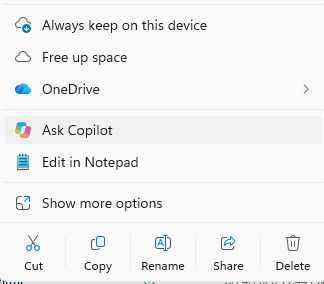

Both routes open a new Copilot conversation with the selected file attached, giving you a place to ask for help with its contents.
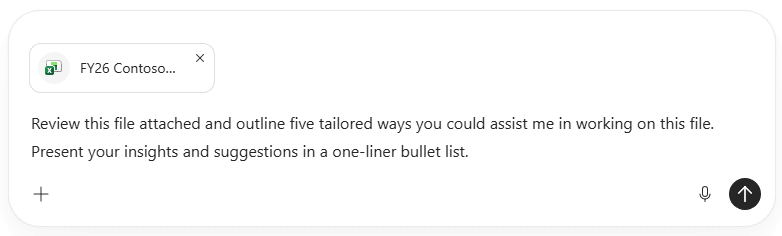
For example, when reviewing a document, you can begin with the file itself and then enter a focused request in the conversation. This changes the starting point from choosing an individual menu command to describing what you need.
OneDrive Copilot actions will also remain available in the OneDrive activity center. A missing shortcut in the right-click menu does not mean you have lost access to Copilot.
Keeping these access points in mind will make it easier to recognize the updated experience when your familiar menu looks different.
🧪 Try a Fresh Route to File Insights
A familiar document can help you get comfortable with the updated starting point.
- Select a OneDrive document and open Ask Copilot.
- Try a focused prompt, such as “Summarize the key points in this file.”
- Share how this approach fits into your usual document review process.
Start with a task you already perform regularly so you can focus on the new access route rather than unfamiliar file content.
OneDrive File Permissions Stay in Place
When you open a file through these Copilot entry points, it is attached to the conversation by reference. Its existing permissions and protections continue to apply.
The update changes how you reach Copilot from File Explorer. It does not change the access rights or protections already applied to the selected file.
This is an important distinction when explaining the update internally. Changes to menu options should not be presented as changes to file sharing, access permissions, or information protection.
What Microsoft 365 Admins Should Update?
No administrative action is required for this change. The preparation is to make sure your user guidance reflects the remaining Copilot access points.
If you maintain Microsoft 365 training materials or support documentation, review any instructions that reference the retiring shortcuts.
- Replace steps that direct users to the individual context menu actions.
- Refresh screenshots showing the retiring Copilot menu options.
- Explain how to open Ask Copilot from a OneDrive file.
- Include the Copilot icon in File Explorer Home as another access route.
- Highlight that OneDrive Copilot actions remain available in the OneDrive activity center.
Give particular attention to quick-start guides and help desk responses that describe a precise right-click sequence. These instructions can become confusing even when the rest of the guidance remains relevant.
A brief notice can also help prevent confusion when a familiar shortcut no longer appears where someone expects it. Keep the message focused on what is changing, where to go next, and what remains available.
📋 Give Your Team’s Copilot Guide a Quick Check
Your existing guidance may only need a small refresh to stay useful.
- Look for instructions such as “right-click, then select Summarize.”
- Replace the outdated step with the appropriate remaining access route.
- Share the revised guidance wherever your team usually finds Microsoft 365 help.
Check both the written steps and accompanying screenshots so they describe the same experience.
Fewer Menu Shortcuts, a Different Starting Point
The change is about where you begin, rather than the end of Copilot access for your OneDrive files.
As the eight dedicated File Explorer actions retire, keep Ask Copilot, the File Explorer Home Copilot icon, and the OneDrive activity center in mind. Updating your familiar steps will help you continue working without relying on the retiring shortcuts.
For everyday use, the most useful adjustment is knowing how to open a conversation with the file attached. For internal support, it is making sure your documentation points to those remaining entry points.
Explore Microsoft’s Official OneDrive Copilot Guides
Learn more about working with your files through these Microsoft Support resources: