


- Key Takeaways
- What Is Microsoft 365 Tenant-To-Tenant Migration?
- How Do You Merge Two Microsoft 365 Tenants?
- How Do You Migrate Microsoft Teams Chats Between Tenants?
- How Do You Migrate OneDrive Files Between Microsoft 365 Tenants?
- How Do You Migrate Shared Mailboxes Between Tenants?
- Which Microsoft 365 Migration Tool Automates The Process?
- Microsoft Native Migration Versus Third-Party Migration Tools
- Common Challenges During Microsoft 365 Tenant Consolidation
- Microsoft 365 Merger Migration Checklist
- Plan Your Merger Migration
- Frequently Asked Questions
Key Takeaways
- A Microsoft 365 tenant-to-tenant migration during a merger maps user identities first, then moves mailboxes, OneDrive, SharePoint, and Teams in sequence.
- Microsoft’s native tools cover Exchange mailboxes and OneDrive, with SharePoint sites and Teams chats and meetings available through preview capabilities.
- Native migration does not move Teams channels, Planner, Forms, Power Automate, or Power BI, so most mergers still need a third-party tool.
- Apps4.Pro Migration Manager migrates Exchange, OneDrive, SharePoint, Teams channels, and 1:1, group, and meeting chats as native Teams messages.
- Shared mailbox permissions and delegates do not transfer automatically, so reassign them manually or use a tool that preserves them.
- Identity mapping is the foundation of every merger migration; each workload depends on matching source users to target accounts correctly.
- Run a pilot, validate with reports, sync changes, then cut over. No tool guarantees zero downtime without careful planning.
To consolidate two Microsoft 365 tenants during a merger, you map user identities across both tenants, prepare the target tenant, then migrate each workload in a planned sequence: Exchange mailboxes, OneDrive, SharePoint, and Teams. The right approach depends on which workloads you run, the size of the migration, your identity requirements, and the level of business continuity you need during cutover.
Which tool automates it depends on scope. Microsoft offers native cross-tenant tools for mailboxes, OneDrive, and SharePoint sites, and a preview Migration Orchestrator that coordinates mailboxes, OneDrive, and Teams chats and meetings in one workflow. Apps4.Pro Migration Manager automates a wider set of workloads from a single console, including Teams channels and full Teams chat history. This guide covers both so you can match the approach to your merger.
Merging tenants is not a file copy. A Microsoft 365 environment is a web of relationships. Identities link to mailboxes. Mailboxes hold calendar invites that point to Teams meetings. Teams channels sit on SharePoint sites. OneDrive files carry sharing links and permissions tied to user accounts. Power Automate flows run under owners, and Planner tasks belong to Microsoft 365 Groups. Move one workload without the others, or break the identity that ties them together, and users can lose access to files, chat history, or shared mailboxes even when the migration report says “complete.”
That is why a merger migration succeeds only when people can resume work after cutover, not when the last byte lands. This guide walks through the full workflow, the specifics for Teams chats, OneDrive, and shared mailboxes, and a direct comparison of the tools that can automate the move.
What Is Microsoft 365 Tenant-To-Tenant Migration?
Microsoft 365 tenant-to-tenant migration moves users, mailboxes, files, and collaboration data from one Microsoft 365 tenant to another. A tenant is your organisation’s dedicated instance of Microsoft 365, with its own domains, identities, and data. Mergers, acquisitions, divestitures, and rebrands are the usual triggers.
Tenant consolidation is the merger case: you combine two or more tenants into one target environment so everyone works in a single Microsoft 365 organisation. The opposite case, a divestiture, splits users and data out of one tenant into a new one. Both are cross-tenant migrations, and both carry the same core challenge.
The important distinction is between moving data and consolidating the environment. Moving data means copying mailbox contents, OneDrive files, and Teams messages from source to target. Consolidating the environment means rebuilding the relationships that make those items usable: matching each source user to a target account, preserving file permissions and ownership, keeping shared mailbox delegates intact, re-pointing meeting invites, and making sure group memberships and automation still work. A tool can move the data in hours. Restoring the environment around it is the part that decides whether the merger lands cleanly.
This is why tenant migration planning starts with identity and dependencies, not with file counts. Every later decision, including which tool to use, follows from how your users, groups, and workloads map from the source tenant to the target.
How Do You Merge Two Microsoft 365 Tenants?
Merging two tenants follows a repeatable workflow. Treat it as seven stages, run in order, with validation at each gate.
- Discovery and migration assessment: Inventory both tenants: users, groups, shared mailboxes, OneDrive and SharePoint volumes, Teams and channels, and dependencies such as Power Automate flows and Planner plans. Measure data sizes, flag mailboxes on legal hold, and identify what must move versus what you can retire. A pre-migration inventory report turns an unknown estate into a scoped project.
- Source and target tenant preparation: Confirm you have enough licences in the target tenant. Verify and plan domain moves, since an email domain can live in only one tenant at a time. Register the migration applications and grant admin consent in both tenants, create the Exchange migration endpoint and organization relationship in the target, and establish the SharePoint and OneDrive trust if you use native tools.
- User identity mapping and account provisioning: Decide how each source identity maps to a target account, then provision those accounts. For native mailbox moves, pre-create mail-enabled users in the target with attributes that match the source. Correct identity mapping is mandatory: it is what reconnects migrated data to the right person on the other side.
- Workload prioritisation and migration sequencing: Order the workloads by dependency. Mailboxes, OneDrive, SharePoint, and Teams have relationships that affect sequence, so migrate connected workloads together where you can. Group users into waves by department or business function to limit disruption and keep collaborating teams on the same timeline.
- Teams, OneDrive, Exchange, and shared mailbox migration: Run the content moves, starting with a pilot wave. Pre-stage large mailboxes and OneDrive accounts, then complete them in a planned cutover window. Migrate shared mailboxes and their delegates, and move Teams channels and chat history with a tool that supports them.
- Coexistence, communications, and cutover planning: Most mergers cannot move everyone at once, so plan for a period where both tenants run side by side. Set up Teams federation so people in the two tenants can still reach each other, manage mail routing during the transition, and tell users clearly what changes and when. Schedule the domain cutover and the final identity switch.
- Post-migration validation and remediation: Reconcile item counts and folder structures against the source, confirm permissions and sharing, check that shared mailboxes, meetings, and automation still work, and run an incremental sync to catch anything created during the move. Fix the gaps the reports surface before you decommission the source tenant.
Apps4.Pro Migration Manager maps to this workflow directly, with assessment, mapping, migration, cutover, and validation stages, plus incremental sync and retry on individual items. Native tools cover stages 2, 3, and 5 for the workloads they support, with the rest handled through PowerShell and manual coordination.
How Do You Migrate Microsoft Teams Chats Between Tenants?
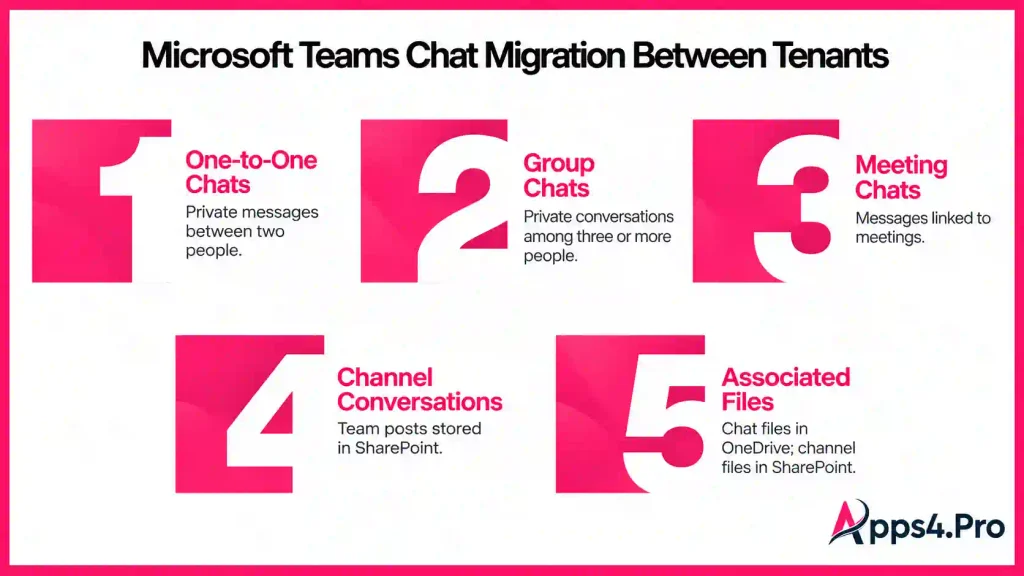
Teams conversations come in several types, and each behaves differently in a migration. Understanding the distinction tells you what a given tool can and cannot carry.
- One-to-one chats are private messages between two people.
- Group chats are private threads among three or more people.
- Meeting chats are the messages tied to a specific meeting.
- Channel conversations are the posts inside a team’s channels. These are shared, team-level content, not personal chat, and they live on the channel’s SharePoint-backed structure.
- Associated files are the attachments shared in any of the above. Chat and group-chat files live in the sender’s OneDrive, while channel files live in the team’s SharePoint site.
This split matters because native and third-party tools cover different parts of it. Microsoft’s preview Migration Orchestrator is the first native capability to move Teams data cross-tenant. It migrates a user’s one-to-one chats, group chats, and meetings, and it moves meeting data within the same batch as the user’s mailbox and chats, so the mailbox move is a prerequisite for the meeting move. One point to plan for: after the move, the source copy of a conversation may remain in an edited form, and duplicate threads can appear on both tenants until users switch fully to their target identity.
The Orchestrator does not migrate Teams and channels or SharePoint team sites: that shared content stays out of scope and needs separate tooling. Teams chats and meetings are in preview, and incremental or delta passes are not supported, so a change made after the move is not picked up automatically. Apps4.Pro’s hands-on testing of Microsoft’s orchestrator documents these preview behaviours in more detail.
Apps4.Pro Migration Manager covers both sides. It migrates Teams channels, including files, tabs, conversations, and memberships, and it migrates Teams chat history as a separate workload: 1:1, group, and meeting chats delivered as native Teams messages rather than flat HTML transcripts. It preserves participants, attachments, timestamps, mentions, inline images, code snippets, and message order, and it supports conversations that include guests and external users. It migrates the complete history with no 30-to-60-day cap, or you can scope a chat to a date range, and an incremental pass before cutover captures new messages without creating duplicates.
Whichever route you take, the prerequisites are the same. Identity mapping must be correct, because a migrated chat has to resolve to the right sender and participants in the target. The source accounts usually need to stay licensed during the move so the tool can read the history, and users should switch to their target identity once migration completes. Plan Teams alongside Exchange, OneDrive, and SharePoint, since meeting invites live in mailboxes, chat attachments live in OneDrive, and Teams channel files live in the team’s SharePoint site.
How Do You Migrate OneDrive Files Between Microsoft 365 Tenants?
OneDrive migration moves a user’s personal files and folders from their source OneDrive to their OneDrive in the target tenant. Keep three things in view: the content, the permissions and sharing links, and the identity that ties them together.
Microsoft provides a native cross-tenant OneDrive migration, generally available since 2022. Administrators run it from SharePoint Online PowerShell: they establish a cross-tenant relationship with Set-SPOCrossTenantRelationship and start each move with Start-SPOCrossTenantUserContentMove. The content never leaves the Microsoft cloud, and the source URL keeps a redirect so existing links continue to resolve during the transition. Several limits shape how you plan it:
- It requires the Cross-Tenant User Data Migration add-on licence, originally positioned for Enterprise Agreement customers and also available as a separate purchase for most Microsoft 365 and Office 365 plans.
- It is a one-and-done move with no incremental or delta pass, so you complete each account in a single cutover.
- It has no graphical interface and is driven entirely from PowerShell.
- If a OneDrive site already exists for the user in the target, the migration fails, so the target must be clean.
- Service encryption with Customer Key on the source tenant will cause the move to fail and must be checked first.
Permissions and sharing links are the part to validate most carefully. External sharing links and some permissions do not always survive a native cross-tenant move cleanly and may need to be reissued, so audit shared content before and after. Identity mapping drives the result: the move places files into the correct target OneDrive and re-associates ownership only when source and target users are matched properly.
Keep OneDrive separate in your mind from two neighbours. OneDrive holds personal files. SharePoint document libraries hold team and project content on SharePoint sites, which use their own cross-tenant SharePoint site migration, currently in private preview under a separate per-100 GB licence aimed at Enterprise Agreement customers. Teams channel files live in the team’s SharePoint site, not in OneDrive. A complete merger moves all three, but through different paths.
Apps4.Pro Migration Manager migrates OneDrive files, folders, and permissions as one workload inside the same console you use for Exchange, SharePoint, and Teams, with pre-migration reporting, incremental sync, and per-item retry. Keeping OneDrive in step with the mailboxes and Teams chats that reference its files is what prevents broken attachment links after cutover.
How Do You Migrate Shared Mailboxes Between Tenants?
Shared mailboxes carry the content a team relies on, such as info@ and support@ addresses, so they need the same care as user mailboxes plus attention to delegates and licensing. A shared mailbox migration has four parts: the mailbox content, the permissions and delegates, the target mailbox preparation, and the mail routing after cutover.
Mailbox content
The emails, calendar, and folders move with the same engine Exchange uses for user mailboxes. Microsoft’s native cross-tenant mailbox migration moves user-visible content: email, calendar, contacts, tasks, and notes. One practical wrinkle is that several methods, including the native cross-tenant feature, often require temporarily converting the shared mailbox to a user mailbox for the move, then converting it back to a shared mailbox in the target with Set-Mailbox -Type Shared.
Permissions and delegates
This is the part most likely to break. Full Access, Send As, and Send on Behalf permissions do not transfer automatically during a cross-tenant move. You either reassign them manually in the target after migration or use a migration tool that carries delegate permissions across. Map each shared mailbox from source to target by its email address so the tool can match them.
Target mailbox preparation
The object must exist in the target before content lands. For native moves, pre-create the mail-enabled object with attributes that match the source, confirm the mailbox type after migration, and reconnect the users who need access.
Licensing
Shared mailboxes under 50 GB do not require their own Microsoft 365 licence, so most shared mailboxes move without consuming one. Every user who accesses a shared mailbox still needs their own valid Microsoft 365 licence in the target. If you use the convert-to-user approach for the move, plan for a temporary licence during that window.
Mail routing and post-migration access
Plan how mail flows during coexistence so messages reach the mailbox in the right tenant, verify the domain cutover, and confirm that the right people can open the shared mailbox and send from it after the move.
Apps4.Pro Migration Manager migrates Exchange Online user mailboxes, group mailboxes, shared mailboxes, and archive mailboxes as part of one project, which lets you keep shared mailboxes and their access in step with the user mailboxes that depend on them.
Which Microsoft 365 Migration Tool Automates The Process?
No single answer fits every merger, so match the tool to your workloads. Microsoft’s native tooling automates mailboxes, OneDrive, and (in preview) SharePoint sites, Teams chats and meetings, run largely from PowerShell. Apps4.Pro Migration Manager automates a broader set of workloads, including Teams channels and full chat history, from one interface with reporting and incremental sync. The table compares them workload by workload for a consolidation project.
|
Workload or capability |
Microsoft native |
Apps4.Pro Migration Manager |
|---|---|---|
|
User mailboxes (Exchange) |
Microsoft native Yes. Cross-tenant mailbox migration (GA). Moves user-visible content. Needs the Cross-Tenant User Data Migration add-on |
Apps4.Pro Migration Manager Yes |
|
Shared mailboxes |
Microsoft native Yes, via cross-tenant mailbox migration. Delegates are not automatic; may need to convert to a user, then back |
Apps4.Pro Migration Manager Yes, migrated with the mailbox set |
|
Archive mailboxes |
Microsoft native Partial, plan and validate separately |
Apps4.Pro Migration Manager Yes |
|
OneDrive |
Microsoft native Yes. Cross-tenant OneDrive migration (GA). PowerShell only, no delta, add-on licence |
Apps4.Pro Migration Manager Yes. Files, folders, permissions, with incremental sync |
|
SharePoint sites |
Microsoft native Yes, in private preview. Separate per-100 GB licence, Enterprise Agreement customers |
Apps4.Pro Migration Manager Yes. Sites, libraries, lists |
|
Teams channels (files, tabs, posts, membership) |
Microsoft native No native cross-tenant support |
Apps4.Pro Migration Manager Yes |
|
Teams 1:1, group, and meeting chats |
Microsoft native Yes, via Migration Orchestrator (preview). No delta |
Apps4.Pro Migration Manager Yes, as native Teams messages, full history, with incremental sync |
|
Teams meetings |
Microsoft native Yes, Orchestrator (preview). Migrated with chats in the same batch; requires the mailbox move |
Apps4.Pro Migration Manager Covered within Teams migration |
|
Planner and Premium Planner |
Microsoft native No |
Apps4.Pro Migration Manager Yes |
|
Forms, Power Automate, Power BI, Viva Engage, Bookings |
Microsoft native No |
Apps4.Pro Migration Manager Yes |
|
Incremental or delta migration |
Microsoft native Not for OneDrive, SharePoint, or Teams chats (preview) |
Apps4.Pro Migration Manager Yes |
|
Interface |
Microsoft native PowerShell and Microsoft Graph; Orchestrator in preview |
Apps4.Pro Migration Manager GUI console, OAuth with MFA and Modern Auth |
|
Validation and reporting |
Microsoft native Validation scripts; reporting is limited |
Apps4.Pro Migration Manager Pre-migration inventory, accuracy reports, per-item retry |
|
Licensing to run the migration |
Microsoft native Cross-Tenant User Data Migration per user; a separate per-100 GB licence for SharePoint sites (Enterprise Agreement customers) |
Apps4.Pro Migration Manager Product licence, no special Microsoft migration add-on required |
Read it against your scope. If you only need to move mailboxes and OneDrive for a modest number of users and your admins are comfortable in PowerShell, native tooling can do the job. If the merger depends on preserving Teams channels, full chat history, Planner, or Power Platform content, or if you want one console with reporting and delta sync, a consolidated third-party platform such as Apps4.Pro Migration Manager removes a large amount of manual coordination. Apps4.Pro is one of several established tools in this market, alongside ShareGate, Quest On Demand Migration, AvePoint, and BitTitan; evaluate against your workload list rather than assuming any one tool is the only option.
Microsoft Native Migration Versus Third-Party Migration Tools
Native tools and third-party platforms are not competitors so much as different tiers of scope. The question is how much of your estate each one covers and how much manual work is left over.
When native tools may be enough:
Native cross-tenant migration fits when the in-scope workloads are mailboxes, OneDrive, and SharePoint sites, the user count is manageable, and your team is comfortable running PowerShell, identity mapping, and validation scripts. The data stays inside the Microsoft cloud, and you pay per-user and, for SharePoint, per-data licensing rather than a separate product. The preview Migration Orchestrator adds coordinated mailbox, OneDrive, and Teams chat and meeting moves in one workflow, which narrows the gap for user-level data.
The trade-offs are real: no delta passes for OneDrive, SharePoint, or Teams chats, no graphical interface, limited reporting, and several moving parts to configure in both tenants.
When a consolidated third-party platform fits better:
A merger that must preserve Teams channels, full Teams chat history, Planner, Forms, Power Automate, Power BI, or Viva Engage goes beyond what native tooling moves, so those workloads need a third-party tool or a manual rebuild. A platform also helps when you want a single console, pre-migration inventory, accuracy reports, incremental sync before cutover, and per-item retry, rather than stitching together PowerShell for each workload.
Apps4.Pro Migration Manager covers this broader workload set and runs through a GUI with OAuth, MFA, and Modern Auth support.
In practice, many mergers use both. The native mailbox move can run while a third-party tool handles Teams channels, Planner, and Power Platform content, all sequenced around the same identity cutover. Whichever mix you choose, confirm the supported workloads, prerequisites, licensing, and any manual steps for each path before you commit a timeline, because the manual steps, not the automated ones, are what stretch a schedule.
Common Challenges During Microsoft 365 Tenant Consolidation
Most migration problems trace back to a handful of recurring issues. Plan for each one before cutover rather than after.
|
Challenge |
Why it happens |
How to mitigate it |
|---|---|---|
|
Identity mismatches |
Why it happens Source and target accounts are not matched correctly, so data lands on the wrong object |
How to mitigate it Build and validate an identity map first; pre-create target objects with matching attributes |
|
Missing or broken permissions |
Why it happens Mailbox, file, and shared mailbox permissions do not always transfer cross-tenant |
How to mitigate it Audit permissions before and after; use a tool that carries delegates, or reassign manually |
|
Incomplete Teams chat history |
Why it happens Some tools cap history at 30 to 60 days or skip chat types |
How to mitigate it Choose a path that moves full 1:1, group, and meeting history; validate a sample after the move |
|
Teams channels left behind |
Why it happens Native tooling does not move channels or team sites |
How to mitigate it Use a third-party tool for channels, files, tabs, and membership, sequenced with identity cutover |
|
Broken sharing links |
Why it happens External and some internal links do not survive a cross-tenant move |
How to mitigate it Inventory shared content; plan to reissue links; confirm access in a pilot |
|
Domain conflicts |
Why it happens An email domain can exist in only one tenant at a time |
How to mitigate it Sequence domain verification and cutover carefully; coordinate both tenant admins |
|
Application and workflow dependencies |
Why it happens Power Automate flows, Planner, and Power BI run under owners and groups that change |
How to mitigate it Migrate or rebuild automation and reconfigure connections in the target |
|
Compliance and legal hold |
Why it happens Mailboxes on hold can block migration, and eDiscovery against a migrated mailbox is no longer possible in the source tenant |
How to mitigate it Resolve or account for holds before migrating; preserve what compliance needs before decommissioning the source |
|
Coexistence gaps |
Why it happens Users in the two tenants cannot collaborate mid-migration |
How to mitigate it Set up Teams federation and manage mail routing during the transition |
|
Incomplete validation |
Why it happens Project teams assume success once the report says complete |
How to mitigate it Reconcile item counts, run an incremental sync, and test real user workflows before decommissioning |
The through-line is that each challenge is cheaper to prevent than to fix after cutover. A pilot wave surfaces most of them on a small group, where remediation is quick and low-risk.
Microsoft 365 Merger Migration Checklist
Use this as a working checklist across the three phases of the project.
Pre-migration
- [ ] Inventory both tenants: users, groups, shared mailboxes, OneDrive and SharePoint volumes, Teams, channels, and automation.
- [ ] Define the identity map from source users to target accounts
- [ ] Confirm target licences, including any Cross-Tenant User Data Migration add-on if you use native tools
- [ ] Plan domain verification and the cutover sequence
- [ ] Register migration apps and grant admin consent in both tenants
- [ ] Create the Exchange migration endpoint and organization relationship, and the SharePoint and OneDrive trust, if using native tools
- [ ] Flag mailboxes on legal hold and any encryption that blocks migration
- [ ] Choose the tool for each workload and confirm its prerequisites
- [ ] Define migration waves by department or business function
- [ ] Run a pilot wave and validate the results
Migration day
- [ ] Pre-stage large mailboxes and OneDrive accounts
- [ ] Migrate mailboxes, shared mailboxes, OneDrive, SharePoint, Teams channels, and Teams chats for the wave
- [ ] Keep source accounts licensed while the move runs
- [ ] Monitor progress and resolve failures with per-item retry
- [ ] Maintain Teams federation and mail routing for coexistence
- [ ] Communicate status and the switch to target identity to users
Post-migration
- [ ] Reconcile item counts and folder structures against the source
- [ ] Verify mailbox, shared mailbox, and file permissions and delegates
- [ ] Confirm sharing links, meetings, and automation still work
- [ ] Run an incremental sync to capture changes made during the move
- [ ] Complete the domain cutover and final identity switch
- [ ] Remediate gaps the validation reports surface
- [ ] Decommission the source tenant only after validation passes
Plan Your Merger Migration
If your merger requires migrating Exchange Online mailboxes, shared mailboxes, OneDrive, SharePoint, Teams channels, full chat history, Planner Basic and Premium, Microsoft Forms, Power Automate, Power BI, and Viva Engage (Yammer), map every workload to the right migration tool before setting a cutover date.
Apps4.Pro supports these workloads through its Microsoft 365 migration solution for mergers and acquisitions, including dedicated tooling for Teams chat history, Exchange Online, OneDrive, SharePoint, Planner, Forms, Power Automate, Power BI, and Viva Engage.
Start with a pre-migration inventory, identify workload dependencies, run a pilot migration, and validate data integrity, permissions, and functionality before decommissioning the source tenant.
















