


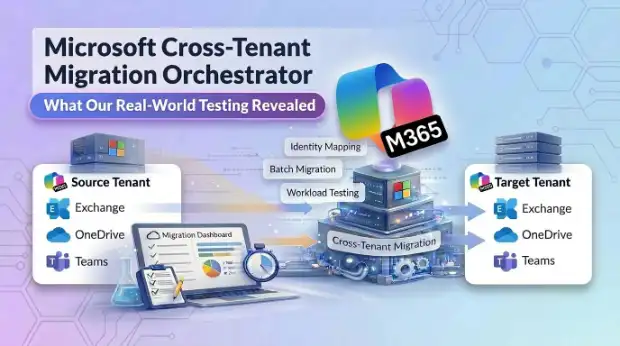
Microsoft now offers a native cross-tenant migration orchestrator for Microsoft 365.
On paper, it promises something organizations have wanted for years: a Microsoft-supported way to migrate users, mailboxes, OneDrive data, and Teams conversations between tenants without relying entirely on third-party tools.
- But how far does the Orchestrator actually go in real migration scenarios?
- Our Testing Approach
- Identity Preparation: The Foundation and the First Failure Point
- Establishing the Cross Tenant Relationship
- Exchange Migration Observations
- What Worked Well
- Limitations and Considerations
- OneDrive Migration Behavior
- Teams Chat Migration: Observations and Behavior
- What This Behavior Suggests
- Chat Attachments and OneDrive Dependency
- Supported vs Unsupported Workloads
- Key Vendor Takeaways from Our Exploration
But how far does the Orchestrator actually go in real migration scenarios?
To answer that question, we built a controlled test environment and ran a series of migrations across Exchange, OneDrive, and Teams workloads. What we discovered highlights both the strengths of Microsoft’s orchestrator and the planning gaps organizations need to understand before adopting it in production environments.
For organizations planning mergers, acquisitions, or tenant consolidations, understanding these limitations early can prevent major migration delays later.
Our Testing Approach
Before diving into individual workloads, we first wanted to understand how the orchestrator actually performs migration operations behind the scenes.
One key architectural behaviour we observed is that the Orchestrator executes operations under each mapped target user identity rather than through a central migration service account.
To better understand the Orchestrator’s capabilities, our team set up a controlled testing environment consisting of:
- A source Microsoft 365 tenant representing the “legacy” environment
- A target Microsoft 365 tenant representing the “new” environment
- Multiple test users with:
- Exchange Online mailboxes
- OneDrive accounts with real file structures and sharing
- Microsoft Teams chat history (1:1, group, meeting chats)
- Cross tenant configuration using Microsoft’s migration scripts and APIs
The testing focused on the main workloads currently supported by Microsoft’s Orchestrator:
- Exchange mailbox data
- OneDrive user content
- Microsoft Teams chat conversations
- Teams meeting data
Our goal was simple: observe how these workloads behave during real migration runs and identify the hidden dependencies that could affect production projects.
Identity Preparation: The Foundation and the First Failure Point
Why Identity Mapping Becomes the First Migration Risk
One of the first things our testing revealed is that identity preparation isn’t a side task- it’s the foundation the entire orchestrator depends on.
Unlike some third-party migration platforms that automatically create target accounts, Microsoft’s orchestrator assumes that target identities already exist. Organizations must therefore prepare the destination tenant before migration begins.
During our testing, we observed that target users must be created as Mail Users rather than mailbox users. If a mailbox already exists for the destination account, the orchestrator cannot attach the migrated mailbox data correctly.
This requirement means administrators must:
- Create the target user account.
- Configure it as a Mail User rather than a mailbox.
- Ensure proper email address configuration before migration begins.
Another important detail is that OneDrive should not be provisioned for the target user before migration. The orchestrator provisions the destination OneDrive during the migration process. If OneDrive is already provisioned, it can interfere with the migration workflow.
To define the migration scope, we created a mail enabled security group in the source tenant and added users scheduled for migration. This group is later referenced when establishing the migration relationship between the tenants and in identity mapping.
As a vendor, we treat identity mapping (CTIM) and Mail User preparation as a hard gate: if this is not clean, no batch goes forward.
Identity Mapping Complexity in the Real World
In theory, identity mapping should be straightforward.
At a high level, “map source user to target user” sounds simple. In practice, we consistently ran into:
- UPN changes (e.g., user@oldco.com to user@newco.com)
- Domain consolidations and suffix changes
- Legacy Proxy Addresses and mismatched External Email Address values
These issues create cascading problems:
- Migration batches fail for individual users.
- Team’s chats show participants as “external” when they should be internal.
- Delegated permissions and shared access mis resolve to the wrong identities.
Native identity mapping is essentially 1:1 and assumes clean relationships. More complex scenarios such as guest accounts, many-to-one consolidations, or service accounts remain largely manual.
Establishing the Cross Tenant Relationship
Once identity preparation was complete, the next step was establishing the cross-tenant migration relationship between the environments, a process that introduces several configuration dependencies.
In practice, establishing this relationship requires several components to work together before any migration batches can run:
- Creating an Azure AD (Entra ID) application in the target tenant
- Granting the required administrative permissions (for example, Mailbox. Migration for Exchange)
- Creating a client secret and granting admin consent
- Establishing a migration endpoint in Exchange Online
- Running Microsoft’s cross tenant configuration scripts for CTMS, Teams chat, Teams meetings, and OneDrive
- Providing tenant IDs and application IDs during configuration
- Referencing the migration scope security group
Once the relationship was established, we used PowerShell cmdlets and the Cross Tenant Identity Mapping (CTIM) module to map source users to their corresponding destination identities and to write the necessary attributes (ExchangeGuid, proxy Addresses, etc.) on the target Mail Users.
Microsoft also requires a special license for migration users called Cross Tenant User Data Migration. This license must be assigned either in the source or destination tenant to enable the migration for each user.
From a licensing perspective, each user in scope must have a qualifying Microsoft 365 license on both sides (i.e., Microsoft 365 E3/E5 or Microsoft 365 Business Premium in the source and target tenants), and a Cross Tenant User Data Migration addon license must be assigned either in the source or in the destination tenant to enable Orchestrator based migration for that user.
Exchange Migration Observations
Exchange mailbox migration is the most mature workload currently supported by the Orchestrator.
This makes Exchange the logical starting point for most tenant migration projects.
What Worked Well
During testing, we observed that the migration successfully transferred core mailbox components including
- Email messages
- Calendar items
- Contacts
- Tasks
- Notes
The migration process works by using the mapped identities and attaching the source mailbox data to the destination Mail User. After a successful move, the source mailbox is removed and converted into a Mail User with a routing address pointing into the target tenant, which supports coexistence while cutover completes.
Limitations and Considerations
Our testing also exposed several limitations that migration teams need to plan for.
- Email signatures are not migrated as part of the mailbox transfer. Since signatures are often stored locally or within Outlook profiles, they must be recreated after migration.
- The Orchestrator does not support incremental mailbox migration. If administrators run a migration job and encounter errors, they cannot simply retry only the failed items; instead, the migration job typically must be recreated and executed again.
- Mailboxes on litigation/eDiscovery holds are blocked from migration, and mailbox/calendar permissions are not moved, so delegate rights must be rebuilt.
- There is a 2,000user batch limit for mailbox migrations, which impacts planning for large tenants.
These limitations mean that administrators and vendors should carefully validate migration readiness before running production batches and design batch plans and remediation steps up front.
OneDrive Migration Behavior
The Orchestrator also supports migrating OneDrive user content.
During testing, OneDrive migration handled several important aspects of file migration, including:
- File versions
- Deep folder hierarchies
- Large file sizes
- Unique permissions and sharing links
One important architectural detail is that the orchestrator does not rely on a central migration service account to move OneDrive data.
Instead, all operations run under the mapped target user identity. This design ensures that permissions, sharing links, and file actions behave exactly as if they were performed by the user themselves.
Because of this dependency, accurate user mapping becomes essential not only for Exchange migration but also for OneDrive data transfer. We also confirmed that if OneDrive was provisioned prematurely in the target tenant, migrations could behave inconsistently or fail, so we enforce the rule that OneDrive is created only by the migration process itself.
From a vendor perspective, the lack of delta/incremental capability for OneDrive and the 4,000‑account batch cap (shared with SharePoint) are important constraints; large and highly active OneDrive estates often benefit from supplemental tooling for pre‑stage and delta sync.
Teams Chat Migration: Observations and Behavior
Microsoft’s Orchestrator also supports migrating Microsoft Teams chat conversations, including:
- One to one chats
- Group chats
- Meeting chat conversations
Again, the Orchestrator does not operate via a shared service account for chat. It uses the mapped target user identity, which allows impersonation to work correctly: migrated messages appear as if they were originally posted by the correct user, rather than by a “migration bot” or generic account. This is a significant quality improvement compared to older third party approaches that replay chats under a single service identity.
During testing, we ran multiple migration sequences to observe how chat participants were resolved in the destination tenant.
These tests revealed that migration order can significantly influence how identities appear inside migrated chat threads.
Chat Migration Scenario 1
To illustrate this, consider two users in the source tenant:
- Alex
- Allan
Both users were mapped to their respective destination accounts during identity configuration.
In the first test scenario, we migrated Alex’s chat data first.
After migration, we noticed that the migrated chat conversation showed:
- Alex as the target tenant user
- Allan appearing as an external user from the source tenant
Even though Allan had already been mapped to a destination identity, the Orchestrator added the source account as an external participant in the migrated chat.
Chat Migration Scenario 2
In the second scenario, we migrated Allan’s chat first instead.
After migration, the chat conversation displayed both participants correctly as target tenant users. However, this process also resulted in duplicate chat conversations appearing for Allan in the destination tenant.
What This Behavior Suggests
These observations indicate that user migration order can influence how participants are resolved in migrated chat conversations. Since the Orchestrator processes users sequentially, chat conversations may temporarily reference source tenant identities if the corresponding destination users have not yet been fully processed. Depending on ordering, some users will also see duplicate threads.
Based on this behavior, our recommendation is that organizations should:
- Ensure all user mappings are configured and validated before initiating any chat migrations.
- Batch or closely sequence users who frequently chat with each other to minimize external labels and duplicate threads.
This approach helps minimize identity resolution issues during migration and improves user experience.
Chat Attachments and OneDrive Dependency
One dependency that quickly surfaced during testing involved chat attachments.
When users share files in Teams chat conversations, those files are typically stored in OneDrive. During migration, we observed that chat attachments behaved differently depending on whether OneDrive had already been migrated:
- If OneDrive was migrated first, the chat attachment links correctly pointed to the destination tenant’s OneDrive locations.
- If OneDrive migration had not yet occurred, the attachment links inside the migrated chats often did not function correctly or pointed back to the source tenant.
Because of this dependency, we recommend migrating OneDrive content before running Teams chat migrations.This sequencing ensures that file references inside chats resolve correctly in the destination tenant and that users are not left with broken links.
Teams Meetings
The Orchestrator can also migrate Teams meetings when Exchange is in scope and the appropriate calendar permissions are configured in the target tenant. In practice, meeting objects and associated chat can follow the mailbox into the new tenant.
However, preexisting meetings are tightly bound to the organizer’s identity in the source tenant. If that organizer identity is removed, not migrated via the orchestrator, or mapped incorrectly, recurring meetings can break, leaving participants stuck in lobbies or pointing to nonfunctional join links.
This behavior means meeting organizers become a critical dependency during migration planning.
In our testing, we use scripts to discover and report on important meetings (especially executive and external facing ones), then work with organizers to recreate or verify those sessions after migration, rather than assuming all legacy meetings will continue to function automatically.
Supported vs Unsupported Workloads
While the Orchestrator handles several core user workloads, its current scope is intentionally limited.
Based on our testing and Microsoft documentation, the Orchestrator currently supports the following workloads:
Supported Workloads
- Exchange mailbox data
- OneDrive user content
- Microsoft Teams chat conversations
- Teams meeting chat data
In practice, this means the orchestrator focuses primarily on user-centric workloads rather than broader collaboration structures.
However, several important Microsoft 365 workloads are not currently supported by the orchestrator itself.
Unsupported Workloads
- Teams channel structures and channel messages
- SharePoint sites (including Teamsconnected sites)
- Planner tasks
- Microsoft Stream content
- Yammer communities
- Microsoft Forms
- Power Automate flows
- Power BI artifacts
- Microsoft 365 Groups data
Organizations planning crosstenant migrations should therefore evaluate whether additional migration tools or services are required to move these workloads. For us as a vendor, this is where we position complementary tooling and advisory services: rebuilding Teams structures, moving SharePoint content, handling Planner/BI/Flows, and planning for Forms and Groups.
Key Vendor Takeaways from Our Exploration
Our testing of Microsoft’s crosstenant migration orchestrator revealed several important insights for anyone planning to use it in real projects:
- Identity preparation is critical. Target users must be configured correctly as Mail Users with consistent SMTP and proxy attributes, and identity mapping must be validated before migration begins.
- Migration sequencing matters. Ordering is especially important when moving workloads like OneDrive and Teams chat that depend on each other; OneDrive should precede chat migrations for clean attachment behavior.
- Impersonation quality is a strength. Because the orchestrator runs migrations under the mapped target user identity rather than a central service account, impersonation works properly and messages/files appear to come from the right users.
- The orchestrator is strong but deliberately scoped. It does a solid job with Exchange, OneDrive, and Teams chats/meetings, but leaves many collaboration workloads untouched. That’s a design choice and an opportunity for vendors.
- Batch planning and validation are essential. With strict batch size caps (2,000 mailboxes, 4,000 OneDrive/SharePoint accounts, and roughly 100 users per batch for Teams chat and meetings) and limited retry capabilities, large migrations require careful wave planning and pre-flight validation.
Microsoft’s cross-tenant migration orchestrator represents an important step toward native Microsoft 365 tenant migrations.
It provides a supported framework for moving core user workloads like Exchange, OneDrive, and Teams chats while preserving user identity and message attribution.
But as our testing shows, success still depends heavily on identity preparation, workload sequencing, and careful migration planning. For many organizations, the orchestrator will form the foundation of tenant migrations, but not the entire solution.

















 Migrate
 Manage
 Migrate Microsoft 365








