
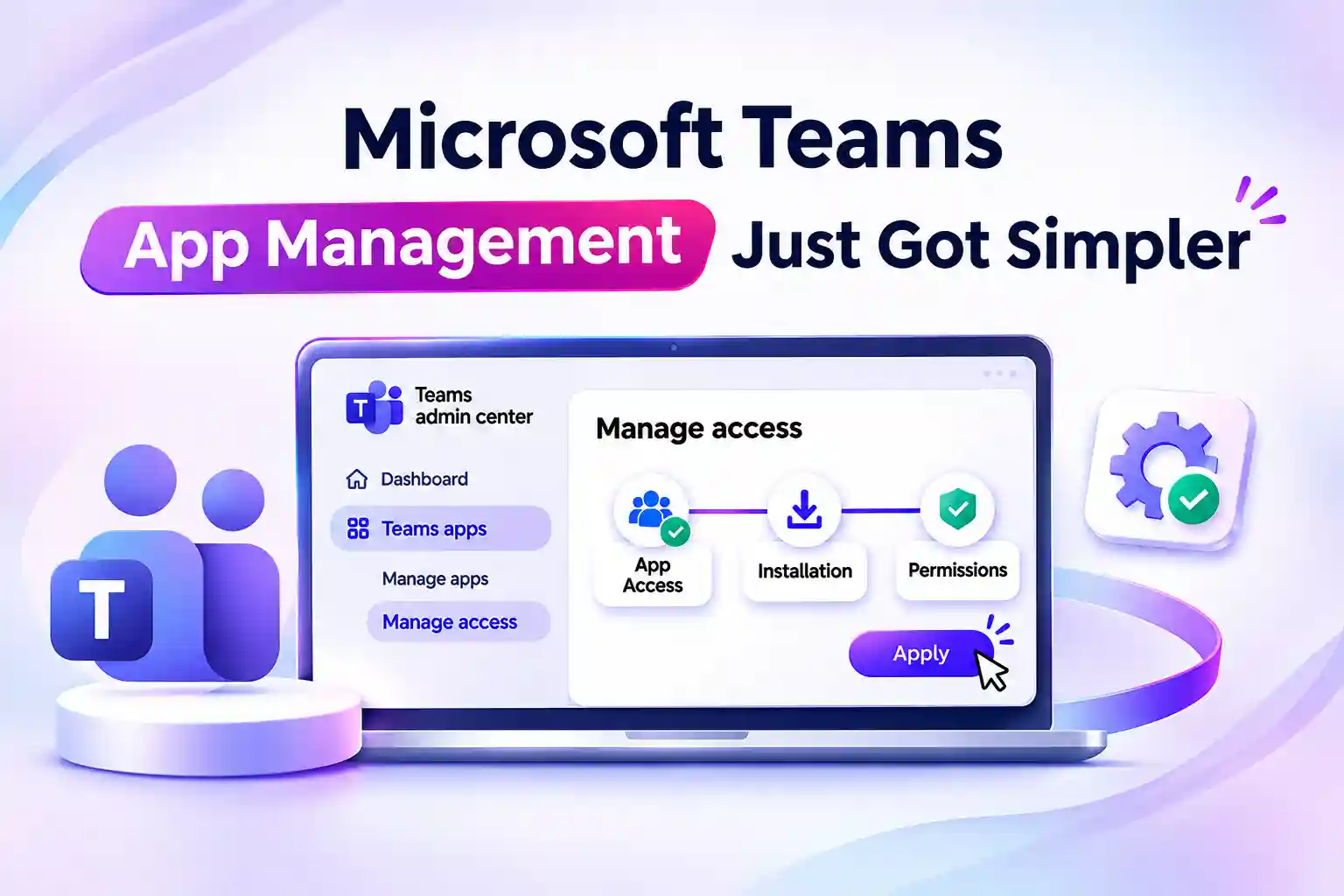
Enabling a Microsoft Teams app should not mean moving between settings to check access, installation, and permissions. You need a clear view of what requires attention and how each decision affects the app’s configuration before making a change.
Microsoft’s simplified app enablement experience brings these decisions into one guided flow in the Teams admin center, helping you review the configuration with fewer steps, less navigation, and a clearer path to applying your updates.
One Guided Flow for Teams App Enablement
The updated experience brings key app management actions together, making it easier to work through the settings for an app or agent.
Within the flow, you can:
- Set who can access the app.
- Choose who should have the app installed.
- Review and accept required permissions.
- Allow or block the app.
The flow adapts to the app’s current state and highlights the steps that need attention. This helps you focus on the decisions required for that app instead of navigating through unrelated settings.
💬 What Slows Down Your App Approvals?
Identify the step that takes the most time in your app approval process.
- Selecting the right users or groups
- Managing app installation
- Reviewing required permissions
Share your biggest Teams app management challenge with the team.
Where to Find the New Manage Access Experience
In the Teams admin center, navigate to:
Teams apps > Manage apps > Manage access
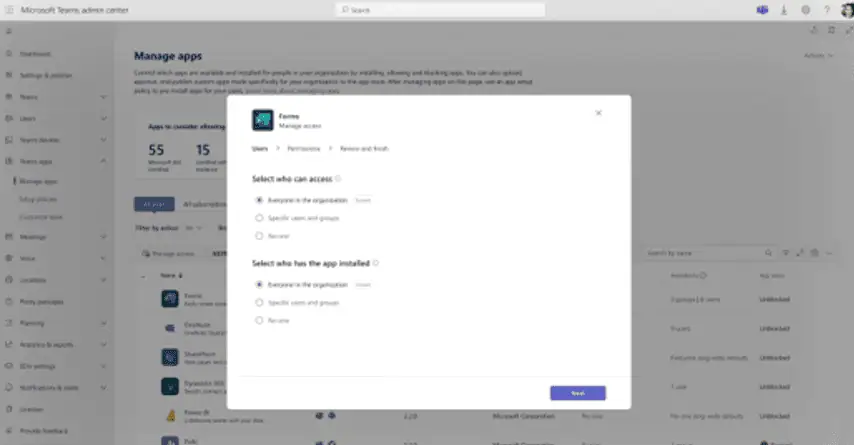
From here, you can review the actions needed to control access to the selected app or agent. Work through the highlighted steps and check the configuration before applying your changes.
From here, you can review the actions needed to control access to the selected app or agent. The guided flow highlights the steps that require attention based on its current configuration.
Work through these steps, review access, installation, and required permissions, then select Apply when the configuration is ready.
App Access, Installation, and Permissions: Review Before You Apply
App access, installation, and permissions are connected, but each answers a different question. Bringing them into one flow makes it easier to review the full configuration without treating them as the same decision.
Use these checks to guide your review:
- Access: Who should be able to use the app?
- Installation: Who should have the app installed?
- Permissions: Which required permissions need review and acceptance?
The simplified experience lets you review availability, installation, and permission changes before applying them, giving you a clearer picture of what you are about to change.
🔎 Run a Quick App Access Check
Choose an app your team uses regularly and review whether its configuration still matches its purpose.
- Does access match the intended audience?
- Is installation targeted to the right people?
- Have the required permissions been reviewed?
Use any gaps you find to guide your next app configuration review.
Your Existing Teams App Settings Stay in Place
The simplified experience does not automatically change your existing tenant app settings. Your current configuration remains in place until you review the settings and select Apply, keeping you in control of when changes take effect.
You can use the new workflow without it automatically approving apps, changing access, or replacing your existing configuration. This gives you room to review the proposed updates and confirm they match your organization’s requirements before applying them.
Keep Teams App Governance Consistent
No advance action is required for this update. Your existing app approval and permission consent processes should continue to guide each decision.
A few practical updates can help you keep the process clear:
- Refresh internal guides to reflect the Manage access workflow.
- Update training materials where the navigation has changed.
- Keep established app approval and permission consent checks in place.
The goal is to make administration simpler while keeping your organization’s review standards consistent.
🤝 Align Your Team Before the Next Approval
Use your next IT review to clarify the responsibilities behind each app approval.
- Who confirms the intended audience?
- Who decides whether installation is needed?
- Who reviews and approves permission consent?
Record these responsibilities in your internal guide so each configuration follows a consistent review process.
Less Navigation, More Focused App Decisions
The simplified Teams app enablement experience brings related settings into a clearer workflow, reducing the need to move between different settings. You can focus on who needs the app, how it should be made available, and which permissions require attention before applying a change.
It is a more connected way to manage Teams apps, helping you make informed decisions while keeping control over the final configuration.
Explore Microsoft’s Official App Management Guides
Use these resources to plan, configure, and govern Teams app access across your organization.