
- Key Takeaways
- Why Microsoft 365 Tenant Migration is Risky During M&A
- What are the Biggest Risks of Microsoft 365 Tenant-To-Tenant Migration?
- Why are Identity Mapping and Permission Mapping So Important?
- What is Rollback in Microsoft 365 Tenant Migration?
- How Should Organizations Plan a Microsoft 365 Migration Rollback Strategy?
- Which Third-Party Microsoft 365 Migration Tools Offer the Best Mapping and Rollback Features?
- How Does Apps4.Pro Migration Manager Support Microsoft 365 Tenant Migration?
- Best Practices For Reducing Microsoft 365 Migration Risks During M&A
- Microsoft 365 M&A Migration Risk Checklist
- Frequently Asked Questions
Key Takeaways
- The biggest Microsoft 365 tenant-to-tenant migration risks in M&A are data loss, broken identity and permission mapping, lost Teams data, and incomplete rollback.
- Identity and permission mapping decide whether users keep the right access after cutover, so validate every source-to-target pair before migrating.
- Rollback rarely means a full undo. Reputable tools copy data, so the source tenant stays intact as your real fallback.
- Plan recovery before cutover: pre-migration inventories, backups, pilot testing, validation checkpoints, clear rollback triggers, and named owners for each decision.
- Microsoft native tools move mailboxes, OneDrive, and SharePoint but not identities or Teams, and offer no built-in rollback.
- For the best mapping, compare Apps4.Pro, BitTitan, Quest, AvePoint, and Cloudiway on account matching, permission fidelity, and validation, not feature counts.
- Native recycle bins and retention are short-term, so keep a separate backup for anything created in the target after cutover.
Why Microsoft 365 Tenant Migration is Risky During M&A
A merger or acquisition (M&A) forces two Microsoft 365 estates together on a fixed legal timeline, and the migration rarely goes as cleanly as the deal memo assumes. Moving mailboxes and files is the easy part. The hard part is preserving who can access what, keeping collaboration history intact, and holding the business steady while identities, domains, and permissions change under live users. A Microsoft 365 tenant-to-tenant migration in an acquisition, divestiture, or tenant consolidation project is as much an access and identity exercise as a data move.
The most serious risks fall into a few groups. Data can be lost, duplicated, or left incomplete when a workload is only partially supported, or a mapping is wrong. Identity mapping can break, so a user lands in the target tenant without the groups, delegate rights, or shared mailbox access they had the day before. Permissions can silently flatten, so files that were locked down become open, or files people need become unreachable. Teams channels, chats, and their underlying SharePoint content can arrive without the pieces that made them useful. On top of this, cutover timing and domain changes can knock out mail flow and sign-in for hours if the sequence is wrong.
Two things decide whether these risks stay small. The first is mapping. Identity and permission mapping control access on day one in the new tenant, so they sit at the center of every migration plan. The second is recovery planning. Rollback and recovery have to be designed before a single production user moves, not improvised after a failed cutover, because once both tenants have changed, there is no clean “undo” button to press.
This guide explains the real risks, how mapping actually works between tenants, what rollback does and does not mean in Microsoft 365, and how to compare the main third-party platforms.
What are the Biggest Risks of Microsoft 365 Tenant-To-Tenant Migration?
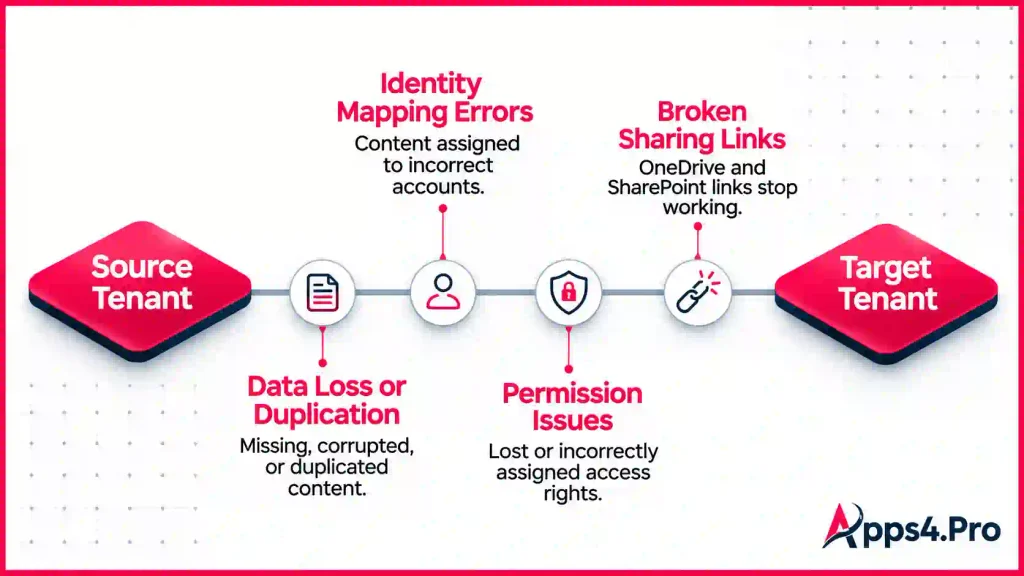
Every risk below has the same root cause: a tenant is a self-contained identity and security boundary, and nothing inside it carries across on its own. Here are the risks that cause the most damage during M&A, and how to reduce each one.
Data loss, corruption, duplication, or incomplete migration
Not every tool supports every workload, and partial coverage is where data quietly goes missing. A platform that moves mailboxes and files but skips Planner, Forms, Power Automate flows, or Viva Engage communities leaves gaps that surface weeks later. Mapping errors can also corrupt metadata or create duplicates. Run a full inventory first, confirm workload-by-workload coverage, and reconcile item counts in the target against the source.
Incorrect identity mapping and unmatched accounts
If a source user is not matched to the correct target account, their content can migrate to the wrong place or fail outright. Pre-provision target accounts, build a verified mapping file, and clear every “not matched” account before migration starts.
Lost or incorrectly assigned permissions
Permissions are references to identities, so when identities change tenant, the references have to be rebuilt. Done badly, confidential files become readable by the wrong people, or owners lose control of their own sites. Pull a permission report before and after, and migrate group ownership and membership alongside the content.
Broken OneDrive and SharePoint sharing links
Links that point to the source tenant stop working once a user cuts over. Some approaches preserve or redirect links, others require links to be re-issued. Microsoft’s native cross-tenant OneDrive migration, for example, leaves a redirect at the old location, while many copy-based moves need links re-shared. Identify heavily shared content in advance and decide how links will be handled per workload.
Missing Teams chats, channel conversations or files
Teams is several services stitched together: a Microsoft 365 Group, a SharePoint site, channels, tabs, and chat threads. Migrations fail when one layer moves and another does not. Choose a tool that covers teams, channels, memberships, tabs, and chat together, and test a real team end to end before you scale.
Exchange mailbox and shared mailbox access issues
Delegate access, Send As and Send on Behalf, folder permissions, and shared mailbox rights are all identity-bound, and they often need to be recreated in the target. Inventory delegation up front and verify it after cutover.
Domain conflicts and authentication problems
A domain can live in only one tenant at a time, so moving a vanity domain means a carefully timed removal and re-verification. Get the sequence wrong, and users cannot sign in or receive mail. Script the domain cutover and sequence it against identity readiness.
Security and compliance gaps
Conditional access policies, sensitivity labels, retention policies, and legal holds do not travel with the data. A hold on a source mailbox can even block the move entirely. Review the compliance posture in both tenants and recreate the policies in the target before go-live.
Application and integration dependencies
Line-of-business apps, service accounts, application programming interface (API) connections and automation often reference specific tenant IDs, URLs or accounts. Catalog integrations early and update them as part of cutover rather than afterwards.
Downtime, coexistence problems and user disruption
During a phased move, users in different tenants still need to email each other and see each other’s calendars. Without coexistence, collaboration breaks. Keep mail routing and free/busy sharing active between the tenants during the transition.
Incomplete migration validation
The most expensive mistake is assuming a migration worked because the job reported success. Reconcile counts, spot-check permissions and content, and sign off each workload before you move to the next.
Why are Identity Mapping and Permission Mapping So Important?
Identity mapping is the exercise of matching each object in the source tenant (users, shared mailboxes, resource mailboxes, distribution groups, security groups, and Microsoft 365 Groups) to its counterpart in the target tenant. Permission mapping is what rebuilds access rights around those matched identities so people keep the right level of access after cutover. Together they decide whether day one in the new tenant is normal or chaotic.
The reason this is non-trivial is that a permission is not a property you can copy. It is a pointer to an identity. A file shared with “Priya” in the source tenant is really shared with Priya’s unique identifier in that tenant. In the target tenant, Priya has a brand new identifier. Unless the migration maps the old identity to the new one and re-applies the permission, the share points at nothing.
A practical way to think about access during a tenant move is in three buckets:
- Preserved through mapping: Content ownership, site and library permissions, group membership, and group ownership can usually carry across when source objects are correctly matched to existing target objects. For example, a SharePoint site’s permissions transfer cleanly when every user and group on that site has a mapped pair in the target.
- Remapped or transformed: Some access is kept but changed in form. A mailbox might be converted to a shared or archive mailbox type, or an external collaborator might be re-added as a guest (business-to-business) user in the target rather than as a member.
- Recreated manually: Some controls do not migrate at all and have to be rebuilt. Conditional access policies, sensitivity labels, retention policies, mailbox delegation in some scenarios, and app registrations fall into this group.
Two edge cases cause most of the support tickets. The first is external and guest users: sharing with people outside both tenants usually has to be re-established in the target. The second is nested and dynamic groups: membership that is calculated by rule rather than assigned directly often needs attention, because some tools do not migrate dynamic membership.
The takeaway is simple. Build the identity map first, prove it with a report that shows zero unmatched critical accounts, and only then migrate content. If the map is wrong, everything downstream inherits the error.
What is Rollback in Microsoft 365 Tenant Migration?
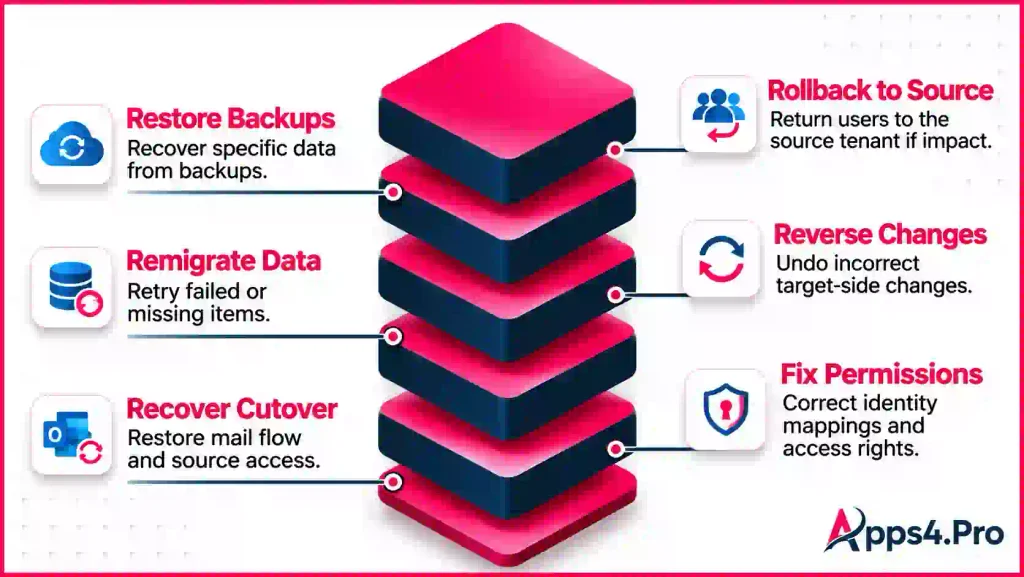
Rollback is the most misunderstood word in tenant migration. People picture a single button that returns both tenants to how they were. That button does not exist in Microsoft 365. “Rollback” is really a set of distinct recovery actions, and knowing which one you mean changes how you plan.
- Rollback to the source environment: Abandon the target and send users back to the source tenant. This only works if the source is still intact. Most reputable third-party tools copy data rather than move it, which means the source is untouched and remains a genuine fallback. Microsoft’s native mailbox move is different: it converts the source mailbox into a mail user once the move succeeds, so the source is no longer a clean copy to return to.
- Restoring data from backups: Recover specific items from an independent backup taken before migration. This depends entirely on having that backup. Native recycle bins and version history are short-term safety nets, not a restore point for a whole migration.
- Reversing migration changes: Undo specific changes in the target, for example, removing content that landed in the wrong account or folder. This is workload-specific cleanup, not a full reversal, and only some tools document a procedure for it.
- Remigrating missing or incorrect data: Re-run the migration, often as a delta pass, to pick up items that failed or changed. This is the most common real-world fix, and it corrects forward rather than rolling back.
- Remediating permissions and identity mapping: Correct a bad map and re-apply access without moving the content again. Sometimes you can re-run a mapping step; sometimes a mapping error cannot be cleanly repaired by a delta pass, which is why getting the map right the first time matters.
- Recovering from an unsuccessful cutover: Restore service when a go-live fails, usually by reverting mail flow and domain settings so users can work in the source again while you diagnose the problem.
The honest conclusion is that rollback is almost never a complete reversal of every workload. Once you have changed domains, converted mailboxes, provisioned target identities, and let users create new content in the target, going back means stitching together several of the actions above. Recovery planning has to account for changes made in both tenants, not just the source, because the longer the target has been live, the more new data exists there that a source rollback would lose.
How Should Organizations Plan a Microsoft 365 Migration Rollback Strategy?
A rollback strategy is a plan you build before migration so that recovery is a decision, not a scramble. Use this nine-step framework and decide for each step who owns it and which tool or control delivers it.
- Pre-migration backups and recovery readiness: Take an independent backup of critical mailboxes, OneDrive, and SharePoint content before you touch anything. This usually needs the native Microsoft 365 Backup add-on or a third-party backup product, because migration tools are not backup tools.
- Source and destination tenant inventories or snapshots: Record the full state of both tenants: users, groups, permissions, policies, and item counts. This inventory is what you reconcile against later and what proves whether a rollback restored the right state. A migration tool’s inventory or discovery report usually produces this.
- Identity and permission mapping validation: Produce a mapping report that shows every critical source object matched to a target object, with zero unmatched accounts on anything important. Fix the map before migrating, not after.
- Pilot migration and testing: Move a small, representative pilot group covering each workload, then validate it fully. The pilot is where you find coverage gaps and timing problems while they are cheap to fix.
- Migration checkpoints and logging: Migrate in waves with logging at each stage, so you always know what has moved, what succeeded, and what failed. Detailed logs are what make targeted remigration possible.
- Data validation and reconciliation: After each wave, reconcile target counts against source, and spot-check permissions and content. Sign off a workload before starting the next. This is administrator work supported by the tool’s reports.
- Cutover decision criteria: Define in advance what “ready to cut over” means: acceptable error rates, validated mapping, confirmed coexistence, and a tested domain sequence. Cutover should clear a checklist, not a gut feel.
- Rollback triggers and responsibilities: Write down the specific conditions that trigger a rollback (for example, sign-in failures above a threshold, or a critical workload missing), who makes the call, and who executes each step. Ambiguity here is what turns a setback into an outage.
- Recovery procedures and post-rollback verification: Document the exact steps to revert mail flow and domains, fall back to the source, or remigrate, and then verify that users can sign in, send mail, and reach their content. A rollback is not finished until it is verified.
A clear split helps here. Native Microsoft controls handle domain and mail-flow reversion and short-term item recovery. Third-party migration tools handle inventory, mapping, remigration, and content cleanup. Administrators own the cutover and rollback decisions. A separate backup solution owns true point-in-time restore. No single product covers all four, so name the owner for each.
Which Third-Party Microsoft 365 Migration Tools Offer the Best Mapping and Rollback Features?
The established platforms for M&A tenant work are Microsoft’s native tooling, Apps4.Pro Migration Manager, BitTitan MigrationWiz, Quest On Demand Migration, AvePoint Fly, and Cloudiway. The table compares them on the capabilities that decide an M&A migration. Read it alongside the analysis that follows, because the best tool depends on your estate, not on who has the longest feature list.
|
Capability |
Microsoft native |
Apps4.Pro Migration Manager |
BitTitan MigrationWiz |
Quest On Demand Migration |
AvePoint Fly |
Cloudiway |
|---|---|---|---|---|---|---|
|
Core workloads |
Microsoft native Exchange, OneDrive, SharePoint sites (SharePoint in preview); Teams chats and meetings via Orchestrator (preview) |
Apps4.Pro Migration Manager Exchange, SharePoint, OneDrive, Teams and Teams chat |
BitTitan MigrationWiz Mailboxes, documents, Teams, public folders |
Quest On Demand Migration Exchange, OneDrive, SharePoint, Teams, Microsoft 365 Groups. |
AvePoint Fly SharePoint, Exchange, OneDrive, Teams and chats, Groups |
Cloudiway Exchange, OneDrive, SharePoint, Teams, Groups |
|
Specialized workloads |
Microsoft native Not covered |
Apps4.Pro Migration Manager Planner (incl. Premium), Viva Engage, Forms, Power Automate, Power BI, Bookings. |
BitTitan MigrationWiz Limited |
Quest On Demand Migration Limited beyond core plus Power BI |
AvePoint Fly Power Platform (Power Apps, Power Automate) |
Cloudiway Rooms, resources and cross-cloud |
|
Identity/account matching |
Microsoft native None: moves content, not identities |
Apps4.Pro Migration Manager User mapping; target users pre-provisioned |
BitTitan MigrationWiz Recipient mapping plus on-premises Active Directory object migration |
Quest On Demand Migration Account discovery and matching plus Active Directory migration |
AvePoint Fly Identity-first (Active Directory and Entra ID), plus device migration |
Cloudiway Mapping table plus provisioning of groups, teams and mailboxes |
|
Permission and metadata mapping |
Microsoft native Preserves SharePoint and OneDrive permissions, versions and links (redirect left at source) |
Apps4.Pro Migration Manager Preserves permissions, metadata, version history and memberships |
BitTitan MigrationWiz Permission mapping via advanced options |
Quest On Demand Migration Permissions, ownership and membership for matched pairs |
AvePoint Fly Full fidelity: permissions, versions, sensitivity labels |
Cloudiway Preserves permissions and metadata (map-driven; errors cause loss) |
|
Coexistence |
Microsoft native Limited; identity and directory sync handled separately |
Apps4.Pro Migration Manager Not a built-in coexistence suite |
BitTitan MigrationWiz Mail-flow and free or busy coexistence |
Quest On Demand Migration Address Rewrite plus free or busy sharing |
AvePoint Fly Lighter coexistence focus |
Cloudiway Global Address List (GAL) sync, free or busy and mail routing |
|
Delta / incremental passes |
Microsoft native Mailbox yes; OneDrive and SharePoint are one-shot |
Apps4.Pro Migration Manager Supported for applicable workloads |
BitTitan MigrationWiz Multi-pass supported |
Quest On Demand Migration Delta and remigration supported |
AvePoint Fly Scheduled and incremental passes |
Cloudiway Delta passes (core feature) |
|
Validation and reporting |
Microsoft native PowerShell output and logs |
Apps4.Pro Migration Manager Inventory report, workload validation, progress tracking and reports |
BitTitan MigrationWiz Project reporting and error logs |
Quest On Demand Migration Assessment, progress tracking and reporting |
AvePoint Fly Discovery, monitoring and centralized error file |
Cloudiway Discovery and migration reports |
|
Rollback/recovery approach |
Microsoft native No rollback; mailbox move converts source |
Apps4.Pro Migration Manager No one-click rollback; source stays intact in Copy mode; remigrate or delta plus reports |
BitTitan MigrationWiz No one-click rollback; source copy stays intact; remigrate |
Quest On Demand Migration Documented mail rollback and cleanup, plus re-match and remigrate; source intact |
AvePoint Fly No one-click rollback; source copy stays intact; post-migration tools |
Cloudiway No one-click rollback; source intact by design (copy, not move); delta |
|
Deployment model |
Microsoft native PowerShell, no graphical interface |
Apps4.Pro Migration Manager Windows desktop app using Microsoft Graph |
BitTitan MigrationWiz Software as a service (web) |
Quest On Demand Migration Software as a service (web) |
AvePoint Fly Software as a service (Azure-hosted) and Fly Server |
Cloudiway Software as a service (web) |
|
Backup dependency |
Microsoft native Relies on source plus native retention |
Apps4.Pro Migration Manager Separate backup advised for target-side protection |
BitTitan MigrationWiz Separate backup advised |
Quest On Demand Migration Separate backup advised |
AvePoint Fly Separate backup advised |
Cloudiway Separate backup advised |
A few points matter more than any single cell.
Why no tool gives you a true one-click rollback
Because the strong third-party platforms copy data rather than move it destructively, the source tenant stays intact and becomes your real fallback. Cloudiway states this directly: its migration copies data and does not move it, so the source remains available. Quest goes one step further and documents a procedure to roll back migrated mail from the target when items land in the wrong account or folder. Microsoft’s native mailbox move is the outlier, because it converts the source mailbox after a successful move, which removes that clean fallback for Exchange.
Where mapping quality actually differs
For identity, AvePoint and BitTitan lean into directory and device migration; Quest offers strong account discovery and matching; and Apps4.Pro and Cloudiway drive mapping from a file you prepare and validate. For permissions, every serious tool preserves SharePoint and OneDrive permissions when the map is correct, so the differentiator is how well each one reports unmatched accounts and lets you fix the map before you commit.
How to match the tool to the scenario
Microsoft native suits mailbox, OneDrive, and SharePoint-heavy moves where there is no Teams or identity complexity, and the Enterprise Agreement licensing is in place. BitTitan suits large, mailbox-centric moves and managed service providers that need coexistence and on-premises identity migration at scale. Quest suits enterprises that want an all-workload service with strong matching and a documented content rollback path. AvePoint suits identity-first and device migrations and regulated environments. Cloudiway suits coexistence-heavy and delta-driven projects, including cross-cloud work. Apps4.Pro suits M&A estates where the collaboration footprint is wide, because it covers specialized workloads that other tools often skip.
How Does Apps4.Pro Migration Manager Support Microsoft 365 Tenant Migration?
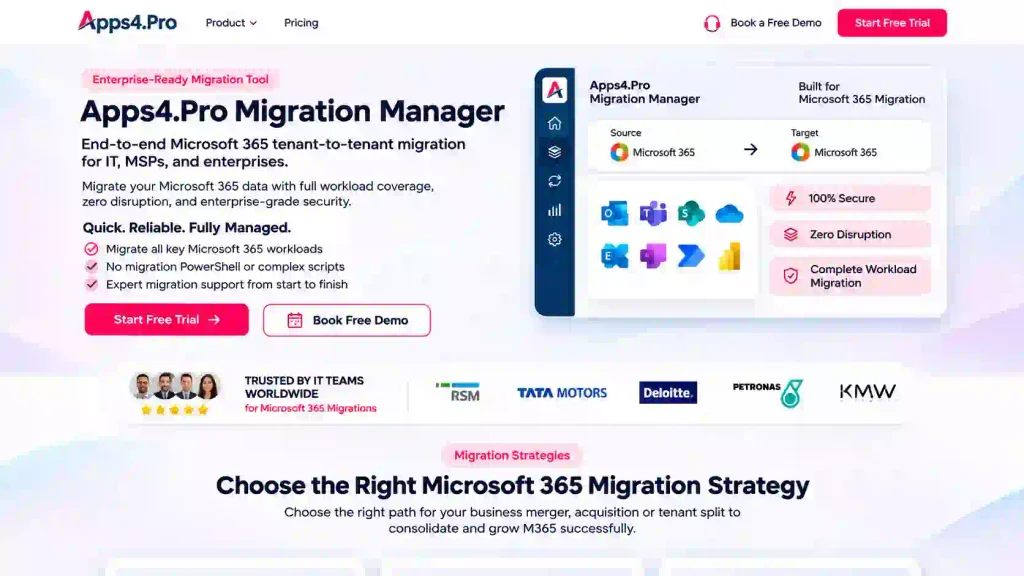
Apps4.Pro Migration Manager is a tenant-to-tenant migration platform for Microsoft 365, built for M&A, multi-geo and enterprise consolidation projects. It runs as a Windows desktop application that connects directly to the source and target tenants through Microsoft Graph, and it is delivered by JiJi Technologies, a Microsoft Solutions Partner for Modern Work with ISO 27001 and ISO 27701 certification.
Workload coverage
Migration Manager covers more than ten Microsoft 365 workloads. Alongside the core set (Exchange Online mailboxes including shared, archive and group mailboxes, SharePoint Online sites, OneDrive for Business, and Microsoft Teams with channels, chats, files, tabs and memberships), it migrates the workloads that many tools leave out: Microsoft Planner including Premium plans, Viva Engage (Yammer) communities across internal and external networks, Microsoft Forms, Power Automate flows, Power BI workspaces and reports, Microsoft Bookings, and Teams Education content. For an M&A estate where the two companies collaborate across Planner, Forms and Viva Engage, this breadth is the difference between one migration and several disconnected ones.
Identity and permission mapping
Migration Manager maps source users to target users and carries permissions, metadata, version history, group ownership and membership with the content. As with every tenant migration, target accounts need to exist before mapping, and the quality of the user map determines the quality of the result, so the mapping step deserves careful validation.
Migration strategy, automation and reporting
Migration Manager is organized around three strategies that match real M&A situations: Copy (create a secure duplicate in the target without disrupting the source), Merge (consolidate several tenants into one for tenant consolidation projects), and Restructure (split or reorganize after a divestiture or reorganization). It starts with a free inventory report for pre-migration planning, runs migrations through an automated engine that supports bulk jobs and parallel processing, and gives workload-level validation of files, permissions and metadata, real-time progress tracking and reports.
Rollback and recovery
Migration Manager is a migration platform, not a backup or rollback product, and it is not positioned as offering a one-click reversal of a completed migration. Its risk-reduction model is different and, for most teams, more useful in practice. The Copy strategy leaves the source tenant fully intact, so the source remains a genuine fallback if a cutover has to be reversed. Controlled trial migrations and the free inventory report let you confirm what will happen before production users move. Delta passes let you remigrate items that failed or changed, and workload-level validation and reports help you catch problems before sign-off. For true point-in-time restore of anything created or changed in the target after cutover, you should still run a separate backup, because that is outside the scope of any migration tool.
Limitations and where administrators step in
Target identities and licenses must be provisioned before migration. Coexistence (mail routing and free or busy sharing during a phased move) is not a built-in suite, so plan that separately. Compliance controls such as conditional access, sensitivity labels, and retention policies are recreated in the target rather than migrated. And rollback, as above, is a planned combination of source fallback, remigration and backup restore, not an automatic feature.
Where Apps4.Pro fits in an M&A strategy.
Apps4.Pro Migration Manager fits best as the migration engine for estates with a broad and specialized workload mix, where its coverage, copy-based safety and validation reporting reduce the risk of the gaps that appear when a narrower tool skips a workload. Pair it with a backup product for target-side recovery and with native controls for domain and mail-flow cutover, and it covers the migration layer of the plan well. You can test it against your own tenants with a free trial before committing.
Best Practices For Reducing Microsoft 365 Migration Risks During M&A
- Plan before you touch anything: Run a full discovery of both tenants, confirm workload-by-workload coverage, and map identities before you schedule a single wave. Most migration failures are planning failures.
- Pilot a real cross-section: Move a small group that touches every workload, then validate it completely. Treat the pilot as the dress rehearsal for cutover, not a formality.
- Validate the mapping first: Produce a mapping report with zero unmatched critical accounts and resolve every exception before migrating content.
- Migrate in waves with logging: Wave-based moves with delta passes keep each batch small, recoverable, and verifiable.
- Maintain coexistence during the transition: Keep mail flow and free/busy sharing working between the tenants so users can collaborate while the move is in progress.
- Reconcile and sign off each workload: Compare target counts against source, spot-check permissions and content, and sign off before starting the next workload.
- Back up independently: Take a pre-migration backup and keep protecting the target after cutover, because migration tools do not provide point-in-time restore.
- Communicate with users: Tell people what is changing, when, and what to expect for sign-in, links, and search, so a normal transition does not read as an outage.
- Monitor after cutover: Watch sign-in, mail flow, delegation, and sharing for the first days in the target, and keep the source available until you are confident.
Microsoft 365 M&A Migration Risk Checklist
Before migration
- Full inventory of both tenants: users, groups, mailboxes, sites, permissions, policies, and item counts
- Workload coverage confirmed for every service in use, including specialized workloads.
- Identity map built and validated, with zero unmatched critical accounts
- Target accounts, licenses, groups and sites pre-provisioned
- Compliance review: conditional access, sensitivity labels, retention and legal holds
- Independent pre-migration backup of critical data
- Pilot group selected, migrated and fully validated
- Domain and mail-flow cutover sequence scripted and tested
- Cutover criteria, rollback triggers and owners documented
During migration
- Migrate in waves with logging at each stage
- Run delta passes to capture failed or changed items
- Keep coexistence (mail routing, free or busy) active for phased moves
- Track progress by workload and investigate every error, not just overall status
- Reconcile counts and spot-check permissions after each wave
After migration
- Validate sign-in, mail flow, delegation, sharing, and search for migrated users.
- Reconcile final target state against the pre-migration inventory
- Recreate compliance policies and update application and integration dependencies
- Keep the source tenant available until cutover is confirmed stable
- Continue backing up the target tenant for ongoing recovery
- Decommission the source only after a documented sign-off