
- Key Takeaways
- Microsoft 365 Migration During An Acquisition
- What Is Microsoft 365 Tenant-To-Tenant Migration?
- What Should You Consider Before Choosing A Microsoft 365 Migration Tool?
- How Do You Migrate An Acquired Company’s Microsoft 365 Tenant Into An Existing Tenant?
- How Do You Preserve Data And Permissions During Microsoft 365 Migration?
- Which Microsoft 365 Workloads Need To Be Migrated?
- What Is The Best Microsoft 365 Migration Tool For Enterprise Acquisitions?
- Why Consider Apps4.Pro Migration Manager?
- Common Microsoft 365 Migration Challenges And How To Avoid Them
- Microsoft 365 Acquisition Migration Checklist
- Frequently Asked Questions
Key Takeaways
- The best Microsoft 365 tenant migration tool maps identities and permissions, automates bulk moves, and validates results; Apps4.Pro Migration Manager suits acquisitions.
- Microsoft’s native tools move mailboxes and OneDrive across tenants, but charge a per-user add-on licence and leave Teams and SharePoint gaps.
- Microsoft has no native tool to move teams and channels between tenants, so most acquisitions need a third-party migration platform.
- Permissions rarely carry over untouched. Plan to preserve, remap, or recreate access per workload, using source-to-target identity mapping.
- Map identities before you move data. Mismatched or duplicate accounts are the most common reason a first migration batch fails.
- Run a pre-migration inventory, migrate in prioritised waves, then validate item counts and permissions before cutover and domain transfer.
- No tool guarantees zero data loss. Success depends on planning, identity mapping, incremental passes, and careful validation at every stage.
Microsoft 365 Migration During An AcquisitionWhen you acquire a smaller company, its Microsoft 365 tenant becomes yours to absorb. Here is the direct answer to the headline question. The best tool is the one that covers every workload in scope, maps user identities between the two tenants, handles permissions deliberately, automates bulk moves, and gives you reporting to validate the result. When the acquisition involves Microsoft Teams, Microsoft Planner, or other collaboration workloads, a dedicated platform such as Apps4.Pro Migration Manager usually fits better than Microsoft’s native tools alone, because Microsoft does not move teams, channels, or several other workloads across tenants. |
An acquisition is never a simple file transfer. You are merging two separate Microsoft 365 organisations, each with its own identities, mailboxes, SharePoint sites, Teams, permissions, and sharing relationships. The acquired users expect to keep working on the first Monday after cutover, with their email, files, chats, and access intact. That means you need to plan identity mapping, choose which workloads move and in what order, decide how permissions are handled on each one, and validate everything before you switch the domain.
This guide explains what tenant-to-tenant migration involves, what Microsoft’s native tooling can and cannot do today, how to run the migration step by step, and how to preserve data and permissions along the way. It also compares the main options so you can choose the right approach for your acquisition.
What Is Microsoft 365 Tenant-To-Tenant Migration?
Microsoft 365 tenant-to-tenant migration moves users and their data from one Microsoft 365 tenant, the source, into another, the target. A tenant is an organisation’s own isolated Microsoft 365 instance, with its own identities in Microsoft Entra ID (formerly Azure Active Directory), its own Exchange Online, SharePoint Online, OneDrive, and Teams.
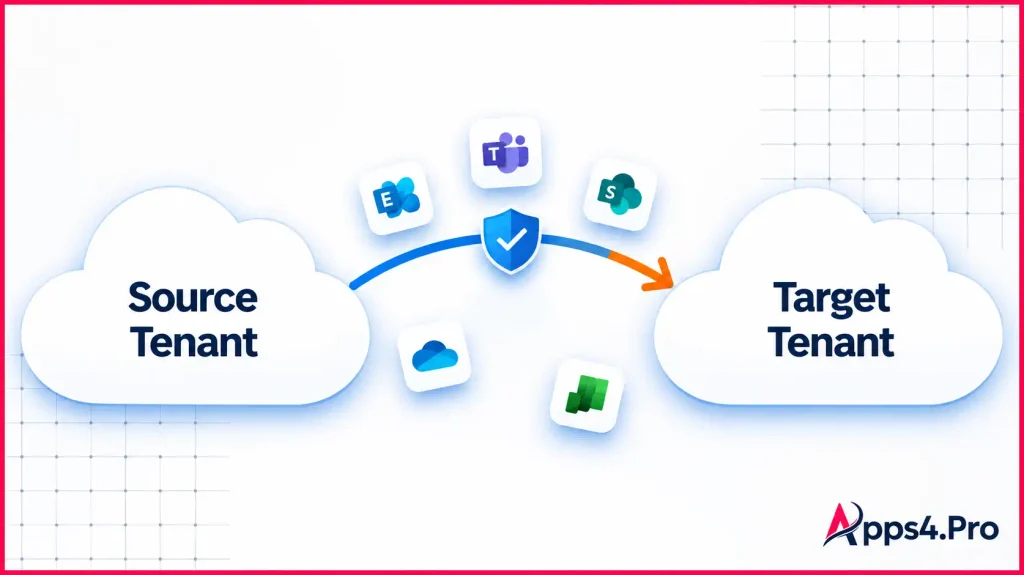
Ordinary data migration moves content inside the same organisation, for example from a file server into SharePoint. Tenant-to-tenant migration is different because the two sides are separate security boundaries. Users in the source tenant do not exist in the target tenant, so you cannot simply copy a file and keep its owner. You first have to recreate or match each identity in the target, then move the data and attach it to the correct target identity.
Tenant consolidation is the acquisition version of this work. Instead of running two tenants side by side, you bring the acquired company’s users, mailboxes, sites, Teams, and permissions into your existing production tenant, so the combined organisation runs on one Microsoft 365 environment. Consolidation adds pressure that a greenfield move does not have. The target tenant is already live, so you have to avoid name clashes, duplicate accounts, and disruption to people who are already working in it.
What Should You Consider Before Choosing A Microsoft 365 Migration Tool?
The right tool depends on what you are moving and how much risk you can carry. Work through these ten factors before you commit.
- Supported Microsoft 365 workloads: List every workload in the acquired tenant, then check the tool against that list. Exchange and OneDrive are table stakes. Teams, Teams chat, Planner, Viva Engage, Forms, and Power Platform content are where tools differ most.
- Data integrity and migration fidelity: Confirm that folder structure, metadata, version history, and timestamps survive the move, not just the raw files. Ask how the tool reports item counts so you can reconcile source and target.
- Permission and ownership mapping: Decide which permissions must survive and check whether the tool preserves, remaps, or recreates them. SharePoint inheritance, OneDrive ownership, and mailbox delegation each behave differently.
- User identity mapping: The tool must match each source user to the correct target user. Good mapping handles changed usernames, merged accounts, and users who already exist in the target.
- Automation and bulk migration: For anything above a handful of users, you want job-based migration that runs in waves without manual per-user steps. Scheduling and parallel processing keep large moves on time.
- Migration reporting and validation: Look for per-item logs, success and failure reports, and a pre-migration inventory. Batch-level status alone makes sign-off hard.
- Security and compliance: Check where migration data flows and whether it leaves your tenant. Certifications such as ISO 27001 and a Microsoft partner status are useful signals for regulated acquisitions.
- Downtime and business continuity: Favour tools that support incremental passes, so you can pre-stage data and run a short final delta at cutover rather than a long freeze.
- Scalability for enterprise environments: Confirm the tool handles your data volume, user count, and workload mix without throttling problems that stall a large acquisition.
- Licensing and implementation requirements: Native migration needs Microsoft add-on licences and admin setup. Third-party tools need their own licence and admin credentials on both tenants. Price the full picture, not just one line item.
How Do You Migrate An Acquired Company’s Microsoft 365 Tenant Into An Existing Tenant?
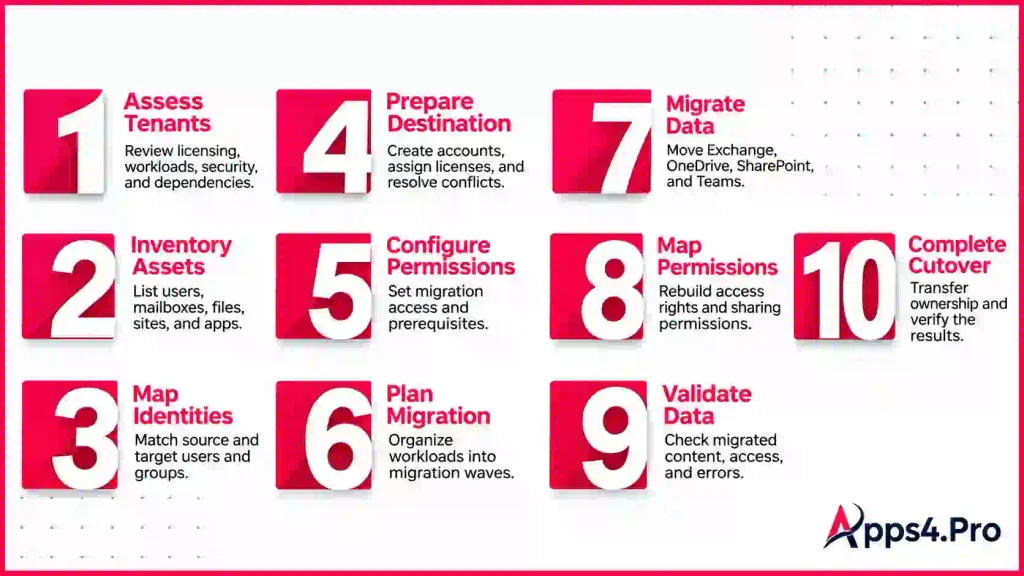
This workflow moves an acquired tenant into your live production tenant. The order matters, because identity has to be settled before content can attach to the right owner.
- Assess the source and destination tenants. Review licensing on both sides, Entra ID configuration, domains, retention and legal holds, and any hybrid Exchange or on-premises dependencies. Holds and hybrid setups change what native tools can move.
- Inventory users, groups, mailboxes, files, sites, and applications. Produce a full catalogue of what exists and how large it is. A pre-migration inventory report (manual to commission, then automated to generate) sizes the project and surfaces risks early.
- Map identities between source and target. Build a source-to-target mapping for every user and group. This is the single most important step. Tools automate the matching, but an administrator must review merges, duplicates, and renamed accounts by hand.
- Prepare the destination tenant. Create or confirm target accounts, assign licences, provision groups, and resolve name clashes. Pre-provisioning accounts is largely automated through scripting or the migration tool, but clash resolution needs a human decision.
- Configure migration permissions and prerequisites. Grant the migration application, or admin accounts, the access each workload needs on both tenants. Native mailbox moves also require an Entra app registration, a migration endpoint, and an organisation relationship.
- Plan workload migration and prioritisation. Group users into waves and decide the order of workloads. Many teams move mailboxes and OneDrive first, then SharePoint and Teams, then specialised workloads. Wave planning is a manual exercise informed by the inventory.
- Migrate Exchange, OneDrive, SharePoint, and Teams data. Run the moves, ideally as scheduled jobs with parallel processing. This stage is the most automated, though each workload uses a different engine and has its own limits.
- Map or recreate permissions and access. Apply the permission plan on each workload. Some permissions migrate with the content, some remap to the new identities, and some you recreate in the target. Expect manual checks here.
- Validate migrated data. Reconcile item counts, spot-check files and mailboxes, confirm sharing and membership, and resolve failures. Run an incremental pass to catch changes made in the source during migration.
- Complete domain transition, cutover, and post-migration checks. Remove the domain from the source tenant, add and verify it in the target, update mail routing, retest access, and decommission the source once sign-off is complete.
Automation covers most of the content movement in steps 7 and 9 and much of the provisioning in step 4. Identity decisions, clash resolution, permission design, and cutover timing stay with administrators.
How Do You Preserve Data And Permissions During Microsoft 365 Migration?
Permissions are the part of a tenant migration that goes wrong most often, because access in the source points at identities that do not exist in the target. The key is to understand three outcomes and plan which one applies to each permission.
- Preserve means the permission moves with the content and still works, usually because the tool remapped it to the matched target identity during the move.
- Remap means you translate a source identity to its target identity so an existing permission points at the right person after the move.
- Recreate means the permission cannot carry across, so you rebuild it in the target, either automatically from the mapping or by hand.
Here is how each area behaves.
- File and folder permissions: Item-level permissions can migrate when the tool reads them on the source and reapplies them to the mapped target identities. Permissions assigned to a user who has no target match will not apply until that identity exists.
- SharePoint permissions and inheritance: Site, library, and item permissions, along with inheritance and broken inheritance, can be migrated, but they depend entirely on groups and users existing in the target first. Recreate missing SharePoint groups before you move content.
- OneDrive ownership and sharing: Files and folders migrate with their owner when identities are mapped. Internal sharing can be reapplied, but sharing links are the weak point and often need to be reissued.
- Exchange mailbox permissions: Mailbox content migrates cleanly, but cross-tenant delegate rights such as Full Access and Send As do not travel with Microsoft’s native mailbox move. Plan to recreate these in the target after the mailboxes land.
- Shared mailbox delegates: Shared mailboxes migrate, but their delegate and Send As assignments usually need to be recreated in the target tenant, because those assignments reference source identities.
- Teams membership and access: Team and channel membership, owners, and associated group access can migrate when the underlying Microsoft 365 Group and its members exist in the target. Private and shared channel permissions need particular attention.
- Source-to-target identity mapping: Every outcome above rests on an accurate identity map. If a source user maps to the wrong target account, their permissions follow to the wrong place. Validate the map before you move content.
- External user access: Guests and external sharing rarely migrate automatically. External identities are not part of your tenant, so expect to re-invite guests and re-establish external access after the move.
- Sharing links: Anonymous, company-wide, and specific-people links are generated per tenant and commonly break after migration. Treat broken links as expected and plan to reissue the important ones, or communicate that users should reshare.
The practical rule is simple. Preserve what the tool can remap, remap everything tied to identity, and recreate the rest deliberately rather than discovering gaps after cutover.
Which Microsoft 365 Workloads Need To Be Migrated?
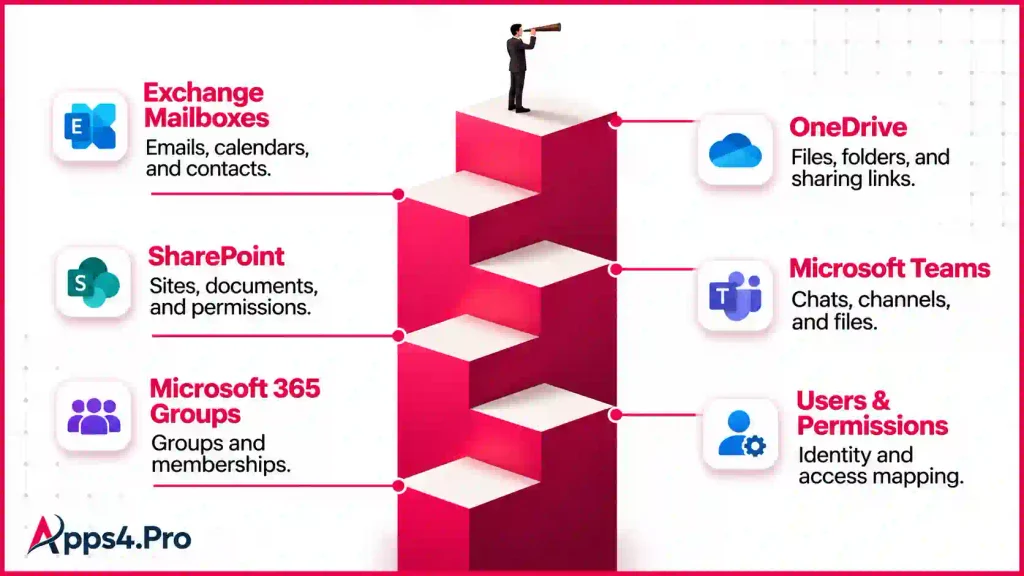
Each workload uses a different engine and follows its own process, so do not assume one approach covers everything. Scope each one separately.
- Exchange Online mailboxes and shared mailboxes. User, shared, and archive mailboxes hold email, calendars, contacts, and tasks. Content moves well, but delegation and Send As rights usually need rebuilding in the target.
- OneDrive files and folders. Personal file libraries move with folder structure, metadata, and version history when identities are mapped. Sharing links are the main item to check afterwards.
- SharePoint sites, libraries, and documents. Sites carry lists, libraries, metadata, content types, and version history, plus permissions that depend on target groups existing first. SharePoint is often the largest data volume in an acquisition.
- Microsoft Teams chats and channel content. Teams spans channels, conversations, files, tabs, and membership, plus Teams chat (One-to-one, group and meeting chats)
- This is the hardest workload to move and the one Microsoft does not handle natively between tenants.
- Microsoft 365 Groups. Groups sit underneath Teams, SharePoint sites, and shared mailboxes. You generally recreate or map the group and its membership so the connected workloads attach correctly.
- Users, groups, and permissions. Identity is the foundation for everything else. Users and groups must exist and be mapped in the target before mailboxes, sites, and Teams can land on the correct owners.
Beyond these core workloads, an acquired tenant may also hold Planner plans, Viva Engage (formerly Yammer) communities, Microsoft Forms, Power Automate flows, Power BI content, and Microsoft Bookings. Microsoft’s native tooling does not move these between tenants, so if they are in scope, confirm your chosen platform covers them before you start.
What Is The Best Microsoft 365 Migration Tool For Enterprise Acquisitions?
The best tool is the one whose workload coverage, identity mapping, and reporting match your acquisition. For mailbox-only or OneDrive-only moves, Microsoft’s native tools can be enough. Once Teams, Teams chat, Planner, or Power Platform content is in scope, a third-party platform such as Apps4.Pro Migration Manager covers ground that native tooling does not.
|
Capability |
Microsoft native tools |
Apps4.Pro Migration Manager |
ShareGate |
|---|---|---|---|
|
Exchange mailboxes and shared mailboxes |
Microsoft native tools Yes. Generally available via Mailbox Replication Service; add-on licence; cloud or hybrid |
Apps4.Pro Migration Manager Yes. User, shared, archive, and group mailboxes |
ShareGate Yes, cloud-only (no on-premises or hybrid Exchange) |
|
OneDrive for Business |
Microsoft native tools Yes. Generally available (add-on licence) |
Apps4.Pro Migration Manager Yes. Files, folders, metadata, permissions, version history |
ShareGate Yes |
|
SharePoint sites |
Microsoft native tools Preview. Enterprise Agreement only, licensed per 100 GB, no GCC or GCC High |
Apps4.Pro Migration Manager Yes. Sites, libraries, metadata, permissions, content types, version history |
ShareGate Yes. Content, permissions, metadata, with a permissions matrix report |
|
Teams and channel content |
Microsoft native tools No native tool for teams or channels |
Apps4.Pro Migration Manager Yes. Teams, channels, conversations, files, tabs, memberships |
ShareGate Yes (Teams and channel content) |
|
Teams 1:1, group, and meeting chat |
Microsoft native tools Chats and meetings via Cross-Tenant Migration Orchestrator (preview); not in the generally available tools |
Apps4.Pro Migration Manager Yes. Migrated as real Teams messages, not static exports |
ShareGate Not currently supported for Teams 1:1 and group chats |
|
Identity mapping |
Microsoft native tools Individual tools move content, not identities; Orchestrator (preview) handles identity |
Apps4.Pro Migration Manager Yes. Automatic user and channel mapping from an admin-supplied map |
ShareGate Yes |
|
Permission handling |
Microsoft native tools Varies by workload; mailbox delegation not carried cross-tenant; OneDrive links may break |
Apps4.Pro Migration Manager Yes. Permissions for SharePoint, OneDrive, and Teams, plus default group permission migration |
ShareGate Yes. SharePoint permissions preserved, with a permissions matrix |
|
Incremental or delta passes |
Microsoft native tools No native delta for files |
Apps4.Pro Migration Manager Yes. Incremental migration for recent changes |
ShareGate Yes |
|
Reporting and pre-migration inventory |
Microsoft native tools Batch-level status; per-item detail needs PowerShell or logs |
Apps4.Pro Migration Manager Yes. Migration reports plus a free pre-migration inventory report |
ShareGate Yes. Reports including a permissions matrix |
|
Licensing and prerequisites |
Microsoft native tools Cross-Tenant User Data Migration add-on (per user), plus Cross-Tenant Shared Data Migration (per 100 GB, Enterprise Agreement) for SharePoint; Entra app registration and PowerShell setup |
Apps4.Pro Migration Manager Paid licence; Microsoft 365 admin credentials on both tenants; 15-day free trial |
ShareGate Paid licence |
Apps4.Pro additionally covers Planner and Planner Premium, Viva Engage, Microsoft Forms, Power Automate, Power BI, and Microsoft Bookings, which Microsoft’s native tools do not move between tenants. Established platforms such as Quest On Demand Migration and BitTitan MigrationWiz are also used for Teams and chat migration, so shortlist against your own workload list rather than a single vendor claim.
When native tools may be enough: you are an Enterprise Agreement customer, the scope is mostly mailboxes and OneDrive, your team is comfortable with PowerShell, and Teams chat history is not a hard requirement.
When a third-party platform fits better: Teams, Teams chat, Planner, or Power Platform content is in scope; you are on Business Premium rather than an Enterprise Agreement; you need identity and permission mapping with per-item reporting; or you have a tight cutover window and limited PowerShell capacity.
Why Consider Apps4.Pro Migration Manager?
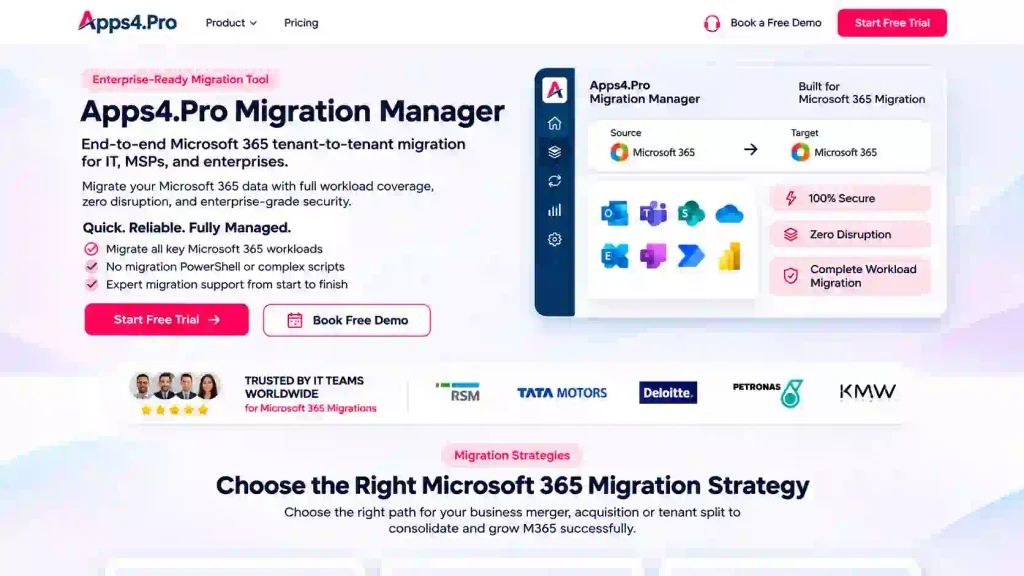
Apps4.Pro Migration Manager, from JiJi Technologies, is a tenant-to-tenant migration platform built for consolidation and mergers and acquisitions. It fits the acquisition case for a few concrete reasons.
- It covers the workloads native tools leave behind: Alongside Exchange, SharePoint, and OneDrive, it migrates Teams and Teams chat, Planner and Planner Premium, Viva Engage, Microsoft Forms, Power Automate, Power BI, and Microsoft Bookings, which Microsoft does not move between tenants.
- It migrates Teams chats as real messages:1:1, group, and meeting chats arrive in Teams as conversations rather than static exports, which matters when acquired staff rely on chat history.
- It supports three migration strategies: Copy, Merge, and Restructure map to the common tenant scenarios. For an acquisition, you typically Merge the source tenant into your production tenant.
- It handles identity and permissions where supported: Administrators supply a source-to-target mapping, and the tool applies automatic user and channel mapping and migrates permissions for SharePoint, OneDrive, and Teams, including default group permissions on list items and files.
- Administrators can automate the bulk of the work: You create migration jobs that run in waves with scheduling and parallel processing, then run an incremental pass to pick up changes made in the source during the project.
- It keeps migration data inside your tenant: Apps4.Pro states that no migration data is stored outside your tenant, and it holds ISO 27001 and ISO 27701 certifications and Microsoft Solutions Partner status, which helps in regulated acquisitions.
Some work still needs planning and manual input. Identity decisions and clash resolution, permission design, external guest re-invitation, sharing-link reissue, and domain cutover timing remain administrator tasks on any platform. Apps4.Pro offers a free pre-migration inventory report to scope this work, a 15-day free trial, and 24/7 migration support. You can start at the product page or review pricing.
Common Microsoft 365 Migration Challenges And How To Avoid Them
Most migration failures trace back to a handful of predictable problems. Plan for each one.
- Missing permissions: Permissions fail silently when their target identity or group does not exist yet. Recreate target groups first, map every identity, and validate access on a sample before you scale.
- Incorrect identity mapping: A wrong match sends a user’s data and rights to the wrong account. Review the mapping manually, confirm merged and duplicate accounts, and test with a pilot wave before the full move.
- Duplicate or conflicting accounts: The target tenant may already hold an account with the same name. Resolve clashes during provisioning, agree on a naming rule, and decide whether to merge or create fresh accounts.
- Broken sharing links: Sharing links are tenant-specific and often stop working after migration. Treat this as expected, reissue the important links, and tell users to reshare where needed.
- Incomplete Teams migration: Teams depends on its Microsoft 365 Group, channels, tabs, and chats, and native tools do not move it. Use a platform that migrates Teams fully, and verify membership and private channels after the move.
- Mailbox access issues: Delegate and Send As rights do not travel with a native mailbox move. Document them before migration and recreate them in the target once mailboxes land.
- Domain transfer dependencies: You cannot add the acquired domain to the target until it is removed from the source, and mail routing depends on getting this sequence right. Plan the domain cutover against the identity cutover.
- Application integrations: Line-of-business apps, connectors, and automation tied to the source tenant will not follow automatically. Inventory integrations early and plan to reconnect or rebuild them.
- Incomplete data validation: Signing off without reconciling item counts hides gaps. Compare source and target counts, spot-check content, and keep the migration logs for audit.
- User disruption: People lose trust when access breaks on day one. Communicate the timeline, run the final delta at a low-usage window, and provide clear support for the first week after cutover.
Microsoft 365 Acquisition Migration Checklist
Before migration
- [ ] Inventory users, groups, mailboxes, OneDrive, SharePoint sites, Teams, and other workloads in the source tenant
- [ ] Record data volumes, legal holds, hybrid Exchange, and on-premises dependencies
- [ ] Confirm licensing on both tenants, including any native add-on licences needed
- [ ] Build and review the source-to-target identity map, resolving duplicates and clashes
- [ ] Document mailbox delegation, shared mailbox rights, external guests, and critical sharing links
- [ ] Choose the migration tool and strategy, and run a pre-migration inventory report
- [ ] Configure prerequisites and permissions on both tenants, then run a pilot wave
During migration
- [ ] Pre-provision and licence target accounts and groups
- [ ] Migrate in prioritised waves, mailboxes and OneDrive first, then SharePoint and Teams
- [ ] Apply the permission plan, preserving, remapping, or recreating access per workload
- [ ] Monitor jobs, capture failures from the logs, and retry as needed
- [ ] Keep users informed of their wave and what to expect
After migration
- [ ] Run a final incremental pass to capture recent changes in the source
- [ ] Reconcile item counts and spot-check mailboxes, files, sites, and Teams
- [ ] Recreate mailbox delegation, reissue sharing links, and re-invite external guests
- [ ] Complete the domain transfer and update mail routing and cutover
- [ ] Reconnect application integrations and automation
- [ ] Confirm sign-off, retain logs for audit, then decommission the source tenant