


The Microsoft Teams Admin Center is the central hub for managing Teams settings, users, policies, apps, security, and governance within your organization. As Microsoft Teams continues to evolve as the core collaboration platform in the Microsoft 365 ecosystem, understanding how to use the Microsoft Teams Admin Center effectively is essential for IT administrators, MSPs, and organizations that rely on secure, compliant, and scalable digital collaboration.
This guide explains how to use the Microsoft Teams Admin Center to manage Teams, including its origins, availability across Microsoft 365 subscription plans, and step-by-step instructions for managing Teams features, users, security, and analytics.
Origin of the Microsoft Teams Admin Center
Microsoft introduced the Teams Admin Center as part of its shift from standalone Office apps to the fully integrated Microsoft 365 cloud platform. As Teams replaced Skype for Business and became the unified workspace for chat, meetings, documents, and collaboration, Microsoft needed a modern, centralized management console.
The result was the Microsoft Teams Admin Center — a unified portal for controlling Teams governance, meeting security, app permissions, messaging policies, external access, and overall tenant-wide behavior.
Which Microsoft 365 Subscriptions Include the Teams Admin Center?
The Teams Admin Center is available in nearly all business and enterprise Microsoft 365 plans, including:
- Microsoft 365 Business Basic
- Microsoft 365 Business Standard
- Microsoft 365 Business Premium
- Microsoft Teams Essentials (limited features)
- Office 365 E1, E3, E5
- Microsoft 365 E1, E3, E5
- Microsoft 365 F1 / F3 frontline plans
While all plans allow basic Teams management, higher-tier plans like Microsoft 365 E5 and Business Premium include advanced security, analytics, conditional access, and additional governance capabilities.
How to Use the Microsoft Teams Admin Center to Manage Teams
Below is a complete walkthrough of the most important features and controls in the Microsoft Teams Admin Center, helping you optimize Microsoft Teams management, governance, and organizational collaboration.
Accessing the Teams Admin Center
To begin using the Microsoft Teams Admin Center,
- Visit Microsoft Teams Admin Center.
- Sign in with an account that any of the below appropriate roles
- Microsoft Teams Administrator
- Global Administrator
- Teams Administrator
- Teams Communications Administrator, etc.).
For detailed role vs access refer: Microsoft Teams administrator roles
- Once logged in, the left navigation panel displays all management options—from Teams and channels to meetings, messages, apps, voice, analytics, and security settings.
Managing Teams and Channels
The MS Teams Admin Center allows you to view and configure all Teams in your tenant. You can update
- Team names
- Team ownership
- Team membership
- Teams Privacy settings
- Channel configurations
It also provides a summary of the Total users along with count of internal users and Guests. You can also perform the below operations:
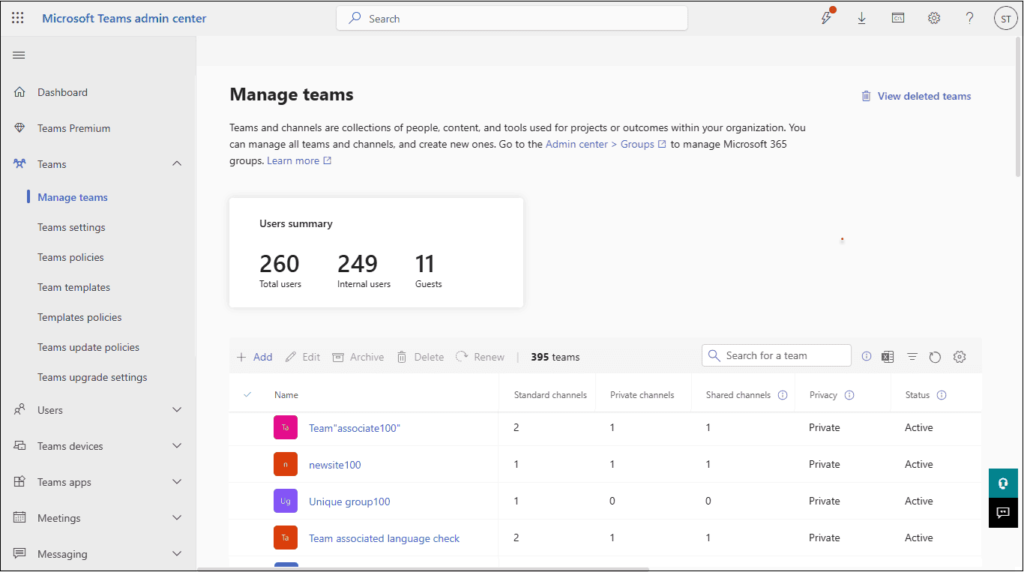
IT admins use these features to maintain M365 Teams structure, naming consistency, and governance, ensuring the organization avoids sprawl and adheres to compliance requirements.
User Management in Microsoft Teams
Within the Users section, administrators can
- Assign Teams licenses
- Enforce policies
- Manage user-level meeting and messaging permissions
- Reset configurations
- Troubleshoot call or device issues.
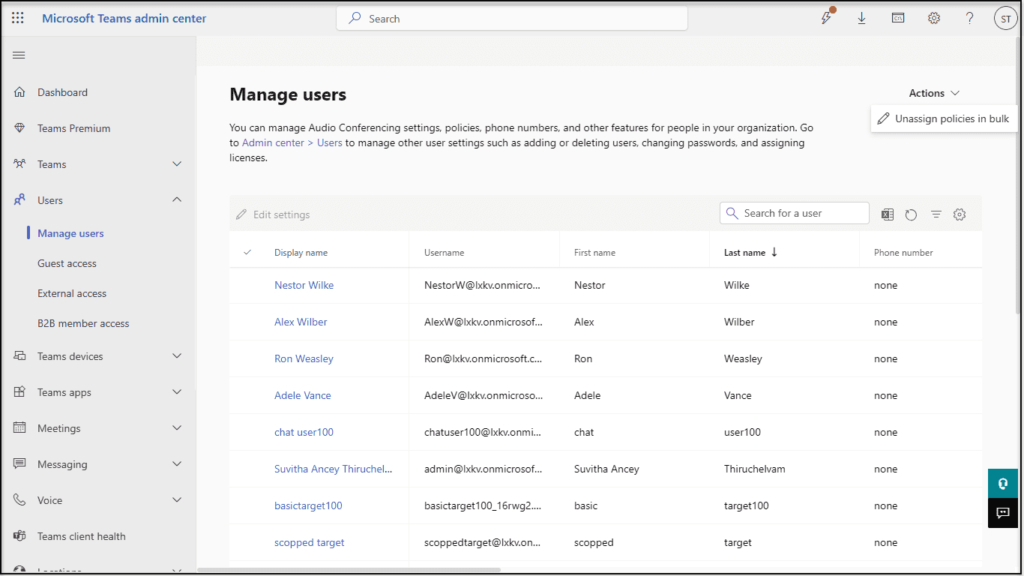
This centralized Teams user management ensures that each person has the correct access, security level, and collaboration capabilities based on their role.
Teams Premium in the Microsoft Teams Admin Center
Once Teams Premium licenses are assigned, admins will see additional configuration options throughout the Microsoft Teams Admin Center, including:
- Meeting templates with advanced controls
- Intelligent meeting features such as AI-generated summaries
- Advanced meeting protection including watermarking and end-to-end encryption
- Premium webinar settings
- Advanced virtual appointment management
- Custom branding options for meetings
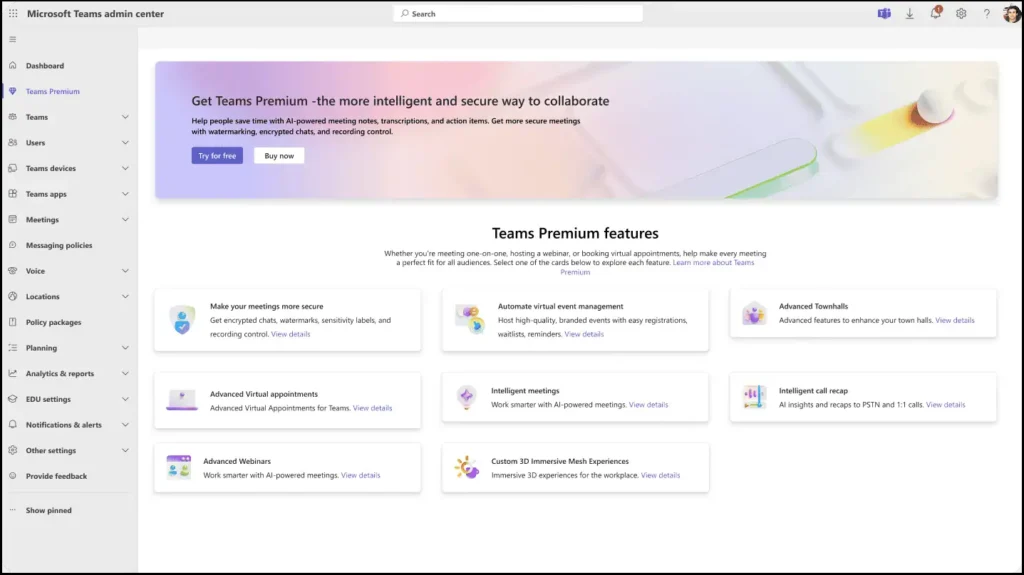
Image Courtesy: Manage Teams Premium for your organization
These extended management features ensure admins can enforce consistent Microsoft Teams governance and maintain security, especially in regulated industries.
Configuring Meeting Policies
The Teams Admin Center gives you fine-grained control over Teams meeting policies, such as
- Screen sharing permissions
- Recording rights
- Lobby controls
- Participant roles
- Anonymous access
- Video settings
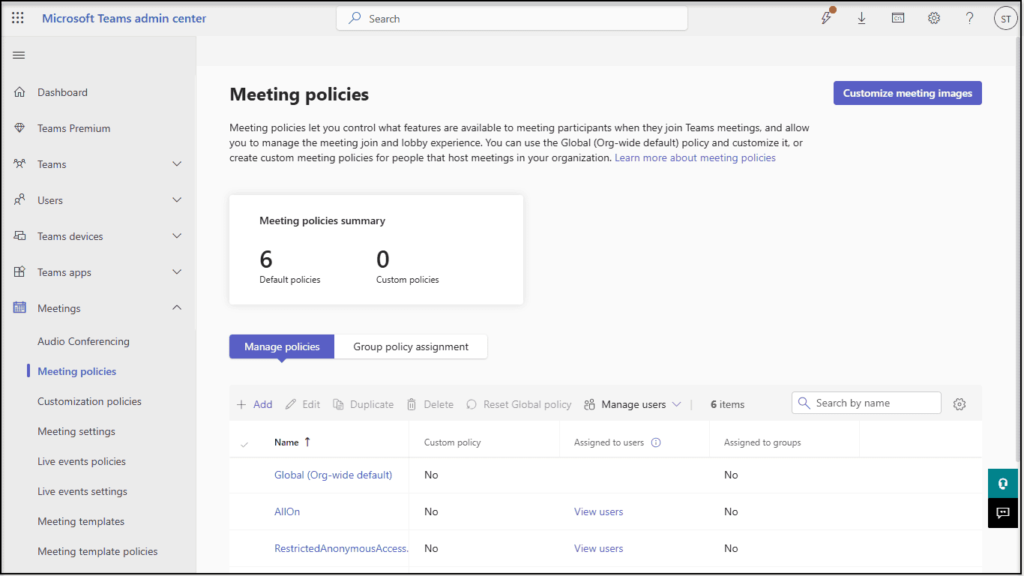
These controls help organizations enforce secure and compliant meeting governance across all departments.
Managing Messaging Policies
Messaging policies define what users can do in chat and channels—such as
- Enabling or disabling GIFs
- Manage Custom Emojis
- File sharing
- Read receipts
- Priority notifications
- External communication
These settings help maintain professional communication standards and protect the organization from unwanted data exposure.
App Permissions and Governance
The Office 365 Teams Apps section allows administrators to control access to third-party apps, custom apps, and Microsoft apps. Admins can perform the below operations:
- Allow or block apps
- Manage permission policies
- View app usage analytics

Strong Teams app governance ensures that only secure, approved applications are available to users.
Voice & Calling Features
For organizations using Teams Phone, the Admin Center supports management of phone numbers, calling plans, call queues, auto attendants, voicemail settings, and device configurations. These tools transform Teams into a fully featured cloud-based business phone system.
Security, Compliance & Access Controls
Microsoft 365 Teams integrates deeply with the broader Microsoft 365 security and compliance framework, enabling administrators to enforce conditional access, multi-factor authentication, data loss prevention (DLP), and retention labels. These capabilities help maintain Teams data security, protect sensitive information, and meet compliance standards.
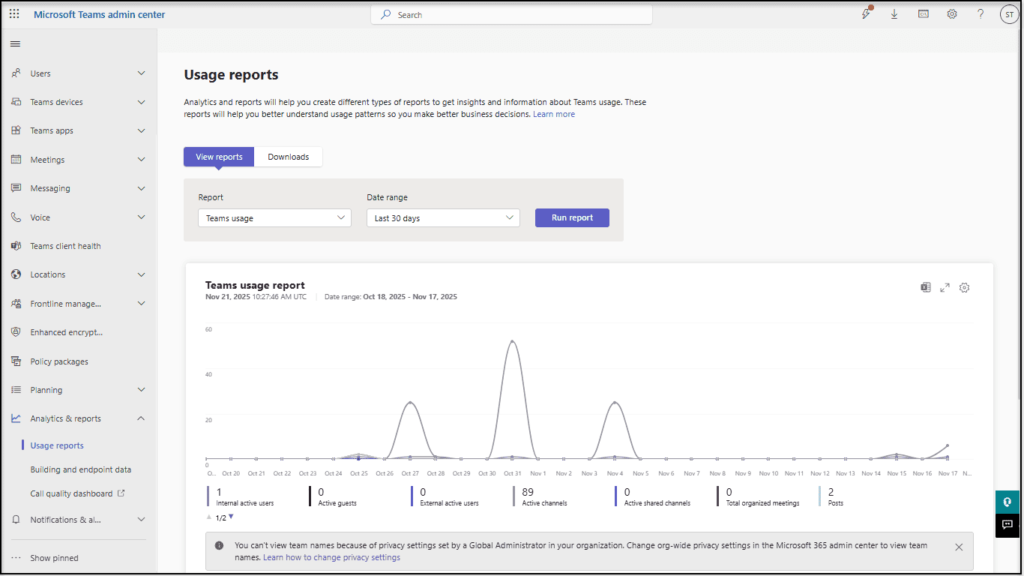
Analytics & Reporting
The Admin Center includes powerful dashboards for monitoring Teams usage, device health, call quality, user activity, and adoption trends. These analytics help IT admins troubleshoot performance issues and drive Teams adoption and optimization.
Best Practices for Using the Teams Admin Center
To get the most out of the Teams Admin Center:
- Implement Teams naming conventions and enforce lifecycle policies
- Restrict external access and guest permissions appropriately
- Regularly review inactive Teams and archive or delete as needed
- Use Teams templates for standardized team creation
- Manage apps with strict governance and approval workflows
- Monitor usage reports to understand adoption and training needs
- Enforce Conditional Access and secure sign-in controls
- Keep meeting and messaging policies aligned with company standards
These best practices ensure a secure, compliant, and efficient Microsoft Teams environment.
Final Thoughts
The Microsoft Teams Admin Center is essential for managing every aspect of Teams—from daily collaboration controls to long-term governance and security. By understanding how to use this powerful admin portal, organizations can ensure smooth communication, strong security, consistent policies, and optimized productivity across Microsoft 365.
Frequently Asked Questions
The Microsoft Teams Admin Center is a centralized portal that allows IT administrators to manage Teams settings, users, meetings, messaging, apps, and security policies across their Microsoft 365 environment. It serves as the primary hub for Teams governance and compliance management.
Access is limited to users with Microsoft 365 admin roles such as Global Admin, Teams Administrator, Teams Communications Admin, or similar permissions. These role-based access controls ensure secure and regulated Teams management.
Most Microsoft 365 plans offer access to the Teams Admin Center, including Microsoft 365 Business Basic, Business Standard, Business Premium, Office 365 E1/E3/E5, and Microsoft 365 E3/E5. Enterprise plans provide more advanced Teams security and analytics features.
Yes. The Teams Admin Center allows admins to view, edit, and configure all Teams and channels, including team names, ownership, membership, privacy settings, and lifecycle management. This supports consistent and efficient Teams structure management.
The Users section in the Teams Admin Center lets you assign licenses, apply meeting or messaging policies, troubleshoot call issues, reset configurations, and manage user permissions. This centralizes Teams user management for easier administration.
Absolutely. Admins can set Teams meeting policies (screen sharing, recording, lobby controls, attendee permissions) and messaging policies (chat settings, file sharing, external access). These help maintain secure, compliant Teams communication governance.
For more details on Manage Teams: Manage teams in Microsoft Teams admin center

















 Migrate
 Manage
 Migrate Microsoft 365





 Migrate
 Manage