


The Microsoft Teams Admin Center is the central hub for managing Teams settings, users, policies, apps, security, and governance within your organization. As Microsoft Teams continues to evolve as the core collaboration platform in the Microsoft 365 ecosystem, understanding how to use the Microsoft Teams Admin Center effectively is essential for IT administrators, MSPs, and organizations that rely on secure, compliant, and scalable digital collaboration.
This guide explains how to use the Microsoft Teams Admin Center to manage Teams, including its origins, availability across Microsoft 365 subscription plans, and step-by-step instructions for managing Teams features teams administration, users, security, and analytics.
- Origin of the Microsoft Teams Admin Center
- Which Microsoft 365 Subscriptions Include the Teams Admin Center?
- Accessing the Teams Admin Center
- Teams Admin Center Walk‑Through for IT Admins
- Teams Premium in the Microsoft Teams Admin Center
- Governance Best Practices for IT Admins
- Final Thoughts
- Frequently Asked Questions
Origin of the Microsoft Teams Admin Center
Microsoft introduced the Teams Admin Center as part of its shift from standalone Office apps to the fully integrated Microsoft 365 cloud platform. As Teams replaced Skype for Business and became the unified workspace for chat, meetings, documents, and collaboration, Microsoft needed a modern, centralized management console.
The result was the Microsoft teams administration center – a unified portal for controlling Teams governance, meeting security, app permissions, messaging policies, external access, and overall tenant-wide behavior.
Which Microsoft 365 Subscriptions Include the Teams Admin Center?
The Teams Admin Center is available in nearly all business and enterprise Microsoft 365 plans, including:
- Microsoft 365 Business Basic
- Microsoft 365 Business Standard
- Microsoft 365 Business Premium
- Microsoft Teams Essentials (limited features)
- Office 365 E1, E3, E5
- Microsoft 365 E1, E3, E5
- Microsoft 365 F1 / F3 frontline plans
While all plans allow basic Teams management, higher-tier plans like Microsoft 365 E5 and Business Premium include advanced security, analytics, conditional access, and additional governance capabilities.
Accessing the Teams Admin Center
To begin using the Microsoft Teams Admin Center,
- Visit Microsoft Teams Admin Center.
- Sign in with an account with any of the below appropriate roles
- Microsoft Teams Administrator
- Global Administrator
- Teams Administrator
- Teams Communications Administrator
- Teams Device Administrator
📌 For detailed role vs access refer: Microsoft Teams administrator roles
- Once logged in, the left navigation panel displays all management options – from Teams and channels to meetings, messages, apps, voice, analytics, and security settings.
Teams Admin Center Walk‑Through for IT Admins
This walk-through breaks down the key areas IT admins use most often, from managing teams and users to configuring meetings, apps, devices, and reports.
Managing Teams and Channels
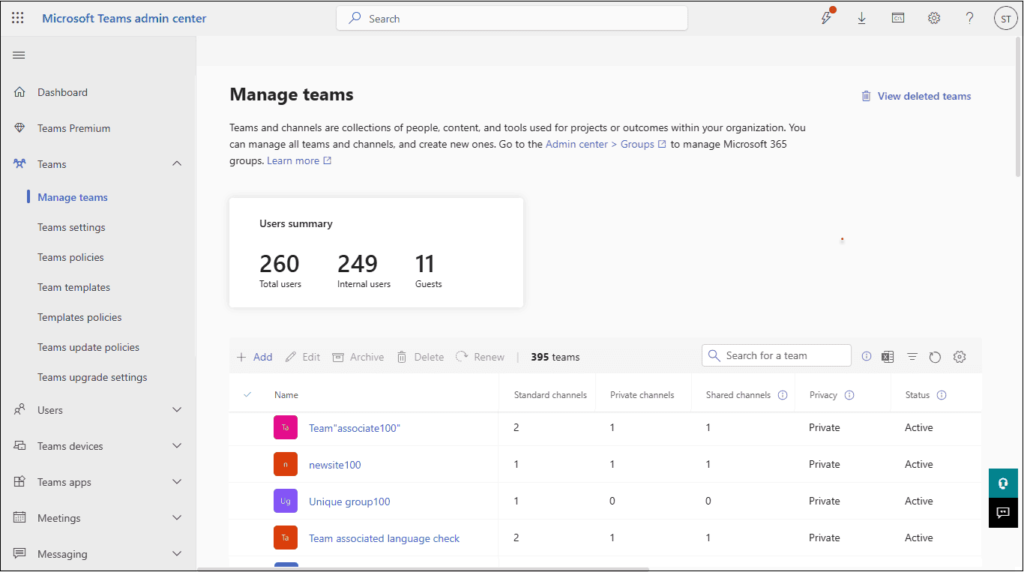
Under Teams > Manage teams, you get a complete list of all teams in the tenant.
Think of this page as your directory of collaboration spaces.
From each team page, you can:
- Adjust owners, members, and guests
- Switch privacy between public and private
- Review channels and remove unused ones
- Change basic team settings and permissions
It also provides a summary of the Total users along with count of internal users and Guests. You can also perform the below operations:
📌 For more details on Manage Teams: Manage teams in Microsoft Teams admin center
User Management in Microsoft Teams
Within the Users section, administrators can
- Assign Teams licenses
- Enforce policies
- Manage user-level meeting and messaging permissions
- Reset configurations
- Troubleshoot call or device issues.
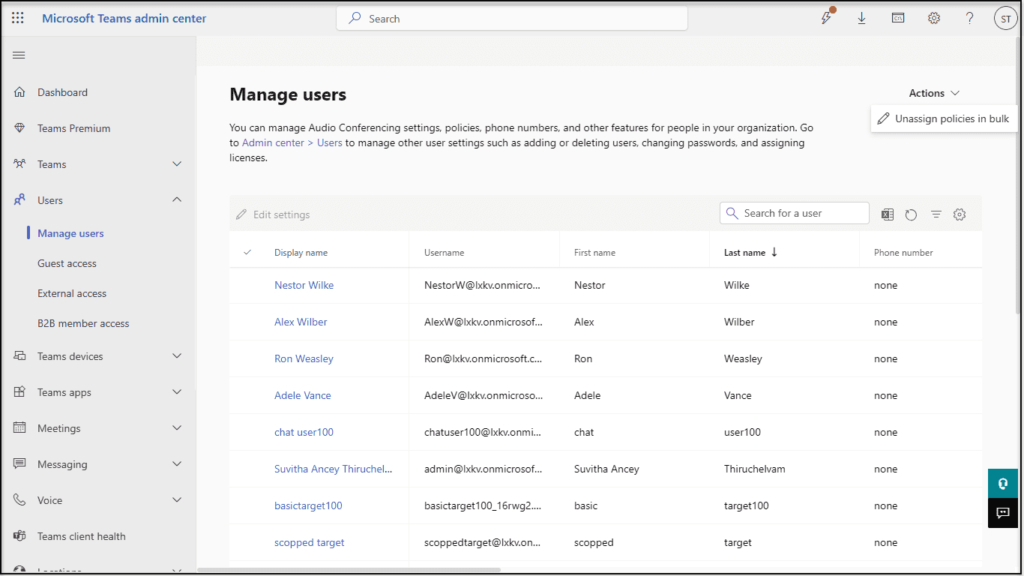
This centralized Teams user management ensures that each Team admin has the correct access, security level, and collaboration capabilities based on their role.
Configuring Meeting Policies
The Teams Admin Center gives you fine-grained control over Teams meeting policies, such as
- Screen sharing permissions
- Recording rights
- Lobby controls
- Participant roles
- Anonymous access
- Video settings
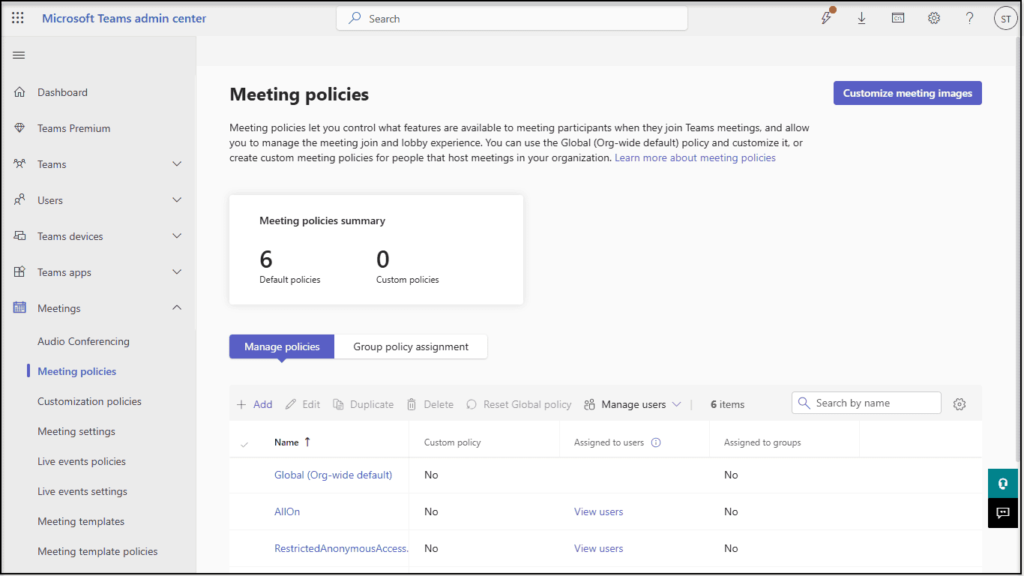
These controls help organizations enforce secure and compliant meeting governance across all departments.
Managing Messaging Policies
Messaging policies define what users can do in chat and channels—such as
- Enabling or disabling GIFs
- Manage Custom Emojis
- File sharing
- Read receipts
- Priority notifications
- External communication
These settings help maintain professional communication standards and protect the organization from unwanted data exposure.
App Permissions and Governance
The Office 365 Teams Apps section allows administrators to control access to third-party apps, custom apps, and Microsoft apps. Admins can perform the below operations:
- Allow or block apps
- Manage permission policies
- View app usage analytics

Strong Teams app governance ensures that only secure, approved applications are available to users.
Voice & Calling Features
For organizations using Teams Phone, the Admin Center supports management of phone numbers, calling plans, call queues, auto attendants, voicemail settings, and device configurations. These tools transform Teams into a fully featured cloud-based business phone system.
Security, Compliance & Access Controls
Microsoft 365 Teams integrates deeply with the broader Microsoft 365 security and compliance framework, enabling administrators to enforce conditional access, multi-factor authentication, data loss prevention (DLP), and retention labels. These capabilities help maintain Teams data security, protect sensitive information, and meet compliance standards.
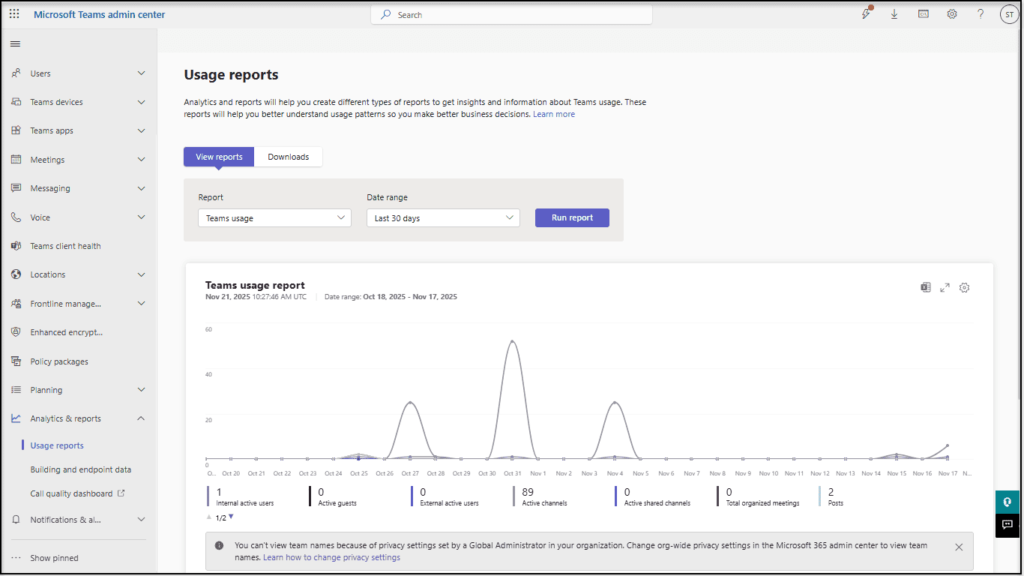
Analytics & Reporting
The Admin Center includes powerful dashboards for monitoring Teams usage, device health, call quality, user activity, and adoption trends. These analytics help IT admins troubleshoot performance issues and drive Teams adoption and optimization.
Teams Premium in the Microsoft Teams Admin Center
Once Teams Premium licenses are assigned, admins will see additional configuration options throughout the Microsoft Teams Admin Center, including:
- Meeting templates with advanced controls
- Intelligent meeting features such as AI-generated summaries
- Advanced meeting protection including watermarking and end-to-end encryption
- Premium webinar settings
- Advanced virtual appointment management
- Custom branding options for meetings
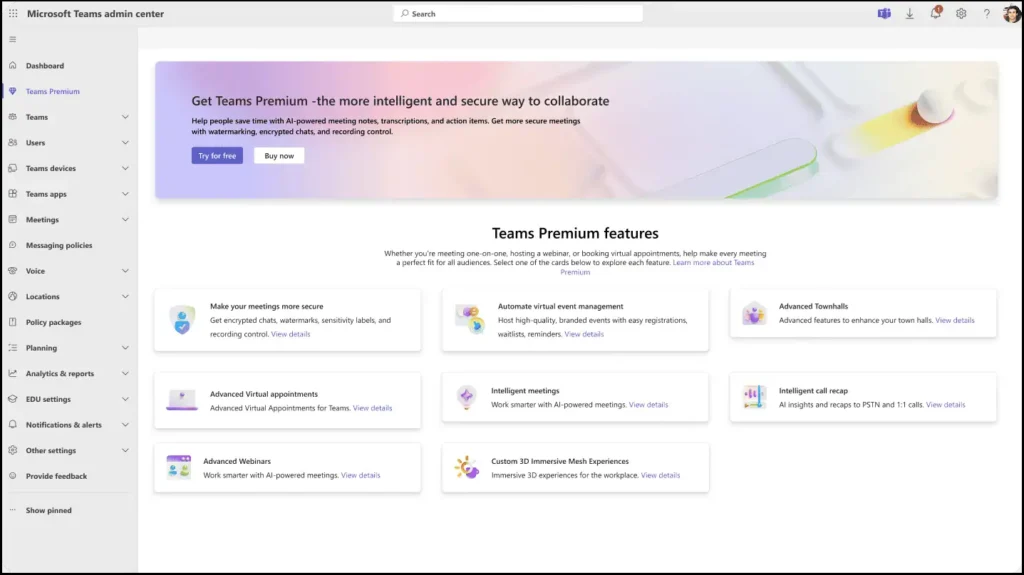
Image Courtesy: Manage Teams Premium for your organization
These extended management features ensure admins can enforce consistent Microsoft Teams governance and maintain security, especially in regulated industries.
Governance Best Practices for IT Admins
Governance can feel complex, but you can make progress by tackling it in layers: roles, creation rules, access, apps, lifecycle, and compliance. Start small, document decisions, and improve them over time instead of trying to build the perfect model on day one.
Plan admin roles and responsibilities
Clear roles make collaboration changes predictable rather than surprising.
Good patterns include:
- Use a dedicated Teams admin role for daily configuration
- Assign communications admins for voice and meetings
- Keep Global admin accounts limited and well protected
- Document who can change policies and how requests are approved
When someone new joins the admin team, share this map of responsibilities so they know where their scope starts and ends.
Define team creation and naming standards
Without standards, you will quickly see similar teams with slightly different names and no clear owners.
To avoid that:
- Create simple naming patterns for project, department, and external teams
- Use Teams templates so new teams start with the right channels and tabs
- Decide whether anyone can create teams or if creation goes through a request path
- Apply sensitivity labels for data that needs extra protection
You can refine these rules as the organization’s structure changes, but keep the core principles consistent.
Manage external and guest access safely
External and guest access bring collaboration value, but they also widen your risk surface.
Practical steps:
- Enable guest access only for scenarios where it is genuinely needed
- Limit guest permissions and avoid giving them owner rights
- Use meeting policies that control what guests can share or record
- Combine Teams guest settings with identity and group rules
Schedule periodic reviews of high‑sensitivity teams to confirm guest lists still make sense.
Control apps and integrations
Apps can be productivity boosters or compliance headaches depending on how they are managed.
Good app hygiene:
- Maintain a shortlist of approved apps and document why they are allowed
- Use different app permission policies for standard users vs power users
- Check reports for rarely used apps and consider removing them
- Put custom apps through security and privacy reviews before broad deployment
This approach keeps the app catalog helpful without turning into a cluttered marketplace.
Secure meetings and messaging
Meetings and chats are where your users share the most day‑to‑day context, including sensitive information.
Security‑focused habits:
- Configure meeting templates or policies that match typical scenarios, like internal workshops vs external vendor calls
- Use lobby controls and presenter rules to avoid surprises during important meetings
- Limit who can record and decide carefully where those recordings are stored
- Combine Teams messaging with data loss prevention so sensitive patterns are flagged early
Explain the “why” behind these settings to users so they see them as helpful guardrails, not obstacles.
Implement lifecycle management for teams
Every team has a start, a middle, and an end, even if users forget the last part.
To stay ahead of sprawl:
- Review teams with little or no activity and decide whether to archive or keep them
- Archive teams when projects end instead of leaving them active forever
- Use expiration or review policies for Microsoft 365 groups behind teams
- Keep a simple playbook for project owners that explains what happens when work is complete
Lifecycle rules help you keep your tenant tidy and reduce long‑term data exposure.
Complement admin capabilities with compliance, DLP and auditing
Compliance features turn governance from a policy document into something you can actually enforce and verify. Leverage the compliance capabilities from Microsoft 365’s Purview and Compliance portals to further align Teams data.
Core steps:
- Set up data loss prevention policies for common sensitive data types
- Use retention policies and labels for chat, channels, and meeting content
- Run audit log searches when you need to investigate activity
- Align meeting recordings, transcripts, and AI recap behavior with your legal and regulatory requirements
Work with your security and compliance teams here; they can help define what “good” looks like for your industry.
Final Thoughts
The Microsoft Teams Admin Center is essential for managing every aspect of Teams – from daily collaboration controls to long-term governance and security. By understanding how to use this powerful admin portal, organizations can ensure smooth communication, strong security, consistent policies, and optimized productivity across Microsoft 365.
Further reading with Apps4.Pro
Pair this guide with related security and privacy Apps4.Pro resources to build your complete Teams governance playbook.
- Microsoft Teams Privacy Settings & Security Guide for Admins – deep dive into privacy controls, guest access, lobby settings, and sensitivity labels for secure Teams collaboration.
- Microsoft Teams Permissions, Roles & Guest Access: Full Guide – explains owner/member/guest roles, permission models, and how to safely configure and review guest access.
- Microsoft Teams Private Channel Governance Security Checklist – checklist style guidance for securing and governing private channels (ownership, membership, and compliance).
- Microsoft Teams Lifecycle Management for Better Governance – focuses on lifecycle rules, handling inactive teams, archiving, and controlling Teams sprawl.
- Microsoft 365 Security Best Practices Admin Checklist 2026 – broader Microsoft 365 security checklist that complements Teams governance (identity, devices, sharing, and tenant security).
- Microsoft 365 Groups: Everything You Need to Know – explains how Microsoft 365 Groups underpin Teams, access, and governance decisions.
Frequently Asked Questions
The Microsoft Teams Admin Center is a centralized portal that allows IT administrators to manage Teams settings, users, meetings, messaging, apps, and security policies across their Microsoft 365 environment. It serves as the primary hub for Teams governance and compliance management.
















