


- Introduction
- What are Microsoft 365 Groups?
- Why Microsoft Groups Matter
- How Microsoft Groups Work Across Microsoft 365
- Managing your Groups with Microsoft Teams
- Microsoft Group Lifecycle Explained
- Microsoft 365 Group Expiration Policies
- Security and Compliance for Microsoft Groups
- Conclusion
- Frequently Asked Questions
Introduction
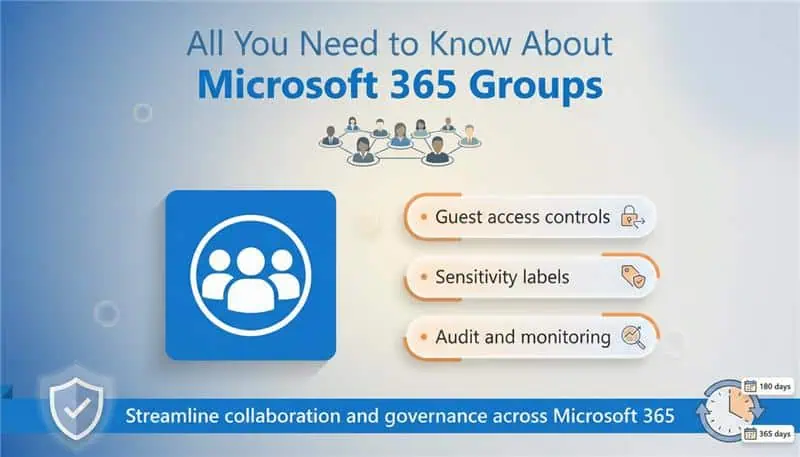
Microsoft Groups-officially called Microsoft 365 Groups-are the backbone of collaboration across Microsoft 365. Whether you’re using Microsoft Teams, Outlook, SharePoint Online, Microsoft Planner, or OneDrive, Microsoft Groups ensure users can work together seamlessly with shared access to conversations, files, calendars, and tasks.
In this guide, you’ll learn what Microsoft Groups are, how they work, how to manage them using Microsoft Teams, and how Group Lifecycle management helps organizations maintain control, security, and compliance.
What are Microsoft 365 Groups?
A Microsoft 365 Group is a unified membership service that defines who can access shared Microsoft 365 resources. When a group is created, Microsoft automatically provisions a set of connected services for collaboration.
A Microsoft Group typically includes:
- A shared Outlook inbox and calendar
- A SharePoint Online team site
- A document library for file storage
- Microsoft Planner for task management
- OneNote for shared notes
- Optional integration with Microsoft Teams
This centralized model eliminates the need to manage permissions separately for each service.
Why Microsoft Groups Matter
Microsoft Groups simplify collaboration while improving governance and security.
Key benefits of Microsoft 365 Groups:
- Centralized user and access management
- Consistent permissions across Microsoft 365 apps
- Faster team collaboration and onboarding
- Reduced administrative overhead
- Better compliance and lifecycle control
How Microsoft Groups Work Across Microsoft 365
Microsoft 365 Groups act as a unified identity layer that automatically manages access, permissions, and collaboration across Microsoft Teams, SharePoint Online, Outlook, Microsoft Planner, and Microsoft OneDrive for business.
Let’s take a closer look at how Microsoft 365 Groups power collaboration across Microsoft 365.
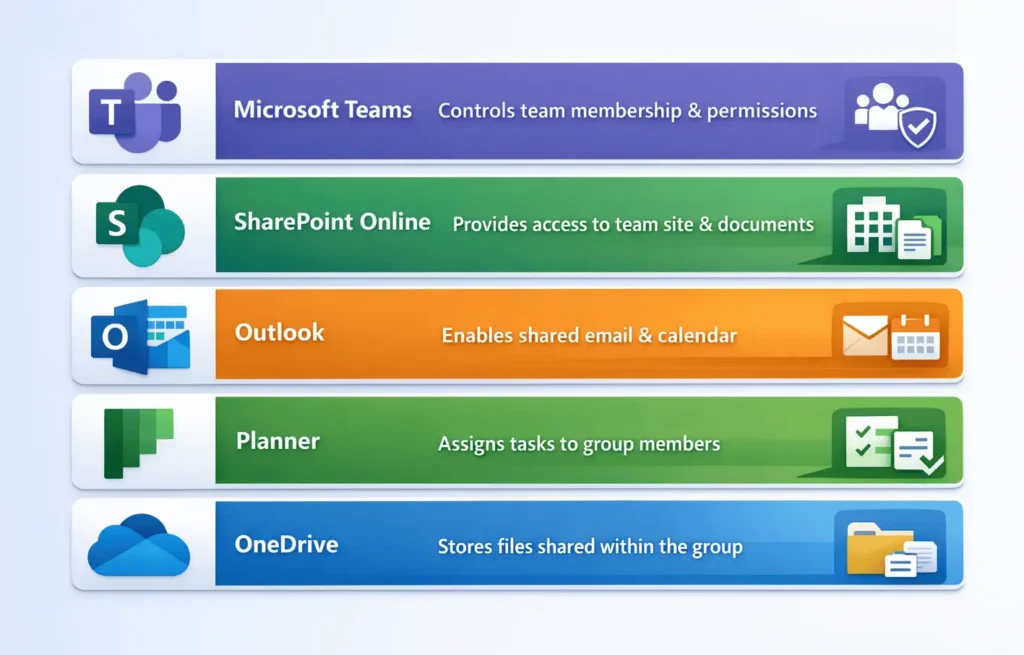
Once a user is added or removed from a group, access updates automatically across all connected services.
Managing your Groups with Microsoft Teams
Microsoft Teams is one of the most common ways users interact with Microsoft Groups, even if they don’t realize it.
📌When you create a Team in Microsoft Teams, a Microsoft 365 Group is created automatically in the background.
What M365 Teams lets you manage?
- Add or remove group members and owners
- Control guest access
- Manage channels and conversations
- Access group files stored in SharePoint Online
- Collaborate in real time using chats and meetings
Best practices for managing groups in Microsoft 365 Teams
- Always assign at least two owners to a team
- Review guest access periodically
- Use naming conventions for Teams and Groups
- Archive inactive Teams instead of deleting them immediately
Teams makes Microsoft Group management intuitive while maintaining consistent governance behind the scenes.
Microsoft Group Lifecycle Explained
Without lifecycle controls, organizations can quickly end up with hundreds of unused or orphaned groups. This is where Group Lifecycle Management becomes essential.
What is Group Lifecycle Management?
Group Lifecycle Management defines how groups are created, used, reviewed, expired, archived, and deleted over time.
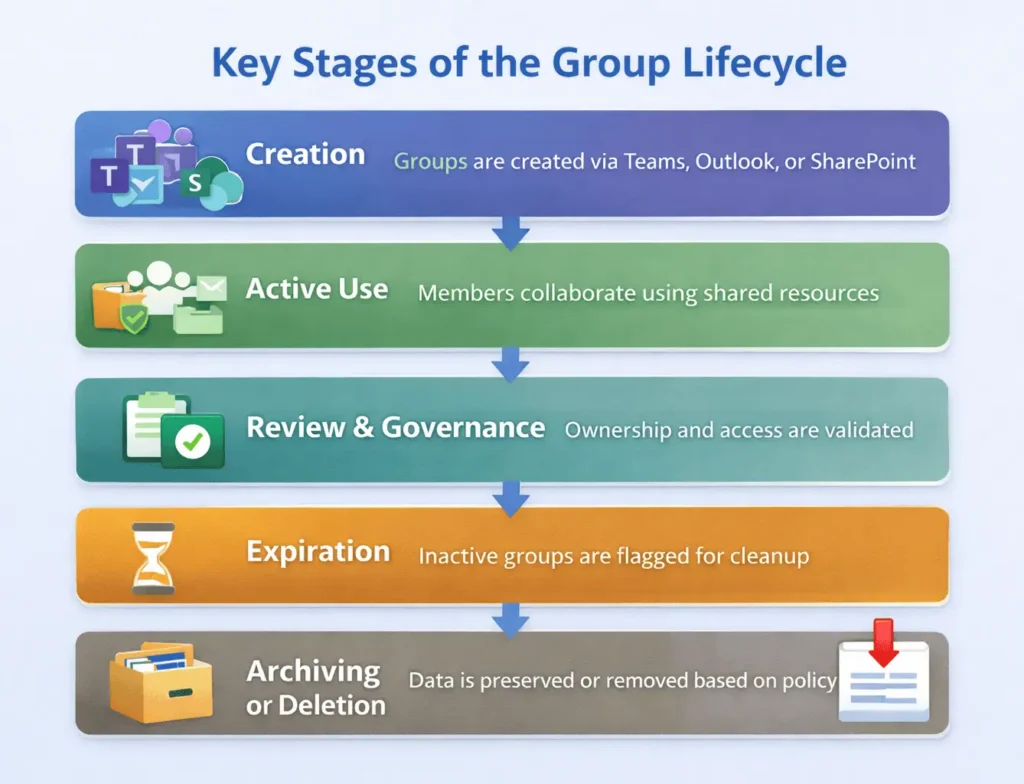
Microsoft 365 Group Expiration Policies
Microsoft Entra ID (Azure AD) allows admins to configure group expiration policies to automatically clean up inactive groups.
How expiration works:
- Groups expire after a defined period (e.g., 180 or 365 days)
- Group owners receive renewal notifications
- Renewed groups stay active
- Unrenewed groups are soft-deleted and recoverable for up to 30 days after the deletion date
Benefits of group expiration:
- Prevents unused Microsoft Teams and Groups
- Reduces storage sprawl in SharePoint Online
- Improves security and compliance
- Keeps Microsoft 365 environment clean and manageable
Security and Compliance for Microsoft Groups
Microsoft Groups integrate with Microsoft 365 security and compliance features.
Built-in security capabilities:
- Role-based access (Owners vs Members)
- Guest access controls
- Sensitivity labels for classification
- Conditional access policies
- Audit logs and activity tracking
Using Microsoft Purview, organizations can further enforce data protection and compliance requirements across group-connected workloads.
Conclusion
Microsoft 365 Groups are the foundation of collaboration across Microsoft 365. When combined with Microsoft Teams for day-to-day management and Group Lifecycle policies for governance, organizations gain a secure, scalable, and well-organized collaboration environment.
By understanding how Microsoft Groups work and applying best practices, you can reduce sprawl, improve security, and ensure your Microsoft 365 tenant remains efficient and compliant.
















