


Introduction
SharePoint Online continues to be a cornerstone of Microsoft 365 collaboration in 2026. With smarter integrations, better performance, and a modern user experience, it has evolved far beyond a simple document storage platform.
Whether you’re new to SharePoint Online or just getting started with Microsoft 365, this beginner-friendly guide will help you understand how to use SharePoint Online effectively-along with practical tips and best practices.
What Is SharePoint Online?
SharePoint Online is a cloud-based collaboration and content management platform in Microsoft 365. It allows organizations to store, organize, share, and manage information securely from anywhere.
They employ themselves mainly in:
- Document management and version control
- Team collaboration and intranet portals
- Business process automation
- Secure information sharing
In 2026, SharePoint Online is deeply integrated with Microsoft Teams, OneDrive for business, Power Automate (Flow), Viva Engage (Yammer), and Microsoft Copilot, making it a central hub for digital workspaces.
Tips for Beginners in 2026
Getting Started: Accessing Microsoft SharePoint Online
You can access SharePoint Online by:
- Visiting Microsoft 365 App Launcher → SharePoint Online
- Opening a SharePoint site directly from Microsoft Teams
- Navigating via a shared M365 SharePoint site URL
Each user typically works with multiple sites depending on their role such as:
Understanding Microsoft SharePoint Sites
Team Site vs Communication Site
1. Team Site
A SharePoint Team Site is a collaborative workspace where teams can work together on files, tasks, and conversations in real time.
Best for Project teams, departments, and daily collaboration within Microsoft 365.
Key features include:
- Shared document libraries
- Microsoft Teams integration
- Group-based permissions
- Co-authoring
- Activity updates
2. Communication Site
A SharePoint Communication Site is designed for one-to-many communication. It’s ideal when a small group publishes content for a broader audience.
Best for:
- Company intranet homepages
- Departmental announcements
- Policies, news, and leadership updates
Key features:
- Visually rich layouts
- News publishing and page authoring
- Read-only experience for most users
💡 Tip: Use communication sites for structured content that doesn’t require frequent collaboration.
SharePoint Hub Site vs Site Collection
A SharePoint Hub Site connects related sites with shared navigation and content for a modern intranet experience, while a Office 365 SharePoint Site Collection is an administrative boundary.
SharePoint Hub Site
A SharePoint Hub Site is a modern way to connect multiple related sites without restructuring them.
Hub Site advantages:
- Centralized navigation
- Aggregated news and search
- Flexible site association
SharePoint Site Collection
A site collection is a group of SharePoint sites that share:
- A common URL structure
- Storage limits
- Permissions and features
Historically, site collections were used to manage content boundaries and governance.
Hub Site vs Site Collection (Quick Comparison):
| Feature | Hub Site | Site Collection |
| Purpose | Connect related sites | Administrative boundary |
| Navigation | Shared across sites | Limited to collection |
| Flexibility | High | Low |
| Modern Experience | Yes | Yes |
💡 Best Practice: In 2026, Microsoft recommends using hub sites for intranet architecture instead of complex site collection hierarchies.
Core Features of SharePoint Online in 2026
Document Libraries
Microsoft 365 SharePoint Document Libraries securely store, organize, and co-author files with version control and permissions. They exhibit features such as:
- Version history and file recovery
- Real-time co-authoring
- Sensitivity labels and retention policies
Microsoft SharePoint Lists
SharePoint Lists help track and manage structured data with filters, views, and automation—without using spreadsheets. They exhibit features such as:
- Track business data without spreadsheets
- Integrate with Power Automate (Flow)
- Avoid the SharePoint list limit by indexing columns
Pages and Web Parts
SharePoint Pages and Web Parts let you build rich, interactive pages by combining text, media, and dynamic Microsoft 365 content. They exhibit features such as:
Best Practices for Using SharePoint Online
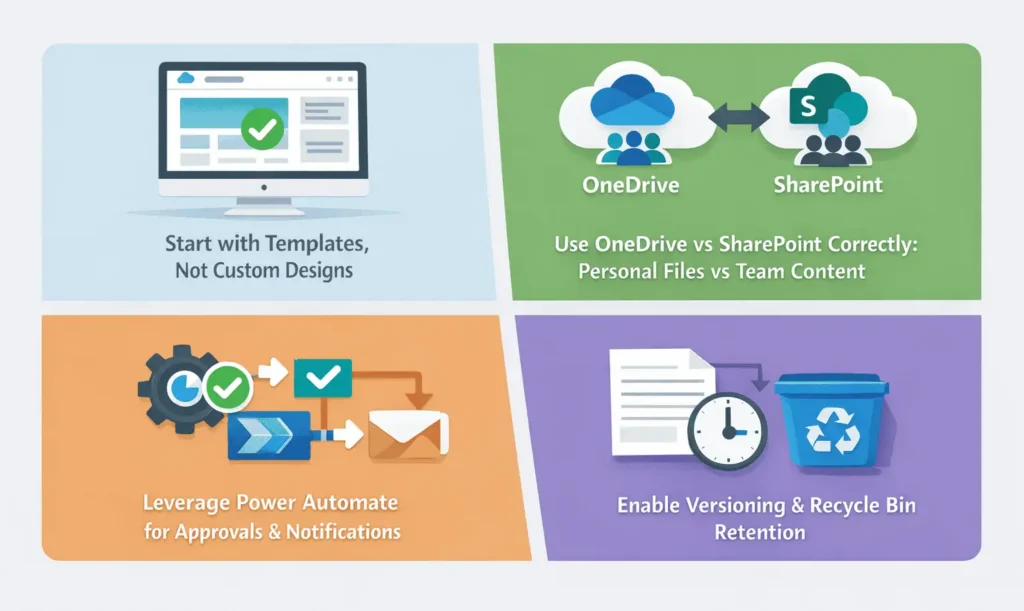
1. Plan Your Site Structure: Use hub sites for departments and avoid creating too many standalone sites.
2. Follow Naming Conventions: Consistent naming improves governance and search discoverability.
3. Manage Permissions Carefully: Prefer Microsoft 365 groups and avoid breaking inheritance unless required.
4. Monitor Site Usage in SharePoint: Use site usage SharePoint reports to:
- Identify inactive sites
- Optimize storage
- Plan site archiving
5. Stay Within SharePoint Thresholds: Be mindful of the SharePoint threshold (5,000 items per view) and use indexed columns and filtered views.
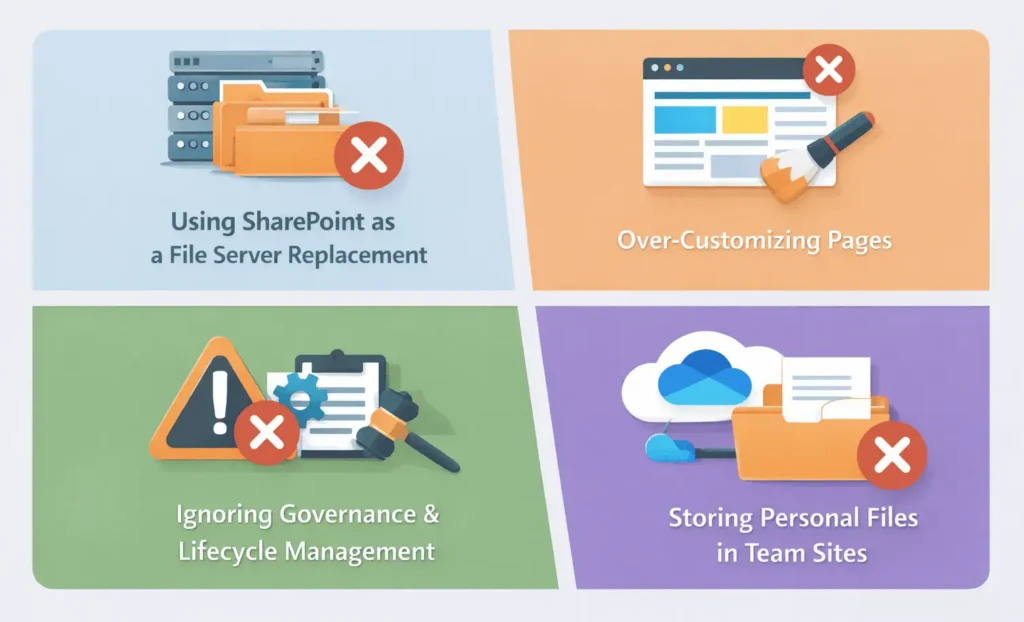
Common Mistakes to Avoid
Final Thoughts
SharePoint Online in 2026 is more powerful, flexible, and user-friendly than ever. By understanding site types, using hub sites effectively, and following Microsoft SharePoint best practices, beginners can quickly build secure, scalable, and engaging digital workplaces.
When used correctly, SharePoint Online becomes not just a tool—but the foundation of your organization’s collaboration strategy.
















