


Introduction
As Microsoft Teams becomes the central hub for collaboration in Microsoft 365, organizations often face a familiar challenge: Teams sprawl. Without proper controls, hundreds – or even thousands – of Teams can be created, left unused, or mismanaged, leading to security risks, compliance gaps, and administrative chaos.
This is where Microsoft Teams Lifecycle Management plays a critical role. By governing how Teams are created, used, maintained, and retired, organizations can significantly improve collaboration governance while maintaining security and compliance.
In this article, we’ll explore how Microsoft Teams lifecycle management improves governance, best practices, and how to handle inactive Teams effectively.
What Is Microsoft Teams Lifecycle Management?
Microsoft Teams Lifecycle Management refers to the structured process of managing a Team from its creation to archival or deletion. It ensures that every Team aligns with business purpose, compliance policies, and security standards throughout its lifecycle.
A typical MS Teams lifecycle includes:
- Team creation and provisioning
- Active usage and collaboration
- Monitoring and governance
- Inactive Teams management
- Archival and deletion
When lifecycle management is enforced properly, Teams remains organized, secure, and compliant.
Why Governance Matters in Microsoft Teams
Governance in Microsoft Teams is about controlling access, protecting data, and ensuring compliance without restricting productivity.
Without governance:
- Duplicate or unused Teams accumulate
- Sensitive data may be exposed
- Compliance requirements may be violated
- IT overhead increases
Teams’ lifecycle management provides governance guardrails while allowing users to collaborate efficiently.
How Microsoft Teams Lifecycle Management Improves Governance
1. Controlled Team Creation and Naming Standards
Lifecycle management enables administrators to:
- Restrict who can create Teams via Entra Admin center
- Use approved templates for consistency
- Enforce naming conventions (department, project, region)
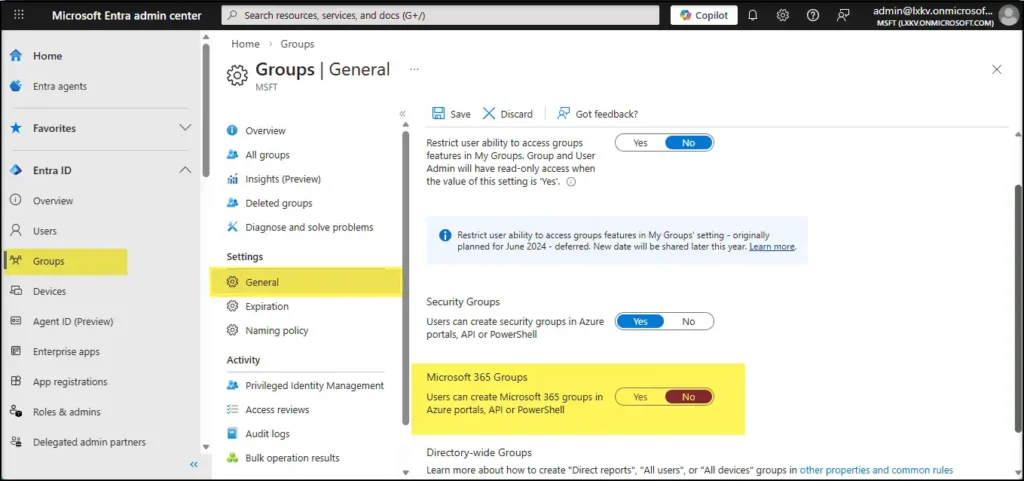
Governance Benefit:
Prevents Teams sprawl, improves discoverability, and ensures accountability from day one.
2. Automated Provisioning with Compliance in Mind
Using tools like Microsoft Entra ID (Azure AD), Power Automate workflows, or third-party governance solutions, Teams can be provisioned automatically with:
- Predefined owners and members
- Sensitivity labels
- Data loss prevention (DLP) policies
- Retention settings
Governance Benefit:
Ensures every Microsoft Team meets security and compliance requirements at creation.
3. Ownership and Access Governance
Teams Lifecycle management enforces consistent ownership and access controls to maintain secure and well-governed Microsoft Teams environments:
- Ensures every Team has at least two active owners to maintain accountability and business continuity
- Implements periodic reviews of guest access to validate ongoing collaboration needs
- Aligns Team membership with current business requirements, removing inactive or unnecessary users
Governance Benefit:
- Reduces the risk of orphaned Teams
- Prevents unauthorized access to sensitive data
- Strengthens overall security and compliance posture
4. Inactive Teams Management (Key Governance Area)
One of the biggest governance challenges in Microsoft Teams is management of inactive or abandoned Teams.
What Are Inactive Teams?
Inactive Teams are Teams that:
- Have no recent user activity
- No file updates or meetings
- No active owners
These Teams often store sensitive data and remain accessible long after their business purpose ends.
How Lifecycle Management Handles Inactive Teams
Lifecycle management can be automated using a Teams Group Expiration Policy, which helps organizations automatically identify and clean up unused Microsoft Teams backed by Microsoft 365 Groups. This policy ensures that inactive Teams do not remain in the tenant indefinitely and prompts owners to review and renew Teams when needed.
Microsoft Teams lifecycle management enables organizations to:
1. Identify Inactive Teams
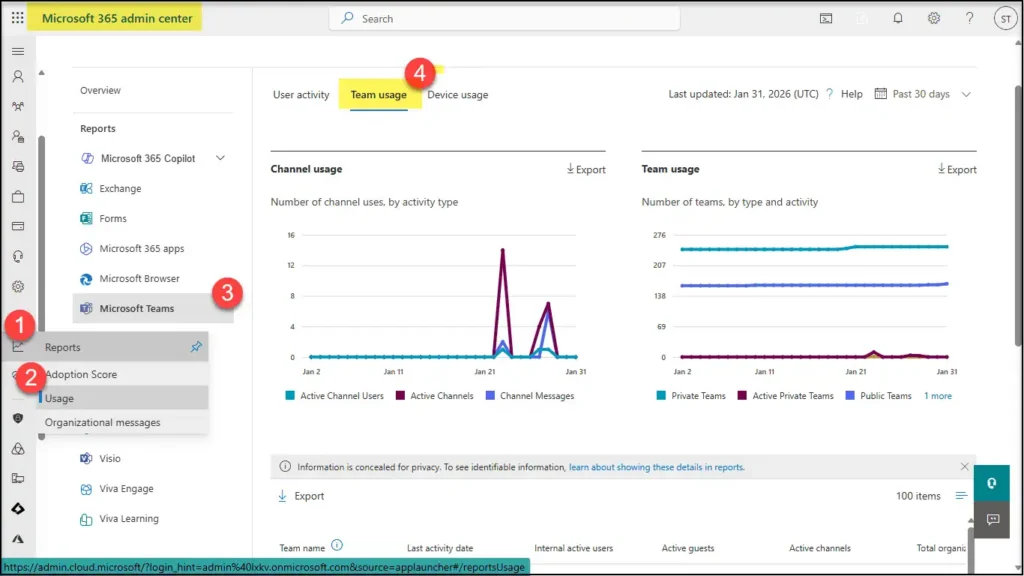
Using Microsoft 365 usage reports and audit logs, admins can detect Teams with:
- No activity for 90, 180, or 365 days
- No active owners
Teams Usage Report in Microsoft 365 Admin Center
2. Automated Notifications
Owners receive automated reminders to:
- Confirm whether the Team is still needed
- Take action (keep, archive, or delete)
3. Archive Inactive Teams
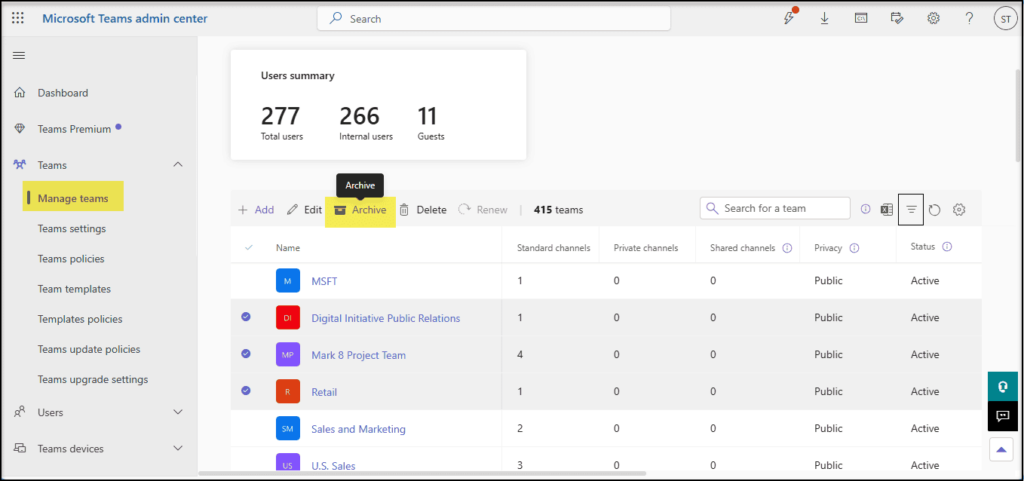
If a Team is no longer active but must be retained, it is good practice to archive those teams. When the inactive teams are archived, their
- Conversations become read-only
- Files remain accessible
- Compliance and retention policies remain intact
Archive Teams from Teams Admin Center
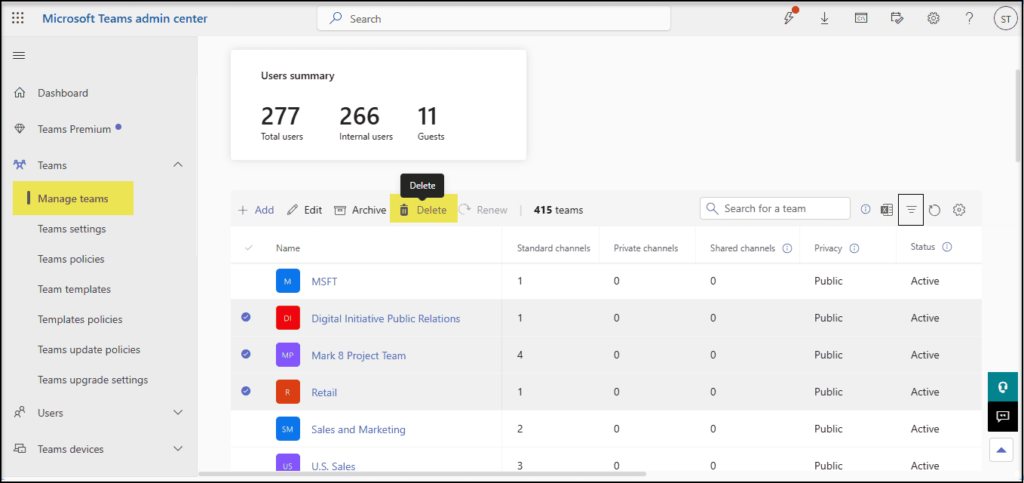
4. Delete Obsolete Teams
Teams with no business value can be:
- Soft-deleted
- Permanently removed after retention periods
Delete Teams from Teams Admin Center
Governance Benefit:
Reduces clutter, minimizes security risks, and ensures compliance with data retention policies.
5. Retention, Archival, and eDiscovery Support
Lifecycle management integrates with:
- Microsoft Purview retention policies
- Legal hold and eDiscovery
- Audit logging
Governance Benefit:
Ensures Teams content is preserved or deleted according to regulatory and legal requirements.
6. Improved Visibility and Reporting
With lifecycle management in place, administrators gain:
- Clear visibility into active vs inactive Teams
- Ownership and guest access insights
- Policy compliance reports
Governance Benefit:
Better decision-making and easier audits.
Best Practices for Inactive Teams Governance
- Define inactivity thresholds (e.g., 180 days)
- Automate owner reviews
- Archive before deletion
- Align deletion timelines with compliance rules
5. Retention, Archival, and eDiscovery Support
Teams Lifecycle management integrates with:
- Microsoft Purview retention policies
- Legal hold and eDiscovery
- Audit logging
Governance Benefit:
Ensures Teams content is preserved or deleted according to regulatory and legal requirements.
6. Improved Visibility and Reporting
With lifecycle management in place, administrators gain:
- Clear visibility into active vs inactive Teams
- Ownership and guest access insights
- Policy compliance reports
Governance Benefit:
Better decision-making and easier audits.
Microsoft Tools Supporting Teams Lifecycle Management
Microsoft provides native tools to support Teams governance:
- Microsoft Teams Admin Center
- Microsoft Purview
- Entra ID (Azure AD)
- Microsoft 365 Usage Analytics
- Power Automate for workflow automation
Organizations may also use third-party tools for advanced lifecycle automation.
Conclusion
Microsoft Teams Lifecycle Management is no longer optional—it’s essential for effective governance. By managing Teams from creation through inactivity and retirement, organizations can maintain a secure, compliant, and well-organized collaboration environment.
With strong policies for inactive Teams management, automated workflows, and compliance integration, Teams becomes a strategic asset rather than a governance challenge.
Frequently Asked Questions
The stages in Microsoft Teams’ Lifecycle includes creation, active usage, review, archiving, and deletion.
It ensures Teams are properly managed from start to end to avoid sprawl and security issues.
















