



Introduction
In today’s fast-paced digital workplace, efficiency is everything. Microsoft Power Automate empowers organizations to automate repetitive tasks, streamline approvals, and integrate apps across Microsoft 365-without writing complex code. From HR onboarding to document approvals and real-time alerts, Power Automate helps teams work smarter, not harder.
In this article, we explore the best Power Automate (Flow) examples for Microsoft 365 that can significantly simplify your daily work, improve collaboration, and boost productivity.
- What Is Microsoft Power Automate?
- Power Automate (Microsoft Flow) Examples for Microsoft 365
- a. Automated Time Tracking and Productivity Monitoring with Microsoft Power Automate
- b. Approval Workflows for Documents and Requests
- c. Automated File Management in OneDrive for business and SharePoint Online
- d. Automated Social Media Management (Facebook, Twitter, and LinkedIn)
- e. Improving Customer Service Workflows with Microsoft Power Automate
- f. Teams Notifications for Business Events
- g. Automated Email Notifications from SharePoint Lists
- h. Automated Test Management with Planner Tasks
- i. Automated Data Collection and Reporting with Microsoft Power Automate
- j. Automated Employee Onboarding
- Best Practices for Using Power Automate in Microsoft 365
- Conclusion
- Frequently Asked Questions
What Is Microsoft Power Automate?
Microsoft Power Automate is a cloud-based automation service within the Microsoft Power Platform that allows users to create automated workflows between applications and services. It integrates seamlessly with Microsoft 365 apps such as SharePoint Online, Outlook, Teams, OneDrive, Excel, and Forms.
Key Benefits of Power Automate
- Automates repetitive manual tasks
- Improves accuracy and consistency
- Enhances collaboration across teams
- Saves time and operational costs
- Requires little to no coding knowledge
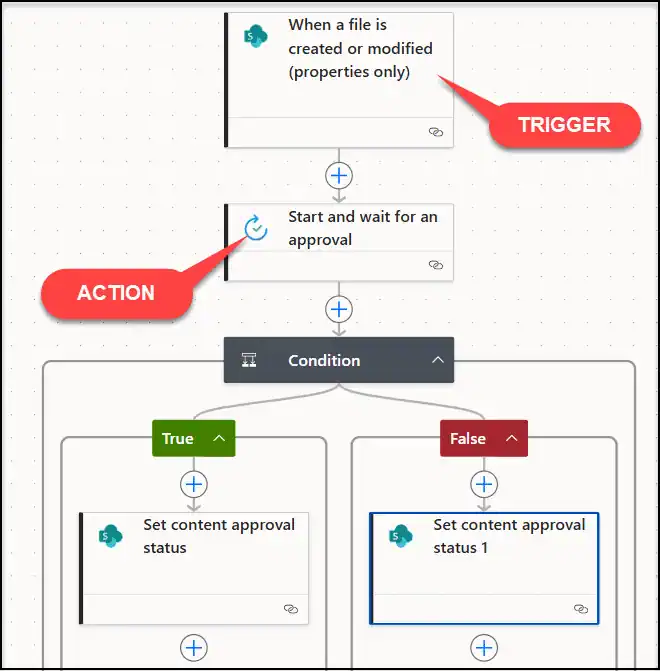
A workflow has two main parts:
Trigger: An event that starts a Microsoft Power Automate flow, such as a new item, email, or form submission.
Action: A step the flow performs after it starts, like sending an email, updating data, or creating a task.
A sample Workflow
Power Automate (Microsoft Flow) Examples for Microsoft 365
1. Automated Time Tracking and Productivity Monitoring with Microsoft Power Automate
Tracking employee time and productivity manually can be inconsistent and difficult to scale. Microsoft Power Automate enables automated time tracking and productivity monitoring by integrating Microsoft 365 tools, providing accurate insights into work patterns and performance.
Example Scenario
- Collect daily or weekly time entries using Microsoft Forms
- Store time-tracking data in SharePoint Online or Excel Online
- Send automated reminders to employees to submit timesheets
- Generate productivity summaries and notify managers
How It Works
- Employees submit time entries through Microsoft Forms
- Power Automate validates and stores data in SharePoint or Excel
- Reminder emails are sent automatically for missing entries
- Productivity reports are generated using Power BI
- Summary notifications are shared via Microsoft Teams or Outlook
2. Approval Workflows for Documents and Requests
Power Automate makes approval workflows simple and consistent across Microsoft 365.
Example Scenario
- Document approval in SharePoint Online libraries
- Leave or expense approvals via Microsoft Forms
- Policy or contract approvals using Teams
Why It Helps
3. Automated File Management in OneDrive for business and SharePoint Online
Managing files manually can be time-consuming. Power Automate can organize and control documents automatically.
Example Scenario
- Automatically move files to specific folders based on metadata or file type
- Rename files according to a standardized naming convention
- Archive or delete files after a set retention period
- Notify teams when files are added or moved
How It Works
- A new file is uploaded to Microsoft OneDrive or SharePoint
- Power Automate triggers based on file properties (e.g., file type, metadata)
- Files are moved or renamed automatically
- Notifications are sent via Microsoft Teams or Outlook (optional)
Why It Helps
- Keeps document libraries organized and consistent
- Saves time by reducing manual file handling
- Supports compliance with document retention policies
- Improves team awareness of file changes
4. Automated Social Media Management (Facebook, Twitter, and LinkedIn)
Managing multiple social media platforms manually can be time-consuming and error-prone. Microsoft Power Automate helps automate social media publishing, monitoring, and notifications by connecting Microsoft 365 apps with platforms like Facebook, Twitter (X), and LinkedIn.
⚠️ Note: Social media automation capabilities depend on available connectors and organizational policies. LinkedIn automation typically supports notifications and monitoring rather than direct posting.
Example Scenario
- Automatically publish social media posts when a new Blog is published in the Portal / when a new product is launched
- Schedule posts based on approved marketing content
- Notify the marketing team in Microsoft Teams when a post is published or engagement thresholds are met
- Track social media post metadata in Microsoft 365 SharePoint or Excel
How It Works
- Marketing team publishes content to a Repository (post text, platform, publish date)
- Microsoft 365 Power Automate checks for approval status
- Approved content is posted to Facebook Pages, Twitter (X), or LinkedIn
- Confirmation or failure alerts are sent via Microsoft Outlook or Microsoft Teams
Why It Helps
- Centralizes social media content management
- Reduces manual posting errors
- Ensures brand consistency and approval compliance
- Saves time for marketing teams
5. Improving Customer Service Workflows with Microsoft Power Automate
Delivering fast and consistent customer support is critical for any organization. Microsoft Power Automate helps automate customer service workflows by connecting support channels with Microsoft 365 tools, ensuring quicker responses and better issue tracking.
Example Scenario
- Automatically create a support ticket when a customer submits a request via Microsoft Forms or email
- Assign tickets to support agents based on category or priority
- Notify agents instantly in Microsoft Teams
- Update ticket status in a SharePoint list or Excel tracker
How It Works
- A customer submits a support request through Microsoft Forms or sends an email to a shared mailbox
- Power Automate creates a ticket in a Microsoft SharePoint list
- The ticket is assigned to the appropriate support agent
- Notifications are sent via Microsoft Teams or Outlook
- Status updates are tracked automatically until resolution
6. Teams Notifications for Business Events
Power Automate can push critical updates directly into Microsoft Teams channels or chats.
Example Scenario
- Notify Teams when a new Microsoft SharePoint item is created
- Alert sales teams when a lead is added to CRM
- Inform IT teams when incidents are logged
Why It Helps
- Keeps teams informed in real time
- Reduces dependency on email
- Improves collaboration and response times
7. Automated Email Notifications from SharePoint Lists
One of the most common Power Automate use cases is sending automated email alerts when data changes in a SharePoint Online list.
Example Scenario
- Notify stakeholders when a new item is added or updated
- Alert managers when task status changes
- Send reminders before due dates
Why It Helps
- Eliminates manual follow-ups
- Ensures real-time communication
- Improves accountability
8. Automated Test Management with Planner Tasks
Managing testing activities manually can become complex, especially across multiple projects or teams. Microsoft Power Automate streamlines test management using Planner tasks by automatically creating, assigning, and tracking test activities within Microsoft 365.
Example Scenario
- Automatically create Planner tasks for test cases when a new release is planned
- Assign test tasks to QA members based on test type or module
- Update task status when test results are submitted
- Notify the team in Microsoft Teams when tests fail or are completed
How It Works
- A new release or test cycle is initiated in SharePoint Online or Microsoft Lists
- Power Automate creates corresponding tasks in Microsoft Planner
- Tasks are assigned to testers with due dates and priority
- Test results submitted through Microsoft Forms update task status
- Completion or failure alerts are sent via Microsoft Teams or Outlook
9. Automated Data Collection and Reporting with Microsoft Power Automate
Collecting data from multiple sources and turning it into meaningful reports can be time-consuming when done manually. Microsoft Power Automate simplifies data collection and reporting automation by integrating Microsoft 365 apps, ensuring accurate, real-time insights for decision-makers.
Example Scenario
- Collect data from Microsoft Forms, SharePoint lists, or Outlook emails
- Automatically store and normalize data in SharePoint or Excel Online
- Refresh reports and dashboards on a scheduled basis
- Notify stakeholders when reports are updated
How It Works
- Users submit data through Microsoft Forms or SharePoint lists
- Power Automate (Flow) captures and validates the data
- Data is stored in Excel Online or SharePoint Online
- Reports are refreshed automatically in Microsoft Power BI
- Summary notifications are sent via Outlook or Microsoft Teams
10. Automated Employee Onboarding
Employee onboarding involves multiple teams, tools, and steps, making it prone to delays when handled manually. Microsoft Power Automate simplifies automated employee onboarding by connecting HR systems with Microsoft 365 apps to deliver a consistent and efficient onboarding experience.
Example Scenario
- Trigger onboarding workflows when a new employee record is added
- Automatically create onboarding tasks for HR, IT, and managers
- Send welcome emails and policy documents to new hires
- Notify IT to provision access, devices, and licenses
- Track onboarding progress in SharePoint or Microsoft Lists
How It Works
- HR adds a new employee entry in Microsoft Forms, Excel, or SharePoint
- Power Automate triggers the onboarding flow
- Tasks are created in Microsoft Planner for HR and IT teams
- Welcome and instruction emails are sent via Outlook
- Progress updates and alerts are posted in Microsoft Teams
Best Practices for Using Power Automate in Microsoft 365
- Start with simple workflows and scale gradually
- Use descriptive flow names and documentation
- Apply error handling and notifications
- Leverage templates from Power Automate gallery
- Follow security and governance best practices
Conclusion
These best Power Automate examples for Microsoft 365 demonstrate how automation can eliminate repetitive tasks, enhance collaboration, and improve operational efficiency. Whether you’re an IT administrator, business user, or decision-maker, Power Automate offers endless opportunities to simplify work and drive productivity across your organization.
Start small, explore templates, and unlock the full potential of automation in Microsoft 365.
















