


Introduction
Modern collaboration has evolved far beyond internal teams. In 2026, organizations rely heavily on SharePoint Online External Sharing to work seamlessly with partners, vendors, clients, and contractors. Microsoft has strengthened its security, compliance, and governance capabilities, making external collaboration in Microsoft 365 both powerful and safe-when configured correctly.
This guide breaks down everything you need to know about how SharePoint External Sharing works in 2026, including configuration steps, governance controls, best practices, and Mapping Dropbox Or Google Drive Use Cases.
- What Is SharePoint External Sharing?
- External Sharing Methods Supported in 2026
- How to configure SharePoint External Sharing
- Password‑Protected Sharing In OneDrive And SharePoint
- When To Use Password‑Protected Links Versus Specific People Links
- Mapping Dropbox Or Google Drive Use Cases To Microsoft 365
- Additional Security Features That Make External Sharing Safer
- Best Practices for SharePoint External Sharing in 2026
- Frequently Asked Questions
What Is SharePoint External Sharing?
SharePoint External Sharing allows users to securely share sites, files, and folders with people outside your organization-without exposing sensitive content. With enhanced Microsoft 365 security and compliance, External Sharing has become one of the most widely used features in SharePoint Online.
External Sharing supports four major collaboration scenarios:
- Sharing with authenticated external users (guests)
- Sharing with Microsoft Entra B2B users
- Just-in-time (JIT) access with one-time passcodes
- Anonymous access links (if permitted by admins)
In 2026, these capabilities are tightly integrated with Microsoft Teams, Entra ID, SharePoint sharing policies, and Information Protection.
External Sharing Methods Supported in 2026
1. Sharing with Guest Users
Using Microsoft Entra B2B, SharePoint invites external users as guests. Guests gain personalized, authenticated access and can be managed through:
- Conditional Access
- Multi-Factor Authentication
- Access Reviews
- Entitlement Management
2. One-Time Passcode Authentication
If recipients don’t have a Microsoft account, they can still access content via one-time passcodes. This is ideal for clients or vendors without formal accounts.
3. Anonymous Sharing Links (If Enabled)
Share files or folders without requiring sign-in. In 2026, these links support:
- Expiration policies
- Offline revocation
- Document-level tracking
Anonymous links are powerful but should be used carefully, ideally limited to non‑sensitive content and controlled via governance policies and monitoring.
How to configure SharePoint External Sharing
To control collaboration at scale, SharePoint offers multiple layers of External Sharing settings. Understanding the hierarchy is essential for building a secure External Sharing strategy.
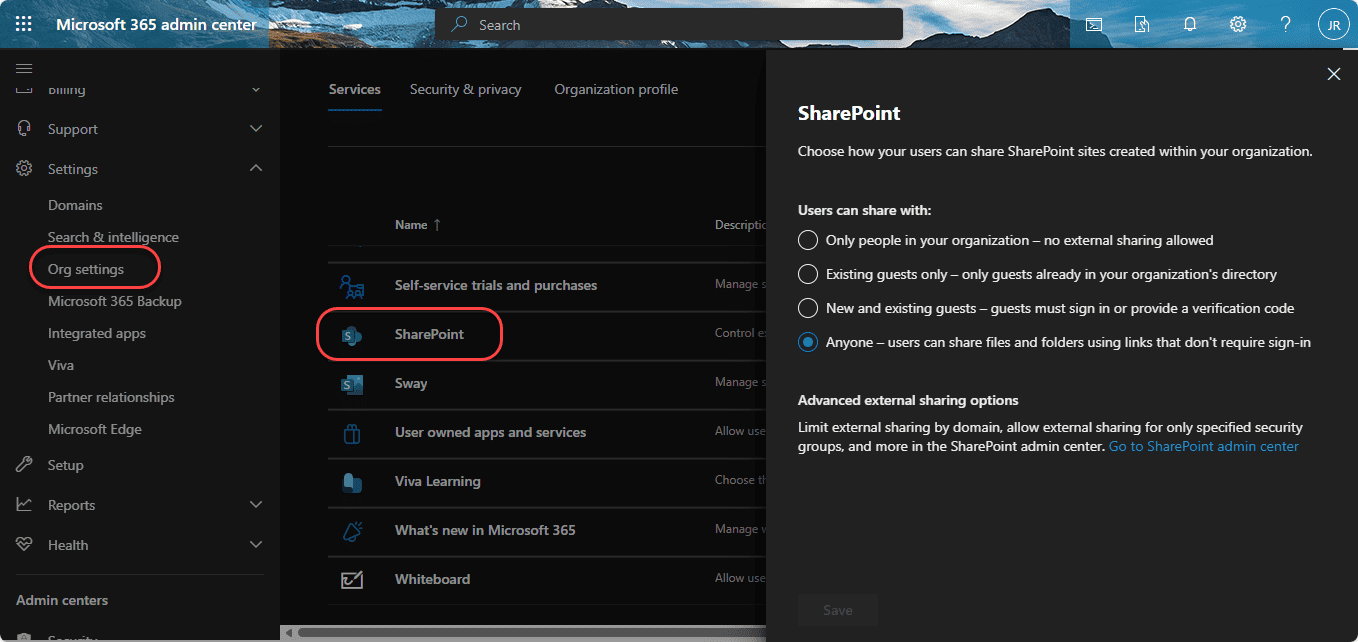
Step 1: Configure Tenant-Level Settings
- Go to Microsoft 365 Admin Center → Settings → Org Settings → SharePoint
- Select the desired sharing level
- Configure expiring access policies
- Enable domain restrictions if needed

Step 2: Configure SharePoint Admin Center Settings
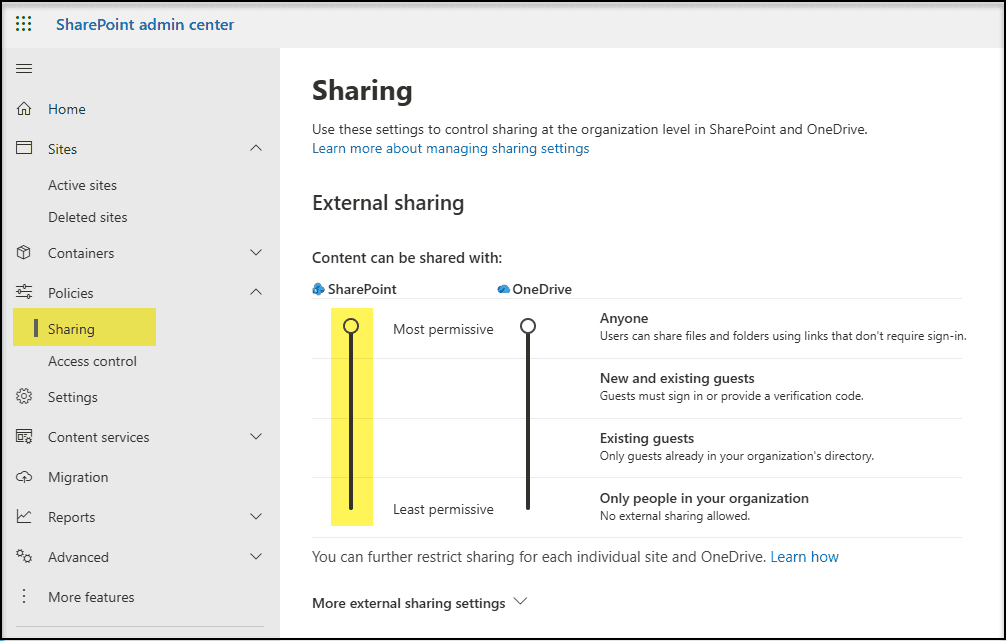
Tenant-level Sharing settings
- Navigate to SharePoint Admin Center → Policies → Sharing
- Set default link settings:
- Specific people
- People with existing access
- Anyone links (if enabled)
Basic Sharing settings in SharePoint Admin Center
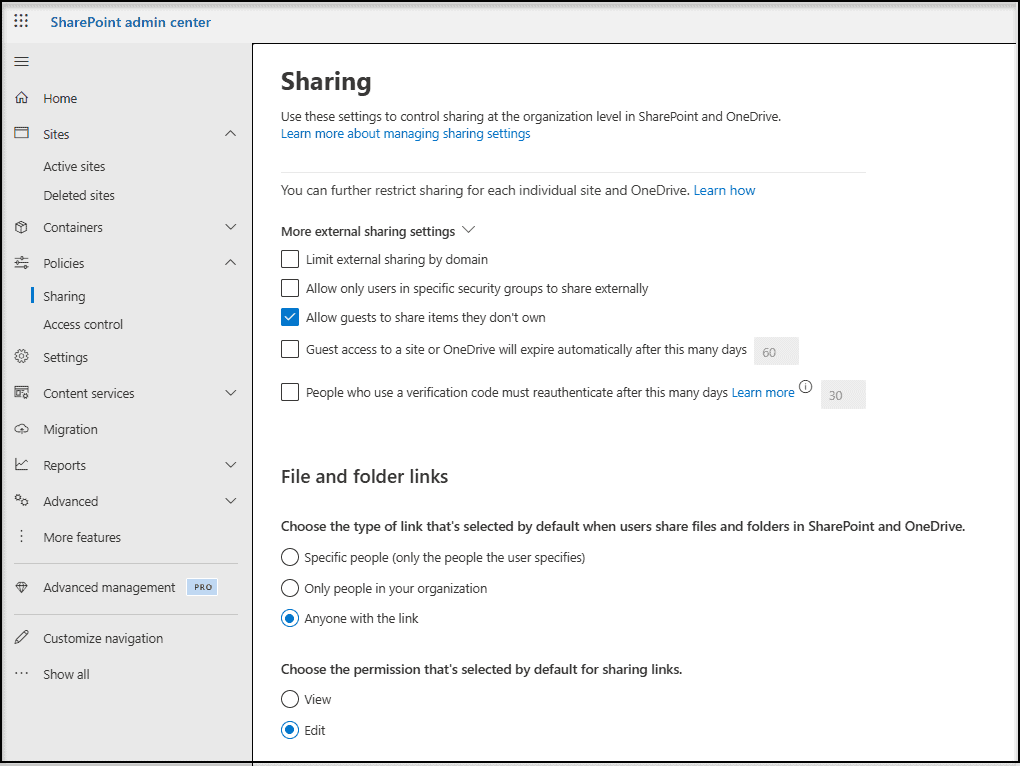
More External Sharing settings
- Configure External Sharing by site
- Enable B2B integration, Access Reviews, and Limit Sharing to Approved Domains
Site-level Sharing settings
- Select the site in Active Sites
- Choose Sharing

- Set the appropriate sharing level- e.g., “New and existing guests”

- Apply sensitivity labels (for MIP-enabled organizations)


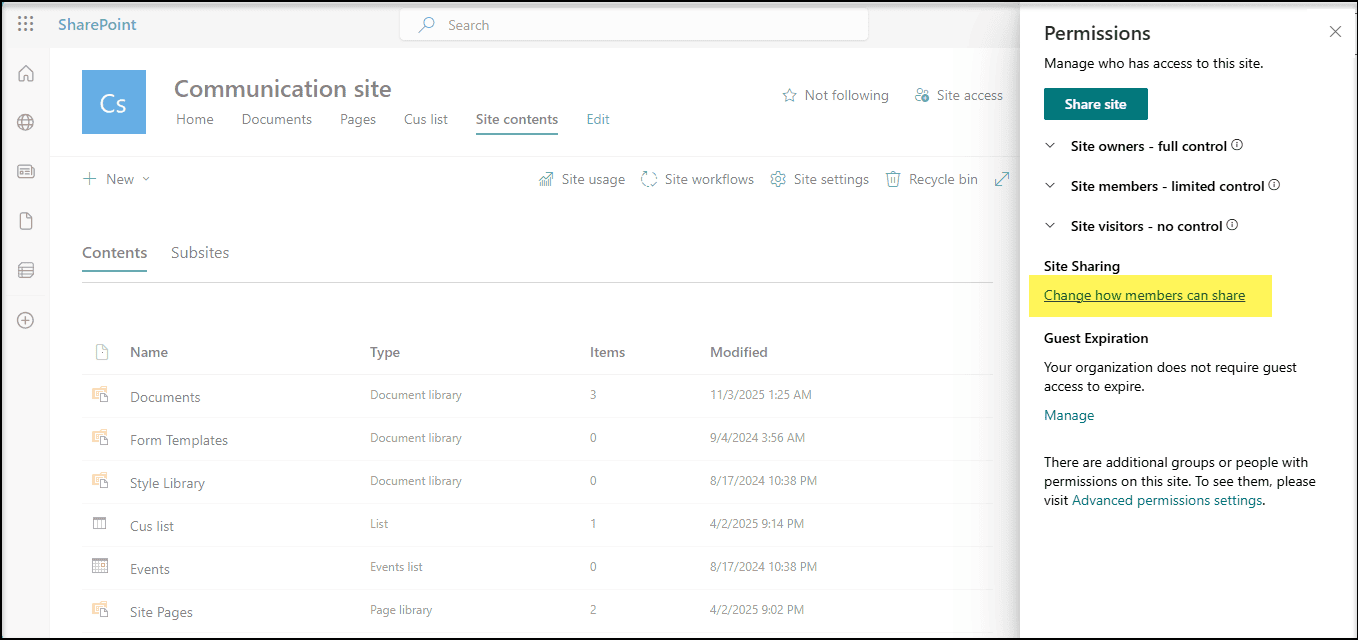
Step 3: Configure SharePoint Site-level Settings
- Open the target SharePoint site
- Click Settings (⚙) → Site settings
- Select Site permissions
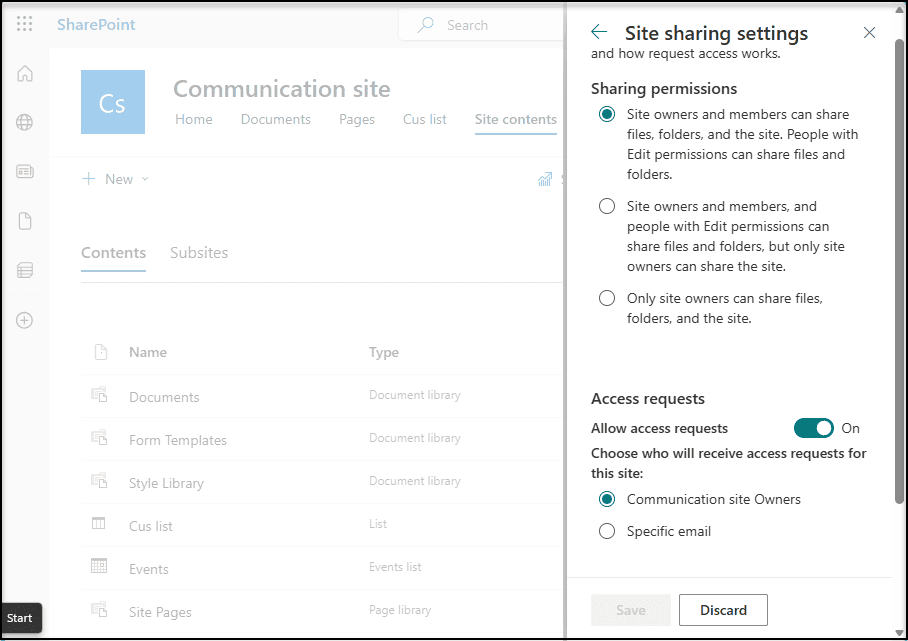
- Choose Change how members share

- Adjust the sharing level
- Click Save

⚠️ This option can be greyed out if restricted by tenant policy, which helps enforce central governance.
Password‑Protected Sharing In OneDrive And SharePoint
Many organizations come from Dropbox or Google Drive, where users expect quick external links, simple passwords, and frictionless file sharing. Microsoft 365 meets these expectations but with stronger governance options tightly integrated into OneDrive and SharePoint.
Password‑Protected Sharing Links
Microsoft 365 supports password-protected sharing links for OneDrive and SharePoint content in select premium paid plans. This feature is especially useful where users want something similar to Dropbox link passwords.
A typical flow involves the below steps:
- Right‑click the file or folder in OneDrive or SharePoint and choose the Share option
- In link settings, select Anyone with the link where policies allow anonymous links
- Enable the option to set a password and define a strong password before applying the settings
- Share the link and password using different communication channels for better security
Recipients must enter the password before they can open the file or folder, providing a second layer of protection on top of access control.
When To Use Password‑Protected Links Versus Specific People Links
While password‑protected anonymous links feel similar to Dropbox links, Microsoft recommends Specific people or guest‑based sharing for most business scenarios. A practical approach is:
- Use Specific people links for customers, partners, and vendors you work with repeatedly
- Use password‑protected Anyone links for limited, short‑term sharing where identity capture is not necessary
- Disable anonymous links for high‑risk content and rely on guest accounts combined with conditional access
This lets you mirror Dropbox or Drive simplicity where needed while still leaning on Microsoft’s richer identity, audit, and compliance features.
Mapping Dropbox Or Google Drive Use Cases To Microsoft 365
| Typical demand from Dropbox or Drive users | Microsoft 365 approach in OneDrive and SharePoint |
| Share a link with anyone and set a password | Use Anyone links with a password in OneDrive or SharePoint, controlled via tenant‑level sharing settings and link policies |
| Limit who can download or copy | Use Block download in link settings and sensitivity labels that restrict download or printing |
| Quickly revoke shared access | Use Manage access to remove links, stop sharing, or downgrade permissions directly from OneDrive or SharePoint |
| Share folders with external collaborators only from one space | Create dedicated SharePoint sites with external sharing enabled and restrict OneDrive from using Anyone links at tenant level |
| See everything shared externally across projects | Use admin center “sharing” reports to surface all shared files across SharePoint and OneDrive |
Additional Security Features That Make External Sharing Safer
✅ Microsoft Information Protection (MIP)
Sensitivity labels in Microsoft Information Protection can enforce multiple protections on content stored in OneDrive and SharePoint. Typical configurations include:
- Encryption at file level
- Restricted sharing to organization‑only or specific external domains
- Download restrictions, watermarking, and limited access from unmanaged devices
✅ Data Loss Prevention (DLP)
Data Loss Prevention policies prevent accidental leakage of sensitive data to external users. DLP can:
- Require justification or approval before allowing certain shares
- Detect sensitive information types, such as financial or personal data
- Block or warn on risky sharing actions
✅ Conditional Access Policies
Conditional Access can enforce controls based on context when external users try to access OneDrive and SharePoint. Typical policies include:
- Requiring compliant or hybrid‑joined devices
- Restricting access from specific locations or regions
- Requiring multi‑factor authentication for guest or high‑risk sign‑ins
✅ Access Reviews and Governance
Access Reviews in Microsoft Entra ID allow periodic validation of guest access. Admins and resource owners can:
- Review which guests still need access
- Remove users who no longer require collaboration
Align external sharing with project timelines and contracts
✅ SharePoint Sharing Audits
All significant external sharing activities in OneDrive and SharePoint are logged for auditing. Using audit logs and sharing reports, you can:
- Track who shared which files with whom
- Identify high‑risk anonymous links
- Correlate events with incident investigations
Best Practices for SharePoint External Sharing in 2026
1. Follow Least-Privilege Sharing
Set SharePoint site-level sharing defaults to “Existing guests only” unless required.
2. Use Sensitivity Labels for Sites
Protect sensitive project sites by tagging them with Private or Confidential labels that restrict External Sharing.
3. Implement Domain Allow/Block Lists
Approve specific partner domains and block free email providers for sensitive data.
4. Use “Specific People” Links
Encourage users to use secure links mapped to authenticated users.
5. Enable Access Expiration
Automatically remove access after project completion.
6. Conduct Regular Access Reviews
Ensure guest access does not persist longer than needed.
Frequently Asked Questions
Yes-when configured with MIP labels, Conditional Access, guest governance, and least-privilege policies.
Eligibility depends on your Microsoft 365 subscription tier and user type:
- Business & Enterprise: Users with Microsoft 365 Business (Basic, Standard, Premium), Enterprise (E3, E5), or Frontline (F3) plans.
- Personal Users: Users with active Microsoft 365 Personal or Family subscriptions.
- Excluded: Users on free or basic consumer Microsoft accounts do not have access to this feature.

















 Migrate
 Manage
 Migrate Microsoft 365








