


Introduction
One misconfigured guest permission can quietly expose confidential files to someone outside your organization, and you may not notice until an audit catches it. According to LicenseIQ roughly 27% of Microsoft 365 licenses are assigned to users who’ve been inactive for 30+ days, and dormant guest accounts are part of that problem, quietly holding on to Teams, SharePoint, and OneDrive access long after their projects end.
If you’re the IT admin or M365 architect setting up Teams governance, this is your problem to solve. This guide gives you the role model, the four-portal configuration sequence, and the post-rollout governance practices to keep external collaboration secure without slowing it down.
- Why MS Teams Permissions Deserve Real Attention
- The Three Teams Roles
- Teams Roles Capability Matrix
- Guest Access vs. External Access – Don’t Mix Them Up
- Configuring External Access (Federation)
- How to Enable Guest Access in Microsoft Teams
- How to Add a Guest to a Team
- Set Guest Permissions for a Specific Team
- Your Content Stays in Your Tenant
- Best Practices for Securing Teams Guest Access
- Simplify Teams Governance with Apps4.Pro
- The Bottom Line
Why MS Teams Permissions Deserve Real Attention
Teams isn’t a standalone app, it also gives users access to services like SharePoint, OneDrive, Exchange, and Microsoft Entra ID. If permissions are set incorrectly, a guest user could see confidential files they should not have access to. On the other hand, if the settings are too strict, team owners will have to contact IT every time they want to add a freelancer or external collaborator.
Microsoft’s answer is a layered model: org-wide policies set the ceiling, team-level roles set the rules inside each team, and channel-level controls handle the edge cases. Once those layers click into place, guest access stops being scary and becomes routine.
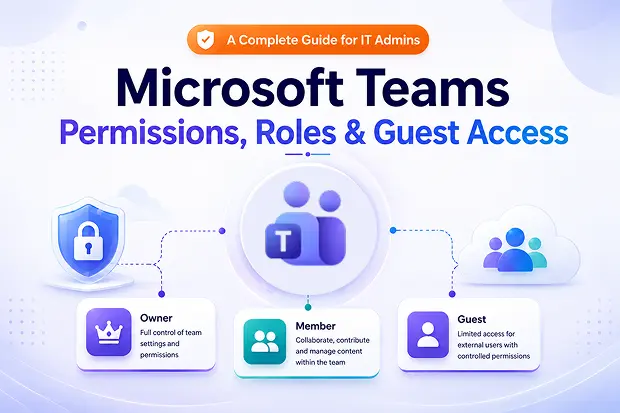
The Three Teams Roles
Every team has three role types. Here’s what each one actually does day to day:
1. Team Owner
Owners run the team. They add and remove members, invite guests, change team settings, set channel and app permissions, and decide whether the team gets archived, renewed, or deleted. Always assign at least two owners – one owner means one point of failure when that person goes on leave.
2. Team Member
Members do the work. They chat in channels and DMs, share files, join meetings, and, if the owner allows it, create channels or add apps. In public teams, they can join freely. In private teams, they need owner approval.
3. Guest
A guest is anyone from outside your organization – a partner, vendor, or client – invited into a specific team. They sign in with their own Microsoft work, school, or personal account through Microsoft Entra B2B collaboration.
Guests can chat, attend meetings, collaborate on channel files, and post messages – almost everything a member can do. What they can’t do: create teams, invite other guests, browse your global address list, or access SharePoint and OneDrive content that hasn’t been explicitly shared with them.
Guest users do not need to have an existing Microsoft account.
Those with a work, school, or Microsoft account can sign in using it. Everyone else can verify their identity using a one-time passcode (OTP) sent to their email and access the invitation without creating a Microsoft account. This OTP method is enabled by default for new tenants, so no additional setup is required.
Teams Roles Capability Matrix
Capability | Owner | Member | Guest |
|---|---|---|---|
|
Create a team |
✅ |
✅ |
❌ |
|
Create a channel |
✅ |
✅ |
✅ |
|
Participate in private chats |
✅ |
✅ |
✅ |
|
Participate in channel conversations |
✅ |
✅ |
✅ |
|
Share channel & chat files |
✅ |
✅ |
✅ |
|
Add apps, tabs, bots, connectors |
✅ |
✅ |
❌ |
|
Add or remove members and guests |
✅ |
✅ |
❌ |
|
Add guests to a team |
✅ |
❌ |
❌ |
|
Edit or delete a team |
✅ |
❌ |
❌ |
|
Set team permissions |
✅ |
❌ |
❌ |
|
Archive or restore a team |
✅ |
❌ |
❌ |
|
Discover and join public teams |
✅ |
✅ |
❌ |
|
View org chart |
✅ |
✅ |
❌ |
Depends on team owner settings (guests can create standard channels only , never private channels). Channel file sharing only – chat file sharing is restricted.
Guest Access vs. External Access – Don’t Mix Them Up
These two names sound similar but solve different problems:
- Guest access in Microsoft Teams invites someone into a specific team. They get a guest account in your Entra ID directory and work alongside your people like a temporary member.
- External access (federation) lets your users find, chat, and meet with people in other Microsoft 365 organizations, without creating any account in your tenant.
Use guest access when an outside person is part of a project. Use external access for ad-hoc chat and meetings with someone you don’t need to onboard.
There’s also a third mode worth knowing: shared channels, powered by Microsoft Entra B2B direct connect. A shared channel lets you collaborate with external people inside a single channel without adding them as guests and without making them switch tenants, useful when the same people from several organizations work together long-term.
Configuring External Access (Federation)
External Access is configured separately from Guest Access.
You can manage these settings by going to:
Teams Admin Center → External collaboration setting → External Access
By default, Open Federation is enabled. Most organizations choose one of the following options:
- Allow all external domains – Users can communicate with people from any external Microsoft 365 organization.
- Allow only specific external domains – Only the domains on your allow list can connect with your users.
- Block only specific external domains – Only the domains on your block list are prevented from connecting.
- Block all – Federation is completely disabled, so External Access will not work.
However, it has a limitation: external contacts cannot access your Teams, files, or SharePoint content. They can only communicate with your users through features such as chat, calls, and meetings.
How to Enable Guest Access in Microsoft Teams
Here’s what trips most admins up: guest access lives across four separate admin portals, and all four have to agree before invitations work. Skip any layer and your invites fail silently. Work through them in order.
Important:
Since February 2021, guest access is on by default for any new Microsoft 365 tenant. Check the toggle before flipping it, you may already be good to go.
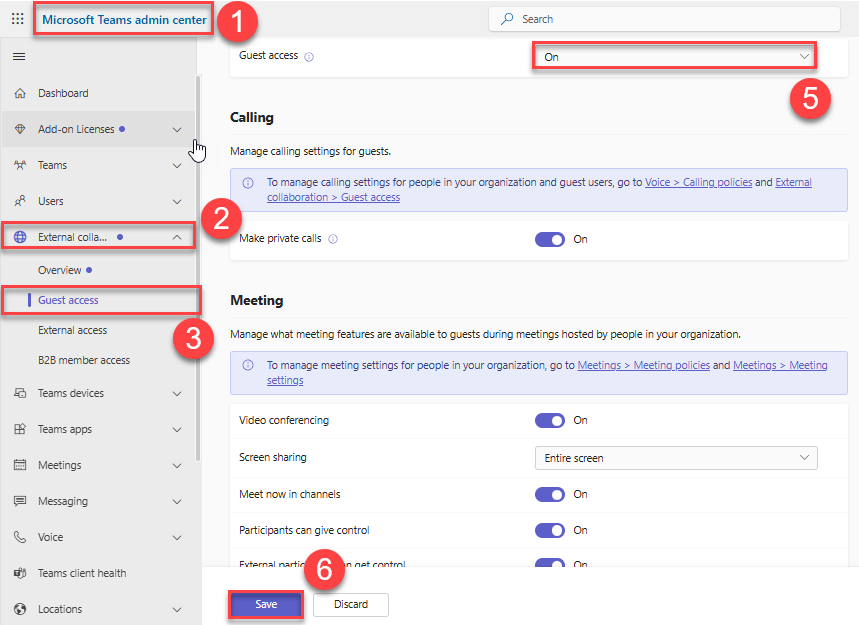
Step 1: Enable Guest Access in the Teams Admin Center
This is the master switch.
- Sign in to the Microsoft Teams admin center.
- Go to External collaboration settings> Guest access.
- Toggle Allow guest access to Teams.
- Scroll down and configure the guest capabilities you want to allow:
- Make private calls
- Video conferencing
- Screen sharing mode
- Meet now in channels
- Edit sent messages
- Delete sent messages
- Chat
- Use Giphys in conversations (and the content rating)
- Use memes in conversations
- Use stickers in conversations
5.Click Save.
- ⏱️ Changes take up to 24 hours to propagate. If users still see “Contact your IT admin,” wait a day before troubleshooting.
Step 2: Configure External Collaboration in Microsoft Entra ID
Guest access rides on Microsoft Entra B2B collaboration, so the directory must allow guests too.
- Sign in to the Microsoft Entra admin center.
- Go to External Identities > External collaboration settings.
- Under Guest user access, pick a level. Most organizations stick with the default “Guest users have limited access to properties and memberships of directory objects.”
- Under Guest invite settings, decide who can send invitations, admins only, members, or anyone.
- Optionally use Collaboration restrictions to allow or block specific domains.
- Click Save.

Step 3: Check Microsoft 365 Group Settings
Every team is backed by a Microsoft 365 Group, so the group layer must also permit guests.
- Open the Microsoft 365 admin center.
- Go to Settings > Org settings > Microsoft 365 Groups.
- Enable both:
- Let group owners add people outside your organization
- Let guest group members access group content
- Click Save.

Step 4: Verify SharePoint External Sharing
Files shared in Microsoft Teams are stored in SharePoint, so this setting determines whether guest users can access and open those files.
Go to the SharePoint Admin Center and navigate to Policies > Sharing. Choose the sharing level that matches your organization’s security requirements:
- Anyone – Allows external sharing with anyone.
- New and existing guests – Allows sharing only with new or existing guest users.
How to Add a Guest to a Team
Once the four layers are aligned, the actual invite takes 30 seconds.
👤 Only team owners can add guests. If you’re an IT admin and not yet an owner of the team, make yourself one first (Teams admin center > Teams > Manage teams), then invite.
- Open Microsoft Teams.
- Pick the team, click More options (…) > Add member.
- Type the guest’s email address.
- Click Edit guest information, enter their full name, and confirm with the checkmark.
- Click Add, then Close.
The guest receives an email invitation. After they accept, allow up to 12 hours for them to fully appear in the team.
Set Guest Permissions for a Specific Team
The org-wide settings define what’s possible. Each team owner can tighten further on a per-team basis – useful when one team works with sensitive partners, and another is purely operational.
- In Teams, click Teams in the left sidebar.
- Find your team, click More options (…) > Manage team.
- Open the Settings tab and expand Guest permissions.
- Tick or untick whether guests can create, update, or delete channels.
For file-level restrictions, configure them in SharePoint, that’s where the guest file permissions live.
Your Content Stays in Your Tenant
With guest access, the data never leaves your control. Guests come to your tenant to collaborate, which means files, chats, and audit logs stay where your security team can see, govern, and protect them. That’s a materially different security posture from emailing files back and forth, and the reason guest access is Microsoft’s recommended path for ongoing external collaboration.
Best Practices for Securing Teams Guest Access
Turning guest access on is easy. Keeping it healthy is where governance happens.
- Apply Conditional Access to guests – require MFA, device compliance, and location restrictions. Treat guest accounts with the same scrutiny as internal ones.
- Use sensitivity labels to enforce encryption and external-sharing rules at the team and file level.
- Run recurring Microsoft Entra access reviews the CIS Microsoft 365 Benchmark recommends reviewing guest users at least biweekly. Scope the review to all Microsoft 365 groups with guest users and enable auto-removal (fail-closed), so access is revoked when reviewers don’t respond.
- Restrict who can invite admins or specific roles in high-sensitivity tenants, delegate invitations through the dedicated Guest Inviter role rather than handing out broader admin rights.
- Maintain a domain allow or block list to prevent invitations to unapproved organizations.
- Document a guest lifecycle – onboarding, review cadence, and offboarding triggers.
- Train your team owners- Team Owners make guest invitation decisions every day. Provide them with clear guidance
Simplify Teams Governance with Apps4.Pro
Permissions at scale break the manual model, especially during tenant-to-tenant migrations or M&A consolidations where 500+ teams move at once. Apps4.Pro Migration Manager migrates Teams across tenants with owners, members, guest accounts, channel structures, and permissions preserved end-to-end.
Result: clean permission boundaries on day one of the new tenants not a six-month backlog of cleanup tickets, and no guest sprawl carried forward.
The Bottom Line
Teams roles, permissions, and guest access are the foundation of secure collaboration in Microsoft 365. Owners govern. Members collaborate. Guests extend your reach to partners and customers, but only when every layer, from the Teams admin center down to SharePoint, is set up deliberately.
Map your policy once, automate the access reviews, and you get smooth external collaboration with a tenant that stays exactly as locked down as you intended.

















 Migrate
 Manage




