


Introduction
Moving a Microsoft 365 tenant is one of the highest-stakes projects an IT team ever runs. Mailboxes, SharePoint sites, OneDrive content, Teams chats, Planner tasks, and Viva Engage communities all carry years of business knowledge – and, increasingly, regulated data. The question is no longer can we migrate it? but can we migrate it without losing control of who can see what?
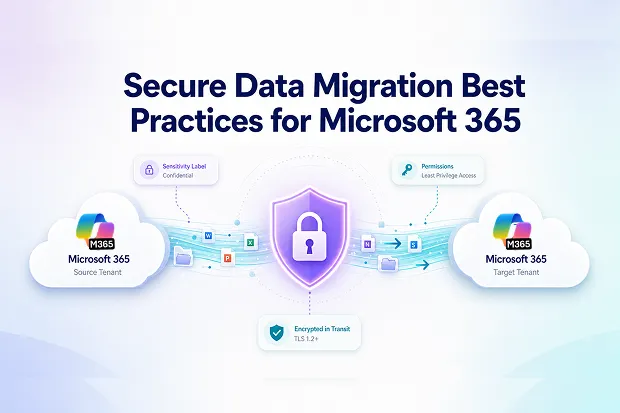
This blog is a practical, end-to-end playbook for secure data migration in Microsoft 365. You will learn what cloud migration data security really means in an M365 context, the seven controls every tenant-to-tenant project should enforce – from least-privilege service accounts to post-migration close-out and how Apps4.Pro builds these controls into the product so your next migration is secure by design, not by accident.
- Why your migration is also a security event
- What “secure data migration” means in Microsoft 365
- Lock down identity before you move a single byte
- Encrypt data in transit and at rest – and verify it
- Preserve sensitivity labels, retention, and DLP
- Map users and permissions with discipline
- Review Sharing Links and Guest Access
- Validate. Then validate again.
- Lock down the cut-over window
- Close the project like a security incident – even when it goes well
- How Apps4.Pro Helps Secure Microsoft 365 Tenant-to-Tenant Migration
- Ready for a migration that is secure by design?
Why your migration is also a security event
A Microsoft 365 tenant-to-tenant migration is rarely just a data transfer; it is a wholesale handover of your organization’s access model. It moves identities, permissions, sensitivity labels, retention policies, shared links, and chat history – every one of them a potential exposure point if it lands in the wrong place. One misconfigured service account or one unverified mailbox can turn a “successful migration” into a confidential audit finding the following week. That is why secure data migration is not a checkbox at the end of a project plan.
What “secure data migration” means in Microsoft 365
When people say data migration security, they usually mean three things at once:
- Confidentiality – only the right people (and the right service identity) can read the data while it is in motion or at rest in the migration tool.
- Integrity – every item that left the source arrives at the target unchanged, with permissions, metadata, and timestamps intact.
- Auditability – you can prove, item by item, what moved, who moved it, and that nothing leaked along the way.
A modern cloud migration data security posture has to cover all three across mail, SharePoint, OneDrive, Teams (channels, 1:1 and group chats), Planner, and Viva Engage. Anything less leaves a gap a compliance officer will eventually find.
1. Lock down identity before you move a single byte
Most M365 migration incidents do not start with a hacker – they start with an over-permissioned account. Tighten identity first.
Use least-privilege service accounts, not Global Admin
It is tempting to grant Global Administrator to the migration account and “deal with it later.” Do not. Instead:
- Create a dedicated migration service account in both source and target tenants – never reuse a human user account.
- Grant only the roles the workload requires (for example, Exchange Recipient Management for mail, SharePoint Administrator for SPO/OneDrive, Teams Administrator for Teams).
- Remove licenses the account does not need; assign them just-in-time if a workload demands one.
- Decommission both accounts the day after sign-off. Document the decommissioning in your runbook.
Prefer app-only authentication with certificates
Where the migration tool supports it, use Entra ID app registrations with certificate-based authentication instead of username and password-based access.
This approach reduces the risk of shared credentials, password leaks, and interactive sign-in issues.
It also creates a cleaner audit trail because migration activity can be traced back to a specific application identity instead of a shared human account.
For Microsoft 365 migrations, app-based authentication also makes it easier to scope permissions based on the workloads being migrated.
Plan around MFA and Conditional Access – don’t disable it
A common shortcut is to disable MFA on the migration account. A better pattern:
- Keep MFA enforced tenant-wide.
- Add a Conditional Access exclusion only for the migration service principal, scoped to the migration tool’s source IP ranges.
- Re-enable the policy as soon as cut-over completes.
This satisfies both your migration tool and your CISO.
2. Encrypt data in transit and at rest – and verify it
Encryption is the table stakes of secure data migration, but the details matter.
In transit
- Insist on TLS 1.2 or higher for every API call between the migration platform and Microsoft 365.
- For tools that stage data, confirm that staging traffic is also TLS-encrypted – not just the Microsoft Graph leg.
- Block any fallback to older ciphers in your tenant’s authentication policies.
At rest
If the migration tool stages content (mail items, files, attachments) before delivery, ask the vendor three questions:
- Where is the staged data hosted (region, data centre, cloud provider)?
- How is it encrypted at rest (AES-256 is the expected minimum)?
- When is it deleted – and can you get a deletion certificate?
A vendor that cannot answer these in writing should not be moving your tenant.
Minimise staging where possible
The most secure byte is the byte that never sits on someone else’s disk. Prefer tools that perform direct API-driven transfers between source and target tenants, with any processing kept within certified Azure infrastructure. The less time your data spends parked in a third-party intermediate store, the smaller the window for accidental exposure, vendor breach, or compliance drift.
3. Preserve sensitivity labels, retention, and DLP
Microsoft Purview sensitivity labels, retention labels, and DLP policies are how your organisation declares what data is sensitive. A migration that drops or rewrites those classifications is, by definition, a security regression.
Best practices:
- Inventory every label and retention policy in scope before kick-off. Export them to a spreadsheet and treat it as a deliverable.
- Choose a tool that preserves sensitivity labels at the item level – including encrypted/MIP-protected mail and SharePoint files.
- Reapply DLP policies in the target tenant before users get access, not after.
- For regulated workloads (HIPAA, GDPR, ISO 27001), run a sample-set verification after migration: pick 25–50 items and confirm labels, retention, and access still match the source.
4. Map users and permissions with discipline
Inaccurate user mapping is one of the most common ways migrations leak data – a file that was visible to “Finance” at the source ends up shared with “All Employees” at the target.
Discipline that pays off:
- Build a single mapping spreadsheet (source UPN → target UPN) and treat it as the source of truth. Apps4.Pro generates these automatically and lets you review before run.
- Re-validate mapping after any tenant change (new hires, leavers, domain renames) right before each migration wave.
- Migrate Microsoft 365 groups, distribution lists, and Teams memberships before their content – so files and chats land with the correct ACLs from the first second.
- Treat external/guest users as a separate cohort. Decide explicitly whether they re-onboard, re-share, or stay external in the target.
5.Review Sharing Links and Guest Access
Shared links can easily create access risks during a Microsoft 365 migration.
Before cutover, review old SharePoint and OneDrive links, guest users, external collaborators, Teams with guests, and private or shared channels with external members.
Do not move every old sharing relationship by default. Some links should be recreated, some should be restricted, and some should be removed.
For sensitive sites, use migration as a chance to confirm who still needs access based on current business need, not past sharing history.
6. Validate. Then validate again.
You cannot claim “zero data loss” without proof. A defensible validation programme has three layers:
|
Validation Layer |
What It Checks |
Example Validation |
|---|---|---|
|
Counts |
Mailboxes, folders, files, sites, teams, and items match between source and target |
Migration reports |
|
Content |
Sample mails, files, chats, attachments, and documents open correctly |
Admin and user spot checks |
|
Permissions |
Owners, members, guests, groups, and sharing access are correct |
ACL and membership review |
|
Behaviour |
Users can open, edit, search, share, send, and receive as expected |
UAT testing |
Every migration wave should produce a report.
Skipped items, throttled retries, unsupported objects, failed permissions, or unresolved mappings should be documented and reviewed before sign-off.
A migration with clear exceptions is auditable.
A migration with vague “looks fine” validation is not.
7. Lock down the cut-over window
The cut-over is when cloud migration data security is most fragile – both tenants are live, mail can split, and users are anxious. Reduce risk with a tight runbook:
- Freeze non-essential changes (no new users, no new sharing) for 24–48 hours around cut-over.
- Use mail routing (shared SMTP namespace, secondary domains) to keep delivery intact during MX swap.
- Disable external sharing in the target until UAT passes; re-enable per site, not tenant-wide.
- Keep a rollback decision tree in the runbook. Knowing when not to roll back is as important as knowing how.
8. Close the project like a security incident – even when it goes well
A clean migration deserves a clean close-out. Within five business days of go-live:
- Revoke the migration service account and app registration. Save the audit log.
- Re-enable Conditional Access and MFA policies you scoped down for the project.
- Archive the mapping spreadsheet, validation report, and runbook in a retention-protected library.
- Run a final Purview audit search to confirm no migration-tool activity is still hitting either tenant.
How Apps4.Pro Helps Secure Microsoft 365 Tenant-to-Tenant Migration
Apps4.Pro Migration Manager is designed to support secure Microsoft 365 tenant-to-tenant migrations across workloads such as Exchange Online, SharePoint, OneDrive, Teams, Planner, Power BI, Forms, Power Automate, and Viva Engage.
Instead of treating security as a post-migration checklist, Apps4.Pro helps teams build security into the migration process.
Key security-focused capabilities include:
- ISO 27001 certified information security practices, with ISO 27701 alignment
- App-based authentication options using Entra ID app registrations
- Workload-aware permission handling to avoid unnecessary broad access where possible
- TLS-encrypted migration communication
- Microsoft Graph API-based migration approach across supported workloads
- Permission, metadata, and structure preservation across Microsoft 365 workloads
- Support for Teams 1:1, group, and meeting chat migration
- Migration reports to help validate results and support audit review
- For customers with EU data residency requirements, Apps4.Pro supports an EU-only processing option, with processing handled in Microsoft Azure EU regions under the applicable DPA.
- Apps4.Pro is built for IT teams that need more than a simple copy tool.
- It is designed for migration projects where security, validation, permissions, and workload continuity matter as much as speed.
Ready for a migration that is secure by design?
Apps4.Pro Migration Manager helps IT teams move Microsoft 365 workloads with secure authentication, permission-aware migration, validation reports, and audit-ready tracking.
Whether you are planning a merger, divestiture, tenant consolidation, or multi-workload Microsoft 365 migration, Apps4.Pro helps you reduce risk before, during, and after cutover.
Start your 15-day free trial or talk to a migration expert to plan a secure tenant-to-tenant migration.
Migrate with confidence. Not risk.

















 Migrate
 Manage
 Migrate Microsoft 365








